Give Ubuntu The Android ICS 4.0 Look With Ice Cream Shell
We previously brought you a guide for transforming your Windows 7 desktop to give it the Android look. Recently, a new Gnome shell theme was released to make Ubuntu look like Android 4.0 ICS, known as the Ice Cream Shell. It is a Gnome Shell theme that has been based on the default Android 4.0 theme. In this post, we will walk you through the process of installing this theme.
To get started, download and extract the Roboto font and Ice Cream Shell (download link given at the end of this post). Now, install the Roboto font, followed by the User-Theme GNOME Shell extension, from the PPA given below.
sudo add-apt-repository ppa:webupd8team/gnome3
sudo apt-get update
sudo apt-get install gnome-shell-extensions-user-theme
Once done, hit Alt+F2 or log out and log back in to apply the changes. You will require the Gnome Tweak Tool to apply the Ice Cream Shell. If you do not have the Gnome Tweak Tool installed, then you can grab it from the Ubuntu Software Center or by entering the below Terminal command.
sudo apt-get install gnome-tweak-tool
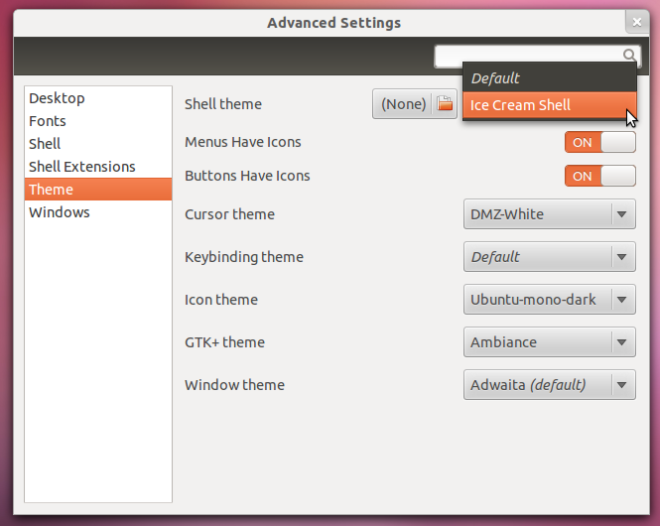
After launching the Gnome Tweak Tool, you will require turning on the User Themes Extension from Shell Extension. After enabling the user themes extension, head over to the Theme section and select Ice Cream Shell. Also download and set the Android wallpaper (link given at the end of this post).
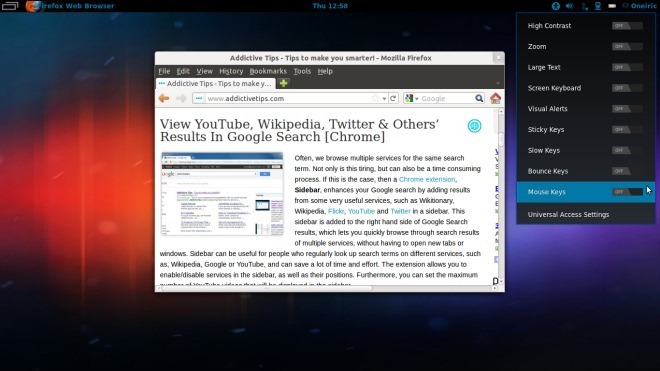
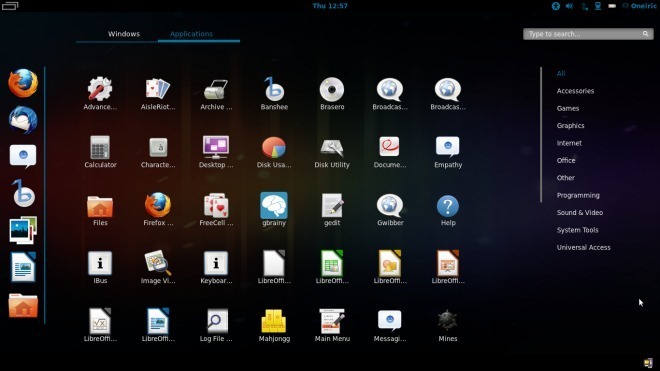
This will give your Ubuntu Gnome desktop the Android 4.0 ICS look. The below screenshots demonstrate the UI of the Ice Cream Shell.
(https://www.deviantart.com/users/outgoing?https://bandbinnovations.com/xda/Roboto-Fonts.zip) Download Roboto Font
(https://tmari0.deviantart.com/art/Ice-Cream-Shell-277792392) Download Ice Cream Shell
(https://www.addictivetips.com/app/uploads/2012/01/ICS.jpg) Android ICS 4.0 Wallpaper 1

Thanks… It looks great..
you need to change how you log into the machine, at the log in screen click the gear and select the gnome option, not the ubuntu one, works for me
the problem for me, and probably for everyone else, is that this article doesn’t specify that you need to change the options before you even log in
That is suppose to be basic common sense as this is a “Gnome Shell Theme” and not a Unity theme.
so for those of us w/o common sense, Jake’s bit of info is definitely helpful
the problem for me, and probably for everyone else, is that this article doesn’t specify that you need to change the options before you even log in
you need to change how you log into the machine, at the log in screen click the gear and select the gnome option, not the ubuntu one, works for me
Have the same problem.. nothing is shown after clicking Shell Extensions
Are you using Gnome 3?
Also make sure that you install “User-Theme GNOME Shell extension”. See the given PPA and follow the guide in exact sequence.
Help, nothing is shown after clicking Shell Extensions.
Nothing is shown after clicking Shell Extensions.