Microsoft Office Outlook 2010 Backup
Outlook 2010 is the next big desktop mail client from Microsoft. It has been vastly improved and is faster, more feature-rich than before. When it comes to protecting your Outlook data, it is important to understand the difference between your mail data and your mail profile. Your Outlook data — email, contacts, calendars, and tasks — is stored in a PST file that you can back up and move between installations. Your mail profile and account settings (server addresses, passwords, send and receive options) are separate and will typically need to be recreated or reattached when you move to a new PC or reinstall Office. Backing up your PST file protects your data; it does not automatically carry over your account configuration.
Another benefit is that you can make a backup of Outlook 2010 just like you can make backup of Outlook 2007 quickly using various tools.
Recently in my last post, I reviewed MailBrowserBackup. A free utility that allows users to make backup of various desktop mail clients, such as, Windows Mail, Windows Live Mail, Mozilla Thunderbird, and Outlook 2003/2007.
What I discovered was that you can also make a backup of Outlook 2010 as well, by selecting Outlook 2003/2007 profile.
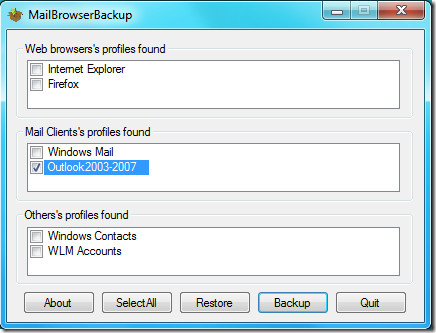
To test it, I first saved a draft mail in my default Outlook 2010 profile and then used this tool to make a backup. Later I removed the draft and used this tool to restore the backup. Lo and behold the draft was back in it’s full form. Go ahead and give it a try, kudos to the developer for making an awesome utility.
Account-type caveats before you back up Outlook 2010
Before you back up, it helps to know what kind of email account you are using, because that determines where your data actually lives.
- POP accounts download mail from the server and store it locally in a PST file on your PC. A PST export will capture this mail reliably.
- IMAP and Exchange accounts keep the master copy of your mail on the server. Outlook stores a local cache in an OST file, but an OST is not a portable backup — it is a temporary offline copy tied to your specific profile and cannot simply be copied and reopened elsewhere.
Even if you use IMAP or Exchange, you may still want a PST export to archive old mail, back up local contacts and calendars, or migrate data to a new PC. The key thing to know is that only items already downloaded to your local Outlook cache will be included in the export. If Outlook has not fully synced, some newer items may be missing. Let Outlook finish syncing before you start the export to make sure you capture everything.
Update: How to back up Outlook 2010 using the built-in Export tool
You can back up Outlook 2010 without any third-party software by using the built-in Export to PST feature. Here is the complete step-by-step process:
- Open Outlook 2010 and click the File tab in the top-left corner.
- Click Open in the left-hand menu, then click Import.
- The Import and Export Wizard will open. Select Export to a file and click Next.
- Select Outlook Data File (.pst) and click Next.
- In the folder list, select the account or top-level folder you want to back up. To capture all mail, contacts, and calendar items together, click the top-level entry for the account (usually your email address).
- Make sure the Include subfolders checkbox is ticked. This ensures that all folders beneath the one you selected — including Inbox, Sent Items, Contacts, Calendar, and any folders you have created — are included in the backup.
- Click Next. On the next screen, click Browse to choose where to save the PST file and give it a descriptive file name (for example, Outlook2010-Backup-2024).
- Choose how duplicates should be handled: Replace duplicates with items exported, Allow duplicates to be created, or Do not export duplicate items. For a clean backup, the default option works fine for most people.
- Click Finish.
- Outlook will prompt you to optionally set a password to protect the PST file. If you are storing the backup on a shared drive or an external device that others could access, entering a password here is a good idea. If you prefer no password, simply leave both fields blank and click OK.
The export will run and your PST backup file will be saved to the location you chose. Note that Outlook exports one account at a time, so if you have multiple accounts set up, repeat these steps for each one.
To learn more about Importing And Exporting Outlook 2010, go here.
What an Outlook 2010 backup includes and what it does not
When you export to a PST file with Include subfolders selected, the backup captures:
- All email messages and their attachments
- Contacts
- Calendar appointments and meetings
- Tasks
- Notes
- Any custom folders you have created inside the account
Importantly, a PST export makes a copy of your data — it does not remove anything from Outlook. Your original mail stays exactly where it is.
However, a PST export does not capture everything. The following are not included:
- Email rules and filters
- Folder views and custom folder properties
- Shared folder permissions
- Blocked senders and safe senders lists
- AutoArchive settings
- Account settings and server configuration (these live in your mail profile, not the PST)
It is also worth repeating that OST files — the offline cache files Outlook creates for Exchange and IMAP accounts — are not a substitute for a PST backup. An OST is tied to a specific profile and installation; it cannot be simply copied and opened on another machine the way a PST can.
How to restore, import, or move the backup to another PC
Once you have a PST backup file, there are two ways to use it in Outlook 2010 or a newer version of Outlook.
Option 1 — Browse the backup without importing it (non-destructive)
This lets you open the PST file alongside your existing mailbox so you can browse and copy items from it without permanently merging everything into your account.
- Click the File tab, then click Open.
- Click Open Outlook Data File.
- Browse to the PST file and click Open.
The backup will appear as a separate folder set in the Outlook navigation pane. You can drag individual emails, contacts, or calendar items across to your active account as needed.
Option 2 — Fully import the backup into your current account
This merges the contents of the PST into your active Outlook profile.
- Click the File tab, then click Open, then click Import.
- In the wizard, select Import from another program or file and click Next.
- Select Outlook Data File (.pst) and click Next.
- Browse to the PST backup file and choose how duplicates should be handled.
- Select the folder to import into and click Finish.
Moving to a new PC or a newer version of Outlook
If you are replacing a PC or upgrading to a newer version of Outlook, simply copy the PST file to the new machine (a USB drive or cloud storage works well). Then use either option above to open or import it in Outlook on the new PC. Because contacts and calendar items travel inside the same PST when you export from the top-level account folder with subfolders included, you do not need separate backup files for different data types — one PST covers everything.
Enjoy!

Beside saving pst files I use an external Backup tool to save my Outlook 2010 (http://www.lookeen-backup.com) Ok it is not for free, but it has the advantage that you can save everything with it even outlook option and it is very easy to use.
I think this solution is not for everybody, but for those who wanted a save and easy backup solution I can recommend a backup tool like this.
@Anupam – Try free EZ eMail Backup 2.0
It works for me. Backup everything in outlook. Great for OS reinstallation.
Sir, Thanks for this wonderful article but my problem is I manage 22 email accounts (all in different pst files) via MS Outlook 2010 and every time I change my OS or setup my windows from scratch I hv to save each pst in safe place and write down each a/c password…
and while restoring , i hv to create each account manually and connect each pst file to its corresponding account… which takes a lot of time…
I’m still in search of a solution (rather free or cheap) which can do all that for me in just two clicks (one for backup and the other for restore)
Can u suggest one….
Please ask this question over at Office 2010 Club and the experts will be able to help you out: http://www.office2010cub.com/
@Anupam – Try free EZ eMail Backup 2.0
It works for me. Backup everything in outlook. Great for OS reinstallation.