How to find duplicate values in Microsoft Excel: 3 Methods to Try
Microsoft Excel can recognize data for what it is: currency, numbers, string values, dates, and more. You can apply different formulas based on what a value is recognized as. Excel can also tell when a value is repeating in a given data set. If you need to, you can find duplicate values in Microsoft Excel, and delete them. The highlight and delete functions are separate so if you only need to find duplicate values, but not delete them, you can do that as well.
There are various formulas and features that help Excel users find duplicates and remove them. Continue reading to learn which trick is right for you.
Find Duplicate values in Excel with Conditional Formatting
The easiest and most intuitive way to locate duplicate entries in an Excel workbook table or data range is through the application of the conditional formatting function:
- Open the Excel file that you want to scan for duplicates.
- You can scan an entire sheet, or a few select cells.
- Select the rows and columns that you want to find duplicate values in.
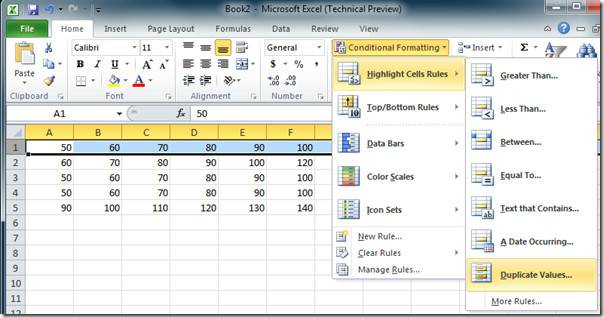
- On the Home tab, go to Conditional Formatting>Highlight Cells Rules>Duplicate Values.

This will highlight all duplicate values in the selected rows and columns, and it will also open a little window that lets you choose what color the duplicate values are highlighted in. You can choose one of the default color schemes or you can create your own scheme by selecting the Custom Format option from the ‘Value with’ dropdown. You can set the cell font color, fill color, and border color and style when you create the custom format.

Delete Duplicate Values in Excel
If you decide the duplicate values need to go, you can manually delete them, or you can have Excel purge them for you. If you are also cleaning up a worksheet, you may want to remove blank Excel rows after clearing duplicates.
Select the row or column that you want to remove duplicates for. Unfortunately, you can only delete duplicates from one row or one column. Go to the Data tab and click the Remove Duplicates button.

If you select multiple columns, or multiple rows, Excel won’t find any duplicates. This is because when it comes to deleting them, it looks at values as a whole data set. A value may be repeating itself in a cell but the values in the row above/below it, or in the column on the left/right side might have a different value making it unique.
To understand this, consider that you have a table with the names and birth months of fifty people in it. It goes without saying that you will have duplicates in the birth month field however, the name accompanying the birth month is what makes it a unique data point which is why Excel will not delete it.
Find Duplicates using the COUNTIF Formula in Excel
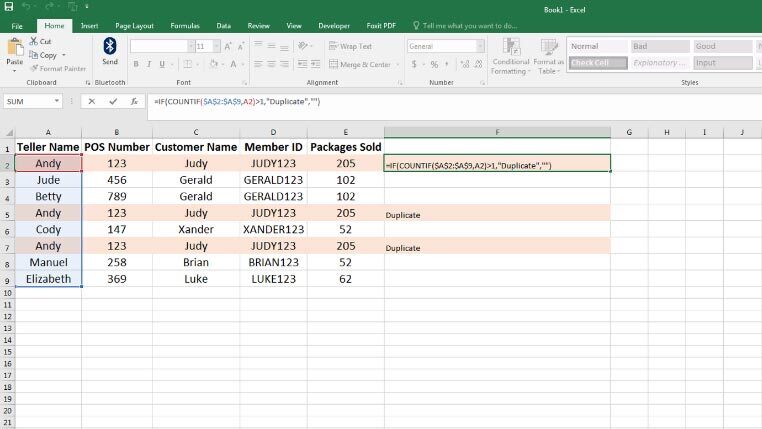
We can also utilize the COUNTIF function to detect duplicate entries in an Excel table or cell range. You’ll also need to use the IF function for logical test and for excel to indicate “Duplicate” beside the relevant cells or rows. Find the steps below:
- You need to apply a formula to a data range or a data column.
- If the chosen cell range is part of a table, then this test also lets you find duplicate rows.
- Apply the formula mentioned below. You can make amendments depending on your datasets:
=IF(COUNTIF($A$2:$A$9,A2)>1,"Duplicate","")
- Copy-paste this data to any column that’s on the right side of the target data.
- Now, copy the formula on all the cells according to the height of the target data range.
- Hit Enter to see the duplicate values.
- You can now mark the entire row as duplicate.
Find Duplicates in Rows in Excel
Another fast and automatic conditional formatting trick that you can apply in your workbook to let Excel find duplicates in the rows of data is:
- Select the data source where you suspect there will be duplicate rows.
- Click on Conditional Formatting in the Styles section of the Home menu.
- Now, select New Rule.
- Click on Use a formula to determine which cells to format.
- Copy-paste the following formula. Make changes according to your own data.
=COUNTIFS($A$2:$A$9,$A2,$B$2:$B$9,$B2,$C$2:$C$9,$C2)>1
- Hit Enter, and Excel will highlight all the duplicate rows.
Excel 2010 Duplicate and Unique Values
Find Duplicate Values in Excel 2010
After you have entered all values, select the columns and rows in which you want to search for duplicate values. You can select multiple columns and rows by holding down Ctrl key and then clicking them. When done, click Conditional Formatting under Home tab, select Highlight Cells Rules and finally select Duplicate Values.
Next, select the color in which you want the duplicate values to be highlighted in and hit OK.
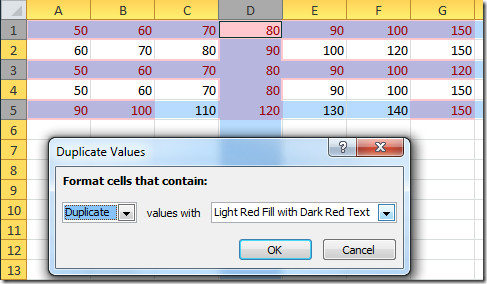
Now all duplicate values will be highlighted and it will become far easier to read the spreadsheet and find some mistakes(if any).
Find Unique Values in Excel 2010
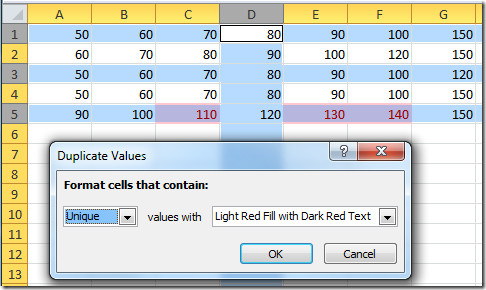
As a bonus tip, you can also find Unique values and highlight them. Simply select Unique from the drop down menu, select the color of highlighting and hit OK.
Excel 2010 Remove Duplicates
All it takes is two simple steps. The best part is that you don’t need to select any specific row before removing the duplicate rows, the built-in Remove Duplicate feature takes care of it.
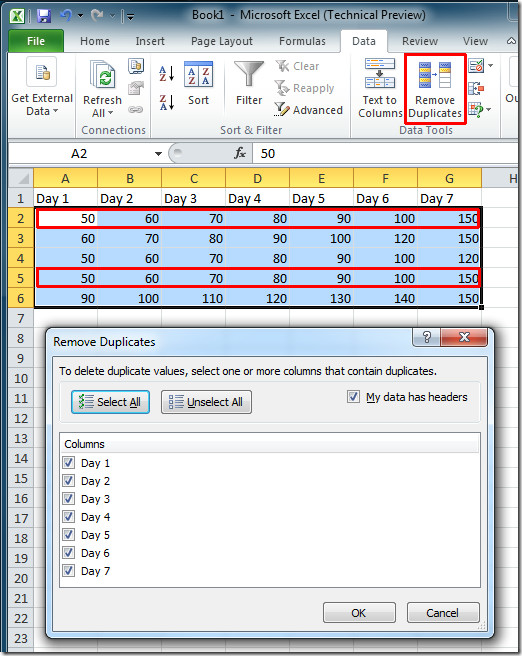
For demonstration purpose I created a quick data table, note that rows 2 and 5 have same values.
- Head over to the Data tab and click Remove Duplicate button.
- This will open a dialog window where you can select the columns from which you want to delete the duplicate values.
- If you want to get rid of all duplicate columns in an excel spreadsheet, click Select All, so that all columns are selected and then click OK.
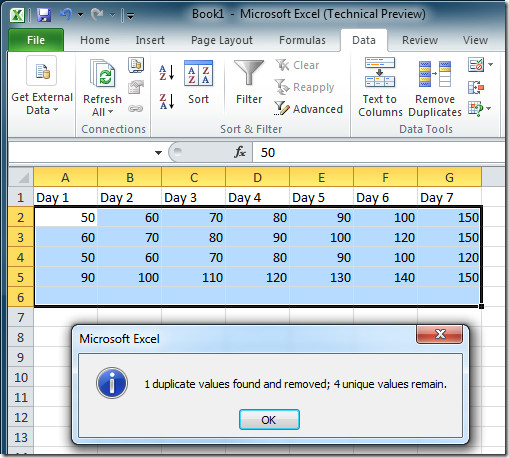
After the process is complete, you will be shown a notification window with the results. Note in the screenshot below that the duplicate in row 5 is removed.