Smart Folders For Windows [AddictiveTips Apps]
Do you want to get iOS and Android folder creation functionality in Windows, where folders can be created using simple drag & drop of one app over another? Although Windows 7 has a ton of highly interactive and user-friendly features, the method of creating a folder remains the same to what we saw back in Windows 98, requiring you to create a separate folder, and then put files into that folder by hand. Today, AddictiveTips brings you Smart Folders to save you not only the time, but also the effort, involved in organizing files into folders. It’s a free application for Windows that lets you create folders via simple drag & drop of file(s) over another.
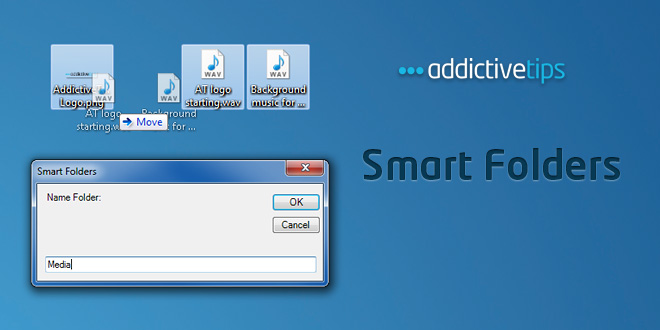
It will help you quickly organize images, documents, audio files etc., into folders, without having to go through the hassle of creating separate folders prior to moving the files. All you need is to drag the file(s) on top of another file, and the application will ask you to enter the name of the folder that you want to create. Once specified, a folder will be created in the same location and the files automatically added in it. When you run the application for the first time, click Install to register the file extensions.
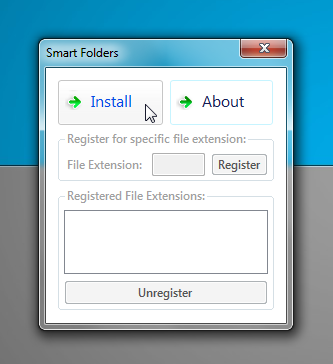
Once done, you can start creating folders. The app is registered for all extensions by default, but since Windows and some other apps register themselves for specific file extensions, you may have to perform some manual associations. To register manually, enter the file extension and click Register.
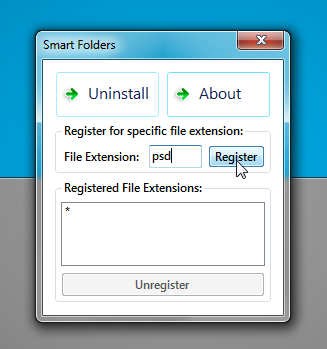
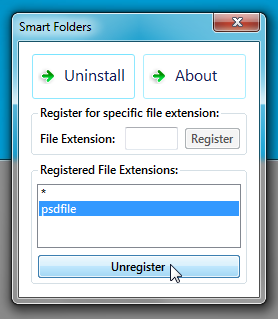
It will add the specified file type in Registered File Extensions list. When you want to unregister a file type, select it from the list, and the click Unregister.
You can drag multiple files over any file to quickly group them up in a folder.
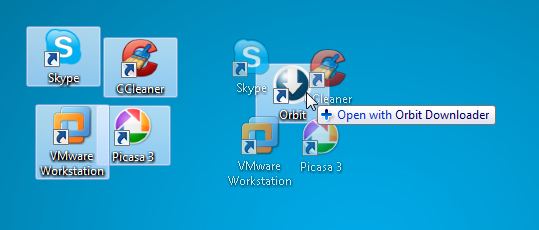
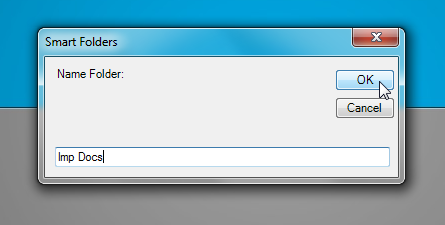
When you drag the file over another, it will ask you to specify the output folder name. Just enter the name and then click OK to create folder in current location.
The screencast below will help you better understand its usage.
The application can be uninstalled using the Uninstall option available on main interface. It will unregister all the file extensions, and then remove the application. Smart Folders works on Windows 7, Windows Vista and Windows XP. Both 32-bit and 64-bit OS are supported.

Great app!
Great app!
It would be great for me if the new folder name defaulted to the base name of the file receiving the drop.
yes, but if you have multiple images from diffrent places say “London” then it would rename the folder London if it was the first but might contain other images not associated with “London” at all. I see what you mean though, but not practical unless all images are of the same category you’d like the folder named for.
What I meant was that the folder name in the dialog box should *default* to the first file’s base name. You would still be able to change it if that wasn’t suitable. Perhaps it could be a configuration option?
muchas gracias amigos 🙂
Quit being lazy and just make a folder and drag your files lol
the idea is not having to…this is much easier
It’s really useful!! Thank u!!
Nice !
Nice Thanks
Me a gustado un montón enhorabuena por el gran trabajo
Note: All of the AD download buttons are x100 times larger than the one you are actually looking for.
need a portable version..can you put it out???
It’s not possible. All shell extensions need to registered in the registry.
Works perfectly for me in Windows 7 64-bit. Thanks!
How to uninstall this program? I can’t use RocketDock and other programs in my Windows 7.
Run the downloaded file again and click Uninstall. If you can’t see that, download the app again and try. I messed it up in the first update (to fix buttons in XP) and fixed it again in the second update.
BTW, it works for me while using RocketDock. What problem do you have?
works with Rocket Dock perfectly well, do you have the latest versions of both?
Same thing can be achieved by “File 2 Folder”… and without the hassle of registering one by one extension!
This app is faster. File 2 Folder requires 3 clicks whereas this app requires only 1 click. Also that app doesn’t work in x64.
It doesn’t require 3 click at all since it’s not accountable the registry registration which each application has to perform! Beside that what I was stressing about was that you don’t register ANY extension! Try first Files2Folder indeed and see what I mean.
Aside from all of the above Files2Folder is PORTABLE and need not to be installed like “SmartFolders” does!
Has I made myself clear or will we keep up contradicting each other on different things?!
No, you are getting it wrong. Files2Folder and Smart Folders are both shell extensions; one is a context menu handler and the other is a drop handler. All shell extensions need to registered in the registry. There can UNLIMITED no. of context menu handlers for a file extension whereas there can only be ONE drop handler for a file extension. This app registers itself for all extensions (Check HKEY_CLASSES_ROOT*DropHandler) but Windows and some third-party apps register themselves for specific extensions (Check HKEY_CLASSES_ROOTexefileDropHandler and HKEY_CLASSES_ROOTbatfileDropHandler). The precedence of any extension is more than * (HKEY_CLASSES_ROOT*DropHandler). So, users have to register only SOME file extensions manually like lnk, exe etc. using the installer. Once configured, it’s ready to use.
Same thing can be achieved by “File 2 Folder”… and without the hassle of registering one by one extension!
It worked fine on windows 7 but I couldn’t get it to work on my wifes XP computer.
Update: I got it to work on XP ( I logged off and tried it again) but even after registering ink and exe file types, it merges shortcuts instead of creating a folder containing the shortcuts.
Update2: RAR files don’t work, they merge too.
Thanks for the feedback. We’ll see what we can do about it.
You have to register the lnk (LNK) file type, not the ink (INK) file type to make the app work properly with shortcuts.
If you using WinRAR, merge this registry script: http://dl.dropbox.com/u/4024184/Fix%20WinRAR.reg
It will fix the problem with RAR files.
Nice app, works perfectly and pretty useful when you need to organize!! Thanks!!
Glad you liked it 🙂
Nice app, works perfectly and pretty useful when you need to organize!! Thanks!!
Also thats what
the app looked like http://minus.com/mVuFCJUnd#1
The buttons are not visible but you can click on them.
Rest is fine, great new app.
Will fix it in the next update.
Fixed. Please download again and confirm.
Could not understand the purpose of this app by the video alone.
No, doesn´t work at all. Not in Vista & not in 7.
Any error popped up?
Our screencast was prepared on a test system, and we can testify that it does, in fact, work 🙂
works great for me!!
Awesome and very useful app. Thanks for releasing it. 🙂
Thanks!
To make the program work correctly with shortcuts, register the lnk file type. I also recommend to register for the exe and bat files types.
Nice Thanks