How To: Use Odin To Upgrade Samsung Galaxy S GT-I9000 To Froyo
Samsung’s flagship handset, the brilliant Galaxy S GT-I9000, has been on the unlucky end when it came down to receiving the official Froyo update, something that has been promised again and again, and delayed likewise. A couple of weeks back users in the Nordic region were lucky enough to see official Froyo updates through their Kies software. At the same time Samsung announced that the Froyo rollout will be complete to all users everywhere by the end of November. Recently European users and those in the United Kingdom have also seen the ‘frozen yogurt’ trickling through Kies, with two firmware variants, XWJPA and XXJPO.
If you’re not in one of the above-mentioned regions, you’ll probably need to hold off the update. This guide aims to cover the process of flashing any firmware through the software Odin, using the latest I9000XXJPO Froyo firmware (official for UK) as reference point.
First, let’s look at the prerequisites. The approach to flashing a leaked Froyo firmware via Odin depends on quite a few factors, the foremost being the current firmware you’re on. If you’re coming from Éclair (Android 2.1), you can save yourself one step. Otherwise if you’re already on a leaked Froyo version, you’ll need to go back to Éclair and then flash Froyo.
IMPORTANT – MUST READ
Before you begin with the flashing process, make sure that you:
- Do not have any lagfix applied
- Phone battery is fully charged
- SIM and microSD cards are removed
- Phone is unlocked (no SIM lock present)
- If you’re upgrading from an Éclair firmware, never restore any data backups
We strongly urge you to read through the whole guide first before attempting any of this.
Sticking to our reference firmware, here are the items that you need handy before attempting to upgrade your device.
- I9000XXJPO Firmware (can be downloaded here – courtesy of www.samfirmware.com)
- I9000XWJM8 Firmware (needed only if you’re already using a leaked Froyo build – download here)
- 512.PIT file (needed for XWJM8 firmware, download here)
- 803.PIT file (for the XXJPO firmware – download here)
- Odin Multi-downloader v1.3 (the actual flashing software – download here)
- Samsung USB drivers (come with Samsung Kies software, make sure you have the latest version)
- Samsung USB cable (or any other compatible USB cable)
- One Samsung Galaxy S GT-I9000
To begin with, download and extract all these files mentioned above to a convenient location, preferably on your desktop. The password for both firmware files is “samfirmware.com” (without the quotes). Once you have all the files in place, launch Odin as administrator. On your device end, make sure that you have disabled any lagfix, if applied earlier. Also, on the device end, make sure that there is no SIM lock present on your phone.
- Power off your phone and remove the SIM card and microSD card.
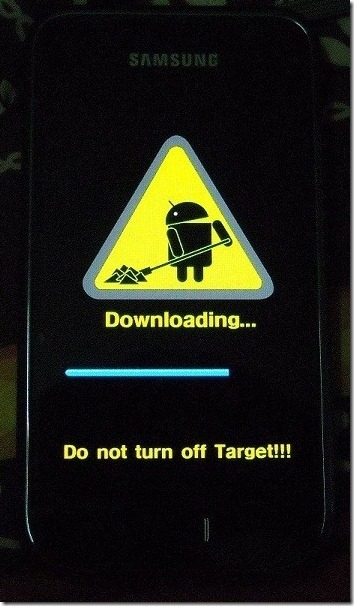
- Put your Galaxy S in download mode by pressing and holding the volume down, home and power keys at the same time. You will see a yellow symbol and the words ‘Downloading’ once the phone has gone into download mode.
- Ensure that the drivers are installed. If you have Kies already installed on your machine, the drivers are already in place.
That’s about it, we’re ready to begin the flashing sequence.
STAGE 1 (applies only if you are coming from an earlier Froyo build)
- We are now going to flash the XWJM8 firmware again (Éclair), so make sure that you load the files for this firmware in Odin.
- In PIT, load the 502.PIT file
- For PDA, select the ‘CODE_I9000XWJM8.tar.md5’ file and for PHONE, select the ‘MODEM_I9000XXJM4.tar.md5’ file. Leave all others blank.
- Make sure that the Re-partition box is checked. All other settings should be as shown in the screenshot below.
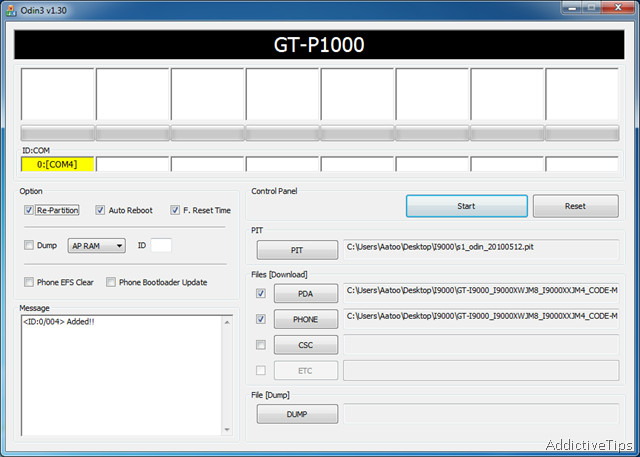
- Connect your phone (in download mode) to your PC via the USB cable. It will install the drivers, or if they are already installed, you will see ‘Added’ in Odin’s message box (screenshot above). A COM port will also become visible.
- Again make sure that all the selections in Odin’s interface are correct. Press the Start button when verified.
- The flashing sequence will begin, and you will see several messages in Odin. Make sure that the phone does not disconnect during this time, as it may brick your device permanently.
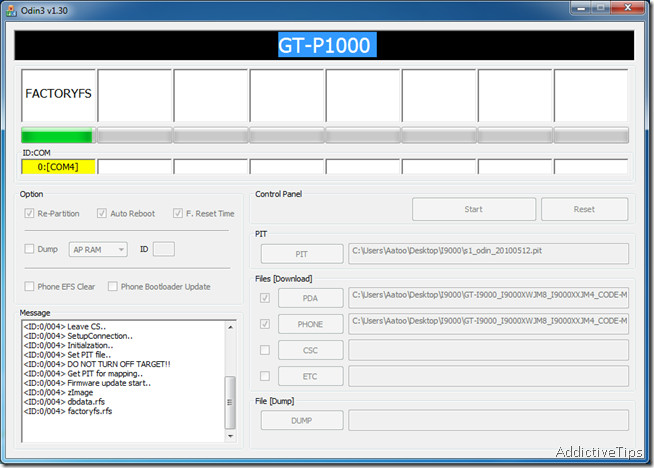
- At this point, your phone’s screen should be looking something like this:
- Once the flashing sequence has completed, Odin will give a ‘Completed’ message in the Message box, and a green PASS will appear on top. Your device will automatically reboot at this point.
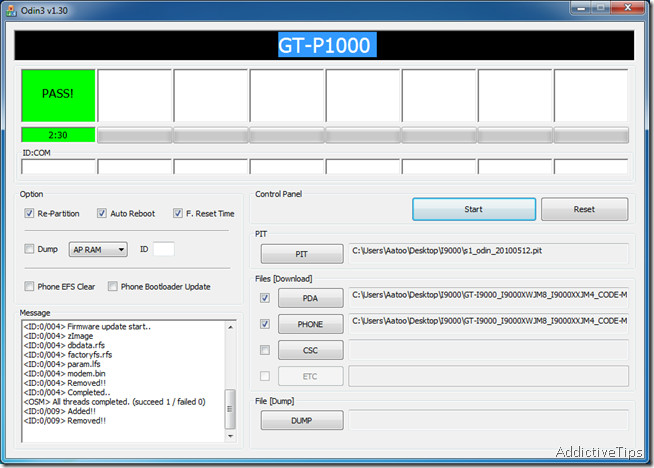
Congratulations! You have successfully completed stage one of the process, and now you’re running the XWJM8 Éclair firmware.
STAGE 2 (you can begin directly here if you are running an Éclair firmware and have flashed originally with 512.PIT)
- Fire up Odin again and this time load the 803.PIT file in PIT.
- In PDA, select the ‘JPO_JPO_U_JPP.tar’ file.
- Leave all other settings as they are, and this time make sure that Re-Partition is NOT checked.
- Put your phone in download mode again and connect it to PC via the USB cable.
- Make sure that your selections in Odin match the ones in the screenshot below.
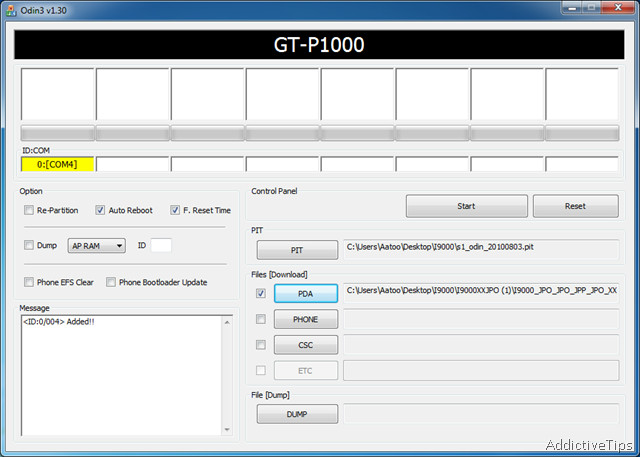
Once you’re sure that everything is correct, press the start button. The same process as earlier will follow – wait for it to complete, making sure that the phone remains connected during the whole time. Once the PASS message appears and the phone begins to reboot, you may remove the USB cable.
You will be greeted by Froyo’s lockscreen, customized by Samsung to their own flavor. Congratulations, you have successfully upgraded your Samsung Galaxy S to the latest (as of the time of writing) I9000XXJPO Froyo firmware!
Update: Samsung has released the latest XXJPU firmware for Galaxy S, which is Android version 2.2.1 and brings a lot of improvements over all the previous versions. You can download it here (courtesy of samfirmware.com – use samfirmware.com as password). Remember to use it with 512.PIT and Re-partition CHECKED.
DISCLAIMER: The instructions in this guide and the files within are provided as is, without any explicit or implicit guarantee or warrantee of any kind. The author or AddictiveTips cannot be held liable for any damage that may occur to your device as a result of these instructions. This method was successfully tested on Windows 7 32-bit.
Update: If this method isn’t working for you, refer to PoseNotter‘s comment below – Editor

sir what is the “XWJM8 Éclair firmware”????????????
plss answer
thank you sirrrrrrrrrrrrrr
i tried to make it install. i make something wrong maybe and now my mobile doesn’t work. when it is make boot. i show the small video, the sound and stop. then its make only the vibration (of fault) the format doesn’t work. doesn’t work anything and i dont know what i can do. i need my mobile. please if someone knows about this contact me: my emal is dimis757@hotmail.com.
How I can free download USB drive for my Samsung mobile GT-19000
sir i did a mistake while installing…i put the csc file in pda and started the process…now my phone is not able to switch on or not coming in download mode..
PLZ HELP
sir i did a mistake while installing…i put the csc file in pda and started the process…now my phone is not able to switch on or not coming in download mode..
its hanging on factorsys can anyone please help me.
im willing to pay
hi,i bought my gt i9000 two weeks ago.yesterday i was trying to update it via odin,everything went perfect,but before the automatic restart of the device i unplugged the cable and removed the battery,after that i tried to turn on the device but its not working at all.nothing appears,its just like not putting the battery in it and turn it on “its dead”.please help me and tell me what to do…
note:my parents dont know about it yet,please hurry.
A wonderful job. Super helpful infmoriaton.
Sorry for the double post but, has anyone had a similar issue? any ideas?
Hey, i did the 2.2 flash and worked like a charm (mostly). The only issue I am now having is no network reception. It’s a T-Mobile Vibrant.
haha
Hi all,
I have tried to upgrade firmware of my i9000 from Froyo to Gingerbread but forgot that I had OCLF Lag Fix still installed (stupid, I know). Now my phone is in a permanent boot loop.
Can I perform the procedure mentioned above, using Odin to make my phone work again?
Does the procedure wipe all my data of the phone? (my back-up didn’t work because of an error report in Kies)
If it does wipe all my data, is there a possibility to transfer the content of my internal sd card to an external card, while in recovery mode?
Many thanks for any usefull tips!
Best regards,
Bart
i just followed the first step and thanks to u people .. i got my samsung galaxy s back. wht i did was that i accidentally flashed the rom of gingerbead…after that it was going only into download mode and no factory reset… before that i had official froyo update… i got failed in first attempt then i changed the usb port and i got succeeded. now it shows 2.1 update 1… i9000xxjm4 as baseland version ….2.6.29 root@se-s603 #2 as kernel version …bulid no eclair.xwjm………………thanks a lot
i have upgraded from eclair to froyo (I9000XXJPO), and now I want to upgrade it to XXJPU.
For that do I again need to go back to eclair? Or can I upgrade it from XXJPO to XXJPU?
hello i have downloaded the firmwar for i9000 but when i was extracting it it asks about the password plzz help me thanxxxx
Will this procedure work if I want to downgrade from Froyo 2.2.1, back to 2.2?
I know I would have to find the correct ROM’s but I’d like to know if I can just follow the above procedure to get my phone hopefully back into some kind of workable state.
I upgraded to 2.2.1 and not one of my programs work properly. They either crash when launched or those that do work (well, the 6 that do), reset their settings whenever they are started.
Firmware: 2.2.1
Version: I9000XXJPY
Build: FROYO.POJS4
Thanks
ok i found…………samfirmware.com
i have the build number ECLAIR.BOJG3 do i start from step 1 or step 2?
How i can extract file using winRAR
just right click on file then select extract file
hi atif..in samfirmware.com they r telling that if i have 3files than i hv to use. pit files to flash..otherwise if i hv single file then i can use the tar file,no need of pit file..someone said if i use. pit file i will loose all my data..now how can i knw that i hv 3 files??when i enter *#1234#,it shows i9000ddjg4 in pda phone csc files..does that mean i hv 3files n hv to use .pit files??
Thx for u information…
Hello, I have a samsung galaxy gt-i9000 with firmware version 2.1-update1, version I9000BVJF3, kernel 2.6.29 root@SE-S603#2, bild ECLAIR.BVJG2, is a Orange France branded firmware.
My question is, do I have to do the step 1 as well or I can start with the 2?
Thank you in advance
How come that the settings doesen’t change to default ? ?
Ok downloaded all files in list above were the hell is ‘JPO_JPO_U_JPP.tar its not in any of the downloaded files ???????????????????
Your procedure sux. It killed my phone. I had the can’t mount \dev\block\stl11 error, solved by doing this: http://forum.xda-developers.com/showpost.php?p=11494840&postcount=29
I wouldn’t RECOMMEND to anyone to apply this procedure.
Hi
I wanted to inquire about the problems i faced after upgrading my eclair to froyo through ODIN.
Here are the problems ive been facing after upgrading my phones os from 2.1 to 2.2 through ODIN.
1. Glitch in menu scrolling (rough..gets stuck and isint smooth like on 2.1 eclair)
2. Samsung Keyboard capslock double click doesnt make it permanently capital but rather gets it back to typing small letters anew.
3. Home screen doesnt auto-rotate.
4. Alphabets on the right side of contacts, spread horizontally for ease of finding contacts, disappear once i try scrolling on it through my finger.
5. Cant change shortcuts from the default launcher whereas could do so in 2.1 (Eclair)
6. Default Email application doesnt load emails properly. Also when i click on an email to read it and it opens, i try zooming in through pinch technology but it is not at all smooth. Cant scroll emails side by side to read the whole email properly.
And many more which i cant recollect.
What should i do in order to get rid with these problems?
Please respond as soon as possible.
Thanks
Vrinda.
PLEASE HELP ME !!!!!
I have applied the one ckick lagg fix. Now my phone is stuck on the fancy looking Galaxy S screen and vibarates once and a while. Futher it doesn’t do shit, no homescreen: nothing!!!!!
I CAN’T DO THE 3 buttont start up, and I am about to take a big hammer smash my Galaxy S into pieces..
PLEASE HELP ME !!!!!!
Don’t smash your phone just yet – Aatif will be back soon and will likely figure a way to help you.
I have a solution to the “im only getting to the fancy looking S during the boot and nothing else” problem!!!!!!
download the rar file including the 2.2.1 update files http://www.multiupload.com/PUSOOBQ8K5
(it’s the same files as the ones that you download from aatifs “here” link above)
turn off your phone and remove sim card
enter download mode (volume down + home + power button)
in odin:
PIT: s1_odin_20100512.pit
PDA: I9000XXJPU-REV03-PDA-low-CL747761.tar.md5
PHONE: MODEM_I9000XXJPU.tar.md5
CSC: GT-I9000-CSC-MULTI-OXAJPU.tar.md5
hit start
for me everything went fine from here. I was worried for a while during the reboot when it was stuck on the fancy S for a few minutes but then it started so be patient 🙂
aatif did not mention to put the last file as CSC, i believe that this is what fucked up our phones.
Thanks PoseNotter =)
Worked like a charm, thanks PoseNotter! Most stable SGS Android firmware that I’ve tried to date. Battery life markedly improved, lags gone (thus far), no more irritating vibrator crashes! Looks like I’m going to hold off on that iPhone for the moment… 😉
I RESETED IT TO FACTORY SETTINGS!
Please read the update and the disclaimer at the end of the article.
it starts, it shows galaxy s symbol, and than it shuts up BY ITSELF!!
i did what you said(first step) and i dind’t know but i did it already and now, my galaxy s doesn’t start!
it entered a menu and i selected reboot..
PLEASE HELP MEE!
anyone can provide me the details how to upgrade Samsung galaxy s (i9000) as I tried to download Odin and the I9000XXJPO Firmware it’s not happening,
“download window comes and goes off “any known site form I can download all these three softwares-i tried to upgrade from samsung kies but says this device`s version can not be updated. as i tried the procedure given below
Step 1: Download the latest Samsung Kies version and install it on your Windows PC (download link at the bottom of this post).
Step 2: Connect your phone with PC and open the Kies.
Step 3: Minimize the Kies and make it sure it remains open during the whole update process.
Step 4: Launch Registry Editor of Windows. For this purpose, open the RUN box and type regedi and press ENTER.
Step 5: Navigate to this location “HKEY_CURRENT_USER\Software\Samsung\Kies\DeviceDB\”
Step 6: Now you will see different folders named 1, 2, 3 etc. Open each folder and find that one folder which contains your mobile’s current firmware and IMEI information.
Step 7: After locating the particular folder, change the following 3 strings as shown below:
SoftwareRevision = I9000XXJPA/I9000SWC/I9000XXJPA/I9000XXJPA
ProductCode = GT-I9000HKDXEE
HIDSWVER = I9000XXJPA/I9000SWC/I9000XXJPA/I9000XXJPA
Step 8: Close the registry editor and do REFRESH several times.
Step 9: Maximize Kies and click on “Firmware Upgrade” button. You will see a new upgrade available for your mobile. Install it and enjoy the latest Froyo on your Samsung Galaxy
Anyone can help??????????????????????????????????????
There are any restrictions with (country) locations for Samsung kies to update the device
everything works fine smooth after that phone keep on vibrate n force close. i wipe data n do a factory reset again my phone now everything is ok
from eclair jf3, i followed the steps above and have used jpo (2.2), then upgraded further to jpx (2.2.1), rooted with chainfire (at xda). haven’t applied lagfix. i have tried all 3 upgrade (2.2.1) but preferred jpx over jpy and jpu since almost all of my apps forcecloses especially in jpy. also some of my paid apps could not be found in jpu and jpy. i’m in italy and am using windows 7 home premium 64 bit. connected kies without hassle using the latest version.
Hi there and happy new year.
I’d like to upgrade my GS to Froyo but don’t know where to start.
I’ve read your “how to”. Great job, all is clear but I’d like to know which way is the good one for my configuration :
Firmware 2.1-update1
Baseband I9000XXJF3
Kernel 2.6.29 umts_scm@S1-BUILD05 #2
Build number ECLAIR
Hope you could help me (and guys like me)
hi Im using a phone from 3 in Ireland. I started from step 2 as im on eclair. after running the update, now my phone is just stuck on the menu where I see a samsung galaxy S ‘S’ symbol on the screen and thats it…phone wont start up…
did i brick my phone..
using windows 7 64bit
This worked a treat for me. Thank you very much!
On Orange UK, only had to do step 2 as was running Éclair.
Used WinXP 32-bit.
need advance please thanks. any ideal how to make it root back is that impossible?
forget to say the name out thanks to Aatif
thanks to you, i had follow your step it works, thanks to you really appreciated it now is 2.2.1 but CSC i leave it blank but can i redo for the CSC will it hack?
Hey i have a quick question…
If I already upgraded my galaxy S to 2.2 via Odin 1.3 (kies sucks), do i need to flash my phone back to 2.1????
I dont know whether my firmware is the leaked one of official one. IM SO CONFUSED!
I followed this website to upgrade to 2.2 “http://www.techlivez.com/2010/07/how-to-upgrade-galaxy-s-to-android-2-2-tutorial/”
I want to use 2.2.1 so badly. wanna try the speed 🙂
Thank you very much
hi, merry xmas!
Any 1 know how to restore sms from kies after upgrade firmwave andriod2.1 to 2.2?
I only manage to restore the contact data.
help…
i have a peculiar problem, i install a tmobile vibrant version to my phone instead of the original asian version(india to be specific), is there any site where i can get it to use it to odin? n after the successful recovery of the phone to eclair 2.1 my fone switch of automatically whenever i connect it to my pc via usb, why is this happening?
went up to step two without a problem. odin took long displaying fractoryfs the phone turned into a blue screen and thats the end of my precious Galaxy.
Cant start but only goes into download mode only. Any chance of un-bricking it????
i really would like some help guys, i am really confused about what i need to do to get a stock froyo experience.
from since i bought it my Galaxy S is already rooted, is running eclair 2.1-update1, has voodoo lagfix applied and it is showing baseband version I9000XXJM4, im in the UK btw.
now my question, if i follow this odin route, and i get froyo on my phone, will it remove root access? and i have to re-root? whats up with these PIT files? what happens if you get the “wrong” PIT file?
Aatif
Would you please explain why we use the 512 PIT file with XXJPU but why not the 803? What difference between them and do they all work with different firmwares
Many thanks
Rustam
thankyou very much saved my phone when I bricked it using kies!
For people without 3 combo option who are blocked with S logo and black screen there is a solution!!! You have to build a micro usb connector with a 301 kOhm resistence behind pins 4 – 5. Something like this http://img80.imageshack.us/i/20101119120802.jpg/ It worked for me.
With the phone powered off (you have to remove battery to power off and reinsert again) connect the modified micro ubs. After 2 seconds it goes to download mode and now you can reflsh with Odin.
Good luck!
Sorry forgot to say THANK YOU VERY MUCH!
My pleasure, Rustam. Thanks for reading – enjoy your stay with us!
Hi There
I Recently upgrade my Phone ( Samsung Galaxy S Canada Bell) to Gingerbread which i later discorverd that it was a wrong firmware to it. Now the state of my phone is, It can only enter to Download Mode, So i tried To downgrade back to JH2 which is original firmware of Canada Bell. After using Odin PIT 215, after downgrading the phone can now it never reboot it self but it only get back to recovery mode.
If i click reboot, it will show S logo and everything will become blank.
Pls some one tell me what to to get my phone working perfectly.
Thanks
It only worked me when I tried third times selecting the CSC file where you say to leave blank. I tried twiece without selecting and it just freezed on the stage at Re Partition.
Anyway I’m very happy with my flashing and it works very well so far, very fast.:)
STAGE 1 (applies only if you are coming from an earlier Froyo build)
We are now going to flash the XWJM8 firmware AGAIN (Éclair),
What does it mean? It is the first stage but don’t know why is AGAIN?
I didn’t really get it. I’m using 2.1 factory installed version I9000XXJF3 which of the stages, first or second, do I need to go for?
Thanks
You can begin with Stage 2, as you already have an Eclair ROM on your device, However, I would recommend using the newest XXJPU firmware that you can download here:
http://www.multiupload.com/PUSOOBQ8K5
make sure to use the 512.PIT file for this, not 803!
Hey I got up the odin started and got my phone into download mode
I originally use mac but I got a pc to get my firmware upgraded to froyo 2.2 but now i’m trying to voodoo on another pc.
Odin doesn’t seem to be able to recognise that the phone is connected
what should I do!?!? I originally have the phone in debugging mode since i use a mac. does that make a difference??
thanks
Make sure that you have all the required USB drivers installed (you can install Samsung Kies, it will automatically put all the required drivers on your PC). Odin should work fine after that
It doesn’t make any difference if you have the phone in debugging mode, as when you enter the Download mode debugging turns itself off.
Those this only work if your in Europe and in the United Kingdom? Im from Central America Honduras can I use this to update to Froyo?
Like I specified earlier, it is not region specific – only handset make specific. So even in the US if you have a GT-I9000 and not a Vibrant or Captivate or Fascinate, it would work for you.
I already install android 2.2 foryo and i have I9000XJP2 foryo firmware. plz tell me that which is the latest firmware between I9000XXJP0 and I9000XXJP2 foryo firmware?
right now the latest firmware is XXJPU, give that a shot. I gave the download link in one of the comments above – you’ll love it!
Worked a treat on my T-Mobile branded Galaxy S. I had unlocked before this upgrade and so far so good, seems a lot quicker to boot, and gps works, woohoo, Cheers guys!
Hey Guys.
No matter what I do, my Galaxy S i9000 (which is a genuine Samsung phone) using DXJG4 firmware, will NOT go into download mode by powering off, simultaneously holding down the Volume Down, Home and Power buttons. The phone will only turn on.
I’ve tried the Android System Recovery mode by powering off, simultaneously holding down the Volume Up, Home and Power buttons, and again the phone will only turn on.
I’ve tried using the AndroidSDK method with the phone connected to my WIn7 PC in USB Mass Storage mode, and it only returns “device not found” at the command prompt. If I use the other connection methods, PC Internet, Media Player and Kies, the AndroidSDK returns the same error.
What am I missing to get my phone into these modes so I can flash my ROM?
Thanks immensely for any help, guys!
Cole
Try this fix for download mode – some models of GT-I9000 have this weird problem:
https://www.addictivetips.com/mobile/fix-3-button-combo-download-recovery-mode-in-samsung-galaxy-s-gt-i9000/
Hi Aatif,
Im from Malaysia, can i use this ODIN method to flash my device to Froyo? Please reply.
Appreciate it.
Jonathan
That depends on whether you have an international GT-I9000 or some other variant like Captivate, Vibrant etc. It works with only the GT-I9000, so if you have that device, you can use this method no matter where you are in the world.
hi Aatif,
I have an unlocked Samsung Galaxy S I9000 purchased here in Singapore.
Here’s my phone details.
PDA: I9000DXJG4
PHONE: I9000DXJG4
CSC: I9000OLBJG4
Firmware version: 2.1-update1
Build number: ECLAIR.DXJG4
Basing on the above details, can i go ahead use odin to upgrade to froyo?
Do i need to download this •I9000XXJPO firmware?
What should be a specific process that i need to follow.
I’m still waiting for the official download thru kies but it seems that its not yet available here in the Asian region.
Please advice.
thanks a lot in advance.
If you are not relying on some Asian languages, you can give this a try. Also, the newest firmware is now XXJPU, which is Android 2.2.1 and a LOT better than all the previous ones.
http://www.multiupload.com/PUSOOBQ8K5
Thanks. This worked great on an UK O2 branded SGS. Wish I’d found this site before!!!
Thank you! It works great
It works with Austrian A1-Edition too!!
I removed the cable in download mode and my phone wont start anymore. It displays a computer and mobile set icon with a yellow warning sign. Anyone knows how to solve this?
Try putting your phone in download mode again by pressing and holding volume down+home+power on – hopefully, if it works, you should be able to follow the process again and reflash the whole thing. If it doesn’t go into download mode, try the three-button combo fix given here:
https://www.addictivetips.com/mobile/fix-3-button-combo-download-recovery-mode-in-samsung-galaxy-s-gt-i9000/
Otherwise, you’ll need to take it to a Samsung repair center.
Had same problem.
Any suggestions?
Please help!
Thank you! It works great!
worked perfectly…thanks
Downloaded the JPO file but needs password. Help??
Please try ‘samfirmware.com’ as password (without the quotes)
Umm…actually I am one of the few unlucky ones for whom the key combos for recovery/download doesn’t work on the i9000 GT.
So, how can i boot into “downloading” mode when key combos don’t work?
And is “downloading” mode the same as “recovery”?
Lastly, I live in the middle east. My device is rooted, unlocked and has OCLF (which I will remove before doing this). If i choose to upgrade this officially via KIES, then do I still need the download mode/uninstall OCLF???
Thx for replies (if any) 🙂
A guide is coming shortly on fixing this issue 🙂
As for download and recovery modes, they are different. Download mode puts your phone is firmware update mode, while recovery is for modding (and recovering) existing firmware.
Finally, if upgrading through Kies, you won’t be needing download and recovery modes, but you’ll have to wait till you can taste the ‘Frozen Yogurt’ flavor. 🙂
here you go:
https://www.addictivetips.com/mobile/fix-3-button-combo-download-recovery-mode-in-samsung-galaxy-s-gt-i9000/
I Recently upgrade my Phone ( Samsung Galaxy S Canada Bell) to Gingerbread which i later discorverd that it was a wrong firmware to it. Now the state of my phone is, It can only enter to Download Mode, So i tried To downgrade back to JH2 which is original firmware of Canada Bell. After using Odin PIT 215, after downgrading the phone can now it never reboot it self but it only get back to recovery mode.
If i click reboot, it will show S logo and everything will become blank.
Pls some one tell me what to to get my phone working perfectly.
Thanks
I have a solution. You have to flash the STOCK ROM on your SGS. In my case it was the Eclair 2.1 JF3. From there you can install Clockwork mod and flash every ROM you want.
Success!
hi,
it didnt work for me. fortunately i did the first step and could get back to the eclair 2.1 firmware.
after that i tried again and it did the same thing. stuck one minute on samsung boot screen then screen went black except for the two button and i get random vibrate from the phone ?
anyone else had the same issue ?
Hi,
I have the same problem as lebulbe. odin finishes up nicely and when the phone reboots it shows the S logo and then turns black and starts vibrating each 2 seconds… help?
Exact same thing happened to me, however is fixed now 🙂
Might of been luck, might have been something I did, hopefully will work for you:
Enter recovery mode (Hold home, up + power)
Wipe user data
Reboot
when it gets to the Galaxy S logo, repeatedly tap the power button
This eventually led me to the initial set up screen.
Either that fixed it, or my constant rebootin/take battery out/ boot again did it, either is working now 😀
For all above who are facing the stuck at boot logo issue, did you have any lagfix installed previously? If you did, it can be a main reason for this issue. Reboot into recovery and wipe data/cache, or better, do a factory restore. Either way, restoring your file system back to rfs should resolve this issue.
I did stage one correctly.
stage two , i download i9000xxjpo file but when i open the rar file there is no .tar file.
only :
cache.rfs
factoryfs.rfs
modem.bin
param.lfs
zImage
there is no .tar file
help pls !
Thanks alot!
this really helped 🙂
all went smooth , runnin windows 7 – 32bit
I have recently installed I9000XWJM2 (Eclair) firmaware with Kies and also use one click lag fix. Can I start upgrade my phone to Froyo from the 2nd step?
That depends on which PIT file you used to flash XWJM2. If it was 512.PIT, then you’re good to go. Otherwise it would be better to go through both the steps.
P.S. make sure to disable OCLF before you proceed with the flashing, as this can cause some serious issues for your Galaxy S. In general, I would recommend Voodoo over OCLF. Even though OCLF is easier to use and implement, Voodoo is far more effective and safer.
Thank you for your answer. I will disable OCLF and do factory reset and after do the both steps.
Does this work with those on branded firmware? I have Orange UK (Code: ORA) and will I have any problems with Swype etc?
That depends on whether your device is network locked or not. You can check that by entering *#7465625# in your phone’s dialer, and observing the status of the lock.
On the other hand, I would generally advise against attempting this on a branded handset. While there SHOULD not be any issue as long as you have a GT-I9000 and not other variants like Vibrant, Captivate etc, since I have not tested this method myself, I would rather not endorse it.