How To Disable Unwanted Services In Ubuntu Linux
It is a well known fact that all Linux based system works with services. A Linux service is an application that is either runing in the background waiting to be used, or carrying out essential tasks. When you install Ubuntu, there are many services which are enabled by default. Whenever Ubuntu starts, it also starts all these services, there could be so many services which you are no longer using or you have never used them before, so do you think that there is any need to start these services every time on the system boot up? The answer should definitely be “No” because these services are consuming your system’s resources and also slowing your system’s boot process.
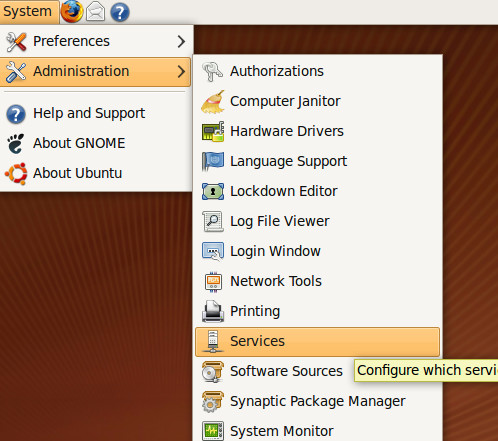
You can disable unwanted/unused services in Ubuntu in a very easy way. Go to System > Administration > Services.
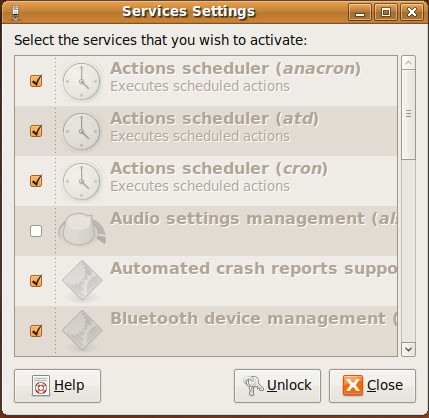
Services settings window will be displayed. By default, it will not let you make changes to the configurations for the services, you will first need to click the Unlock button.
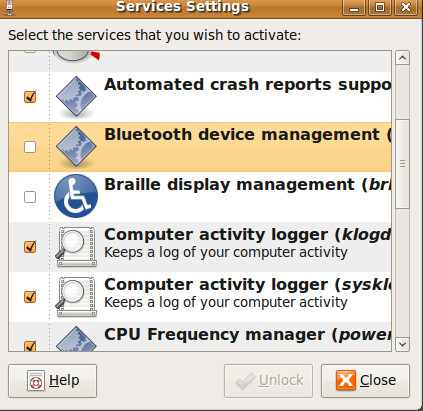
Now, you will be able to see that almost all services are checked which means they are enabled on system boot, uncheck the services that you are no longer using and click Close, just like I am not using Blue tooth device management and Braille display management services, so I disabled them by unckecking them.
It is very vital that you should tweak your system by disabling the additional services, in this way your system will work faster. Enjoy!

‘System will work much more faster!’
Nice grammar skills there.
Honestly, posts like this are useless for everyone. Thanks for pointing out an obvious selection on the toolbar.
On most systems the service command also starts/stop/restarts services. No need for full /etc/init.d path, simply run the following command by replacing the “servicename” with the name of service you wish to start.
service servicename start
e.g.
service mysqld restart
how to start this application from command line ?
logain in root then :- /etc/init/servicename /”comment status,restart,stop,start”
i currently disabled display service. Now it’s not showing it’s login window and its showing cant open display… how to enable services using command window.
i am also having this karma problem. anyone?
Under Ubuntu Karmic I’m not seeing this menu selection at all – looked on two different systems and there is nothing between “Printing” and “Software Sources”. Is this something new that’s not found in Karmic?
sudo apt-get install sysvconfig
And in text mode?
Meh… yet another cursory blog post with no real research done… Doesn’t explain some of the more obscure services listed or which are essential etc… etc…
Well, usually it depends which applications you are running. But there are some system services which must be running like network, logger, cpu, amd, crond, dhcpd etc. Other services like mysqld, httpd, ftpd etc are optional, you should run them if needed 🙂
Is there a list of the minimum recommended services that we should use?