Backup All User Profiles And Other Windows Settings With DataGrab
Are you planing to port your Windows system data to another system and looking for a backup solution to save user profiles data, including, shared files, documents, music, videos, and importantly AppData folder? You can use previously featured Backup Utility to backup data from current user profile, but what about backing up all user profiles data without having to log in to each user’s account? DataGrab provides a simple solution in such a scenario. It’s small, powerful, and a robust application for Windows which not only allows you to backup all user profiles data but other specified folders can also be saved to external storage medium with a single click.
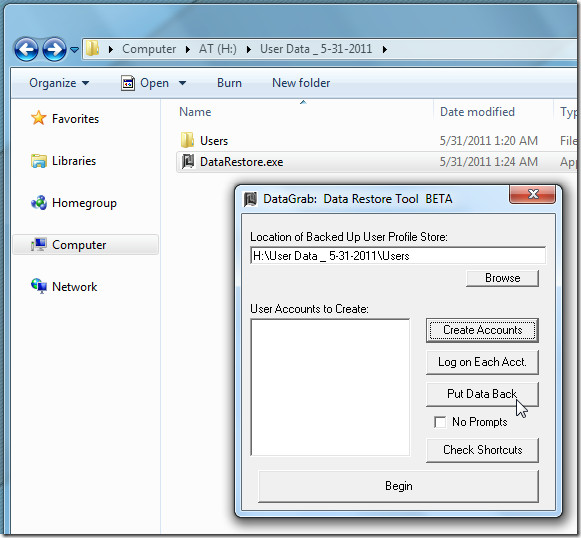
DataGrab creates an automated DataRestore executable in each user profile backup folder to restore the data with same name in Windows Users folders. This saves you not only time but a lot of effort for moving backed up user profile data folders back to their original locations.
Additionally, you can choose to backup all the Access databases, Word, Excel and PDF documents from the system to any local or external drive. It supports Wildcard entries as well to specify a range of file types which are to be moved to external storage device. Some Local OS elements and Windows saved settings files can also be ported, such as, IP Settings, RDP port, Mapped Drives, Shared Folders other than user profiles shared locations, Installed Printers and so on. In a nutshell, DataGrab offers one quick and comprehensive backup solution.
Launch the application and select target drive, i.e where important folders, including user profiles are present. All backup options are present on the main interface under different sections. First select User profiles which you want to backup followed by user profiles folders.
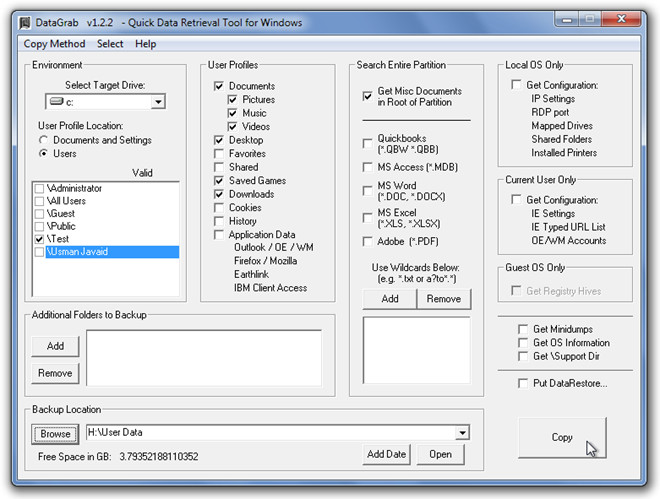
Under Additional Folder to Backup Section, you can specify multiple folders to backup. The Search Entire Partition section refers to including specified file types in the backup process. Move through Local OS Only and other sections lying beneath it to specify advance backup options. Once done, enter the target backup location and hit the big Copy button to begin the backup process.
By default, it uses Windows native copying method, which may prompt you several times to confirm the copy action. However, from Copy Method menu, you can select Use Unstoppable Copier option to let it silently create backup.
After the backup process is finished, open user profile backed up folder to verify the presence of DataRestore executable file, which will help you put user profile data back to original position without any hassle involved in a fresh system.
It works on Windows XP, Windows Vista, and Windows 7.

DataGrab looks like a cool tool after reading this post. How can i downlaod it? Is it freeware?
good idea, but a little difficult to use on active directory structure
Looks like This tool is cool for workstations. Active directory objects and settings can be imported or exported to a new location.