BluePoison: Unlock Windows 8 Hidden Features And Change Default Theme
Back in May, we featured BluePoison to unlock some hidden features, utilities and UI related improvements of the leaked version of Windows 8. The application was primarily developed to replace Windows 7 like File Explorer with ribbon based Windows Explorer and to unlock PDF Reader, extended Windows Task Manager and Webcam in early builds of Windows 8. BluePosion now supports Windows 8 Developer Build Preview. The latest version of BluePoision (version 2.1) allows you to disable Windows 8 Immersive Start Menu, unlock the Applications folder, activate full-screen Snap feature on small screens and launch Moorea in MS Office 15 on Windows 8. Apart from these unlocks, it also brings the much needed Windows 8 Start Menu theme gallery to replace the Windows 8 default theme with color scheme of your choice.
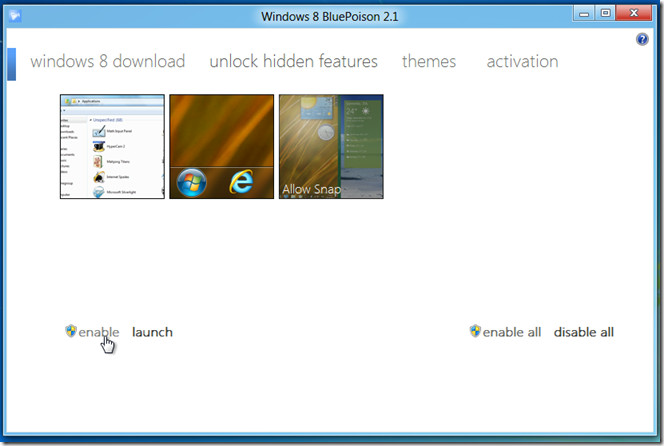
The application requires administrative privileges to make the changes. If you’re not logged in to Windows 8 as administrator, right-click the executable file, select Run as administrator and enter the admin password to launch the application. The unlock hidden feature tab shows the hidden features which can be unlocked. You can either enable the features one by one or use enable all option to unlock all the locked features. For instance, if you want to activate Windows 8 Aero feature for screen with low resolution, select Allow Snap and click enable.
BluePoision can disable all the unlocked features in one go. When you want to revert to default Windows 8 settings, click disable all to restore the default settings back, including Windows 8 Immersive Start Menu, hidden Application folder, and Aero Snap feature restriction.
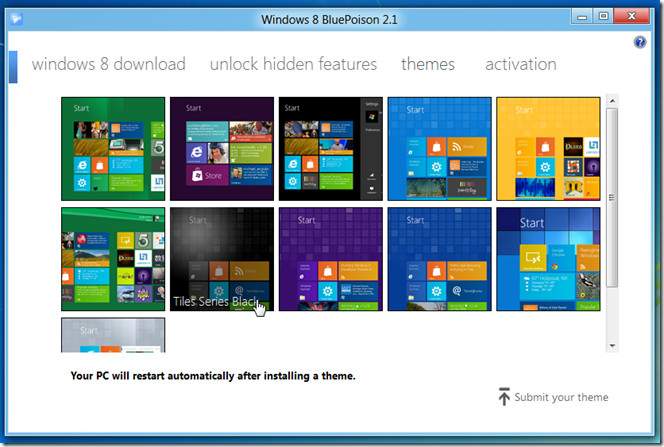
BluePosion includes a total of 10 non-customizable Windows 8 Start Menu themes. Since Windows 8 Developer Build doesn’t have an option to change the color scheme of default theme, this feature may come extremely handy. It lets you pick one amongst the theme list to change the default color scheme of Windows 8. It initiates system reboot process as soon as you apply a theme, therefore It’s advised to close all applications running in background before applying the theme.
Under windows 8 download tab, you will find direct download links to both 32-bit and 64-bit editions of Windows 8 Developer Build. Office 15 is also listed, but we will not recommend downloading it because it’s not an official release from Microsoft. If you want to try it out, do it at your own risk. We will not be held responsible if it causes any problem to your PC.
BluePoison Version 2.1 works only on Windows 8 Developer Build.
Download BluePoison (Website is in Italian, download link given at the end of the page)
