Disable Search Indexing In Windows 7
In order to speed up the search process, the search indexing service scans through the files and folders on the Windows system and records information about them in an index file. But it also consumes some resources of the system, so for the users with a slow computer it is beneficial to turn off search indexing. Go through the following simple steps to disable search indexing.
First of all click Start, type services.msc and press Enter.

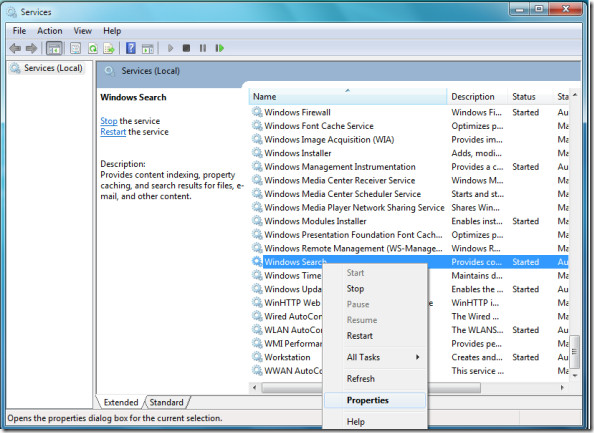
This will open Services dialogue box.

Now locate the Windows Search service in the list of services, right click it and choose Properties.
In the startup type drop down box, choose the Disabled option.

Click the Apply button, reboot your computer and thats it, Search Indexing has been disabled. Enjoy!

There is no “Windows Search” in the services list under Windows 7
What has happened to my files? I made a change so I could see all my hidden files an now I am missing some of my usual files – folders that I had made as well as the standard music file.
Thank you so much, this is helpful even now 🙂
This didn’t work at all for me.
Thankz…This is the best solution that I get on this block
sc stop wsearch
sc config wsearch start=disabled
Simple and straightforward. Thanks!
Will this help keep the “authorities” and intelligence agencies from efficiently scanning your computer?
Dear God THANK YOU! Now I can actually copy files across my network! Both Microsoft and Apple need to let he fantasy that is indexing DIE. It doesn’t work with physical, magnetic media. All it does is add a useless and resource devouring task to the overhead OS. Enough!
Fantastic thank you. Been forced to get rid of my beloved XP and am gradualy tuning Win 7 to get rid of all the unneccesary distracting bell’s and whistles
You lost me at “click on start” I have a windows button, then “start search” I find nothing called “start” I’ll find another tip site to tell me how to do it.
I am curious because my flash drive is being indexed if in too long, and all my pdfs in it got corrupted and a bunch of my older xlsx files. Is this a result of indexing?
vital for those who have shelled out for an SSD and then watch in horror as Windows Indexing writes again and again and again and again and again and again – will hopefully protect my investment… and the advantage with an SSD is that the read speeds are fast as well, no need for indexing
Still works perfectly, and not only for slow computers (I was noticing that my harddisk (1Tb with 200Gb in use) was constantly being used 100%, which was slowing everything down. After some investigation found that this was caused by the indexer. Disabled the Search service fixed this completely (usage of the harddisk is now close to 0%)
I turned off indexing and all of a sudden searching for files goes FAR faster. Previously the indexing service often took up 50 % of my CPU and even when just searching for files in the start menu, it took 5-10 seconds to show up (I had the indexing service only sat to look through start menu programs).
Thnks… looks complicated than in xp… anyways it helped me..
GREAT, I DON’T NEED IT THIS F*CKING INDEXING!
EVERYTIME, WHEN I USE CCLEANER, GETTING SEARCH ERROR: 1019, 3028, 3029, 3058, 7010, 7040, 7072, 9000 AND 9002 !!!
THIS IS NOT NORMALLY, SO FUCK OFF MICROS*HIT ADDONS, I DON’T NEED IT THIS DOGSHIT!
Thanks Martin. Your obvious lack of command of the English language serves as a warning to us all….
Actually, Martin expresses quite accurately the view of many users concerning Windows search capability. The allegory towards the search companion in XP was particularly subtle.
so subtle it was probably subconscious
Kinda hard to believe that, out of the two billion or so sperm your father deposited, you were the fastest.
I noticed that when disabling Windows Search (Indexing) in the Windows services, then navigating to programs and features\Turn Windows features on or off
The windows “Indexing Service” and not the “Search”.
I always disable services safely using services control panel and not msconfig.exe which is generally not recommended, even though I do also admit to doing that from time to time, simply because I know what to disable safely without causing any problems to my system.
And there is no NEED to reboot your system when following this guide, it simply allows the power user to STOP and DISABLE the service at once!
Good post!
Could you please provide advice to do this via scripts?
I hate having to click buttons everytime when I have to repeat this very good advice on more than 50 machines.
net start wsearch
and
net stop wsearch
Very nice post man .. i think indexing is the main reason why my few GB size burned game data disc always take long time to read .
I just keep wondering how come my recent burned game data disc keep on give me trouble on reading it . Whenever i put in any huge game data disc I can see the dvdrom activity light keep on flashing for a long time, looks like its doing something or windows 7 is doing something on it ( i suspect windows 7 is indexing that huge data in the disc ) . It can take like 30mins to finish something before i can do copy and paste to my computer ; if i do copy before that something still going on then the copy wont success ( the copy stuck on the “getting disc info” status … )
So i hope this disable indexing can help me solve my problem forever ; temp i have to winrar all the huge game data that i wanna store before burn then the disc work completely perfect but of cause thats mean i have to spend another 20-30mins on winraring before i burn it .
thanx for the info again and hope this do work for my problem .
Good day .
Thanks, Novacain
Okay – this is actually very bad distructive advice. It is old and so I’m sure the OP has now learned it was a stupid suggestion based upon lack of knowledge (after all Win7 was fairly new at the time).
However – it still shows up in Google searches and so I’ll post this warning. Don’t do this!
You don’t have to turn things off using services anymore, Win7 gives you the control to do this through the application, however, turning off search is different than turning off indexing. They are separate under Win7. Instead, go to Control Panel – Programs & Features – Turn Off Windows Features to turn off EITHER indexing or search.
Please read this post if you really want to proceed:
http://www.sevenforums.com/tutorials/25343-windows-search-turn-off.html
This is neither destructive nor bad advice. Disabling the Windows Search service turns off the Search Indexing and NOTHING else – Windows Explorer Search will still be present. Turning off Windows Search from the “Turn off Windows Features” however, will completely remove Windows Explorer Search. The two are different things. It is neither stupid, nor based on lack of knowledge. If you think otherwise, I invite you to try it.
With Windows Search service running, and all Windows Search/Indexing turned on in “Windows Features”, go ahead and disable just the Windows Search Service. Reboot JUST to be sure. You will notice that all of the Indexing processes are no longer running, and Windows Explorer still has Search.
I’m afraid you’re working under a misunderstanding here RealityStrike.
What the OP is detailing is not meant to disable Windows Search, it is meant to disable Windows Search Indexing processes that run in the background regardless of whether or not you have Search Indexing turned off in Folder Options.
Nicely posted.
This worked perfectly. Indeed, disabling the Windows Search /feature/ removed the entire search field from both explorer and the start menu; this was not my goal! All I wanted is to turn off the indexer!
JUST to make sure you understand what I am talking about, here is a forum thread from the very SAME forum that you linked to, RealityStrike.
http://www.sevenforums.com/general-discussion/78720-search-indexing.html
This details exactly what I am talking about, and what the original post is about.
Nowhere in that thread is it it stated that this is destructive or invalid. Infact, it is offered as one of many methods.
We know, because that’s what Novacain said, Steven. It’s so cute that you can’t read!
The search feature and the indexing service are two separate things. The search feature clearly does not use system resources, while the search indexing does. You are wrong, I found this feed very helpful.
Thanks i knew in windows xp that how we disable it (“My Computer” –>right click on your hard drive. At the bottom of the window that opens, you should see a check box titled “Allow Indexing Service to index the disk for fast file searching.” Uncheck it.) but i tried a lot in windows 7 and i never knew it. thank u brother. 🙂