Install Windows Calendar In Windows 7
A couple of days back I posted about a Windows sidebar widget that showed appointments from Windows Calendar right on the desktop. While useful enough for Windows Vista users, Nakodari was kind enough to point out that Windows 7 did not by default come with the Calendar bundled. Since I had indicated in my post that it was possible to use Windows Calendar on Windows 7 as well, I thought it better to have a guide on how to do that.
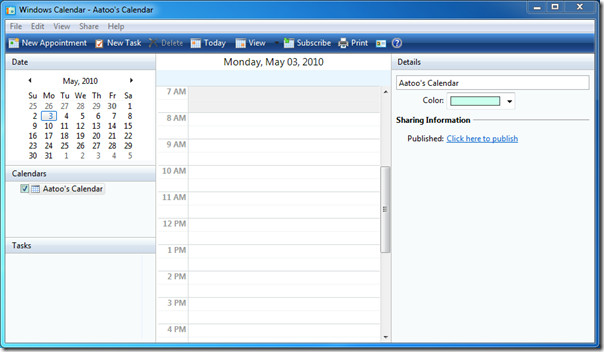
First, download the ZIP file (link provided at the bottom of this post)(https://www.mediafire.com/file/gaay0yjmkmw/Calender%20for%20Win7.zip) and extract it somewhere easily accessible.
Second, navigate to C:\Program Files and create a new folder with the name ‘Windows Calendar’.
Now simply copy the extracted contents of the ZIP file to this new folder. For ease of access, I would recommend pinning the WinCal.exe shortcut to taskbar or start menu. You can do this by right-clicking the icon and selecting Pin to Taskbar.
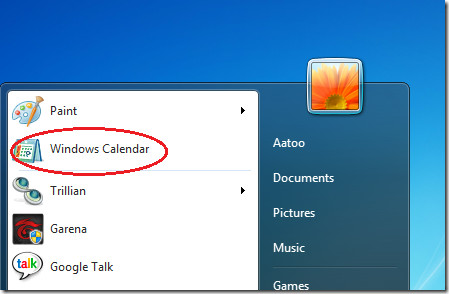
That’s all there is to it. You can now use Windows Calendar as you would any normal application. Also, since we’ve placed the application in the location it was originally supposed to be, any programs that look for it to work (like the gadget we reviewed earlier), will work perfectly.
(https://www.mediafire.com/file/gaay0yjmkmw/Calender%20for%20Win7.zip) >Download Windows Calendar

i can not download “Windows Calendar” because Mediafire says me “Well, it Look’s Like we can’t go any Further” you don’t know What you are doing with “Mediafire”, HUH?????
invalid or deleted file
going crazy trying to get my calendar back into Win 7…there is no link for it anywhere..can anyone help ??
Link doesnt work :((((((((((((((
of Corse Link non work i think He’s on 656574365 Errors
can someone upload calendar.zip again?
the file on mediafire have been move/deleted.
I converted a Vista PC with a corrupt OS to Windows 7. The user had been using Vista’s Windows Calendar. I simply exported the calendar (it creates an .ics file) and copied the Windows Calendar folder to my backup drive. After Windows 7 was installed, the Windows Calendar folder was placed in the Program Files folder and a shortcut for the exe file was sent to the desktop. Doing a restore put the data back into the calendar.
Is anyone else getting the message that the file has been deleted or moved? I can’t seem to download it from MediaFire.
Thanks so much, I really needed my calendar to pop up those handy reminders when I was deep into work, it saved me many a time from missing appointments. Can I integrate another calendar with Australian public holidays into my calendar or do I have to make a new calendar and have it just for holidays – or put the holidays in manually.
Thank you joe!!!
Thank a lot, it works on my windows 7, we can not be without you guys well the honest and sencere people like you once again thank you I realy missed my calendar
Thank you, this was very helpful. I missed the old Windows Calendar so much!
Hey just wanted to say thanku so much, this was the best advice ever, i am so happy that i could do this. Thanku Thanku Thanku
I have been looking for a small reminder program that works in Windows 7 – and here it was, the Vista calendar. Which I had all along, on my Vista partition (which I haven’t gotten rid of yet but will, soon). So thanks for that tip!
When I followed your instructions to the letter, I wound up with a directory structure:
c:\program files\windows calendar\windows calendar\en-US
Call me literal-minded. But you saaaaiiiid….
So then I copied everything up a level and got rid of the duplicates\duplicates.
🙂
Not sure how useful this tip is when –
1. An application like calender begs some form of online sync ability.
2. Windows Live Calender is a part of Windows Live Mail, and functions very well.
Actually few apps work with the original Windows Calendar only. Also some users prefer the good old calender and are reluctant to try the new one.