Temporarily Stop Startup Apps From Launching To Reduce Mac Boot Time [Tip]
On your Mac, you might have set a few apps to launch at login, owing to their frequency of use. Apps that support startup at login are pretty useful in most cases, but not all might play nice. Some take it on themselves to start at login whether you like it or not, while others still may not have a way of disabling them. At times like this, you need to visit the Login Items in System Preferences and disable these apps. For the more stubborn apps, you might have to install an app that specifically removes these items. If startup problems go beyond login items, you may need to factory reset MacBook Air as a last resort. Of course, you might not want to permanently disable apps at login. Sometimes, you might just not want them to launch, since they slow down system startup and increase the time it takes before your Mac becomes responsive. In situations like this, you can simply hold down the Shift key when you login, and no third party apps will initiate, giving you the fastest startup your Mac can manage.
The shortcut is very simple, but using it differs very slightly between password enabled login and simple login. If you’ve enabled password protected login, you will click the account you want to login to, enter the password, hit Enter and immediately press and hold the Shift key. You may also hit Shift+Enter once you’ve typed the password, and you will have similar results.
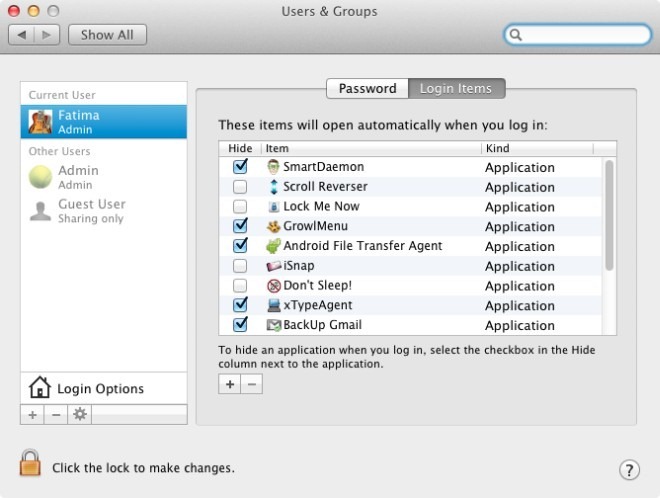
If you haven’t set a password, pressing & holding the Shift key too early will result in OS X starting in safe mode. Wait for the initial startup screen, the one with the Apple logo, to disappear, and then press and hold the Shift key. No app will appear in the Menu bar, and you will only see icons for Wi-Fi, system volume and Bluetooth. You can selectively launch apps after that if you need them, but this is the easiest way to temporarily prevent all your apps from launching for a quick login.
[via OS X Daily]
