Add National Holidays in Outlook Calendar
Adding national/religious holidays manually for a whole year in Outlook calendar is tiresome job, as you need to change each date’s events and mark it as holiday. By using Calendar options, you can promptly import all holidays into Outlook Calendar. It contains a huge list of countries, each with different holidays which can be imported instantly.
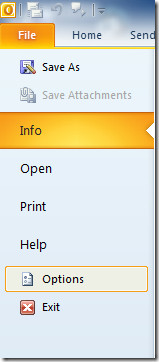
To begin with, launch Outlook 2010 and on File menu, click Options.
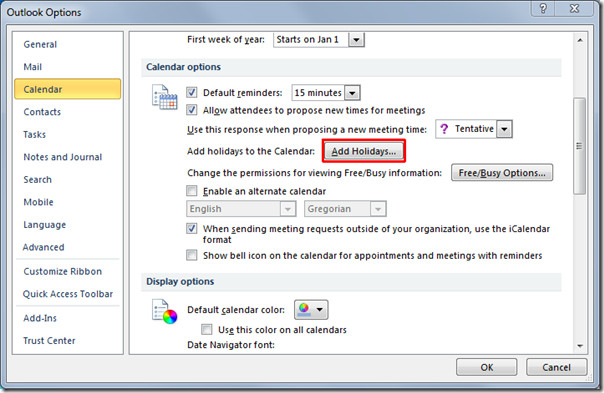
You will reach Outlook Option dialog, from left sidebar, select Calendar and from main window, select Add Holidays.
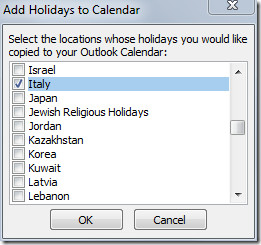
A new dialog will appear showing the list of countries. Now Along with US, we will be adding holidays for Italy. Scroll through the list to find desired country to add respective holidays. Click OK and close Outlook Options dialog.
Now click Calendar from left side bar of Outlook main window.
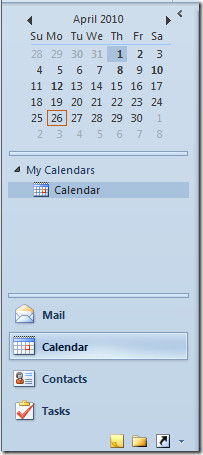
To check the added holidays move to month having holidays. You will see holidays of specified countries in calendar.
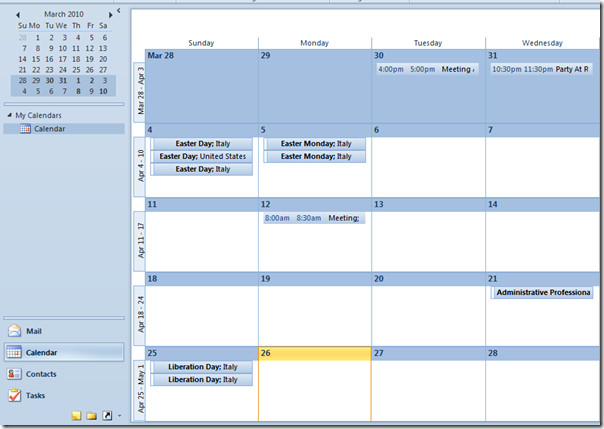
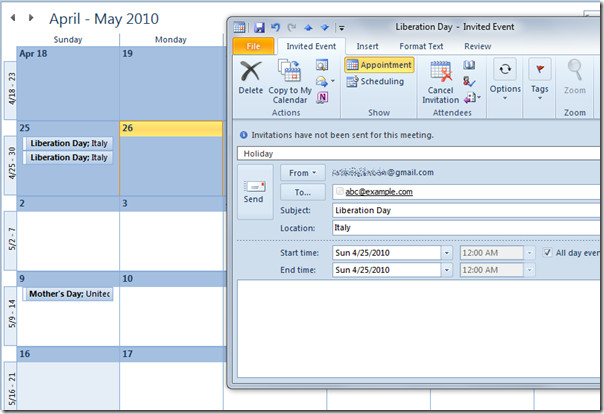
Click the imported holiday event to add more details to schedule meetings, appointments, events and invitations.
You can also check out our previously reviewed guides on How to Change Outlook 2010 Default Email Font Settings & Theme & How to make Outlook to read mails for you.

Hi,
Thanks for this it was very useful.
I was just wondering is there an easy way to set up reminders for all the public holidays? I work in a Treasury department where we trade currencies with lots of different markets, if they are on a bank holiday we have to make sure we trade that currency a day early. So a pop up reminder at the start of the day saying Japan has a Bank Holiday on Wednesday in 2 days time for example, would be extremely useful.
Hoping to avoid having to click into each individual event.
Thanks,
Chris
I liked this post, used it, and recommended it. Thank you!
How can I tune the holidays of Finland manually? Redmond cannot even imagine Finnish holidays…:(
Good info, but far less info than needed!
1. On your example, Italy is added twice. How to prevent or fix that?
2. Must it be performed every year,or how often and when is the next years holidays ready for import?
I added the holidays a while ago and now, in 2014 they don’t seem to be showing up. I went to add them and it says that it is already installed and do I want to do it again… Was there an end date and if I “install again” will I get doubles? thanks… (Is this site managed anymore? I don’t see any responses to questions)
when I updated calendar with US holidays, Good Friday did NOT show up. Is it no longer Good????
Has Microsoft gone PC????
Good Friday is not a public holiday in Nevada, so I’d presume that’s the same all over the US.
The end date in my Outlook for ‘add holidays’ for various countires is 2028. How do I change that date?
Cheers!
Great article about how to add holidays in Outlook 2010, but you might want to point out that many of the holidays in the .hol file for 2010 were incorrect for most of Europe, including the UK, as well as other English speaking countries such as Australia and New Zealand.
More details about the incorrect holiday dates here:
http://blog.meteorit.co.uk/2010/09/03/outlook-2010-has-incorrect-holidays-for-uk-and-many-other-countries/
shortlink: http://wp.me/p2I5L-65
Hopefully they will get fixed in the upcoming service pack 1 release.