Outlook 2010 IMAP Notification Alert
Although Outlook 2010 offers a lot of tools and features to manage the IMAP mail accounts, most Outlook users encounter problems with mail alert notification system that it sometimes stops responding for IMAP accounts. This usually happens when more than two IMAP mail accounts are configured, and Outlook syncs a lot of data daily with IMAP accounts. If you’ve configured multiple IMAP accounts, and are encountering problems with mail alert notification system, then this post may help you resolve the issues. In what follows, we will create a simple mail alert rule for IMAP mail accounts, which forcibly triggers mail alert notification system to show new mail alert as soon as you receive a new message. The Rules and Alerts feature allows you to specify the account you want to associate with the mail alert rule. Apparently, there is no limit defined on the number of accounts that you can use for creating mail alert rules. Furthermore, this feature also makes it easy for you to specify the type of email you want to send mail alert notifications for.
To get started, launch Outlook 2010, head over to Home tab, click Manage Rules & Alerts from the Rules drop-down button.

You will reach Rules and Alerts dialog. Now, click New Rule to apply rules for specific actions.
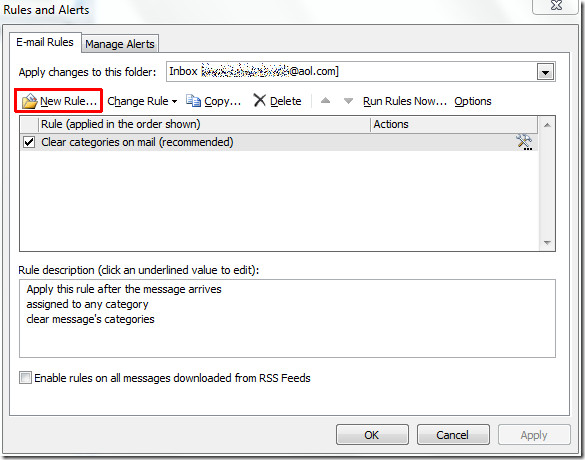
In Rules Wizard, we will start with creating a blank rule. Just click apply rule on messages i receive and hit Next.
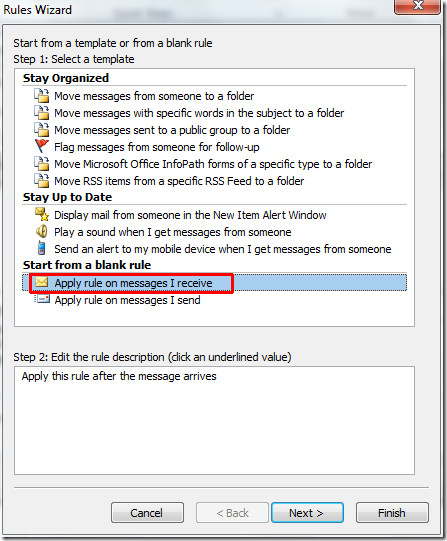
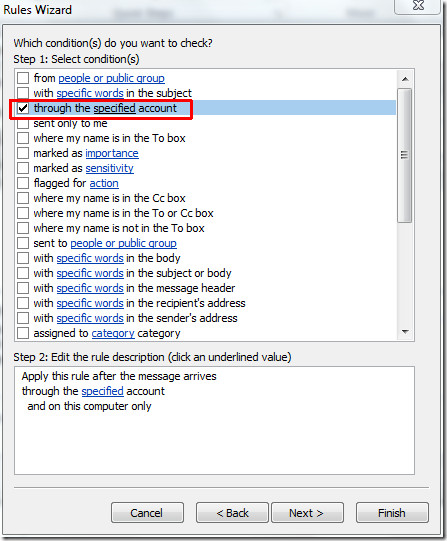
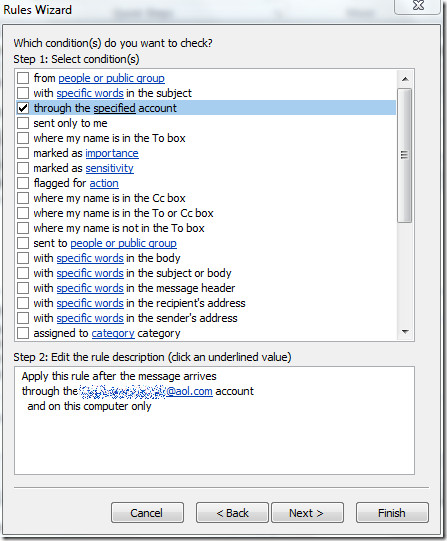
In this step, we need to select an account, so enable through the specified account option. Under Step 2 click specified account.
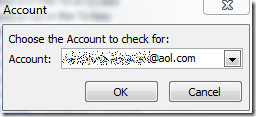
Select an account and click OK
You will see the selected account name in the bottom pane. Now, click Next.
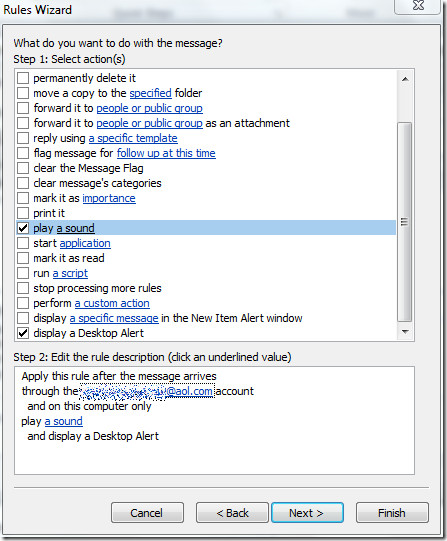
Now scroll down the list of actions and enable display a Desktop Alert and play a sound (to select a different sound for IMAP account).
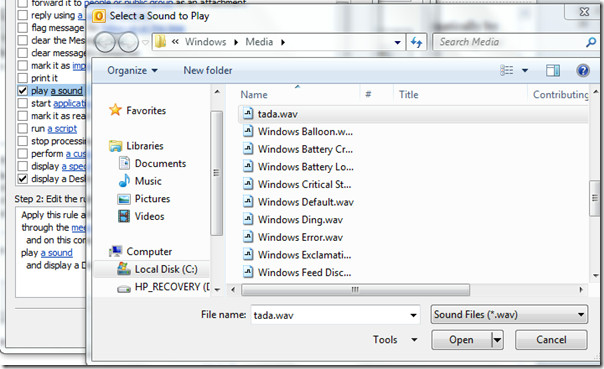
Under Step 2 click a sound to select different audio file to be played with desktop notification. If you also need to restore alert sounds on your iPhone, see this guide. Once selected click Finish to end the wizard.
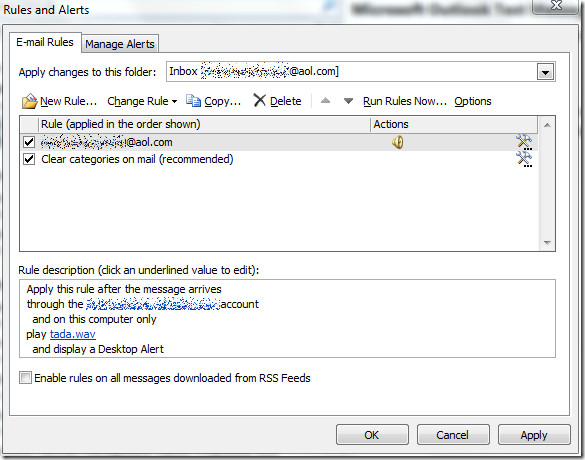
It will bring you back to Rules and Alerts dialog and show the newly added rule. Click OK.
Now, whenever you receive email through IMAP account, Outlook sends the mail alert notification.
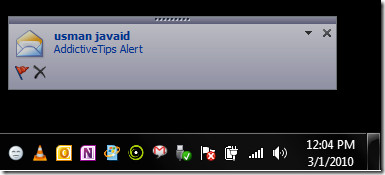
It doesn’t display the email body text with the notification, and only the sender name and subject are displayed. For a more customizable email notifications, check out MailAlert add-in for Outlook 2010.
You can also check out the posts from Outlook 2010 notification series:
- Notification on email with attachment
- Notification on email from specified person

thanks it works for me
Thank you very much – the “specified account” trick solved it (even though it is the only account) on Windows XP. Cheers.
Thanks, now it works!
I configured it properly but I don’t think I am using IMAP. If I check at File > Account Settings > E-mail, it shows Type: Microsoft Exchange (send from this account by default) instead of IMAP or POP.
Does this mean it does not work?
After applying it, it only plays the sound rarely and only when Outlook is on the foreground, not on the background which it should.
Any suggestions?
Thanks. Worked like a charm!
worked, thank you!
please note that I only have one Imap account in my Outlook, though.
Excellent post!! Fixed my alert problems!
This tip dont work. I have 18 Imap folders/emails in outlook 2010 on win8. This tip show me the notification only when i click on one of the folder and an email arrive!!! I need to have notifications when I’m in another folder !
Thanks A Lot !!
Thank you. I use Outlook 2010 with IMAP and this post has just solved my notification issue.
Thank you! I was really looking for this information everywhere!
Thanks Very much for your help.
I’ve just been given a Windows 7 PC (for work), and I hate it.
Even though, I have <>, checked ON, that’s not good enough for Microsoft.
What’s the point of that check-box ??
As a company you’ve lost the battle when your users have to trawl the internet to figure how to get your so-call ‘user-friendly’ software to work !!!
This solution only is productive if you are in front of the computer when the alert appears. After that alert, you cannot see if you have new emails on a folder unless you click on the folder to refresh…isn’t? Does anybody have a solution for this?
Thanks a lot Usman.
How come MS can miss such simple things.
TQ, good tips
None of the alert settings were working before. Your rule tutorial worked like a charm. Thanks. Having recently “upgraded” to Windows 7 and Office 2010 all at once, I can see why so many people are switching to Macs. From a day to day user experience, this product is now so inferior.
None of the alert settings were working before. Your rule tutorial worked like a charm. Thanks. Having recently “upgraded” to Windows 7 and Office 2010 all at once, I can see why so many people are switching to Macs. From a day to day user experience, this product is now so inferior.
In the 2nd step before you click “New Rule,” does it matter which IMAP account’s Inbox is chosen for “Apply changes to this folder”?
Interestingly, I created the same rule–sound notification, desktop notification, and display a specific message in the New Item Alert window–for 1 hotmail account and 2 gmail accounts while my hotmail inbox is “chosen,” and there’s a system tray envelope notification when I get new gmails but a pop-up notification when I get new hotmail (no system tray envelope).
In any case, this was great help! Much better than no notifications at all. Thank you very much.
Hello,
In our IMAP accounts we have several additional folders, where messages are being put by server filters (bypassing the Inbox). Is it possible to make outlook also check periodically these folders and display the alert? So far it works only for Inbox.
Huge help! I’ve always wondered why I never received IMAP notifications. For years I’ve been “blind” until I stumbled upon this post.
1+
In the Rule Wizard step, instead of Displaying Desktop Alert, choose Display a specific message in the New Item Alert window and create your own message. This will pop up and stay on to notify you until you want to close it.
Thank you, thank you, thank you!!!
EXCELLENT!!!
Thank u so much..!
I keep setting up a rule for several accounts/inboxes but they seem to disappear! Any idea why?
This was so helpful, thank you!
Hello! Is there anyone who’s willing to share their office 2010?
Pop up for a new message appears. But no envelope icon.
Don’t see specific option for this.
How to fix?
LOL you have an aol.com address!
Awesome – thank you, been looking around the net for this for hours >.<!
Great tip, thanks! 🙂 (I have been wondering about this for weeks!)
Great, thanks! 🙂
Thanks for the tip. It is very useful.
Thanks so much for the workaround!!! This is also works in Outlook 2007!
You are a legend! – Excellent – Thanks
Excellent! It works!!!! Thanks a lot.
Thanks so much! This worked like a charm. It’s a pity that outlook doesn’t do this out-of-the-box.
Thank you for a great tip. Recently converted from POP to IMAP, and suddenly things work differently. Glad I can relax now, knowing I won’t miss any new e-mails
Thanks a lot
Really a great work around solution
It works! Hurray! Thank you, I was wondering why my new e-mails were not popping up.
Thanks so much – with around 8 IMAP accounts in my Outlook config it was a pain having to keep checking each one.
Good Tip. Have been looking for something like this for a while …. you would expect this alert to be there by default
Nice tip! Office 2010 needs lots of customization from end users.
Hi, I have tried about every tip/trick out there, still can’t get the notifications, either the new message alert, or the new mail icon that is supposed to appear on the icon in the system tray.
I do have alerts specified, moving mail from a gmail imap account, to a pst file located on the computer. Any tips?
Thanks.
Unfortunately you can’t set the envelope symbol in the tray by rules! So if you are absent during incoming mail you won’t see the desktop alert.
Unfortunately the second it isn’t fixed in the final. So no constant information about new mails using IMAP. Bad done, Microsoft!
In the Rule Wizard step, instead of Displaying Desktop Alert, choose Display a specific message in the New Item Alert window and create your own message. This will pop up and stay on to notify you until you want to close it.
In the Rule Wizard step, instead of Displaying Desktop Alert, choose Display a specific message in the New Item Alert window and create your own message. This will pop up and stay on to notify you until you want to close it.
GREAT!!! This was the better tip I read for Outlook and IMAP accounts. I have a problem with IMAP notifications (the envelope icon on tray didnt display and all seems right in config options). Thank you very much, this solves my problem an enhanced mi notifications. All in one.
Great Tip, but I hope they fix it in the final release. It getting time for me to upgrade off of Office 2003, but I hate having to do trivial workarounds…