How To Boot Your Android Phone Into Recovery
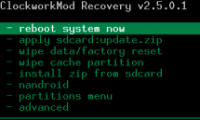
Before you can boot into it, you must already have the recovery mode installed. To install it, you can follow our guide on how to install Clockwork Recovery to your Android phone.
Once it has been installed, booting into ClockworkMod recovery is pretty simple. You can either launch Rom Manager and tap ‘Reboot into Recovery’, or use the following method to manually do so:
- Power your phone off and then boot it into bootloader / fastboot mode.
- Once in bootloader / fastboot mode, use your phone’s volume keys, trackball or optical sensor to scroll to the option saying ‘recovery’, and that’s it. Your phone will now boot into Clockwork recovery.
Note: Booting your phone into its bootloader / fastboot mode uses your phone’s hardware keys, and varies from phone to phone. For most phones, you can do so by keeping the ‘Volume down’ key held, pressing the ‘Power’ key and then releasing the ‘Volume down’ key once you see the bootloader screen. In case this does not work, try doing it with the ‘Volume up’ key instead of the ‘Volume down’ key. If you still can’t get it to work, you can do a quick Google search using the keywords “how to boot <device name> in recovery”.

when i clicked recovery it went back into the bootloader and it now says:
*** TAMPERED ***
*** LOCKED ***
*** ATS Debug Flag ***
This only happens when i click recovery.
i tried this and my bootloader now says tampered XD
hay , i installed bootstrap on motorola razr , it can not boot up to clockwork recovery mode , i get the red motorola icon and the device is stuck till hard reboot , what shuld i do?
Same here. I can not get it to work on Vibrant. After this i cannot use my phone anymore,Give me a good suggestion pls.
i tapped reboot into recovery after i flashed the clockwork. but then my phone shut down and i cant open it anymore. help please. my handset is samsung galaxy ace
not working on my micromax a60………
Awesome site you guys. Got my Samsung Galaxy SII, Sprint, rooted, but Recovery 3e requires signature verification for flashing external files, so it’s barfing when I try to flash Recovery. This must be coming up a bit: how do I bypass this requirement or otherwise get 2e substituted or otherwise get a full Recovery going so I can start flashing ROMs? Thanks!
Freak man, i have 2 install CM7 to my fone….
But its not getting into bloody Clockworkmod recovery…
Yup i have also done reinstallation of packages but its showing error in verifying signature…??
CAN U PEOPLE PLZZ HELP ME OUT..:(
Same here, not sure what’s going on.
Mojoryzn,
When you install clockworkmod, it is normal to see the standard Android Samsung recovery console with the 4 options
– reboot system now
– reinstall packages
– delete all user data
– delete cache data
You need to choose”reinstall packages”. Then, clockwork mod will be installed. Afterwards, when your launch ROM manager and go to “boot into clockwork recovery console”, you will get the Clockwork mod console.
to install Clockwork mod, you need to
I’ve tried everything and I keep getting back to the Samsung Recovery Utils. Instead of ClockworkMod Recovery.
And I’ve done all of the correct things as I see it, but there must be one thing I’m not doing right:
Download ROM Manager from the Market.
Flash Recovery.
Choose Vibrant as your phone.
Accept the Superuser prompt.
All, good. I’ve got the little Ninja in Black as (Superuser).
But, when I go to load a custom ROM from my flash drive, using ROM Manager, selecting Reboot into Recovery, it takes me to the “command prompt” of the Samsung Recovery Utils – for BML -.
And the only options I have are:
– reboot system now
– reinstall packages
– delete all user data
– delete cache data
I can’t seem to get to:
ClockworkMod Recovery v2.5.0.1
– reboot system now
– apply sdcard:update.zip
– wipe data/factory reset
– wipe cache partition
– install zip from sdcard
– nandroid
– partitions menu
– advanced
Is there anyone that can tell me what I’m doing wrong here?
Thanks for any help!
MojoRyzn
Same here. I can not get it to work on Vibrant.