Unlock Motorola Atrix 4G Bootloader On Froyo / Gingerbread
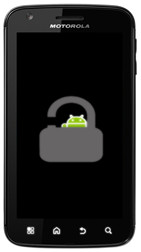
The process will involve the use of ADB, RSD Lite and an obvious unlock package. The instruction set may seem extensive but it’s not complicated at all. So let’s get on with it and unlock your Atrix’s bootloader, for a world of options awaits you!
Please be warned that you WILL loose all your data during this process, so be sure to take appropriate backups.
Disclaimer: Please follow this guide at your own risk. AddictiveTips will not be liable if your device gets damaged or bricked during the process.
Requirements:
- Motorola Drivers: Download for 32 bit Windows | Download for 64 bit Windows
- Android SDK installed on your system. If you want to skip installing the whole SDK, just download this fasbtoot package and extract its contents anywhere on your PC.
- Froyo Only: RSD Lite
- Froyo Only: Unlock SBF File – For AT&T (on 1.8.3 and 4.5.91 ATT firmwares) | For Orange/Bell/Telestra/Latin America/International (Extract the downloaded file anywhere on your PC)
Instructions:
The process to unlock the bootloader on Gingerbread is a fairly simple one, so you should skip to step 7 and continue from there. However, it is likely that most people would be running a Froyo based firmware, so we’ll start of the instructions based on that.
- Repeat: If you are on Gingerbread, skip to step 6. If you are on Froyo, continue with step 2.
- Turn the phone off and turn it back on by pressing the Power button, holding the Volume down button as the phone boots up.
- The phone will then read, Starting RSD protocol support.
- Run RSD Lite on your computer and press the … button next to the box lableled Filename and choose the SBF file.
- Connect your phone to the PC and RSD Lite will recognize your device. Once it does, simply hit the Start button to begin the flashing process.
- The phone will reboot and will take quite a while so be patient as that happens. Once it boots up, power it off.
- Now open up command prompt and navigate to the folder where fastboot package was extracted.
- Hold the phone’s Power button and the Volume down button, letting go of them when you see Fastboot on the device.
- Once you see the message, Starting Fastboot Protocol support, plug your device into the PC and enter the following commands in command prompt:
fastboot oem unlock
- You will now receive a unique device ID, continue to enter these commands replacing ### with the unique ID:
fastboot oem unlock ####

fastboot reboot
Wait for the device to reboot and once it’s done, give yourself and the developer a round of applause! For updates and queries, visit the forum thread at XDA-Developers.
[via briefmobile]

Whenever I start flashing in step 4, my phone reads “sec_exception: febe, 35, 35”. RSD Lite then tells me that the flashing process FAILED, saying that phone did not re-enumerate after RAM-downloader was sent. What am I supposed to do?
Tried this and my Motorola Atrix isn’t turning on anymore. Any ideas?
I want an expert to advise me and help me to do with this problem:
In trying to unlock this file bootloader with rsd “zomgunlock-lite.sbf” giving 99% error Then disconnect and remove battery and the battery had 80% now I press the power button nothing happens no flicker, no logo I can not enter bootloader. not recognized by the rsd me. I’m very sad someone advise me not to do
I’ve concluded that even though I’m running Gingerbread 2.3.4 from OTA update on my Atrix, the bootloader is NOT unlockable by Fastboot alone (that is, starting at step 6 above). I’ve got it rooted, but not with an unlocked bootloader. I’m going to have to go about it a different way.
I’m on your same boat, please let me know if you find a solution.
I’m getting conflicting information. This link:
http://mobilegeeky.com/hack-unlock-the-atrix-4g-bootloader/
says that for fastboot to unlock your bootloader, it has to be rooted first.
But the whole reason I’m unlocking the bootloader is so I can root it. WTF?
Not working for me..
E:\downloads\atrixroot\fastboot>fastboot oem unlock TA2070K6IZ
…
(bootloader) OEM unlock is not implemented
OKAY [ 0.002s]
finished. total time: 0.006s
i got the same exact problem
follow the instructions from #1. Install RSD Lite etc. You are getting this error because your atrix is not unlocked. You may have unlocked it using the code provided to you. But phone is still unlocked.
To verify what I am saying – are you receiving ‘unlocked’ text when you boot your atrix?
Be careful when flashing RSD – nothing will work except fastboot. before starting take some precautions:
1. download everything that is recommended by the article beforehand.
2. fully charge your mobile.
@Frank: Oh yeah. I have an Atrix with 2.3.4 that I upgraded two days ago through the Over The Air update.
@Frank: Just finished rooting with this:
http://forum.xda-developers.com/showpost.php?p=15872818&postcount=69
It will just sit there and say “Fastboot” until you hit the up volume button.
There are so many combinations of phones and OS’s that it’s really really confusing. I took a stab at a couple, the link above worked (verified with an app called Root Checker), and I’m grateful I didn’t brick my phone. 🙂 Good luck.
I’m letting go of the volume and power buttons when ‘Fastboot’ appears, but I NEVER get to any message that says ‘Starting Fastboot Protocol support’. It’s stuck on ‘Fastboot’, and that’s it. Any advice?
Press volume up button.