Add Restrictions To Your Ubuntu System With Lockdown Editor(Pessulus)
Linux is considered to be one of the most secure operating systems, but what if you are setting your system for public use? Then it becomes necessary that you should set some rules on the usage of computer so that the users are restricted to some particular areas of the system and they should not play with sensitive options. In Ubuntu, you can use Lockdown Editor (Pessulus) to lock down your settings specially Gnome Desktop and Panels.
Lets explore how we can install it in Ubuntu, go to Applications > Add/Remove, and choose Lockdown Editor and click Apply Changes.
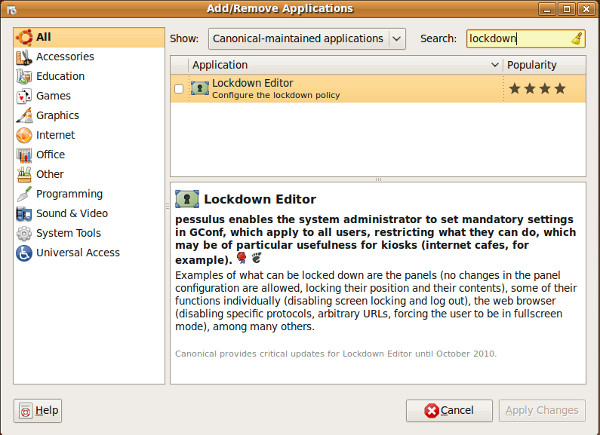
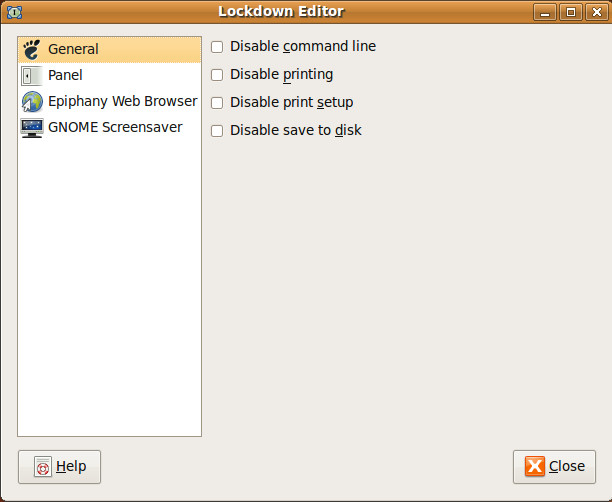
It will take couple of minutes to install it, once installation is complete you can launch it from System > Administration > Lockdown Editor. Now there are some categories which lets you lock down the system options, under General category you can apply general rules like you can disable command line interface, printing and save to disk. Please note that you should apply these rules by logging in as main admin user of the system, and thus these rules will apply to all other users.
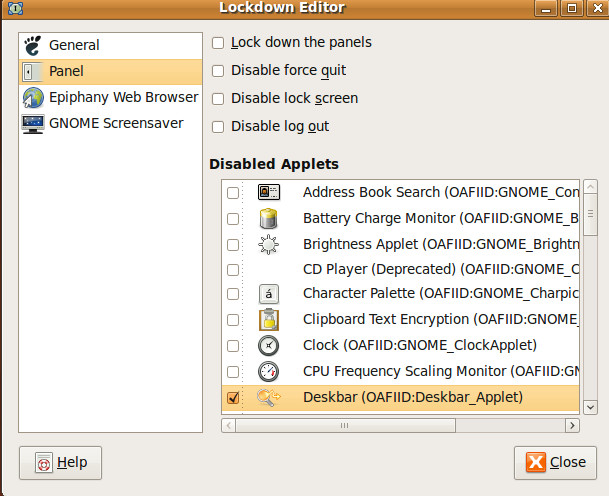
Similarly you can control different options regarding Panel from Panel category. If you are preparing your system for public use then it is always preferred to check all of the available options. Here you will find options to Lock down the Panels, Disable force quit, Disable lock screen and Disable log out.
With Lockdown Editor you will be able to control the activities that other users may perform on your Ubuntu system. Enjoy!

I am trying to find out how to disable access to Lockdown editor itself so the user does not just start that up and enable all the disabled features!
Aun,
Great post. I have been Googling about putting a Linux PC in a hotel business center. Microsoft has been a nightmare.
The PC that we are talking about will only be connected to the Internet, no thin client, server or other dependencies.
Thanks for your post.
You should use some of the article feeds (Digg, ./ [SlashDot], etc. that I do in my site to further get the word out about Linux.
Best Regards,
JJMacey
Tempe, Arizona
Pete, why is this a reason to avoid Ubuntu? The article is making use of desktop profile editor for securing/locking a desktop. Ubuntu being objectionable is your opinion and you do not have to use it. I myself use different distributions for different needs… Isn’t that what using Linux is all about? Being able to make a choice? This article is great for anyone deploying multiple desktops or for corp/public use. While simple it will get you an introduction to the GConf system used by Gnome for further tweaking.
Yet another reason to avoid Ubuntu. Why is this distro so objectionable yet still so popular with newbs?
You moron. Morons doesn´t like Ubuntu.
Awesome. What I have been looking for.