How To Set The Best Download Server In Ubuntu Linux
The are a couple of ways in which you can install additional software in Ubuntu, you can either do so from a CD or from the Internet. Mostly these are installed from the Internet and you will usually install additionally required modules from command line or from Synaptic Package Manager. Whatever method you follow, Ubuntu downloads the software’s package files from the Internet and installs it on your system. Now, if you want to speed up the download, then you will need to set the best server.
Lets see how we can set the best download server for the Ubuntu system, first of all go to System > Administration > Software Sources. The Software Sources dialogue box will be displayed.
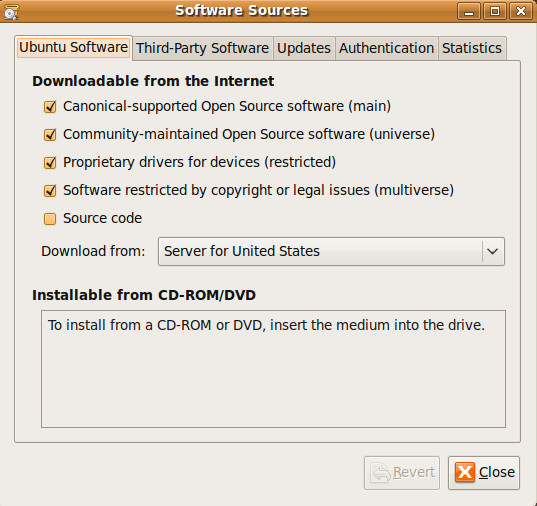
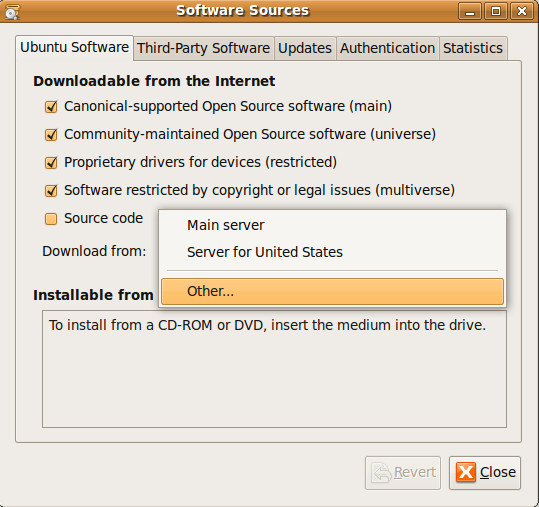
Now you will see that in the above dialogue box the Server for United States is set as the default download server. You can change this server to the one which best suits you. Click the Download from drop down button and choose Other.
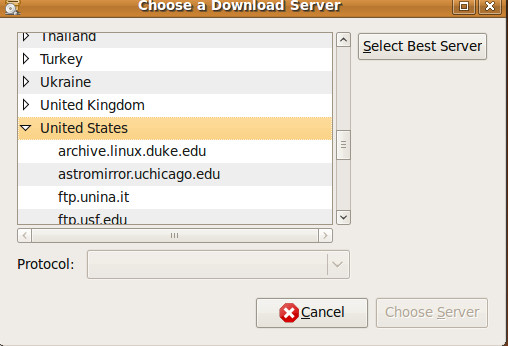
Here you will see list of all available ubuntu servers in the Choose a Download Server dialogue box, now click the Select Best Server button to select the one which best suits you according to your location.
Note: Always choose the server that is closer to your country, in this way it will result in faster download speed. But it is not always true, so clicking Best Server solves the problem.
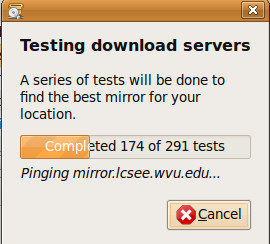
It will test all servers by pinging them and upon the basis of the ping results it will suggest to you the best download server.
This is dramatically increase your download speed. Enjoy!

Hi!How can I do the same thing via Terminal?Thanks in advance
Hi!How can I do the same thing via Terminal?Thanks in advance
Thank you for making it painless, pleasant and most of all hassle free! The service was excellent suits. The very best suits