Backup Any Folder to Dropbox, Without Moving It
Dropbox is a great way to automatically backup your data and get access to it from anywhere with an easy to use web interface. It even provides you with a full history of changes (added recently) and a versioning system, so you can always get back that accidentally overwritten file. Your free 2GB is extendable to 5GB just by inviting others to the service (the invitees get themselves another 250MB for free as well).
Move everything into the Dropbox folder? Nay!

No need to mingle with that then, use symbolic links to point Dropbox to the folders! Symbolic links are, simply put, transparent shortcuts to a file or folder somewhere else (locally or via a (SMB) network path). This means that the files can be accessed from such a symbolic link just as if they were physically there. The only difference is that if you remove the symbolic link, the actual (source) file or folder will not be removed.
This does have a downside, though, as Dropbox will not monitor for file changes in the symlink folders and will update them only at startup.
How to make it work
First of all, you have to make sure that your Dropbox folder is not inside a folder you want to backup (a folder of which you want to create a symbolic link in the Dropbox folder). That would – for Dropbox – create an infinite loop My Dropbox\Folder containing ‘My Dropbox’\My Dropbox\Folder containing ‘My Dropbox’\ etc. You can change your Dropbox folder path in the Preferences dialog.
Windows Vista and 7 have a nice command-line utility mklink to do the magic. In order to use this, open up an elevated Command Prompt window by right-clicking on the Start Menu entry and choosing Run as administrator.
For creating a symbolic link to a folder, type:
mklink /d
Now drag your My Dropbox folder from an Explorer window into the Command Prompt window and type the desired pathname directly behind it (don’t forget the backslash ‘\’ in between and make sure you put the whole path in between double quotes if it contains spaces. Now it should look like this:
mklink /d "C:\Path\To\My Dropbox Folder\NameForMyNewSymbolicLinkToADirectory"
Now drag the folder you want to link to into the Command Prompt window from an Explorer window. This will add the target folder’s name to the command line. Now press Enter.
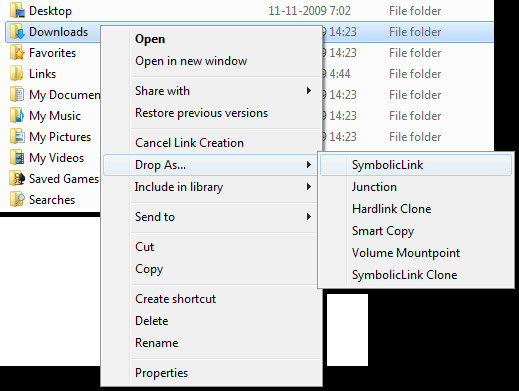
Want a little more help? Try the little program called Link Shell Extension (download below), which adds some context menu items for files and folders to copy a file/folder and paste it somewhere else as a symbolic link.
OSX and Linux
These two operating systems have the same sort of command-line tools available:
ln -s /the/full/path/to/target/folder ~/Dropbox/NameForMyNewSymbolicLinkToAFolder
A Caveat
Like most solutions of pure elegance, there’s always a downside. As said before (to spare you from a disappointment after reading this all, Dropbox seems not to be able to directly pick up on changes made in a folder it only has a symbolic link to. How this exactly happens is a question I herewith pose to you. In most cases, it will suffice that Dropbox checks for changes every time it starts, but for folders that require immediate backup, such as you Documents folder, you can also turn all this around: put the real files in the My Dropbox folder, then create a symbolic link to the folder, now in My Dropbox, in the original location.

Awesome, THANK YOU!!!!!
> Dropbox seems not to be able to directly pick up on changes made in a folder it only has a symbolic link to.
That’s because you didn’t use mklink /j
Correct syntax for mklink is actually …. mklink /d test “c:test”
Hey Willem, thanks for the article!
You are the only one (that I’ve found) describing this method that has recognised the problem you describe in the last paragraph – that the documents don’t give uploaded as soon as they are created as dropbox doesn’t seem to notice the changes.
Did you figure out how come?
I know this thread is old 🙂 But that has given everyone lots of time to think about the problem 😉
Dropbox in real time monitors only physical folders which are present at launch, and during that monitoring treats symlinks as any other link file.
However, when you pause syncing and resume it again Dropbox does the full scan again and picks up any updates you’ve made in symlinked folder.
thanks for the tip! on fedora 17, creating symbolic links in my dropbox folder to folders in my documents folder (real files not in dropbox folder) does actually automatically upload them, no need for a restart
I LOVE Dropbox too for its simplicity and ability to stream music and video to my iPhone. I have a few invites left which gives new users an extra 250MB of storage free. Just sign up through this link and you'll get it.https://www.dropbox.com/referrals/NTU4MjQ0NjE5
“invites” – lol
…or you might want to add a context menu item for an elevated Command Prompt, as described here: https://www.addictivetips.com/windows-tips/windo…
…or you might want to add a context menu item for an elevated Command Prompt, as described here: https://www.addictivetips.com/windows-tips/windo…
how do you get around the “you do not have sufficient privilege to perform this operation”?there is not way to run the command prompt as an administrator after shift+right clicking in the folder.
What happens if you run that Explorer window with elevated privileges?
You were right, even that won't work! I changed the description. What you can also do is add a context item for an elevated Command Prompt window. This will be described in an article available here soon.
…or you might want to add a context menu item for an elevated Command Prompt, as described here: https://www.addictivetips.com/windows-tips/windo…
I know I’m six years late but win-x was always a hotkey.