AddictiveTips


  • Home
  • Windows
  • Mac Os X
  • Linux
  • iOS
  • Android
  • Windows Phone
  • Web
  • Office
  • Tip Us

Change Windows Default User Profile Directory

by Aatif Khan on February 18, 2010
  • Windows
Leave a comment

Having Windows user profiles in their default location poses the risk of losing all profile data in the event that the operating system gets corrupted. Unfortunately, Windows 7 does not come with any built-in option to change the default user profile location, and hence, the risk remains. Profile Relocator offers a solution by giving users the flexibility to change default profile directory.
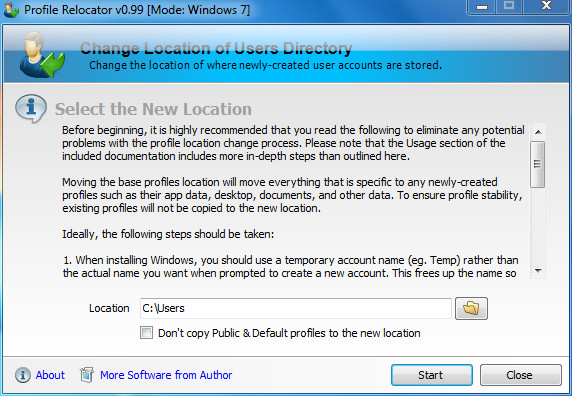
Profile Relocator Main

The interface is minimalistic and self-explanatory, with detailed instructions built it. Every time the application is run, a disclaimer screen greets the user to which you must agree. Clicking Next will take you to the main screen. Select the new default user profiles folder and click Start. You can also choose not to have the Public and Default profiles relocated.


Once the process is complete, log off Windows and log back in. Create a new user account and check to ensure that it has been created in the newly specified location. Going forth all new user accounts will be stored in this location. You may choose to delete the old account afterwards.

The software is intended to be used with clean, fresh Windows installations, since it cannot move the current user profile to maintain system stability. You may, however, use it with an existing installation as well. It is recommended to go through the instructions provided in the software interface before proceeding.

Profile Relocator is a portable tool that works on Windows 7, Vista and XP.

Download Profile Relocator

Advertisement
Advertisement

Do You Like This Post?

Tweet
Email a Friend

Recommended For You

  • Repair/Fix Broken Windows 7 User Profile Association
  • Create Backup Of Windows User Profile Folders With Backup Utility
  • Accounts Tuner – Change Windows User Account Settings And View Usage Stats
Tweet

Previous Post

← Quickly Sort Slides In Specific Order [PowerPoint 2010]

Next Post

ExcelArt: Create Image Clip Art Spreadsheet In Excel 2010 →
  • Pingback: Profile Relocator Moves Windows Profiles to a New Location | WebsGeek

  • Pingback: How to relocate User profile to different partition

  • Pingback: [need help] Users

Facebook Twitter Google + RSS Youtube

Daily articles in your inbox each day for free

Close

Join 35,000+ other readers

Popular posts

  • Hide Your Real IP Location & Browse Anonymously On Windows With SafeIP

    The internet is a vast and growing community, but without the necessary measures, it can...

  • A Look At The New Features In Firefox 21

    The next installment of Firefox i.e. version 21 is now available. The new version brings something...

Readers Activity

Go to top

Topics

  • Windows
  • Mac OS X
  • Linux
  • iOS
  • Android
  • Windows Phone
  • Office
  • Web

Authors

  • Sameed
  • Fatima
  • Hamza
  • Waqas
  • Zayed
  • Haroon
  • Awais
  • Michael
  • Usman

Daily articles in your inbox each day for free

Close

Join 35,000+ other readers

Facebook Twitter Google + RSS Youtube

About Addictivetips

AddictiveTips is a tech blog focused on helping users find simple solutions to their everyday problems. We review the best desktop, mobile and web apps and services out there, in addition to useful tips and guides for Windows, Mac, Linux, Android, iOS and Windows Phone. Read more...
© 2013 AddictiveTips. Hosted by Presslabs
  • About
  • Featured Articles
  • Archives
  • Contact
  • Disclosure
  • Privacy Policy
  • Apps
  • Tip Us
BACK TO TOP