Diagnose/Repair Your Seagate Or Maxtor Drive With SeaTools
Seagate and Maxtor, both are popular brands for Internal and External drives. If you are one of those users who own a drive that is made by any of the above two companies and is not working properly, then you can diagnose the drives with SeaTools. It supports non-Seagate drives as well, but in my testing it worked better with Seagate and Maxtor drives largely because it has been developed by Seagate itself.
Note: Maxtor is part of Seagate, so it is the same company actually.
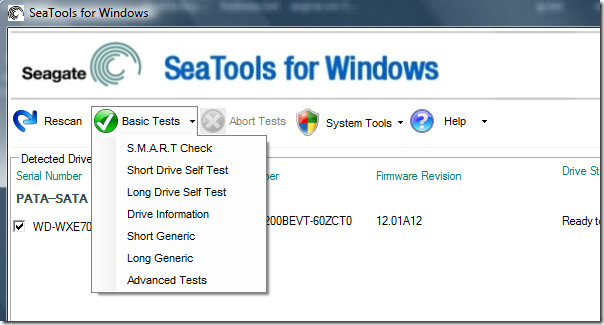
Once installed, load it up and it will scan for all drives connected to your computer. Once the scan is complete, you will be shown a list of all drives. To run the test, check the drive, click Basic Tests and choose the type of test you want to want to perform.
SeaTools offers several test types, and choosing the right one for your situation makes a real difference:
- Short Drive Self Test (Short DST): A quick self-test that usually completes in a few minutes. Run this first for a fast pass or fail result. It checks the drive’s internal diagnostics without scanning every sector, so it is a good low-risk starting point.
- Long Generic or Long DST: A full surface scan that reads every sector on the drive. This is the most thorough option and the right choice when you suspect a deeper problem. On large drives this can take several hours. This test is read-only — it does not write to or alter your data.
- SMART Check: Reads the drive’s built-in health monitoring data and flags warning indicators such as reallocated sectors, pending sectors, or high temperatures. A useful first-pass health check that takes only seconds.
- Fix All (Repair): Attempts to repair bad sectors by forcing the drive to reallocate them to spare space. Unlike the diagnostic tests above, this operation writes to the disk. Always back up your data before running any repair function. Reallocation only works if spare sectors are available on the drive and cannot fix mechanical failure.
Understanding Your SeaTools Test Results
Once the scan is complete, you will be shown the Pass or Fail status. Here is how to make sense of what the results are telling you:
- PASS: The drive completed the selected test without detected errors. If you ran a short test and the drive has been behaving oddly, follow it up with a long test for added confidence.
- FAIL or SMART Alert: The drive has failed the test or flagged a critical health warning. Back up your data immediately — do not wait. Record the specific error code or result shown on screen, as you will need it when checking your warranty status or submitting an RMA request with Seagate.
- What the diagnostic tool can and cannot fix: The tool may help identify bad sectors and trigger reallocation on supported drives, but it cannot repair mechanical failure or recover data that has already been lost. If a drive fails a long test, treat it as a replacement candidate rather than a repair project. No software tool can undo physical damage to drive heads or platters.
SeaTools is not Windows-only. Seagate offers a Linux diagnostic version as well as a bootable USB edition that lets you test drives outside of any installed operating system — which is especially useful when the drive you need to test is your system disk. There is no native macOS application, but Mac users are not entirely without options: the bootable USB edition works on any machine regardless of the operating system installed on it.
The .NET Framework 2.0 and Windows 2000/XP/Vista/7 requirements found in older documentation apply to a legacy build, not the current release. If you are on a modern Windows system, download the current version for Windows directly from Seagate’s support page using the link above. Seagate also keeps older builds available for users who need to run diagnostics on legacy hardware, but the current version is the right starting point for most people. Enjoy!
What to Do If SeaTools Does Not Detect an External Seagate or Maxtor Drive
If SeaTools launches but your USB external drive does not appear in the drive list, work through the following steps before assuming the drive has failed:
- Try a different USB port and cable: Faulty cables and underpowered ports are among the most common causes of an external drive going undetected. Connect directly to a port on the back of your desktop or a built-in port on your laptop rather than relying on a hub or front-panel connector.
- Avoid USB hubs: Both powered and unpowered hubs can restrict the current available to the drive. Connect the drive directly to your computer wherever possible.
- Check Disk Management: Press Windows key + R, type diskmgmt.msc, and press Enter. If the drive appears in Disk Management but not in the drive list, the enclosure’s USB bridge chipset may not be exposing full diagnostic access to the software — this is a known limitation with certain enclosures.
- Check power to the enclosure: Some external drive enclosures require a dedicated power adapter. Make sure it is connected and that the drive is fully spinning up before launching the application.
- Run SeaTools as administrator: Right-click the SeaTools shortcut and choose Run as administrator. Restricted permissions can prevent the tool from accessing certain drive interfaces on some systems.
- Use the bootable edition as a fallback: If the Windows version still cannot detect the drive, the bootable USB edition is the better option. It bypasses the operating system entirely and communicates with the drive at a lower level, which often resolves detection issues caused by USB enclosure firmware or driver conflicts. It is also the recommended approach when the drive being tested is your system disk.
Note that some USB bridge chipsets used inside external enclosures do not pass through all ATA diagnostic commands, which means the software may report a drive as undetectable even when the drive itself is healthy. If you have access to a desktop PC, removing the drive from its enclosure and connecting it directly via SATA will give you the most complete and accurate test results.
