Disable Protected View In Office 2010
By default Office 2010 will open documents in protected mode that fail validation, have been downloaded from the internet, are located in potentially unsafe location and include attachments. Protected view opens the document in read-only mode thus minimizing the exposure to some potential security threat.
If you are an experienced user who is annoyed by the protected view, you can always disable it even though it is not recommended by Microsoft.
Open MS Word 2010, go to File Menu(Office Backstage) and select Options. Select Trust Center from the left sidebar and then click Trust Center Settings button in the main window. Now in Trust Center dialog window, select Protected View from the left sidebar and disable protected view for any desired option.
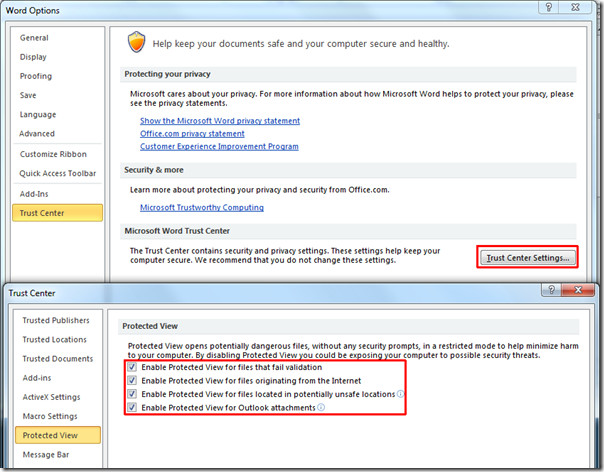
You can disable Protected View for files that failed validation, that have been downloaded from the internet, are located in unsafe locations, and/or contain attachments.
When done, hit OK. The above example is that of Word 2010, you will have to manually uncheck the options from Excel 2010, PowerPoint 2010, Outlook 2010, etc.

This does not help 🙁
I recently downloaded and installed Office 2010.
When I open Excel files that have been on my PC for years which are updated once a month, They get opened in Protected view.
I uncheck ALL boxes in the trust center and still the files open in protected view.
the only way that I can edit the files is to click the error msg that pops up when I first open the file and select “edit anyways”.
Is there a way to disable protected view even though ALL boxes in the Trust Center are UNchecked?
I don’t have the trust centre item, what next?
that what we call solution
There is another solution that worked for me:
1. Select a cell
2. Select the formula bar
3. you get a pop-up screen, select “Enable edditing”
4. Done!
thanks a lot, it works acuretly.
thank you so much. I spent 2 years not being able to open documents!!
Just came across this problem this week. I have *no* idea why it just started this week, but one of our oldest customers suddenly became unable to open our Excel documents because they ‘originated from the internet’.
It has never been a problem until today and even though I have done all of these changes, the customer is still unable to modify or print the document.
So bizarre.
I need to open a protected view workbook using vba.. but it returns an error… any suggestion??
Oh my goodness, thank you so much. I am a teacher and thought I’d lost years of planning!
Sue
it worked thank u sir 🙂
Thank you. Works perfectly in Word 2013 too.
Thanks a lot!
thanks. it works
Thank you. Works fine
Thank you…
Thank you! This has been driving me crazy!
thank you. thank you thank you thank you.
Microsoft once again demonstrates it’s PITA nature. I want to control MY DOCUMENTS NOT MICROSOFT. Hopefully there willbe a viable alternative to Microsft in my lifetime. MS can KMA!
Microshafted yet again !!!! cant run any of my VBA on 2010.
just click file save and enable saving will come up click save problem solved you can now edit your doc. worked for me
just click file save and enable saving will come up click save problem solved you can now edit your doc. worked for me
Sorry, but in my case, it´s doesn´t work
thank you!! for helping me turn-off an annoying feature!
Thanks so much. EVERY time I opened a doc from anywhere but my hard drive (or if it had been transferred to my hard drive) Word2010 opened it in that stupid protected mode, which promptly crashed. SO frustration. This fixed that problem.
its not working
Editing this file type is not allowed to your policy setting (protected view)this msg appear on my ms excel 2010 i tried your solution.
so plz tell me about another solution
What finally worked for me was enabling “Allow Trusted Locations on my network” and then adding our server address. I don’t see the point of Protected View – IF you have a good virus program set to live scan.
its not working
Editing this file type is not allowed to your policy setting (protected view)this msg appear on my ms excel 2010 i tried your solution.
so plz tell me about another solution
Protected view loses the Headers and Footers from the templates I need to fill in reports on. So I get unhappy recipients of completed reports who cannot understand why my formatting is wrong. Neither can I. I now seem to have a “New Improved” system which is a complete pain to me and everybody else. How can I retain the original format of the documents my safe and trusted colleagues are sending me please? . As it stands this new system makes no sense at all to me and is completely useless.
Your solution does not work. All boxes are unchecked and still get the damn protected view.
Worked for me after I added my documents and template folders to “trusted locations”.
Thanks, Mish!!! At long last, this is it!!!!
OMG thank you so much this worked for me after I tried every single above mentioned methods. I believe it might be a combination of all but ah well it worked and im not touching anything anymore 🙂
Thank you!!
Thanks Tech Joe! Your solution worked great! I wish there was some way I could bump it to the top of the list!
Me too!
This artical is WRONG!
The error occurs when you open a Microsoft Office file type blocked by File Block settings in the Trust Center. To enable this file type, do the following:
1. In Word or Excel Click the FILE tab.
2. Under HELP, Click Options.
3. Click TRUST CENTER, and then click TRUST CENTER SETTINGS
4. In the Trust Center, click FILE BLOCK SETTINGS
5. On the bottom where it states, “Open behavior for selected file types:” select option 3, which is OPEN SELECTED FILE TYPES IN PROTECTED VIEW AND ALLOW EDITING
6. Click OK and restart Word or Excel
Now you do’t have to have your finger up your ars and say, “durr”
Tech Joe, I already followed these steps as per another person’s directions. I STILL get these annoying error messages! Microsoft has a way of unimproving everything they touch!
This could also have to do with “Trusted Locations”. Under your “Trust Center” settings, go to “Trusted Locations” and add the location where the file resides. Close Excel and try to reopen the document. Hopefully this will help.
Woohooo 🙂
Thanks alot for this, it finally works after reading so many people saying “the problem is in your Protected view settings” but telling such lies.
I finally see this and it works 😀
Your comment Tech Joe is WRONG!!!
I have tried that already and it did not help.
Now go put your finger up your ars and say “DURR”
1.goto http://go.microsoft.com/fwlink/?LinkId=189316 and download the office template.
2. extract the files, then save the proper files to c:\policydefinitions
3. start your local group policy editor ( start – run – gpedit.msc)
4. right click Administrative templates under computer configuration and select add/remove templates and you want to add the excel template that you just saved to the policydefinitons folder.
5. while in local groupe policy editor, go to USER CONFIGURATION – Administrative templates- Classic Administrative templates – Microsoft Excel 2010 – Excel Options – Security – Trust Center – Here you will see Protected View and File block settings – go through the file block settings and enable everything with DO NOT BLOCK , you can also adjust the protected view options if you like.
You should then stop receiving all the prompts/blocks
6.
Dan, I have extracted the files as per your directions.In step 2 you say, ” …save the proper files to c:policydefinitions” What are “the proper files”?
Nope. Doesn’t work. Unchecked just about everything in the trust center, including the Protected View settings, and I still get the warning bar. And this one is for no apparent reason, since the file has lived in the same directory since birth. Pretty goofy, like much else in Win7…or Office 2010.
Did absolutely NOTHING!!!! I am now unable to edit my own documents I made out on an earlier version! I am sick of it! All it will let me do is open under protective mode! My own creations!
I need help! Somebody at Microsoft needs to let us determine what files we want to open under protective view! I have wasted an entire day trying to edit a file I need now!
Very disgruntled at Microsoft,
Carol
Thanks very much for the solution.
This is another useless, medling feature by Microsoft which lends credibility to the generally held view that Microsoft is out of touch with consumers.
Now, thanks to Microsoft’s annoying security feature, I have click extra buttons dozens of times each month just to be able to edit and print documents. Thanks for wasting my time. I will be moving to software created by other providers.
AGREED!
Thank You!
Like what?
Thanks for the solution, it works fine !!