Quitter — Run Twitter in Command Mode (Avoid Suspicion)
If you are a Twitter addict who can’t leave it alone even while working in the office, you are not alone. Meet Quitter, a free portable Twitter command line client that looks similar to MS-DOS. It lets you browse your timeline, post tweets, and interact with followers — all from a text-based interface that looks like any other terminal window on your screen.
What Is Quitter? A Twitter Command Line Client for Windows
Quitter is a lightweight, portable application designed for Windows users who want to access Twitter without opening a browser or a graphical desktop client. As a Twitter command line client, it mimics the look and feel of a classic DOS prompt, and this Quitter Twitter stealth mode approach helps it blend in seamlessly on a work computer. There is no installation required — simply download the executable, run it, and you are ready to connect to your Twitter account within seconds.
The appeal of a command line interface for social media goes beyond novelty. Power users and developers often prefer text-based tools because they are fast, consume minimal system resources, and keep distractions to a minimum. Quitter delivers exactly that kind of stripped-down experience, letting you focus on the content of your tweets rather than the visual noise of a full-featured client.
How to Set Up and Use This Twitter Command Line Client
Important — Current Status Notice: Quitter was last actively developed around 2009 and has not received confirmed updates since. Twitter (now X) has significantly changed its API access requirements over the years, restricting third-party app access and requiring approved developer credentials. As a result, it is very likely that Quitter’s browser-plus-PIN authorization flow no longer works with the current X API. We are presenting this article as a historical look at an early Windows Twitter command line client rather than a live recommendation. If you need a working CLI client today, see the alternatives section below.
Here is how it was designed to work: just load it up, type Y and hit Enter. It will load up Twitter’s website where you will need to enter your login credentials. Once done, it will show you a PIN — type it into Quitter and you are good to go.
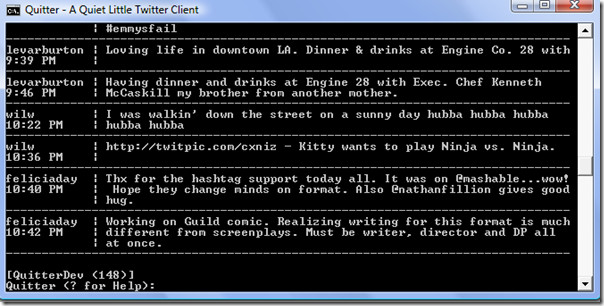
Screenshot above is taken from developer’s website
To get help on how to use it, type ? and hit Enter. A list of available commands will appear, covering everything from reading your timeline to posting new tweets and managing replies. It is still under development and far from complete, but the core functionality works reliably for everyday Twitter browsing.
Note: Since it is still in beta version, please don’t complain if you find any bugs. Let the developer know if you find any and he will make sure it is fixed.
Key Commands and Features
Once you are authenticated, Quitter gives you access to a range of basic Twitter functions through simple keyboard commands. Below is a practical reference for the commands Quitter documented at the time of its development. Note that because Quitter is unmaintained and its official documentation is sparse, some of these commands may be incomplete, unstable, or unavailable depending on the build you have:
- Post a tweet: Type
t Your message hereand press Enter to publish a new tweet directly from the terminal. This was among the most reliably documented functions. - Read your home timeline: Type
tlor the equivalent timeline command to fetch and display your latest tweets in plain text format. Confirmed as a core feature, though real-time refresh behavior varied. - View mentions: Type
mormentionsto check replies and mentions without switching to a browser window. Availability may vary by build. - Look up a user profile: Type
whois usernameto view a user’s profile information from the command line. - Follow a user: Type
follow usernameto add someone to your following list. Unfollow withunfollow username. These functions were listed in early documentation but should be treated as unverified in current builds. - Send a direct message: Type
dm username Your messageto send a DM without leaving the terminal. DM support in early CLI clients was frequently incomplete. - Search: Type
search keywordto run a basic Twitter search. This feature was noted as experimental even in early builds. - Get help: Type
?and press Enter at any time to display Quitter’s built-in command list. This is the most reliable way to see what your specific version actually supports. - Log out: Type
exitor close the terminal window. Note that your OAuth token may persist locally even after closing — see the Authentication section below for details.
In short: posting tweets, reading the timeline, and viewing mentions are the functions most likely to have worked as described. Follow/unfollow, DMs, and search should be considered experimental. Any features tied to modern X platform additions — polls, Spaces, rich media previews, advanced filtering — are not available in a client of this age.
Why Use a Command Line Twitter Client?
There are several practical reasons to consider using a text-based Twitter client like Quitter. First, it is extremely lightweight — it uses virtually no memory compared to running Twitter in a full web browser. Second, it is portable, meaning you can carry it on a USB drive and run it on any Windows machine. However, be aware that portable does not mean traceless: terminal Twitter clients commonly leave local artifacts behind, including OAuth tokens, configuration files, cached timeline data, and browser cookies generated during the authorization step. If you are using Quitter on a shared, work, or public PC, you should assume that account data may persist on that machine unless you actively locate and remove those files afterward. Third, the minimalist interface reduces the temptation to spend hours scrolling, helping you stay focused and use Twitter more intentionally.
For developers, system administrators, or anyone who spends a lot of time in terminal environments, having a Twitter command line client available means you never have to break your workflow just to check your feed or post a quick update.
Authentication, API Requirements, and Limitations
Understanding how command-line Twitter clients actually connect to the platform helps explain both why the setup feels unusual and why these tools can break without warning.
CLI clients like Quitter do not use a simple username-and-password login. Instead, they rely on OAuth, Twitter’s token-based authorization system. The typical first-run flow works like this: the client opens a browser window, you log in and grant the app permission, and Twitter returns a PIN or token that you paste back into the terminal. That token is what the client uses for all future requests on your behalf — it is stored locally on your machine.
The practical problem is that this entire flow depends on the platform’s API remaining open and compatible with the client’s implementation. Twitter (now X) has made sweeping changes to its API access tiers since 2023, including removing free-tier access for many endpoints and requiring paid developer credentials for others. A client like Quitter — which predates these changes by over a decade — has essentially no chance of completing a successful OAuth handshake under the current rules unless someone updates its API credentials and codebase, which has not happened.
Even a well-maintained CLI client will hit feature boundaries that browser-based or official clients do not. Most terminal clients do not fully support: rich media uploads and previews, Twitter Spaces or audio features, polls, advanced moderation tools, or real-time notification streams. If you need those features, a CLI client is the wrong tool regardless of maintenance status.
Best Twitter Command Line Client Alternatives
If you are searching for a Twitter command line client that actually works — or that worked more recently — here is how the most commonly recommended options compare. Note that all of these clients face the same API access challenges described above, and their current functionality depends on both maintenance status and your own Twitter/X developer credentials.
Rainbow Stream
Rainbow Stream is a Python-based, interactive terminal client with one of the most visually polished interfaces of any CLI option. It displays a live, color-coded stream of your timeline directly in the terminal window, updating in real time. It was primarily built for Linux and macOS and is installed via pip (pip install rainbowstream). Standout features include timeline viewing, tweeting, mentions, DMs, search, image display (in compatible terminals), and proxy support — making it one of the most feature-complete options for power users on Unix-like systems. It is not a good fit for Windows users or those who want a lightweight scripting tool. Best for: Linux or macOS users who want a full interactive terminal UI with real-time streaming.
t (the Twitter CLI gem)
t is a Ruby gem installed with gem install t and is designed for command-based, non-interactive use rather than a live terminal session. You call individual commands — for example, t update "Your tweet here", t timeline, t mentions, or t dm username "message" — which makes it ideal for shell scripting, cron jobs, and automation workflows. It also supports CSV output for data exports. Platform support is strongest on Linux and macOS; Windows users can run it via WSL. Best for: Developers and system administrators who want to script Twitter actions or integrate posting into automation pipelines.
Oysttyer (formerly TTYtter)
Oysttyer is a Perl-based interactive terminal client that runs on Linux, macOS, and Windows (with a Perl environment installed). It is launched from the command line and then accepts commands interactively, similar to how Quitter was designed to work. It supports timeline reading, tweeting, mentions, search, DMs, and basic filtering. Being Perl-based means it is more portable across operating systems than Python or Ruby alternatives, but it requires a working Perl installation. Like the others, its current API compatibility depends on whether the maintainers have kept up with X’s credential requirements. Best for: Users who want an interactive session-style CLI client that works across operating systems, including Windows with Perl installed.
Quick comparison summary
- Rainbow Stream — Linux/macOS, interactive, richest terminal UI, real-time stream, image support
- t — Linux/macOS/WSL, command-based, best for scripting and automation, CSV export
- Oysttyer — Cross-platform including Windows (with Perl), interactive session, broad feature set
- Quitter — Windows only, historical interest, almost certainly non-functional with current X API
Originally built for older Windows releases, Quitter’s modern compatibility is unverified and it has not been updated to reflect current API requirements. If you are on a modern Windows system, one of the alternatives above is a more reliable starting point.
