Easy And Fast Batch Image Conversion With Profiles
Image converters and manifold, with every new product claiming to do wonders. They also offer a rich set of features and formats, and with Windows 7 even the built-in MS Paint application allows basic image conversion (scaling down size, changing format etc). However, most of these solutions require a lot of manual processing. What if you have a collection of thousands of pictures? What is the easiest solution?
Generally, batch image converters are also plentiful. From out of the crowd stands Photo Magician, a free batch conversion tool which is both fast and portable, allowing one-click operating for as many images as you want.
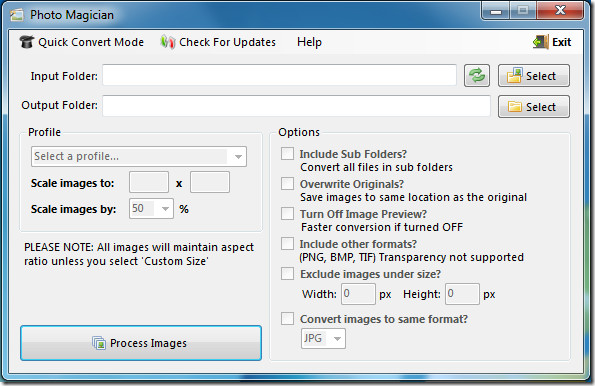
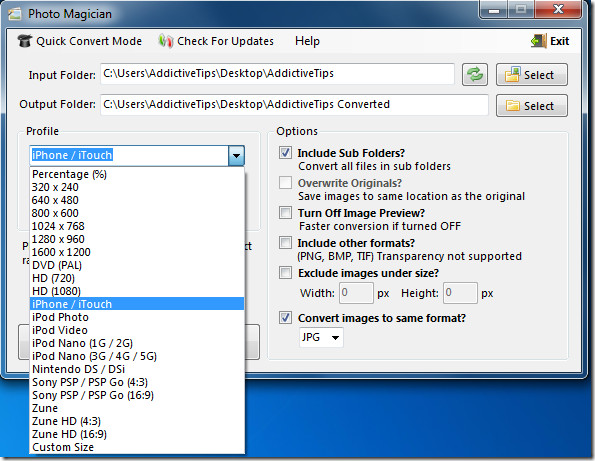
The usage is very simple. Browse to the input folder, which contains the images that you want converted. Define output folder where converted images will be stored. Select the conversion profile, check whatever options you want to apply from the right-side pane, and click process images. Sit back and relax as the software does the work for you really fast.
Conversion profiles are the real beauty of this tool, making it stand out from the crowd. There are a number of predefined profiles, based on resolution and device, as well as a custom settings profile. You can have the images converted on the basis of percentage of existing size, set to a popular resolution (1280 x 960, for example), or get it ready for upload directly to your device. Supported device profiles include variations of iPhone, iPod, Nintendo DS, Sony PSP and Microsoft’s Zune players. Selecting an iPhone profile, for example, will convert the image to 480 x 320.
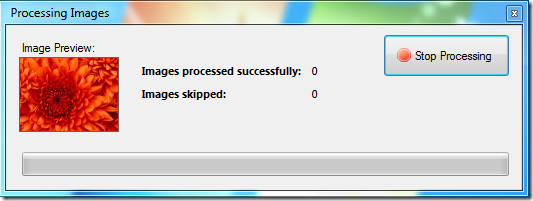
Once you click Process Images, conversion will begin. You can optionally choose to have (or not have) a preview of the image being converted.
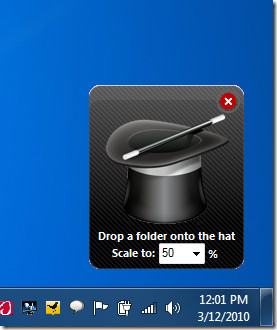
Another very interesting and useful feature of this tool is its Quick Convert Mode. Clicking this place a ‘magician’s hat’ at the bottom of your screen, right over the clock. All you need is to drag and drop the folder needing conversion over this hat. You can set the percentage of size you want, only.
Once you drop your folder, the app will ask you whether you want to keep originals or not. Selecting Yes will replace originals, while No will save converted images to your My Pictures folder.
Photo Magician is a great utility that works with all versions of Windows, x86 and x64 both.
For more, also check out Shrink Pic, Image Resizer, Image Tuner, and Modi.

Could you add another profile for the new ipod touch 4th gen 480 x 960? Thanks in advance.