Enable iOS AirPrint Service In Windows 7 For Wireless Printing
If your iDevice (iPhone, iPod Touch, or iPad) is running iOS 4.2 or higher, you must be familiar with an intrinsic printing feature called AirPrint, which offers wireless printing of documents over Wi-Fi connection. This feature directly supports HP’s ePrint range whilst some printers from non-supported vendors are also reported to be working seamlessly via Windows and Mac. Today we’re bringing a detailed walkthrough to enable AirPrint on Windows 7. Before getting started, you need to configure your printer as shared in Windows, also make sure that you have latest iTunes installed on your system.
First off, download the AirPrint ZIP package (download link is provided at the bottom of the article) and unpack its content into C:/Program Files. If you’re using Windows 64-bit edition, you need to unpack the archive into C:/Program Files (x86) folder.

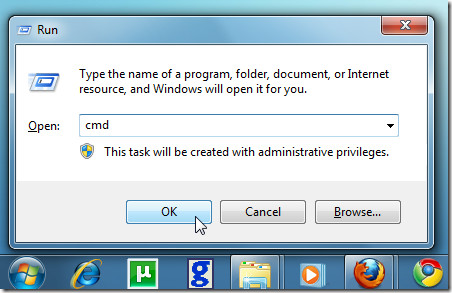
Once the content is extracted, open Command Processor with administrative privileges (type CMD in Windows Run Console ) and execute following commands.
For x64 system
sc.exe create AirPrint binPath= “C:\Program Files (x86)\AirPrint\airprint.exe -s” depend= “Bonjour Service” start= auto
sc.exe start AirPrint
For x86 system
sc.exe create AirPrint binPath= “C:\Program Files\AirPrint\airprint.exe -s” depend= “Bonjour Service” start= auto
sc.exe start AirPrint
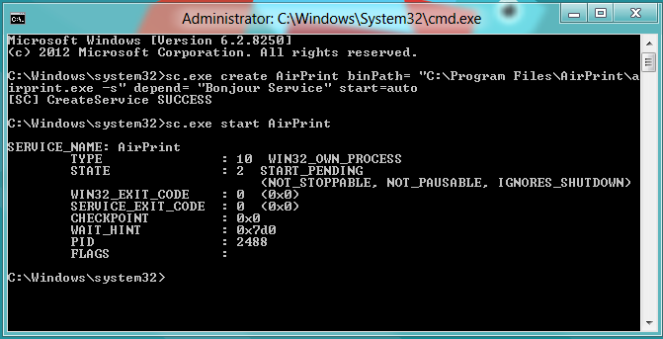
When the AirPrint service is initiated, the Windows Firewall will prompt you to allows access, click Allow Access after enabling option to permit only private / home networks. Now, you’re good to go, open any document in your iOS device and tap Print option to verify the newly deployed AirPrint service in Windows.
The AirPrint installers supports Windows XP, Windows Vista, and Windows 7.

I’m having trouble getting this to work on Windows 8 Consumer Preview x64. It works great on Windows 7. The service is installed and running, and I’m sharing the printers, but my iPad isn’t able to see them. Any idea what I’m missing?
I got it going with this:
http://ipadhelp.com/ipad-help/how-to-enable-airprint-for-windows-and-use-any-printer/
I see they used the same components, but had a way of setting the service without the CLI.
Was not able to get it to run as a service, it would only work if I ran the exe in the airprint folder. Will try some of the other suggestions.
The initial instructions failed to create for me, so I tried “nit sin” instructions and it worked.
1- download the airprint files from above then drop the airprint extracted folder into the root, c:\
2- run an administrative command prompt
3- type in “C:\AirPrint\airprint.exe -i” without the quotes.
you have to share your printer and also you have to run the airprint command as an administrator. you may have to enable a “guest” user in windows, too.
I followed the instructions and it all worked for me. I have printed photos and documents (from Safari) from my iphone4 on my old HP C7250. There is a delay of several minutes before documents start printing.
This persons guide didnt work for me, but my steps worked for me. Give it a shot. It’ll take less than 2 minutes to do for a normal power user.
1- download the airprint files from above then drop the airprint extracted folder into the root, c:\
2- run an administrative command prompt
3- type in “C:\AirPrint\airprint.exe -i” without the quotes.
4- try printing from your ios4.2 device. it prompted me for credentials bc i have a password on my PC.
Yes it works.
got it to work 1 time.. Then nothing..
A new version will probaly be out soon.
Yeah, this doesn’t work at all.
Um what do you do to enable printing after doing this setup? Does AirPrint on Windows use your default printer? Are there any requirements to this printer? Does it have to be phisically connected or can it be on a print server? My iPhone still says No Printer Found when trying to print??