Extend Or Expand Volume Of Windows Partition In Windows 7/Vista
Do you have Windows 7 or Visa installed on C Drive(or any other drive) and are looking for a way to extend it? After reading different blogs and forums I have found that most people are looking for it’s solution. My friend recently asked me the following question,
I have Windows Vista installed in C drive, my D drive is almost free and I don’t use it much. I now want to extend my C drive, and the “Extend Volume” feature is grayed out too. I don’t know what to do, please help !
If you are beginner or a pro, it doesn’t matter, today I will clear all misconceptions and solve this problem once and for all.
I will solve this problem using Windows build-in Disk Management tool. Right-click Computer, select Manage, and finally click on Disk Management on the let sidebar. In my case it looks like the screenshot below.
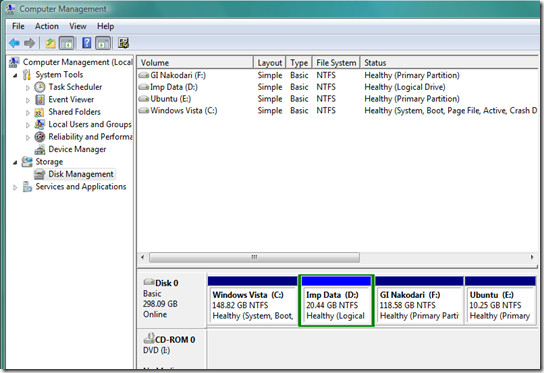
When you right-click on Windows partition(in my case it is drive C), you will find that Extend Volume options is grayed out(not highlighted), the reason for this is that there is no unallocated space yet. To create an unallocated space, delete any drive that you don’t need anymore.Since my friend want to merge D drive with C, therefore I am going to delete the D drive and create some unallocated space.
Note: Backup all of your data and move them to USB or some other drive before you delete the partition.
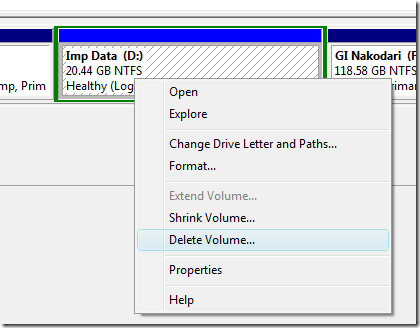
To delete drive D, right-click on it and select Delete Volume just like its shown in the screenshot below.
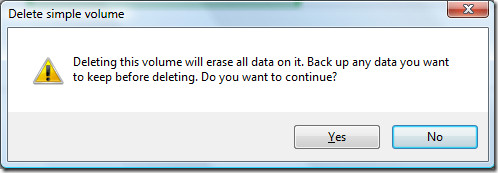
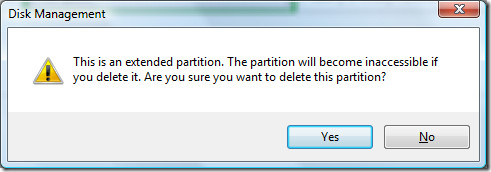
It will then ask for confirmation, just click Yes.
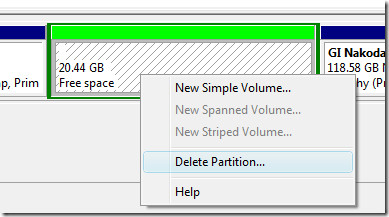
Now you will see Free Space been written on the space where you deleted the volume. Remember, you have just deleted the volume not the partition, to create an unallocated space you will have to delete the partition. Now right-click on this Free Space and select Delete Partition.
You will now again be asked for confirmation, just click Yes.
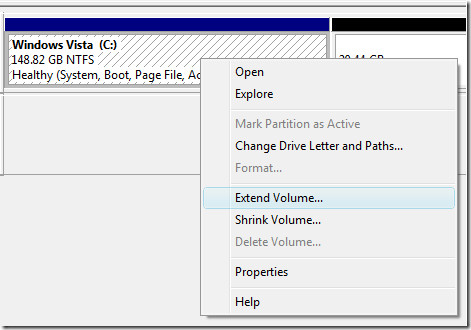
Now you will see the unallocated space which is ready to be added into any other volume. Now right-click on C drive and select Extend Partition as shown in the screenshot below.
Now when the Extend Volume Wizard opens, click Next.
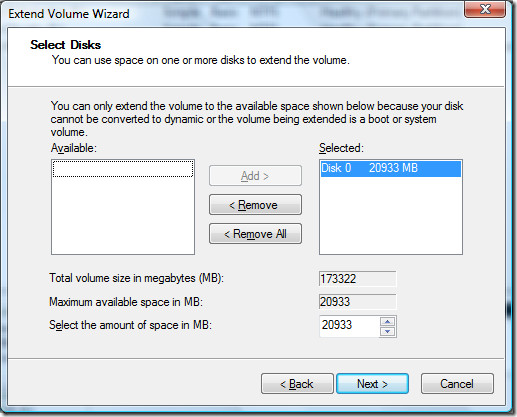
It will select the maximum number of unallocated space itself. But you can set any amount yourself too, keep in mind that it is calculated in MB not GB. After you are done here, click Next and then Finish.
Now you can see that C drive has been extended, see the screenshot below.
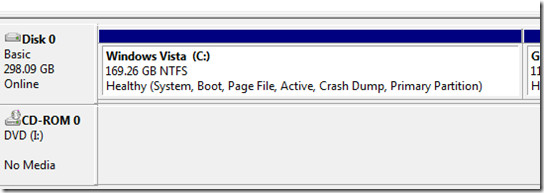
That’s all, and you don’t even need to restart your computer. I hope this handy guide helped everyone out there who were facing the problem same as my friend. 🙂
Note: This only works with contiguous space after the partition, which means that the unallocated space must be immediately next to the primary drive where windows is installed.
Got a question, feedback or trouble? Leave a comment.

a good direction to expand volume of c. I win by doing this. thanks.
After going through all steps I found my “Delete partition” option is not active showing grey.
Good advice, worked well. ‘ Note: This only works with contiguous space after the
partition, which means that the unallocated space must be immediately
next to the primary drive where windows is installed. ‘ Maximo
I have 10.25GB of ‘unallocated’ space. However, the extend volume option is still grayed out/inactive. Please advice.
Thanks Guys, problem solved for me.
Explanation is as below:
First of all i used windows disk management, where
C: = 21GB – Primary //needed to extend. problem was that the “extend volume” option grayed out
D: = 200GB – Primary //could not delete partition may be because it is primary partition
E: = 700GB – Logical //deleted using windows disk management
Then i used “EaseUS Partition Master Home Edition”.
with this software i could change the D: Primary to D: Logical.
then i deleted D: using this software. But this could not extend my C: stuck at boot. had to restart forcibly.
now windows only had one c: = 21GB. now i was able to use windows disk management to extend it.
Thanks to all and This software called EaseUS.
thanks…….. a lot….
i got it… thank u very much…
my delete option in d drive is also greyed out ..what to do?
my delete option in d drive is also greyed out
Excellent, it works perfectly with Windows 7 – 64bit. Many thanks
lOVE YOU BROTHER YOU HAVE JUST SOLVED MY PROBLEM THANK YOU.
how i move the space sext to c?
next sry
THANKS, YOU SOLVE MY PROBLEM
Thanks, It worked. I lost my boot-loader, and don’t have a recovery disk, but I figured out a way to make it work.
u don’t find the option of ‘extend volume’ in win 7( c drive)
hey mate,
This is awesome. Much appreciate for your advice!
Thanks,
sir for me for deleting the D drive volume also its is grayed out wats may b the problem?
thank you!!! I had the problem with the EXPAND being grayed out too and couldn’t find a help for that until I came here. THANK YOU!!!
Ah, delete volume, and then delete partition. It’s sooooo obvious (sarcasm). Thank you so much for posting this. I was stressing out about how to expand my C drive.
THANK YOU! – I couldn’t figure out why my new laptop came with the disk partitioned and even the manufacturer “tech support” told me I couldn’t merge the partitions back into one (!!). After googling the basic instrux I hit the “greyed out” problem but your excellent guide had my partitions reunited in less than 5 mins.
I ve tryed to do it, but even my c is next to unallocated space ”extend volume” always stays grayed out, could it be something else?
Thanks
I went through many postings before I found this one. You presented the information perfectly and my C: drive is now up to its proper size – no more messing with D:. Installing programs on your D: drive can be painful, especially on a 64-bit machine…. Thank you!!!!!
Thank you! this help me a lot!
it works !! very good !!
thanks for solving my problem !!
Dear sir,
I very thankful to you for the solution.
it’s really works.
Thanks And Regards
Harendra Dhiman
Bajaj Capital Limited
it works bro!! i didn’t deleted the partition, after deleting the volume, it directly became unalloted!! and then i extended c!!! thanks bro!!! 🙂 god bless u
Thank for the nice screen capture. In fact, I found another useful command steps from http://www.brain-cluster.com/blog/orange/2011/03/26/extend-partition-size-windows-server-without-reformat also
i still dont understand its not working huhh this is frustratin -_- please help me with your kind hearts my email adress is killlankan@hotmail.com here is a screen prnt of what im saying http://img135.imageshack.us/img135/7438/helpcw.jpg
One thing I forgot to mention in previous post (because I didn’t think it was an issue, but now realize that it is probably THE problem):
Somehow in the graphical display of the drive space, C (which has everything on it, including Win 7) is to the RIGHT of D (which has been cleaned to nothing. Thus, when Volume D is deleted, it probably does not turn into “free space”, but goes directly to “unallocated” because it even though it is adjacent to (touching) C, it is on the WRONG SIDE of C. Not sure how the two drives (while they were partitioned) got flipped in order.
So my question is, can they be flipped back to C being first, followed by D? Currently empty D is only approx. 15 GB, where as C is much larger, and only has 20% free space on it — thus, there is not nearly enough unallocated space on empty D on which to move/copy all of the files from C, and then somehow rename the two partitions to the correct order.
Have Windows 7
Had C and D (which Windows 7 upgrade did automatically without asking when originally uploaded onto laptop).
Finally got rid of Vista and now have only Windows 7, but still have C and D.
Moved all files from D to C.
D is now empty.
Through Disk Manager, deleted Volume D.
Space was immediately labeled “unallocated” not “free space”.
Right-clicking on “unallocated” space did not produce “delete partion” option at all; it did produce “extend volume” option, but it is grayed out.
The chance to “delete partition” is never even presented.
So stuck with no way of unpartitioning empty D and absorbing it into C.
We have tried your instructions and everything else we can think of.
Computer is not behaving as instructions here says it should.
i deleted my partition and got the required unlocated space but still that extend volume option is greyed out what do i do. I have windows 7. awaiting your reply
I have windows 7.
I have the same problem.
I have 4 GB unallocated space, but the extend volume option is greyed out.
the unalloaced space must behind your target partition, it must beside your partition, you could refer to this arctle http://www.partition-magic-windows7.com/res/extend-volume-windows-7.html
Thank you so much for the excellent instruction. You saved my day (or week)!!
There is one step that was not mentioned but I took a gamble and succeeded. I want to share it with the readers.
I bought a Asus Eee 1015PEM-PU17 this week and immediately proceeded to upgrade the Ram and change a few other things including getting rid of the D drive which for some reason has more than half of the total GB’s.
My problem was, similar to a few others, the “Extend Volume” on drive C was gray after I had Drive D deleted. I spent all night last night trying to fix it and was thinking that I killed a brand new net book and what the wife will yak about. This morning I search the web and found this one. Thank God!! One thing though, in my case there was another partition between Drive-C and the deleted one , which added some complication to the instruction. I read the instruction again and decided to take a risk by deleting the one in between also. I did that and the problem was solved.
Thank you very much.
All your directions for extending the C: partition worked well (Windows 7). However I have two small empty partitions to the LEFT of C: How do I move C: to the left hand side, so I can extend C: into this empty space ? Thank you Jonta.
empty? I don’t think so… OEM’s have small partitions made and are technically system reserved and not to be messed with. But if you are sure they are empty I have bad news… It’s not possible. You can only extend to contiguous space and unless you figure out how to put your C: drive to the very beginning of the hard drive then it isn’t possible.
wow this is so great thank you so much!
i have created unallocated space in windows 7 since i want to make new drive but it is not happening due to some error..some virtual disk error..
but now i want to combine my unallocated space with C drive back because 113 GB of my hard disk is unallocated…:(
please help me out..
mail me if u can please….
At least 3 or four hundred visitors at your weblog now, nice results for single website.
i make all the steps as u say but the extend option still grayed out !
i want to merg d with c
note d ia a logical disk
you are Great. No other solution like this available on web. Take a minite to do in Window 7.
Thanks very much!…..
Fantastic guide, I’ve been trying to solve this problem for my wife ever since she installed Vectorworks (which is huge) on the paltry C drive partition her HP Compaq came with. Thanks a million 🙂
you are awesom!thanks very much 🙂
I read your thorough description but when I open my Disk Management my D partition does not have the green border around it. The delete option is greyed out. The only opion I have is to shrink the volume. I did this and the new partition created is placed after the D partition. Since I am trying to expand the C partition it will not work since it is not contiguous to the C partition. I need to knoe either how to delete the D partiition or move the new partition created next to the C partition.
Hi, I too am having partition issues.
I had two volumes C and D. I want to move free space from C to D. Shrank C with no issues so drives were C, Unallocated space, D. Created simple volume in space, transferred data from D to new volume and deleted D so now C, New volume, Free space. Tried to extend new volume but opttion greyed out. Any help would be much appreciated.
This was the only tutorial I could find that was simple and direct. Thank you so much. The steps were easy and effective.
Thanks a Ton! it helped me saving a lot of time.
hi, thanks for the article. but unfortunately, my C: drive is on the right edge. yes, it havent any space or partition next to right. is it any possibilities to extend the volume?
thanks it really worked for me..
Hey Thanks a lottttttttttttttttttttttttttttttttttt 🙂 :)))))))))))))) it really helped me 🙂 Gbless u
can this process also work on my high end window 7 web server
can i take the risk through this page
I followed your suggestions but still do not get a right click command “Extend Volume”. It is grayed out.
How do I know if the deleted “D” volume is contiguous with my “C” drive? I have no other partitions on my hard drive.
If it is not contiguous, there is a slight space between the D and C blocks, how do I make them contiguous?
Appreciate your thorough explanation.
Thanks for your help, I will look forward to hearing from you.
Ah, download partition assistant here: http://www.extend-partition.com/free-partition-manager.html
I ever used free Partition Assistant to extend volume, No problem, great.
The main problem that most are having is how to extend a partition that follows the unallocated space. A partition can only be extended into unallocated space immediately FOLLOWING itself. If you have a setup something like the one here: C: , Unallocated, D: 162 Gig 158 Gig 136 GigOperating System Documents You can only expand a partition into unallocated space immediately FOLLOWING a drive, so the way you are setup now,you can only expand the C drive (not what you want) First create a new partiton in the unallocated space. You will now have the followingC: E Drive D: 162 Gig 158Gig 136 GigOperating System Empty DocumentsNext, move all your files to the newly created partitionC: E Drive ( or whatever) D: 162 Gig 158Gig 136 GigOperating System Documents New EmptyYou now have the empty partition to the right of the partition you want to expand. Now Delete the partition (D:) the partition and then you will no longer have a grayed out extend when you try to extend the E Drive. C: E Drive 162 Gig 158Gig 136 GigOperating System SJM Documents Unallocated SpaceFinally use disk management one more time to extend your E drive. C: E: 162 Gig 294 Gig Operating System SJM Documents Hope this helps.
hi help needAfter deleting the volume “delete partition” is not active even after i loged in safe mode also. how can i delete the partition now.
this is nice……………….i was searchin for this solution… in many website………you hav given the perfect one…………thanks a lot……..
Cheers!
GREAT MAN THANK YOU!
Thank you very much i have extended my dis right here in Eldoret kenya (East africa) with your advice, Keep up the good work
I can't thank you enough. I knew there had to be a way to do this simply! Was told by a guy at the computer shop today they would have ot reload everything and rebuild the C: drive for $85 to accomplish it. Being stubborn, I thought I'd give it another shot. It worked just as you described. Beautiful!
nice job saving yourself $85, the computer shops generally take the longest and most expensive way to make you pay more 🙂
Your article helped me so much. thanks alot. i made my c drive use all my hard drive space in to one. ty
HEY ALL!rite now am in a fix! i have a windows Vista running on my laptop and recently ive been facing quite a few problems with my operating system and i figured the best option would be to reinstall my windows. Unfortunately when the OS was installed the partition C(which also has the OS) was made to have arnd 136 gb space and the other partition D has only 10 GB! because of this i had to install and save all my files, applications etc on C itself. Now before reinstalling windows i would like to backup all my data! i thought i could expand my D drive and den backup everything on it! But am unable to do that!! Please help me out!! I am unable to expand my D drive!! please is there anyway to shrink the C drive and den extend D drive or sumthn?? please help me out! thanks alot
HEY ALL!rite now am in a fix! i have a windows Vista running on my laptop and recently ive been facing quite a few problems with my operating system and i figured the best option would be to reinstall my windows. Unfortunately when the OS was installed the partition C(which also has the OS) was made to have arnd 136 gb space and the other partition D has only 10 GB! because of this i had to install and save all my files, applications etc on C itself. Now before reinstalling windows i would like to backup all my data! i thought i could expand my D drive and den backup everything on it! But am unable to do that!! Please help me out!! I am unable to expand my D drive!! please is there anyway to shrink the C drive and den extend D drive or sumthn?? please help me out! thanks alot
Yeah… Just right-click on C: and then click shrink volume… Follow on -screen instructions. Now you have unallocated space… Extend D drive…
Note: You can only shrink the largest CONTIGUOUS SPACE…
Here is am example:
Key —– Means used
___ not used
***** Unmovable and used
Example harddrive: ——-__*_____*__—–___*******————**—-__________
You can only shrink the largest empty space so… First defragment and you will get this example: ———-*——–*———___*******_______**____________
The biggest contiguous space is… ^^ Can’t move this^^ ^^THIS^^
So that is the most you can shrink. That example up there was hand made, took forever to do 😉
Dear Friend, Thanks for the detailed tutorial. This post is surely the best in this particualr regard. But i have one doubt.
My situation is that i have a 300 GB of hard disk. Partition is C-30GB and D-260GB. As off now i have deleted the D: volume and i have the FREE SPACE(260GB) next to C drive.
Per your advise, next i need to delete the FREE SPACE Partition. And then i can extend my C drive volume. Say i do that and extend C drive by another 100 GB.
So then my C drive then becomes 130GB. But i still have another 160GB of unallocated space. Can i create back D drive of this unallocated space.
Hope i’ve not confused you. Thanks for your time.
Yes you can… forgot how to… either there is a way to do it in the same disk managment or use diskpart (be careful not delete the C: accidentally)
You have prepared a good tutorial. Thanks for your kind sharing of knowledge, have a nice time.
all hail great Nakodari.thanks a million.worked perfectly.
I looked for HOURS trying to find out how to do this, then your site with it’s step by step solved it in thirty seconds! Thank you very much. this is great info.
Excellent advice, solved my problem straight away.
Thanks
Wonderful Guide bro!
It worked well and i had no problems what so ever!
Thanks again!
when I got to delete volume after confirmation I get “The partition DATA(D:) Simple Volume is currently in use. to force deletion if this partition, click yes.
WARNING: Forcing a deletion might cause unexpected errors in the application that is using this partition . Do you want to continue?” I have deselected all hide commands but still don’t see what is taking up the space on the D: drive. I have also copied the D: drive and pasted into a folder on my C: drive and still does not show an amount equal to used space. Is it safe to delete the D: drive, it says that it is primary. I only have the one HDD and C: is the system drive.
If your drive D is empty(and you have made a backup of all files), then obviously it is safe to delete it. If your D drive is primary, it doesn’t matter since you have your OS installed in C drive. So in my opinion, it is safe to delete it.
On the other hand, this warning prompt arises as default. Even if your drive is empty still this warning will show up. 🙂
I had this problem as well. I got a new laptop and it had C: and D:. The C: partition has the OS on it (Windows 7) and the D: drive was marked as (DATA). I only want one C: drive for everything. When I tried to delete the D: partition. I got the same warning as Greg. I was afraid to proceed. Why does the D: partition show space consumed but there is nothing there?
After delete the drive i am going to delete the partition but it will not populate what can i do for that.I am waiting for your reply.thank you……………..
I have followed the steps you showed above, but why I can not select the “extend volune” in the right click dialog, the function is disable (like 2nd picture above). Please help!
Thanks!
I don’t get delete partition option highlighted even in safe mode and in administrator login, what could be the way out, I want to merge D drive into c.
same here
hi.i have 2 partitions .C: and D: . the volume of D: is 220 gb and the volume of D: is 13 gb and it is approxmatly full ( 188 mb free) .i want to extend the volume of D:.how can i create an unallocated space of without deleting any data to use it after for extending the D:?thx for ur answer to my e mail.
just a little note.the operating system ..the vista is on the D:.my e mail is mamito_1982@hotmail.com
I have lost 48 gb of hard disk b/c i want merge into C, but whenever i deleted now i want extend the volume, i donot get any option of ‘delete partition and also when i click new sample volume it shows that ur hard disk have not enough space what should i do?
plz help me………
You can check this post, it might help you https://www.addictivetips.com/windows-tips/how-to-resize-and-move-partition-without-losing-data-in-windows/
THANKS ALOT!!!!!! Been looking around for a while since it always grayed out extend volume on vista… didnt know you can only extend to unallocated space…. THANKSx100!!!
This was the only which complete in all respects even for a layperson. Thanks a lot.
Thanks a lot. i wasted two days in this and i now finally got the solution from your article. thanks a lot 🙂
I have 500 gb hdd. 38,1 gb is c drive, 419 gb is d drive. I want to expand the c drive. Firstly, I shrinked the drive d (50 gb). then I had three drives c,d and e. I deleted volume the drive e and it got free space then I deleted this partion as you described. And I wanted to expand the drive c but it was still grayed out. Then I expanded the drive d .no problem for the drive d. But I couldn’t make drive c to expand. What was the reason? I use windows vista home premium service pack 1.
Thanks
Tolga
The free space must be next to the drive with which you are expanding. It means that when you deleted the partition E, it was next to D, you must make it next to C and then it will merge with C, otherwise it won’t.
As you know I have two drives c and d. I copied D to external drive and deleted this volume. There was only drive c. But it was still grayed out. I couldn’t expand it. Is there any solution?
But in our system there was a part only 8,38 gb but there is no letter to define it. I can see it only in the disk management part. I cant use this part.
Hmmm did you try this in Windows Safe Mode too ?
How do you make the unallocated space next to the drive you want to extend? Are you forced simply to delete the volume directly following the one you want to extend?
Here is my situation: I have two logical drives (drive 0 and drive 1, obviously). Drive 0 has a single volume on which I have installed vista. Drive 1 origonally had a single partition where I kept my media, but I created another on which to install the beta for windows7. This means that on drive 1 the first volume is my media and the second is windows7. Is there any way to get the unallocated space created by shrinking my media volume onto my windows7 volume (which is to the right of it)?
Yes you can do it. 🙂
You can also try this software to do it. It is more easier in my opinion. Check the link below,
https://www.addictivetips.com/windows-tips/how-to-resize-and-move-partition-without-losing-data-in-windows/
This didn't work either, dude. The C: drive still has the “Extend Volume” grayed out. Any further suggestions?
at last, thank you, been trying to do this for ages simples if you follow the steps
at last, thank you, been trying to do this for ages simples if you follow the steps
after delelting my volume which is next to vista OS , i cant delete the partition because that option is grayed out ,,, so what to do next
Waiting for ur reply prem
You can try deleting the partition in safe mode. That might work!
boru kiyanna epa