Firefox Cache Files And Folder In Windows
So many people are searching for the terms Firefox cache folder, Firefox cache files, Firefox temp folder, Firefox temporary folder, Firefox cache location, and the list goes on. They all are somehow looking for a single folder called Cache, which is inside the Firefox Profiles folder.

The way Firefox handles cache is quite simple, it creates a folder named Profile for every user, and all cache is stored in it. If you are looking for the Firefox Cache folder, then the path will vary depending on which version of Windows you are using.
Before you navigate to these path, makes sure that you have enabled Hidden Files and Folders. To enable this, go to Tools > Folder Options > View tab and select Show Hidden Files and Folder and click OK.
In Windows Vista: C:\ Users\ (Your Username)\ AppData\ Local\ Mozilla\ Firefox\ Profiles
In Windows XP: C:\ Documents and Settings\ (Your Username)\ Application Data\ Mozilla\ Firefox\ Profiles\
In Windows 95/98/ME: C:\ WINDOWS\ Application Data\ Mozilla\ Firefox\ Profiles\
After you navigate to the Profile folder you will see profiles names in order such as xxxxxx.default. go inside this folder and you will find the Cache folder.
I was wondering as to why so many people are searching for this folder, the only reason that comes to my mind is because they want to delete the cache to save some space. So if you are looking for a way to delete the cache files, you don’t need to navigate all the way to the Cache folder to do it. You can simply open Firefox and go to Tools > Clear Private Data, here you can select Cache and click Clear Private Data Now, this will delete all Cache files instantly.
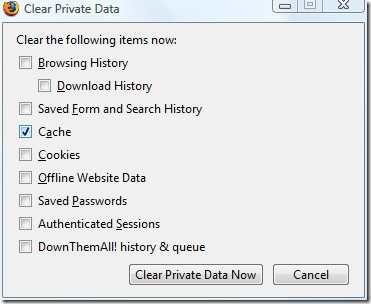
It’s that simple. Leave a comment if you have any questions of feedback.

2013 – years out of date ff 25 now creates 1600 cache folders
my reason is to know and control what is stored in the backyard especially
when programs disguising the way to it.
btw
sorry,,, *bad news is you can’t copy the files manually from the Temp
folder you’ll get an error saying the folder is being used by another
program ”
there is one way to get straight access –
prior killing the process firefox.exe with task manager or unlocker.
it leaves the temp/cache folder ‘unhurt’ i.e. free for managing!
everyone knows how to use clear history/cache in firefox… Thanks for assuming everyone is as much of an idiot as you.
much appreciated palestinian! thank you!
@mm: once a video file is fully downloaded Firefox moves it to Temp folder right away, bad news is you can’t copy the files from the Temp folder you’ll get the error ” http://www.nirsoft.net/articles/flash_tmp1.png ” ,, the good news is there’s a software to copy the video files from the Temp folder, it scans you’re Temp folder and give’s you a menu with the video files inside your Temp folder, and you have the option to copy/play/delete the files, you can find the software description here ” http://www.nirsoft.net/articles/copy_flash_flv_temp_file.html ” and the download link is ” http://www.nirsoft.net/utils/videocacheview.zip ”
@HedgedIn: you need to show hidden files and folders + hidden system files and folders which can be found right under the show hidden files and folders option, you might find (Not Recommended) right next to it, check that option and you are done. 🙂
sorry,,, *bad news is you can’t copy the files manually from the Temp folder you’ll get an error saying the folder is being used by another program ”
the picture is what you will find in the Temp folder…
The path for Vista is also valid for Win 7 Home.
SHT…firefox cached videos are in temp!!!
not a problem. just copy the file and save it elsewhere, then use vlc free video player from videolan.com and drop that file on it, and it willl play. All video files in the firefox cache have a name that ends with d01. to play it in other video players, just try adding in a .flv or a .mpg or a .avi etc and you’ll be surprised.. it’ll play!
If you are looking for the cache folder to save the videos watched online use Seamonkey, it is supereasy to find and to relocate the cache folder, if you use VLC dont need to rename flvs. Pay attention to copy and paste the video before the download finish from those sites that clean theyr videos when the download is finished. TO FIND VIDEOS IS THE REAL REASON BECAUSE PEOPLE LOOK FOR THE CACHE.
I can get as far as the Documents and Settings and the Username, but I don’t have AppData or Local Settings or anything, and I’m running Windows XP. I tried searching for the Cache folder and the Mozilla folder referenced and there’s nothing. Help?
Btw, a very useful tool for cleaning up is the freeware CCleaner (http://www.ccleaner.com) from Piriform (they have other nice s/w too, like Recuva for restoring deleted files or Speccy for hardware information – their model is to make free simple and nicely designed Windows tools, which don't auto-update, but they check for updates and point you to their site to get newer versions, where you see ads [Google AdSense-served ones if I remember well])
On my CCleaner it says FireFox Internet Cache skipped. So WTF??
I have just found that there are files in that 'cache' drive from 2007 and I do clear my cache via the recommended method regularly. I'm guessing these are cache files from when I first installed Firefox, but it seems they aren't deleted by the memory heavy Firefox 3.
can also see %APPDATA%MozillaFirefoxProfiles
can also see %APPDATA%MozillaFirefoxProfiles
can also see %APPDATA%MozillaFirefoxProfiles
or in registry: HKEY_CURRENT_USERSoftwareMicrosoftWindowsCurrentVersionExplorerUser Shell Folders
and then change the following value.
Local AppData
from %USERPROFILE%Local SettingsApplication Data
to wherever you want..
i think there is a mistake.. in win xp, it should be
%homedrive%\%userprofile%\Local Settings\Application Data\Mozilla\Firefox\profiles\*.default\cache\
The reason I’ve been looking for this folder is to get the videos I watched in You Tube and save them in another folder, to see them offline.
Sure a lot of people are looking for this purpose. Have a look here, it might help.. https://www.addictivetips.com/windows-tips/search-for-flash-videos-in-your-iefirefox-or-any-other-internet-browser-cache/
if u wanna watch movies offline, get the addon for firefox called DownloadHelper. works for other sites as well. its amazing
https://addons.mozilla.org/en/firefox/addon/3006/
hope that helps
Yes, except that they keep changing youtube, so that the downloader doesn’t work anymore, and you have to wait for them to update the downloader. Its far easier to just copy the file and change the extension.
simple!
first, make sure you click tools > options > privacy > and check ‘Remember my browisng history for ….. no. of days’
then in your browser’s address bar (without www or anything else) type (witout spaces)
about:cache
it will show you your cache directory –
eg. C:\Users\LG\AppData\Local\Mozilla\Firefox\Profiles\wf2fv8kb.Default User\Cache
double click on this to highlight it. Then CTRL+C to copy it to your clipboard memory.
next type Windows Key + E to open up an explorer window. Click in the address bar at the top, delete whatever is there, and then paste the location with CTRL+V
and there you willl find your cache.
all files which end with d01 are usually the flv or video files.
if you use vlc videoplayer from videolan, you can play them as they are without having to change the name. For other video players, you may try changing the files by adding .flv or .avi or .mpg after the file and it may play.
===
but two things i haven’t figured out.. for long videos, once the file in the cache hits around 25MB, it doesn’t get any bigger, but if you copy and play it elsewhere, you will find the beginning part is lost.
and the second thing is this – for many tube sites, once the video has fully played, it just disappears from the cache, and i have no idea where you can find it, even tho’ the window may still be open and the entire vid can be replayed offline… up till the second before it fully downloads we can see it in the above-described cache folder and can even copy and paste in elsewhere.. but the moment it compeltes it vanishes… CAN ANYONE SOLVE THIS MYSTERY?
===
\by the way\
This link tells how one may change the location of his cache – i haven’t understood it – get a techy friend to explain!
http://www.digitalmediaminute.com/article/3568/change-firefox-cache-location
On my Windows 10 Firefox there is no such thing as “tools”. Tried every which way to bring that phrase up. No such phrase. There is “history” and “clear recent history” with “cache” in there. So is that permanently clearing all my caches?
Can’t even bring it up in Control Panel. So WTF? I wanted to get to “hidden files and folders” but no such thing found.
The reason I keep looking is I want to recover a file from it.
Very site has the same information, saying there’s a cache folder at the specified locaiton.
The problem is, there is *NO* cache folder in the xxxx.default folder.
The reason why i was locating this is because i wanna delete a specific file from my cache and not the whole!
If u know how to do it.. please answer here..
The reason I’ve been looking for this fold is to see if there’s a way to relocate it. I have firefox at the office and they partitioned the HD in this computer leaving only 10GB on C and 30GB on D. I already moved the IE temp folder to D and was wondering if there was a way to do this with firefox as well.
Hi. so you want to relocate the cache.. i found out a way to do so – read about it here – http://www.digitalmediaminute.com/article/3568/change-firefox-cache-location