How To Configure GMail Account With Microsoft Outlook 2010
Microsoft Outlook is the most powerful and intuitive e-mail client software. Microsoft’s Outlook 2010 provides a very rich set of e-mail management tools to help you better manage your emails with a cool user interface. If you have a GMail account, then configuring the account with Microsoft Outlook 2010 is a piece-of-cake.
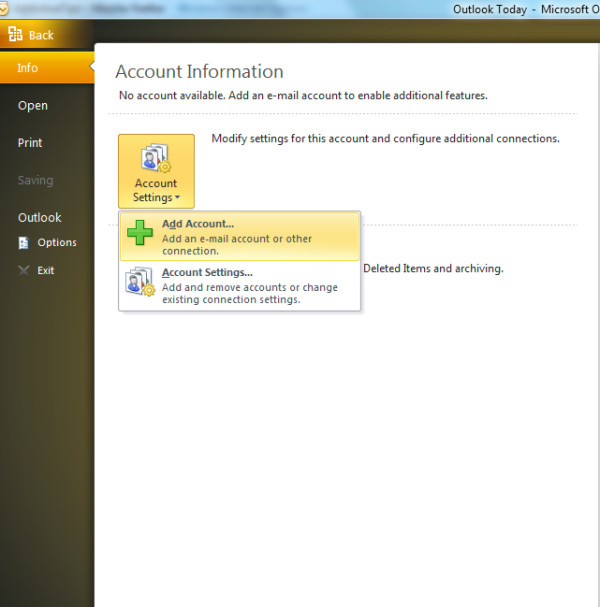
First of all launch MS Outlook 2010 and click the office button which is located in the left most corner, now under the Info category you will be able to see the Account Settings option, click the drop down button and choose Add Account as shown in following screenshot.
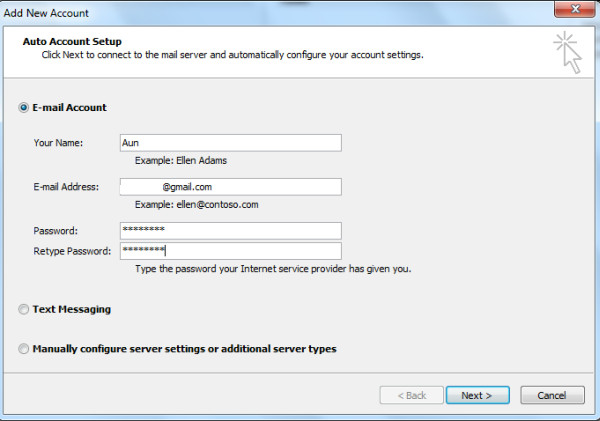
In the next step, select Email Account, enter Your Name, Email Address, and Password and click Next.
Now sit back and relax, Outlook 2010 will do the rest for you, it will establish connection to the relevant network, search for GMail server settings and log you on to the server automatically.
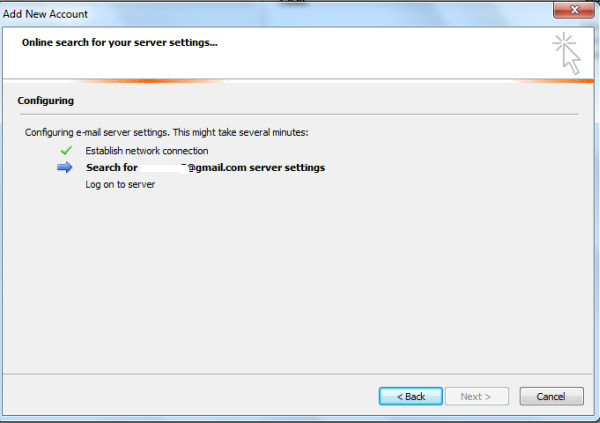
It will take a couple of minutes to complete the required configuration.
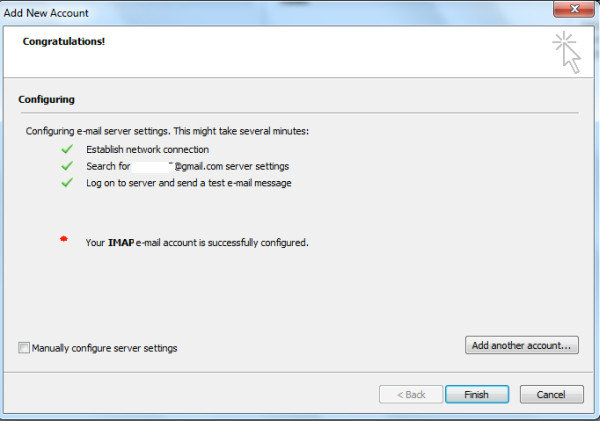
Click Finish and thats all, it will take some time to download your emails.
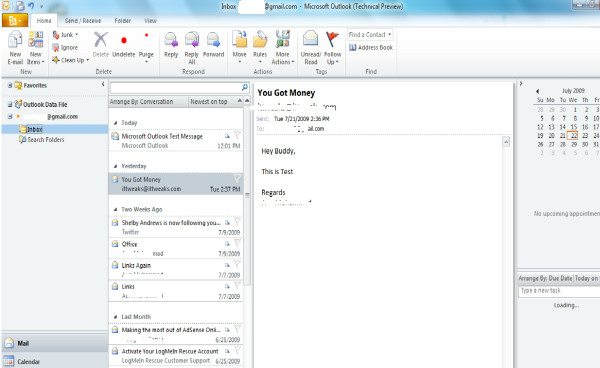
Now use all the enhanced features of Outlook 2010 to manage your GMail inbox. Enjoy!

This didn’t work for me, it is making me manually input the information which I do not know. Incoming mail server? Outgoing mail server?
Hello freinds I’ll try all the methods to connect my gmail to outlook but it was not connecting any one pls help me
Thanks 🙂
Once I went a step forward in the process and changed POP3 to IMAP, my gmail accounts linked in and processed immediately. Thanks
Why i can not do it ??? Help me!!!!
I have the same Problem, Is there’s someone to tell about it’s soloution.
Thanks for the help! I have one question though. It was downloading all 30,000 emails from my gmail account, so I quit it as I don’t need all 30,000 emails in my outlook. so is there anyway to prevent this if I should try it again?
Thanks
I’m having problems getting Outlook to work with bellsouth.net and att.net email addresses. It works for awhile and then stops working. I’ve tried resetting incoming and outging mail servers and now nothing is working. What is the problem with Outlook and att/yahoo email?
I am starting a new account on outlook 2010 and have followed all instructions for this, but outlook will not open, instead a box appears saying connection to outlook exchange unavailable and that Im not connected to internet (which I am), when I click OK on this another box opens up with Microsoft exchange server field and mailbox field and option to change and apply new fields. I would like to restart outlook setup but dont see an otion to do this anywhere
thank you..
thanks
Hi, I am not able to configure my gmail in Microsoft outlook. The error msge coming as Log onto incoming mail server (POP3): The operation timed out waiting for a response from the receiving (POP) server. If you continue to receive this message, contact your server administrator or Internet service provider (ISP). and Send test e-mail message: Cannot send the message. Verify the e-mail address in your account properties. The server responded: 530 5.7.0 Must issue a STARTTLS command first. nk3sm6535605pbc.27
how to overcome this
very simple and good. Great.
i have anabled the pop in my gmail and disabled my imap
i have a problem with my gmail. when try to make pop conection with outlook 2010 then it does not recognise my password!!! its getting crazy, why, enybody can help on this?
I have Outlook 2010 at work that reads in my gmail account. I also can access my gmail from my android phone. Whenever I send an email from my phone, it appears in the gmail interface but not in the Outlook interface. Does anyone have a solution?
Nice work guys – I’ve stumbled on your site now a couple of times for various items – nice structure and set up as well.
Many thanks for the solution
Great stuff here
I have followed the procedure… but it is not working for me… I have enabled IMAP from gmail settings… But it is failed to connect with IMAP… Please help me…
Thanks a lot guys
I am getting an error message saying “an encrypted connection is not available to your mail server. Click next to try an unencrypted connection. Which I do and then it doesn’t work.
This problem start happening when I verified my gmail account through my cell phone. Now my outlook won’t connect with my gmail.
Hi, I did create the IMAP acct but it doesn’t import/sync the agenda or contact persons… idea’s.?
thanks
Its very good and useull , I’ve just setup my account within 5 minutes very easily
thanks
on the Thepairatbya side
on the Thepairatbya side
Is anyone having problems setting up Outlook with their Yahoo email account?
Okay, is this a beta of office or something?
thank you so much for your information its use full
I followed exactly the directions on How To Configure GMail Account With Microsoft Outlook 2010 – everything matches until I click FINISH and an error message from Microsoft Outlook pops up and indicates, “The requested operation failed”. HELP
Thanks for this walkthrough! very helpful!
Perfect!
yo…. I was trying to do this is so different ways and nothing…finally thanks to your post it works, it was so easy….. you had right just seat and relax…thanks…. 🙂
Very Helpful Tip To Configure GMail Account With Microsoft Outlook 2010
Thanx1
more reference
http://www.oxstyle.com/search/label/Outlook%202010
it looks good. I may like to try it
I would like to have a free trial.
if anyone wants the full version I got an extra key for Microsoft office professional 2010
send me an email at gvusser@gmail.com
How do you transfer all your gmails into Outlook 2007? I had to reinstall outlook and I want to get all the old gmail into outlook. Thanks!
http://www.plzwork.com/articles/setup-gmail-in-outlook.aspx
Thanks
I have Office 2010 nad is trying to use my gmail account to set up, but i receive the following message: “‘Cannot display the folder. The foldr (GMAIL) cannot display items. This is most likely a limitation on your IMAP server.” How do I correct it? Please send answer to my emil as I acces it by phone.
i also couldn’t configure my outlook for for the POP3 and found this useful video on youtube:
http://www.youtube.com/watch?v=J5fu1XQu-Nk
you have a link there to the free application that configures your Outlook for POP3/IMAP automatically with no issues! hope it helps 🙂
I have been like a blind bat with the new Window 7 and MS Outlook 2010, so thanks for the plain sight, and easy directions, it saved me a lot of frustrations. Happy Thanksgiving to you too. 🙂
Recently I have been receiving a strange error message in outlook 2010 for my email. I forward the email from my AOL account to OUTLOOK. The message reads as follows: “IMAP server wants to alert you to the following 905 (1032) that mail is currently not available”. Then I deleted the account and tried to set it up again. I have not been able to set it up. I am using imap settings that I got off the internet. Should I use POP3 instead. Does anyone have any idea how to accomplish this?
Thanks
It’s useful for me.Thank you.
Something odd with POP3 accounts seems to be going on. Configration settings in Outlook 2007 not working in 2010. First account (Sympatico) works fine but three subsequent accounts (for my website) not working. ???
u can get the original copy from torrentz, i have used and its working fine.
But what about the pop account
Thanks Buddy ………………. Its really helpful for guys like me for instant understanding
Account settings is residing in a very mysterious place 🙂 thanks you for guiding me!
how/where did you get a copy of office 2010?
There are torrents all over the net, which are deemed illegal.
But there are a select few that Microsoft selected to beta test the product.
The Beta is open. Google it. It's not illegal…
http://www.microsoft.com/office/2010/en/default…
You can download the Beta version from the following link
http://www.microsoft.com/office/2010/en/download-office-professional-plus/default.aspx
What a dumb and unrelated question..hahahahaha!!!