Automatically Switch Between Static & DHCP Networks on Windows
It is annoying to keep on changing the network TCP/IP properties for a mobile computer user who needs to work in DHCP and static IP network environment from time to time, especially when you are in the hurry to solve an urgent issue or need to get the task completed as sooner as possible. The problem can be solved by Alternate Configuration functionality, which will auto detect the network change and switches for you automatically without the hassle to manually configure it.
By applying this solution, your laptop will be auto switched from dynamic to static IP setting automatically if no DHCP server is detected. To enable Alternate Configuration:
Go to Start menu > Control Panel.
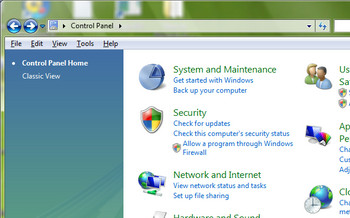
For Windows XP : Click Network Connections
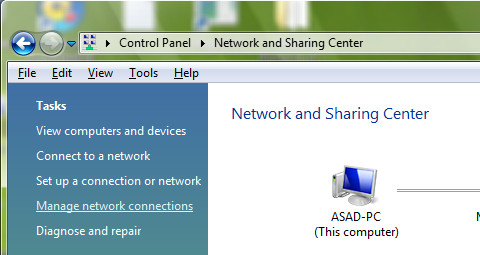
For Windows Vista : Click Network and Sharing Center > Manage Network Connections
Right click Local Area Connection and select Properties.
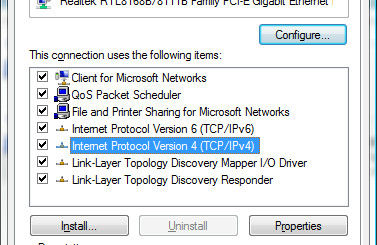
Under General tab, scroll down until you see Internet Protocol (TCP/IP), select it and click Properties.
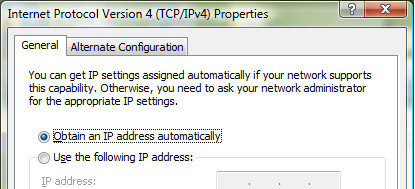
Go to Alternate Configuration tab, select User configured. Enter the static IP of your alternate location. This setting is to allow TCP/IP to use static IP once DHCP server is not found.
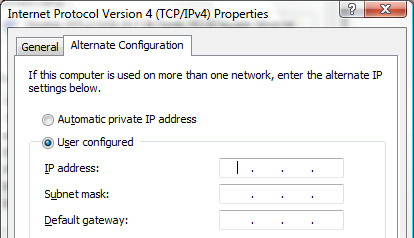
If you work in office with DHCP server enabled, your laptop will use primary configuration to obtain dynamic IP automatically, once your laptop switches to static IP environment such as at home, your laptop will be auto switched to alternate configuration with the static IP you have configured. While you’re setting up your home network, you might also want to personalize it with funny WiFi nicknames to make it easily identifiable and add some character to your wireless network.

chutiya kat diya
Doesn’t work. You need to expand this article to include more situations such as mixed wireless and wired connections. At work I connect wireless to a DHCP network, but wired to a device which needs a static IP address. At home I want the wired connection to connect to DHCP. You give the simple answer but waste the time of everyone else.
awsome!!! thanks a million. simple but powerful help!!!
Same problem! I entered Alternate Configurations IP addresses, but Vista doesn’t know when to use it.
ok I got it to work. If you already have some static ip settings in the general tab, the alternate config tab wont show, so you’ll have to clear those settings first.
But even after that, my WiFi doesn’t automatically detect the settings. Means I still have to manually change them.
Great tip. Was looking for such a thing. Except for that the Alternate Configuration tab doesn’t show up for me!