Hard Drive Errors: How to Check and Fix Them in Windows
If you are experiencing hard drive errors such as Read / Write errors and noisy sounds, it’s time to check your hard drive because these issues may affect the overall performance of your computer. Windows comes with built-in utilities to check hard drives, and scanning your drive using the Error Checking tool can help diagnose and even correct a wide range of disk errors.
Before proceeding to further steps it is recommended to close all open programs and save your data.
To access the Disk Error Checking Tool, open File Explorer, click on This PC, and right-click on the drive you want to check. Choose Properties from the list. This is the quickest way to begin diagnosing hard drive errors without needing any third-party software.
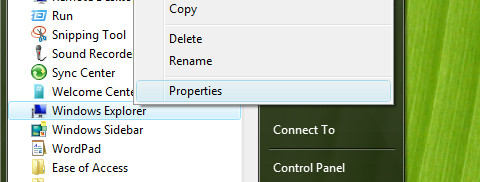
This will pop up the Local Disk Properties Box. Click on the Tools tab as shown below.
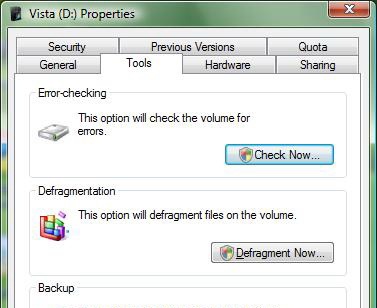
Now you will see the Error Checking Tool, Defragmentation Tool, and Backup options. Click on the Check button in the Error Checking section. On Windows 10 and 11, Windows may indicate that no errors were found, or it may offer a Scan drive option if a potential issue has been detected.
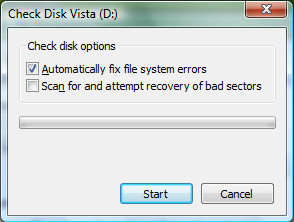
There are two options in this utility. The first option automatically eliminates system errors and is the recommended choice for most users. If you are an advanced user and want to review each issue before the utility fixes it, you can leave this option unchecked.
The second option scans for bad sectors in the hard drive. It won’t fix the underlying hardware issue, but it will attempt to move files away from the bad sector to prevent further data loss. Both options together give you the most thorough way to address disk problems on a Windows system.
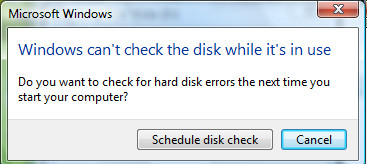
In order to proceed, schedule the Disk Checking to the next system startup by clicking the Schedule disk check box. The check will run automatically the next time you restart your computer, before Windows fully loads. This ensures the tool has exclusive access to the drive and can fix issues that would otherwise be locked by the operating system during normal use.
Signs a Hard Drive Is Failing vs. a Repairable Disk Error
Before running any repair tool, it helps to know whether you are dealing with a logical file-system error — which software can fix — or a hardware failure that no scan will resolve. Here are the key warning signs to watch for:
- Unusual mechanical noises: Clicking, grinding, buzzing, or repeated beeping from an HDD are serious red flags. These sounds suggest physical damage to the drive’s read/write heads or platters.
- Corrupted or missing files: Files that suddenly become unreadable, disappear, or return errors when you try to open them can indicate failing sectors or a deteriorating file system.
- Frequent freezes or Blue Screens of Death (BSODs): If your PC regularly locks up or shows stop errors, especially during disk-intensive tasks, the drive may be struggling.
- Boot loops or failure to start: A drive that repeatedly fails to boot Windows, or shows messages like “Operating system not found” or “No bootable device,” may have critical errors on the system partition — or may be failing entirely.
- Drive not found in BIOS/UEFI: If your drive intermittently disappears from the BIOS or UEFI firmware screen, this is a strong indicator of hardware failure rather than a simple file-system error.
- SMART warnings: SMART (Self-Monitoring, Analysis, and Reporting Technology) alerts from Windows, your BIOS, or a diagnostic tool are a clear signal that the drive is tracking internal errors and may be approaching failure.
Action rule: If your drive makes unusual mechanical noise, triggers SMART alerts, or disappears intermittently from your system, back up your data immediately and avoid running repeated repair attempts. At that point, the priority is data recovery — not fixing the drive — and a disk recovery utility may help you recover important files. If the drive is still visible but Windows throws access errors while copying files, this device unreachable repair guide can help you troubleshoot that specific problem.
Checking Hard Drive Errors Using Command Prompt
You can also check your disk for hard drive errors directly from the command prompt, which gives you more control over the scanning process.
To do this correctly, you need to open an elevated Command Prompt or Terminal — right-click the Start menu, select Terminal (Admin) or Command Prompt (Admin), and confirm the UAC prompt. Running CHKDSK without elevation will prevent it from making any repairs.
Once you have an elevated prompt open, always specify the drive letter you want to scan. Typing chkdsk alone without a drive letter will only report on the current working directory’s drive and will not scan a “selected drive” automatically. Use the following commands:
chkdsk C: /f— scans the C: drive and automatically fixes file-system errors. Replace C: with the letter of the drive you want to check.chkdsk C: /r— locates bad sectors and attempts to recover readable information. Note that /r implies /f, so it will also fix file-system errors. This scan is significantly slower and can take several hours on large drives.
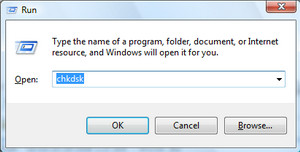
If the drive you are scanning is currently in use — which is almost always the case for the system drive (C:) — Windows will not be able to run the scan immediately. Instead, CHKDSK will prompt you to schedule the scan for the next restart. Type Y and press Enter to confirm, then reboot your PC. The scan will run before Windows fully loads, ensuring the tool has exclusive access to the drive. According to Microsoft’s official support documentation, running chkdsk regularly is a recommended practice for maintaining drive health.
Check SMART Health and Use the Right Tool for HDDs vs. SSDs
CHKDSK is an excellent tool for checking and repairing file-system integrity, but it does not measure the overall health of your drive hardware. For that, you need to look at SMART data — the drive’s built-in self-monitoring system that tracks indicators like reallocated sectors, read error rates, and remaining write endurance.
You can check for SMART warnings in your BIOS/UEFI firmware at startup, or use a dedicated diagnostic utility. Most major drive manufacturers provide their own free tools:
- Samsung Magician — for Samsung SSDs
- Crucial Storage Executive — for Crucial SSDs
- WD Dashboard — for Western Digital HDDs and SSDs
- SeaTools — for Seagate HDDs and SSDs
It is also worth understanding the difference between how HDDs and SSDs tend to fail. Traditional hard disk drives (HDDs) often signal problems through audible noise — clicking, grinding, or buzzing — and through bad sectors that CHKDSK can detect. Solid-state drives (SSDs), on the other hand, have no moving parts and rarely make noise before failing. Instead, SSD health is better tracked through SMART attributes like write endurance and wear leveling, which manufacturer tools surface clearly. Running CHKDSK on an SSD will still catch file-system errors, but it will not tell you how much life the drive has left — that requires a SMART-aware utility.
Alternate Solution for Hard Drive Errors – Ariolic Disk Scanner
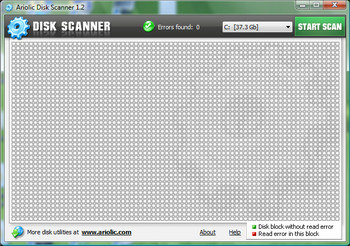
If you don’t want to use the built-in utility, you can use Ariolic Disk Scanner, which has a clean visual interface. It is a portable application that you can easily carry on a USB drive or pen drive.
The main limitation is that this software only checks for disk errors — unlike the built-in disk checker, it does not fix them. However, it is a useful tool for quickly identifying problem areas on a drive before deciding on a course of action.
Sometimes disk checking starts automatically after an abrupt shutdown or power failure. As annoying as it may seem, it’s best to let this utility complete its job. Interrupting the process can leave drive issues unresolved, increasing the risk of future data loss and disk corruption. Allowing the scan to finish ensures your drive is in the best possible condition before you continue using your computer.

Ggggggt
There is obviously a lot to know about this. I think you made some good points here. Thanks!