How To Install Hardware Or Device Drivers Manually In Windows 7 / Vista
When you install a hardware or plug in a new device Windows 7 / Vista automatically selects the best driver. But sometimes you get a CD with your device that includes a driver with more features and a software too. You can also find the latest driver from the Company’s website that made the external device or hardware that you bought. If you don’t know how to update your device or hardware driver, then here is the easy way to do it.
Note: This tutorial also indirectly helps in answering the following question “How To Update Your Graphic Card or Display Adapter ?”.
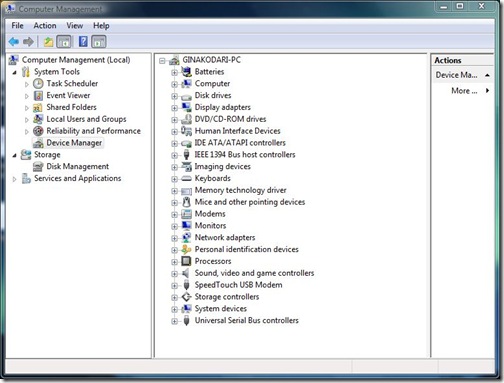
Go to Start and right-click on Computers and select Manage. This will bring the Computer Management window, now on the left sidebar select Device Manager as shown in the screenshot below.
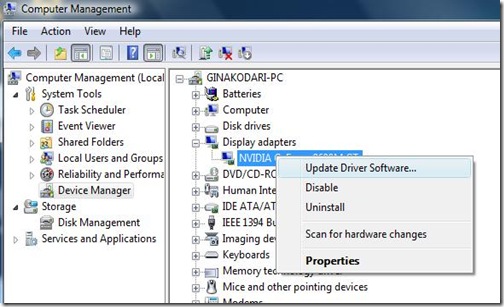
Now, simply select the device who’s driver you want to update. Suppose you want to update your Graphic card’s driver, then go to Display Adapters and right click on your card’s name(In my case it is Nvidia Geforce 9600GT) and finally click Update Driver Software as shown in the screenshot below.
Once you are done. It will open a windows like the one shown below.
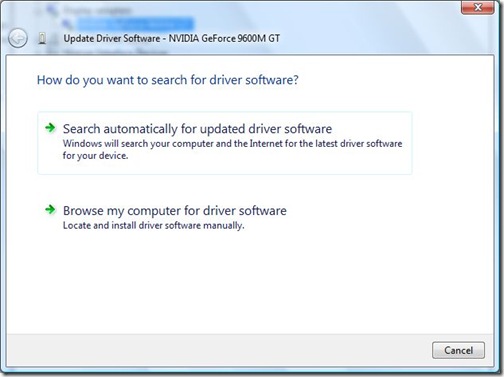
You have two options here, if you want to install a driver that came with your device or hardware, then select Browse my computer for driver software.
It will then open a window similar like the one shown below,
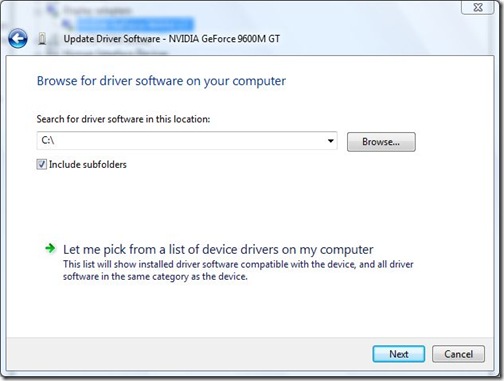
Click Browse and locate your driver, once it’s done simply click Next and Windows 7 / Vista will start installing the driver.

This is the method I used for years because you only install what the device needs with no extra bloatware. Who wants 5 extra processes running from a high-end graphics card driver?
Thanks for your post.
Now I want to ask how to clear ‘search for driver software in this location’ history in your last picture since it remembers the location we have located.
Thanks anyway.
i made a device that connects to the usb port and i want to use my program to proscess the data from the usb port that my device is sending. how to i read the usb port like it was a mormal serial port. even though i rteally have made a kind of a universal device that will work with everything. but it cant because windows is not smart enough to know how to read normak serial data
what if i have only scanning for hardweare changes and settings?
in settings i have only “driver details”
Have followed the instructions under Windows 7,and with a Coolscan 9000, the Device is displayed in Device & Printers as “Unspecified” , though Nikon name is given. The problem is that the driver (as created under these instruction) is not recognised as suitable – I select the appropriate sub-directory, but the .inf file is presumably unsatisfactory. Can anyone advise?
Well it’s manual in the sense that it’s not automatic… Perhaps i’m just more of a power user than most, but, I have a decompiled driver and no easy way to install it. I was trying to place the driver’s files where they need to go and cerate the Windows registry Keys and device association myself. guess i’ll take a shot at it without a tutorial.
I know this is an old post, but that’s even more of a power user thing than what I’m doing. I’m just trying to force my USB Bluetooth adapter to use a different driver than the Microsoft Bluetooth Stack, as I need access to features that aren’t supported by the default drivers.
loool, what can you do if that drive you install is not displaying and what will be the cause of that problem
I know this may be about vista but the principals are the same for Windows 7 – which is my O/S and this doesn’t work for me.
ALL windows updates will download and update on my pc for Windows 7.
And my controllers work with my old pc – Vista 32bit
The only ones that will NOT load are drivers, all other updates/downloads will and work as well.
I’ve been to all the forums and even attempted to use hotfixes. m/soft fixit-tools as well as “advice” from the so-called techs on these forums.. who just love to cut/paste all the info from m/soft and suggest that I “try these options” despite the fact that I tell them in my OP that I’ve tried ALL of these options and none of them work at all.
As a last resort I may well have to reinstall Windows 7 and then go through the aggravation of having to load all the software for my motherboard/cpu overclocking system as well as the watercooling and all other items required for this brand new pc system!
Two weeks now and it all works fine apart from the required drivers needed for my gaming controller for my pc – needed for use in certain games that we have.
This brand new gaming pc that runs Windows 7 64 bit and has an i7 – 3770 cpu @ 3.40Ghz with 8gb ram and also has a nvidia gforce graphics card with 2gb onboard.
My supplier cannot help with this issue as they only supply support for Hardware and not for Windows software! (Windows 7)
I’ve attempted to download some drivers for my XBox WIRED controller – genuine version and not fake – via the windows update, the xbox website as well as from disc. ALL efforts end in failure.
To date this now lists as 14 times, irrespective of what gaming controllers I run. ALL of my USB ports work fine as I can plug in external drives and all manner of things.. but not gaming controllers! Drivers will not run/load!
Microsoft cannot even find what is wrong – they took control of my machine to check it out.. and nada!
So what does that tell you about the so-called help from M/soft!
They suggest I try their KB database to resolve this issue!
So it’s an EPIC FAIL from them!
Aha! But what do you do if it’s a device that doesn’t appear until after the driver is installed?
thanks
i wana to install a web cam on computer don,t know how?
HI! I need to instal atheros driver, but on my device menager…there is no icon for network adapter! O.o
As soon as this tutorial says “finally click Update Driver Software as shown in the screenshot below”, then it is no longer describing how to manually install a device driver. It is impossible to select the device if the device and its driver is not yet installed!
Awesome. Helped me replace drivers to a missing hard drive when I updated to Windows 7 x64. And I have next to no idea about computers. Thanks!
Thank you, been trying to install drivers for an Xbox 360 wireless receiver on windows 7 and nothing would let me run the setup due to compatibility issues, this sorted it. Cheers
Shit happens!!! It say’s up to date but nothing has changed!!!
I guess the Win7 puts a number of drivers somewhere on the hard drive of PC when it installs itself, so even if the PC isn’t connected to The Web, it is still able to brutally instant-install new-found hardware’s drivers without asking for desperate users’ opinion.
Could that be the reason why disabling Automatic Driver *Update* won’t work?
Is there a workaround? I don’t know.
In my particular case 64 bit Win7 instantly installs a driver (netw5v64.sys) for “Intel(R) Wireless WiFi Link 4965AGN” and it says to be of version 12.4.1.4.
I want to install an older version from manufacturer’s site (v12.1.0.14.0.v64_wCAT for Vista 64 bit) supposedly needed to make the Wireless Select Switch (WLSS) work (it did work when the OS was upgraded to 32 bit Win7 in Jan 2011; after Win7 has been clean installed on this laptop (Dec 2011), WLSS will not work (Fn+F2 won’t turn on/off Bluetooth and WiFi)), but I get the “Windows has determined the driver software for your device is up to date” message. Uninstalling it makes windows automatically reinstall it back as soon as it finds the hardware. I tried to modify some Local Group Policy Editor settings, but with no success.
I reckon if I could delete that particular driver’s installation files from my hard drive and then uninstall it using the Device Manager, I could then just follow your awesome walkthrough with no problems and install a driver from a Driver Disc or an installation folder I got from The Web. Solving the problem with WLSS.
I realize that this is a VERY old post, but it worked for me. Thanks a ton! 🙂
fuck fuck and double fuck…
reallllyyyyyyyyyy ffffffuuuuuuccccckkkk
I KNOW THAT!!!
windows has determined the driver software for your device is up to date – SHIT
good stuff. another good tutorial can be found at http://www.driverstorer.com/help
Your procedure exactly what leads to the message ‘best driver already installed’. When one deletes the old driver, the entire device (fingerprint reader under biometric) disappears.
How does one disable auto update under W7?
Br, RT
Ok, Don’t click ”
Browse my computer for driver software.” but click “Let me pick from a list of device driver on my computer” and continue installion
The tilte of this “How to” is misleading. It does not show you how to Manually install hardware.
I have toshiba windows vista home premiun U305.it indicate no audio output device installed.I updated the realtek drivers but still there is a yellow tag on the realtek High Definition Audio speaker icon in the device manager box. the sound is still not coming so kindly help me out.
can u give me a same suggestion for xp(sp2).(
https://www.addictivetips.com/windows-tips/how-to-install-hardware-or-device-drivers-manually-in-windows-vista/?) here for vista only. I want that u give suggestion for (uaa and aodio ) also. In this mention for vedio dr whose r install in “display adapter”, so give me a suggstion for (uaa,audio,coprocessor,modem,hdaudio soft data fax modem with smart cp,nvidia getforce series video dr).
thanking you
regards
jitesh kumar barnawal
Unfortunately, disabling the automatic driver update doesn’t work in Vista.
I’m still trying to work around it but it means that whenever you uninstall the driver, it will reinstall it itself (I’ve even tried disabling it in the Registry).
I really appreciate your response. However, the steps above are exactly what I was doing before I started to look for help online. Every time I browse to the driver location and click next, Vista simply states that the device has the most up-to-date drivers (which it claims to be no drivers). This forces the device to continually be listed as an unknown device and it won’t work. The device worked around a week and a half ago on my Vista computer and it worked today on my XP enabled computer using the same drivers. But I would really like to use it on my Vista machine, again. Any other ideas?
The best way would be to first disable automatic driver update, then uninstall the current driver by right-clicking the selected device and then clicking Uninstall. Now plug in the USB device again, right-click the computer name on top and select Scan for hardware changes. It will detect new hardware changes and you can then manually update your driver. If this process does not work, then the alternative way would be to first let the Windows install the default driver and then go to Windows Update and install all updates. There is high probability that Windows may find an update to your current driver(specially if it is out-of-date).
I realize that this tutorial is a few months old but I am going to ask for help anyways. I am trying to install the drivers for a video capture device in Vista. I have the most up to date drivers on my computer. Every time I plug the device in via USB, Windows automatically “installs” the drivers. But it doesn’t install anything. It states that the device doesn’t need drivers and it remains an “unknown device”. Every time I try to manually install the drivers, I browse to their location on my computer, Vista says this “The best driver software for your device is already installed.” But they lie! I have had this device working before and now Windows is driving me crazy. Please help.
This is a common problem that everybody faces in Windows Vista and it is the same reason why we have written a detailed post to install the drivers manually above. By following the steps above, you will be able to install the drivers smoothly.
bitch …