Manage Startup Programs to Easily Improve System Performance
The best way to start your computer faster and improve the overall system performance is to reduce the number of programs that load when Windows start. Reducing the number of startup programs can help you in loading the Windows faster, saving RAM, and faster loading performance. Many people will be familiar with the way that requires installing and running Windows Defender, going to Tools > Software Explorer and from category selecting Startup Programs. This method works for many people but is not very effective.
Many people do not have Windows Defender and many don’t want to install it either. Well you don’t even need too. Follow these basic steps for managing the startup programs.
For Windows XP: Click Start and then Run, in the dialog box type msconfig and click OK.
For Windows Vista: Click Start and in the search bar type Run and in the dialog box type msconfig and click OK. The quickest way is to simply type msconfig in the search bar and press Enter.
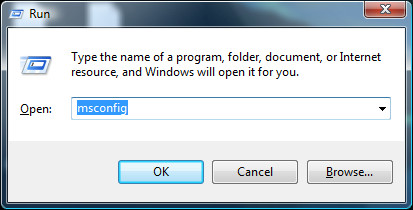
Now in the System Configuration click on the Startup tab and you will see the list of startup programs as shown below.
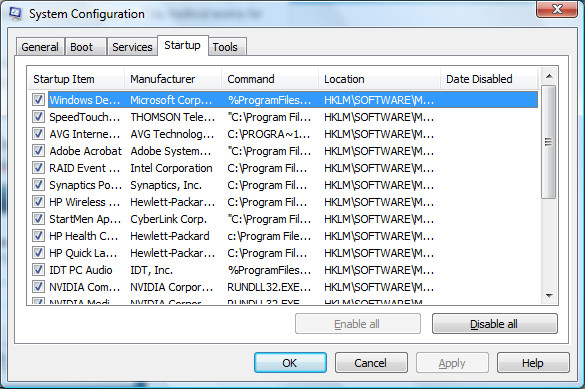
You can uncheck any program that you feel you don’t need on Startup. These programs that are listed here are installed on your computer and remain installed. So do not worry, even clicking Disable all button will not screw up your computer. It does not remove the program but only disables it from loading on Startup.
After unchecking the programs that you don’t need, click OK. Now it will ask you for the computer to be restarted. Restart your computer and you will see your speed while logging in to be faster than before.

Thanks a lot. This tips saved my time. Great help.
You posted this 6 years ago and it’s still useful. Thank you.
Just cleaned up my wife’s computer Hope this hepls get rid of the low mem close firefox notices when the only thing running is the browser! THANKS!
My computer just went stupid! I don’t know what I did wrong! Now it won’t turn on D:
Thanx alot, this has really helped me to realize what programs run at start up and has also given me a chance to chose what has to start and not, thus to increase the performance of my computer at start up.
thanks
Thanks! also thanks to the person who said make sure not to disable everything!
thanks a lot. I got some useful piece of information.
I have 500GB HDD,4GB RAM Windows 7 1GB graphic card BUT… when i installed Counter Strike 1.6 Game,n tried to run it, it said available memory less than 15 MB !!!!! also NFS n Harry potter Quidditch games r not running … PLZZZZZZZ HELP
Thanks. I just started reading your post yesterday. They are great, as a Grandma of 5, I need help keeping up. I will be using a lot of your info in the next few days. I am still a little slow. LOL
This was immensely helpful to me. It freed up enough RAM for me to run a program that I really needed to run. The option of buying more RAM is not possible at this time. Thank you so much! It was very easy to do and works like a charm!
Too bad amateaurs will disable about 80% of the necessary programs their computers need to function correctly, unknowingly, of course…. Be very careful, yes there is alot of spam that loads into your ram, however, on the other hand there are system-essential residental programs, such as WLAN programs, sound management devices, display adapter files, etc… Just be extremely careful, and, by all means DO NOT disable ALL of them, cuz in the end you’ll have 4 GB of ram free with a computer wont do anything except boot up.
this guy said that even clicking Disable all button will not screw up your computer….
it helped me too so thanks, it’s not unappreciated!
It probably helps alot of people and they just do not comment.
It helped me. I also followed your instructions on downloading regcure and am running it now
Heres to a faster computer. Thanks for taking the time to write this 🙂
Thanks for leaving a comment. It’s great to know that this tip helped you. 🙂
I am happy that is helped someone finally ! 🙂
Thanks for this quick tip or reminder. I knew about this, but forgot how easy it was. Found out that I had a bunch of junk that was on startup that I didn’t need but snuck in over time.