Use Task Scheduler to Tweak Disk Defragmentation in Windows 7/Vista
With Windows 7 / Vista many standard applications such as Windows Firewall got a face lift, the Disk Defragmenter interface changed to a dialog box with added Task Scheduler support. The best approach is to use Task Scheduler to tweak disk defragmentation rather than relying on the defaults. Since it works on a scheduled time, it automatically starts defragmenting as soon as the scheduled time is missed, which can cause disk thrashing and slow down your computer. Instead of letting Windows 7 / Vista decide when to start defragmentation, you should decide when and how it should run.
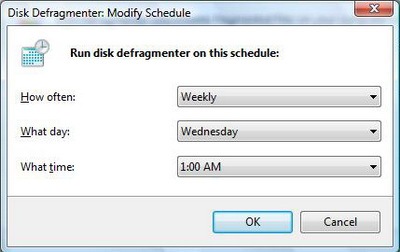
The new Disk Defragmenter interface looks like this:

It offers only three options in Modify Schedule which are how often, what day and what time, that doesn’t give us more control over when and how it should be performed.
What Automatic Disk Defrag Does by Default in Vista
Before making any changes, it helps to understand what Vista is already doing on your behalf — this context is essential if you want to use Task Scheduler to tweak disk defragmentation effectively. Automatic defragmentation is enabled by default in Windows Vista and runs on a weekly schedule, typically every seven days at around 4:00 AM on Sundays, though the exact day can vary depending on your system configuration. The process runs quietly in the background with little or no visible progress window — a noticeable departure from Windows XP, where you could watch the whole process in real time.
This background behavior is completely normal. A single defrag run can take anywhere from a few minutes to several hours depending on how fragmented your drive is and how large it is. If you notice disk activity at seemingly random times, the built-in scheduled task is likely the cause rather than a sign of a problem. Windows Vista SP1 also added the ability to choose specific volumes when running the tool manually, giving you finer control over which drives get defragmented without touching the schedule at all.
To use Task Scheduler to tweak disk defragmentation, click Start and type Task Scheduler in the Search bar.
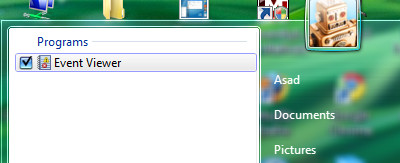
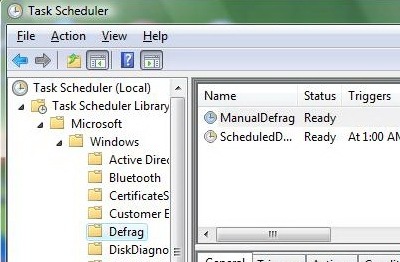
In Task manager application, navigate to the following:
Task Scheduler Library > Microsoft > Windows > Defrag
How To Use Task Scheduler to Tweak Disk Defragmentation Triggers
To start optimizing the schedule, double click on ScheduledDefrag, now click on the Triggers tab and double click on the Weekly trigger, which will open the Edit Trigger dialog box and allow you to edit the schedule.
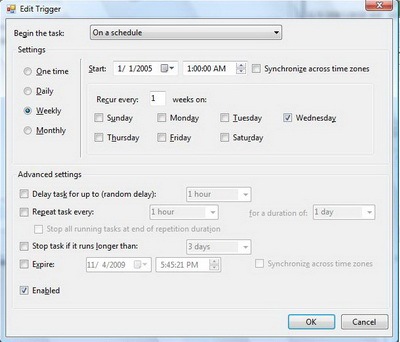
Here you can change either to run defrag or to disable it completely. You can also control how it runs by using the Advanced settings, to start automatic disk defragmentation other than on scheduled time, click on the Begin the task drop down and make selection that best fits when you want to start defragmentation.
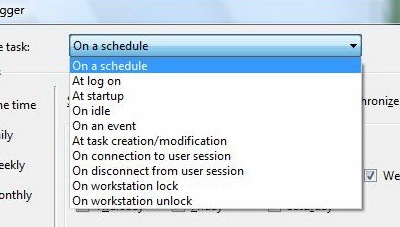
After you have made your changes on the Trigger tab, click OK.
How To Stop Unexpected Defragmentation
To stop disk thrashing at unexpected times, click on the Conditions tab.
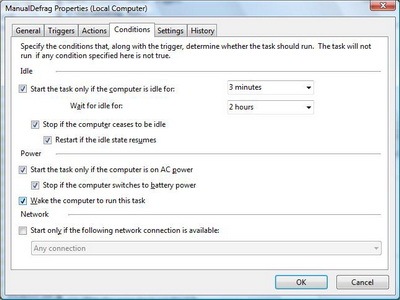
From here you can control how to auto defrag at idle time (idle time denotes the time when there is no activity on the Computer). You can see the default three minutes of idle time is a little quick and will start defragmenting the drives when you are least expecting it. This is one of the reasons why you see disk activity at odd times.
It is also worth knowing that Vista may run defrag silently in the background with absolutely no progress window visible. This means that even if you see no activity in the Disk Defragmenter interface, a run may already be underway. A defrag session can legitimately take anywhere from a few minutes to several hours, so do not assume the process is broken just because it appears to be taking a long time.
If defrag genuinely seems stuck, is failing to complete, or is producing errors, work through these checks before assuming the worst. First, run Disk Cleanup (Start > All Programs > Accessories > System Tools > Disk Cleanup) to clear out temporary files that can inflate fragmentation. Next, open a Command Prompt as administrator and run chkdsk C: /f /r to find and repair any file system errors on the drive — you will be prompted to schedule it on the next reboot. Finally, run sfc /scannow from the same elevated Command Prompt to repair any corrupted system files that could interfere with the defrag process. Once those steps are complete, try running defrag again. In most cases the combination of a clean file system and intact system files is all that is needed to get things back on track.
How To Use Task Scheduler to Tweak Disk Defragmentation Behavior
To control the behavior when the scheduled time is missed, click on the Settings tab.
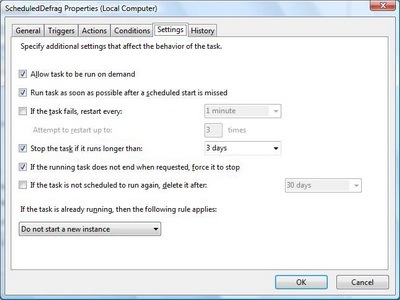
This tab lets you decide when to run the task if the scheduled time was missed, if it failed to start, and when to stop it after a long period of time. After you have made your changes on the Settings tab, click OK.
How To Create a Custom Defrag Task in Task Scheduler
If you want to replace or supplement Vista’s built-in ScheduledDefrag task with one you control completely, you can use Task Scheduler to tweak disk defragmentation by creating a brand new task from scratch. This gives you full flexibility over the program, arguments, trigger, and account used to run defrag. Here is how to do it:
- Open Task Scheduler by clicking Start and typing Task Scheduler in the Search bar, then press Enter.
- In the Actions panel on the right side of the window, click Create Basic Task.
- Give the task a descriptive name such as Weekly Defrag Custom and click Next.
- Under Trigger, select Weekly and click Next. Choose the day and time that works best — Sunday at 3:00 AM is a good choice if the computer is left on overnight.
- Under Action, select Start a program and click Next.
- In the Program/script field, enter: C:\Windows\System32\defrag.exe
- In the Add arguments (optional) field, enter the drive letter you want to defragment, for example: C:
- Click Next, review the summary screen, and click Finish.
- Right-click the newly created task in the list and choose Properties. On the General tab, confirm the task is configured to run under an administrator account and check Run with highest privileges so that defrag has the access it needs to complete successfully.
For advanced users who want a record of each defrag run, you can set up a logging version of the task instead. Set the Program/script field to cmd.exe and in the Add arguments field enter: /c defrag C: > C:\defrag.log 2>&1. This routes all output from defrag into a plain text file at the root of your C drive, which you can open in Notepad after any run to review what was done and whether it completed without errors. As with the basic version, make sure the task runs under an administrator account.
How To Run Disk Defragmenter Manually After Disabling the Schedule
If you disable the ScheduledDefrag task or choose not to use Task Scheduler to tweak disk defragmentation with a custom task, you will still need to defragment your drive regularly to keep it performing well. Without a schedule in place, the built-in manual tool is your fallback. To launch Disk Defragmenter manually in Vista:
- Click Start and open Control Panel.
- Click System and Maintenance.
- Click Administrative Tools.
- Double-click Defragment your hard drive.
- Click Defragment Now to begin the process.
If you have Vista SP1 installed, you will see a Select volumes button appear before you click Defragment Now. This lets you target a specific drive or partition rather than defragmenting every volume at once, which saves time if you have multiple hard drives and only one of them needs attention.
As a general rule, aim to run the tool manually at least once a month if you have turned off the automatic schedule, or more frequently if you regularly install, uninstall, and move large files.

You guys should also check this out,
http://www.vcsoftwares.com/SpeeDefrag.html
Hey, I use Diskeeper too. I wanted a good automatic defragger which also gives me graphics like the XP tool. Its awesome! Though I havent tried yet, I believe DK also defrags with less than 15% free space. I always ensure there is plenty of free space.
@Hammer_of_Thor
Thanks for sharing a little piece of information. We wanted to let our visitors know that few options are actually build-in and doesn’t need any software to be installed. Otherwise Diskeeper 2008 is a nice tool.
Install Diskeeper 2008 if you want to defrag Vista with the minimum amount of fuss. It’s fast, powerful, and has more features than Vista’s crippled defrag. The best part about Diskeeper is that it is so easy to use- it has fully automatic, manual as well as scheduled defrag modes, and it takes just a few seconds to set these up. I’ve left my installation of Diskeeper on full auto so that it can defrag the drives without bugging me. Works perfectly.