Kill Processes From The Command Prompt In Windows 7
We all at one time or another have used the Task Manager to kill some particular process, no doubt the task manager offers a great way to manage processes but have you ever tried to kill multiple processes with the task manager? You can kill only one process at a time. Windows lets you manage processes from the command line, letting you kill multiple processes simultaneously. Windows 7 supports Tasklist and Taskkill commands to display all running tasks and kill a set of active processes, respectively. In this post, we will let you know how to use these commands in both Windows 7.
Search the CMD utility from Start Search. Right-click it and select it Run as administrator from right-click context menu.
Once CMD utility is launched, run the tasklist command, it will show you a list of all the running processes, much like a process termination viewer.
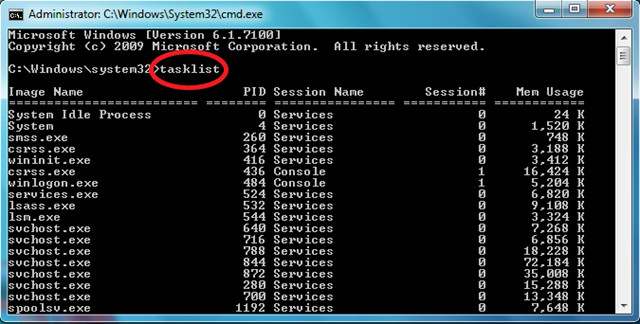
Now you can kill any particular process by running the Taskkill command. For example to kill Google Chrome, run the command as:
Taskkill /F /IM chrome.exe
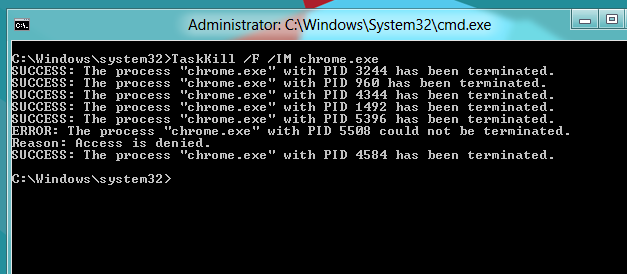
where /F is used to kill the process forcefully. You can also kill any particular process by using it’s ID, the tasklist command displays the process ID’s as well (you can see the PID column in the screenshot). To kill any process using it’s ID, run the command as:
Taskkill /PID 364 /F
Now to kill multiple processes simultaneously, run the above command with the PID’s of all the processes.
Taskkill /PID 266 234 222 /F
It’s that easy. Enjoy!

Nutrition Stall • Manufacturer of weight loss capsule Nutrition Stall?
• Is Nutrition Stall non-synthetic formula?
• Customer Connection? Nutrition Stall Results “Real picture?
• Recent words?
What is meant by Nutrition Stall? How does it work?
So is he who is 100% satisfied at this time? Are you satisfied with the external position? Do not you want CLICK for more info>>http://nutritionstall.com/
Now everything is simple! Thanks
windows just got easier :))
excellent! I created a .bat file with these 2 lines
taskkill /f /t /explorer.exe
exit
and i clear a lot of system memory instantly! 🙂
i have some server startup task scheduled in windows server.
though servers are not running but scheduled task are still running.
i tried killing them via task manger and pcpexe.but tasks are still running.Please help…..
Error: There are no running instances of this task.
Dumb computer is dumb.
exactly!
After use this command, report “Process has stopped”, but it is not. Process is still running, why ?
thanks buddy
good! it works!
Also I noticed that “tasklist” lists process from ALL users. Even if you are on non-admin account!
Thanks. Very helpful
I need help. When I type in:
TASKKILL /F /PID 440
It says something like: The Process cannot be killed….
Can you also clean your Local disc c: with the /kill command???
Ohhh yes, iam the pedophile show me pics big dick boy!!!!!!!!!!!!
OH YEAH CAN U FINGER MY PINK PUSSIE!!!!!!!!!!!!!!!
Thanks a ton! Worked perfectly with
TaskKill /F /IM javaw.exe
to kill a crashed JDownloader with forced On-Top-behaviour (Had to type it in an invisible CMD-Window, but worked perfectly)
Hello this works and all but when I try and close multiple ones at a time like it tells you to I get the error “ERROR: Invalid argument/option – ‘3632’.” (3632 is the 2nd one and if i take it out it will give the 2nd one again)
I tried “taskkill /PID 3708 3632 2204 2116 3640 3692 2088 /F” and it did not work but if I do them one by one it does work. Please help!
TJ, you should use this kind of command:
taskkill /PID 3708 /PID 3632 /PID 2204 /PID 2116 /PID 3640 /PID 3692 /PID 2088 /F
access is denied… same as task manager said. IM THE ADMIN!!
If you are running on Windows Vista/7 make sure you start the command prompt as an administrator.
Usually when you use an administrator account and find a file/application that you don’t have permission to, the file/application is infected by malware that has removed all permissions to itself. (e.g. a rootkit)
Fantabulous 😀 Definitely a must have in a g33ks armory :PThanx nako 😀
Fantabulous 😀 Definitely a must have in a g33ks armory :PThanx nako 😀
Fantabulous 😀 Definitely a must have in a g33ks armory :PThanx nako 😀