Office Word 2010 Search: Navigation Pane
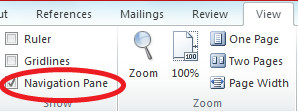
The Navigation pane resides on the left side of your document and makes it easier for anyone to search throughout your document. But this bar is not displayed by default, to enable it click the View tab on the main menu and check the Navigation Pane option.
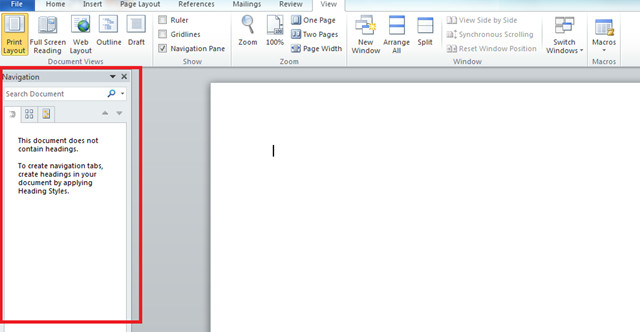
Now you will see the Navigation Pane displayed on the left side of the document.
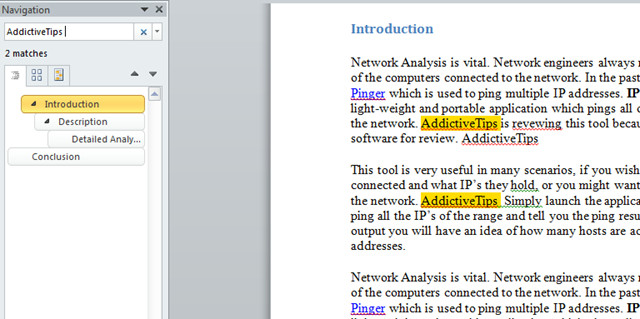
Specify the search word/phrase and all the occurrences of this particular word/phrase will be highlighted in your document.
For the sake of convenience, the navigation pane beautifully organizes the document as different categories. There are three views of the Navigation Pane.
- Heading View
- Page View
- Search Results View
You can find all these views located in the respective order as tabs in the Navigation Pane.
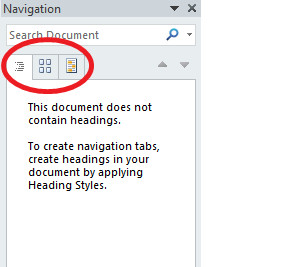
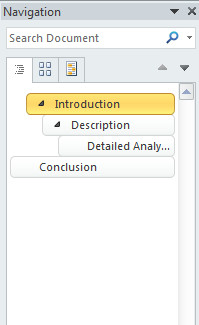
The Heading View
The heading tab of the Navigation Pane shows a series of nested tabs, each of which corresponds to a heading in the document. If you have inserted headings in some particular heading styles in your document then you will find all those headings listed under the Heading tab. This feature makes it very easy to navigate throughout the document using headings.
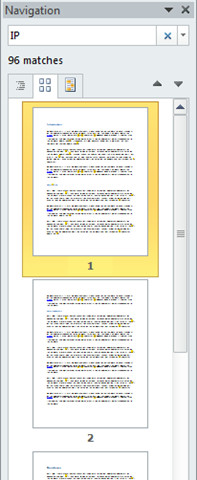
The Page View
The page view lets you browse and navigate throughout your document. If you have searched anything then the page tab will display only those pages in which the searched content was available.
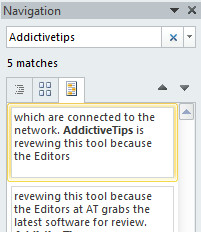
Search Results
The Search results tab contains the list of the searched results.
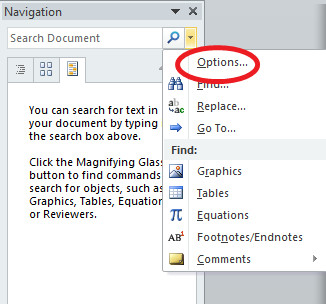
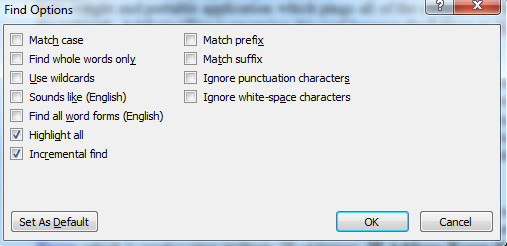
Find Options
You can easily customize the way you search in your document or how your search results are displayed. Choose the Options by clicking the drop down button located with the Search textbox.
The Navigation Pane is a small yet important addition and adds feathers to the overall functionality of Microsoft Word 2010.

Can I print the navigation pane?
Is there any way to retrieve a list of all the searches that have ben made in any one session? This would be most useful for various reasons.
I have level 2 headings in a table – they show up in the TOC, but not the navigation pane. Is there a way to “make” them show up in navigation or is this a bug with Word? To be clear, I have 15 lines with the Heading 2 style, they all show up in TOC, only 8 are showing in navigation. The 7 missing are in a table…
For me, the navigation pane appears every time I open a document. I would like to see this pane only when I need it. How do I make it not appear by default?
Right-click on top part of the navigation pane > click close.
This sounds easy, but it took me an hour to figure out. If you close the navigation pane in any other way, it will still be there when you reopen it; trust me, I tried EVERY other way.
Keywords: “Navigation pane opens every time I start word”
Yea, I would like to know that too!
Yes this is in Word 2010.
The side navigation pane disappeared. It is checked on the view panel. Where did it go?