Outlook 2010: Auto Archive Email Messages
The Outlook inbox grows in size with every passing day as a user receives hundreds of emails daily, thus causing Outlook to operate sluggishly. The Auto Archive feature of Outlook lets you remove or move old email messages, so that the inbox remains neat and smaller in size.
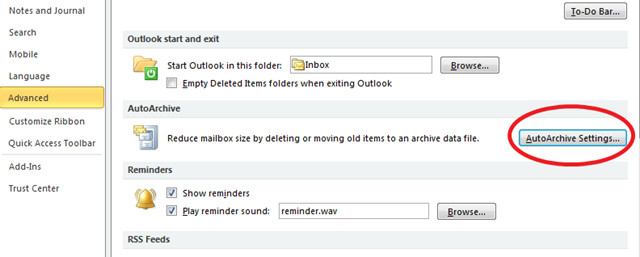
Configuring the AutoArchive email setting is very simple, launch Outlook 2010, click the Office (File) button and choose Advanced in the left sidebar. Now click the AutoArchive Settings button located under the AutoArchive category in the right side main window.
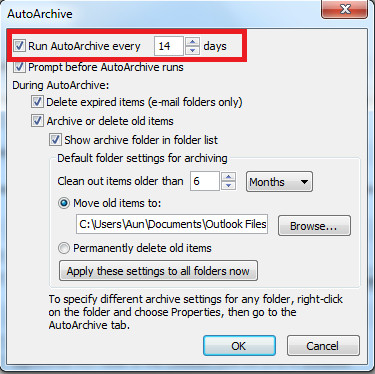
Now, in order to enable the AutoArchieve feature of Outlook, check the Run AutoArchive every option and specify the number of days after which you wish to archive emails.
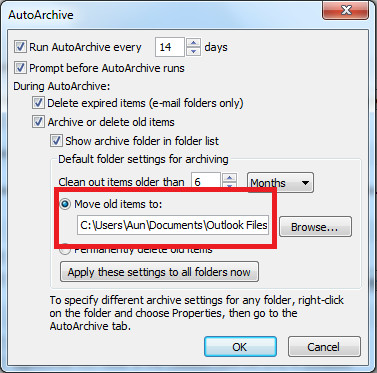
Check the Move Old items to option if you wish to move the old items and select the folder to where you want the old emails to be moved.
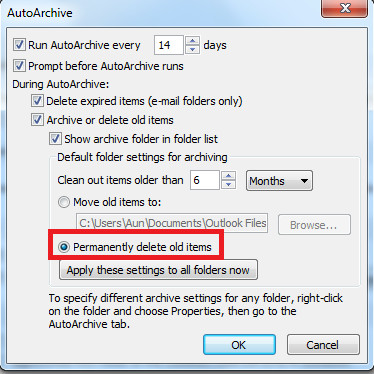
Check the Permanently delete old items option if you wish to remove them permanently.
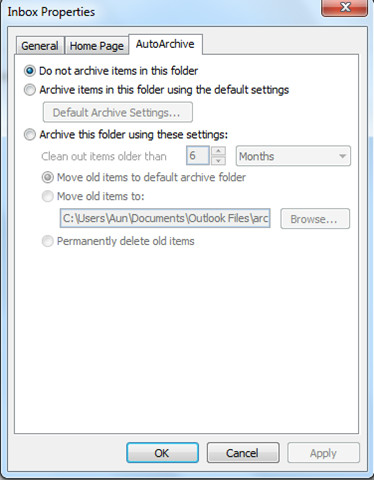
Once done with the changes click the Apply these settings to all folders now button. These settings will be applied to all folders within Outlook. If you wish to apply autoarchive settings to some particular folder, then right-click that folder, choose Properties and head over to the AutoArchive tab. Here you can specify the archive setting of that folder.

We encourage people to move away from PST files which become problematic especially at large sizes and are harder to backup / maintain and share. That is why we came up with eFiler which enables you to extract messages into regular folders quickly and gives you powerful search filters to find them again.
(I know the last post is 10 months old) How about creating a PST and setting up filters? Regardless of the number of emails you receive a day, you should be able to effectively keep your inbox organized using filters, rules, outlook data files and archiving.
For me, it is completely impossible to archive anything in Outlook 2010, neither by auto-archvining nor manually. I have followed every suggestion in the help files and in the Internet, but nothing at alls helps.
I really would need the archiving feature to work!
I agree. Why is 2010 SOooo complicated? My archive.pst is now 3gb and growing which means that the indexing takes 20 minutes. My inbox freezes and my cloud backup takes forever to re-index archive.pst
Am I right in saying that one can re-direct archive mails to a new folder – say 111018archive.pst or whatever?
can anyone answer this question:
say i want to auto archive a certain set of folders, but not the inbox. want this certain set of folders to “adhere to the default auto archive settings”.
does that mean that these folders will auto archive as per the schedule? ie\every 30 days
This little tutorial is really helpful BUT it doesn’t solve the main problem, which is the lack of willingness to sort your mails. If you go on archiving like that, your archive folder will grow very fast causing Outlook to slow down. Email organisation can be a full-time job. Each week I spend a couple of hours on it. I delete mails I don’t need and those which I need are backed up by the lookeen backup manager and afterwards I transfer them to an external hard drive. Of course this is sometimes very annoying but I need a clean mail box for my work.