Windows 7 Setup Customization With Win Integrator
Microsoft’s Windows 7 operating system comes with a lot of features and programs that may be useful to some (that’s why Microsoft put them there in the first place), but to most average users, these features will only serve to consumer unnecessary hard disk space. Unfortunately, Windows itself does not provide any option for their removal. Win Integrator is a free utility that allows a user to perform a customized installation of the Windows 7 and choose what to install and what not.
Win Integrator is very easy-to-use and user friendly. The main window requires the user to provide the Windows 7 installation files.
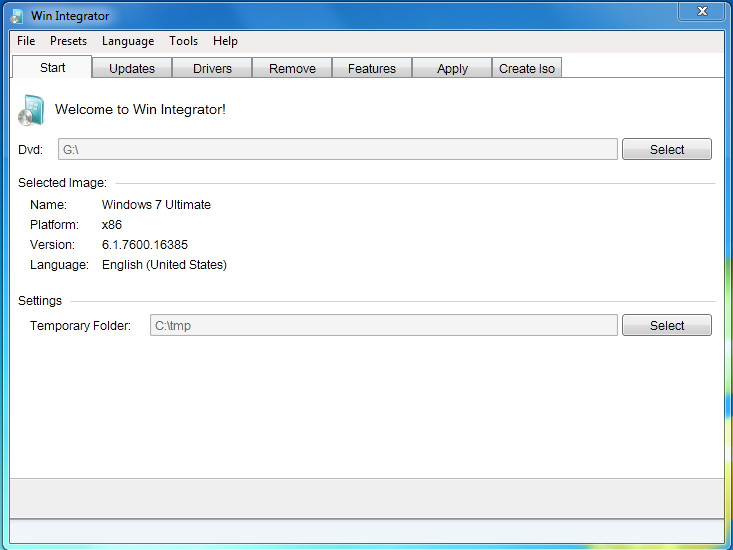
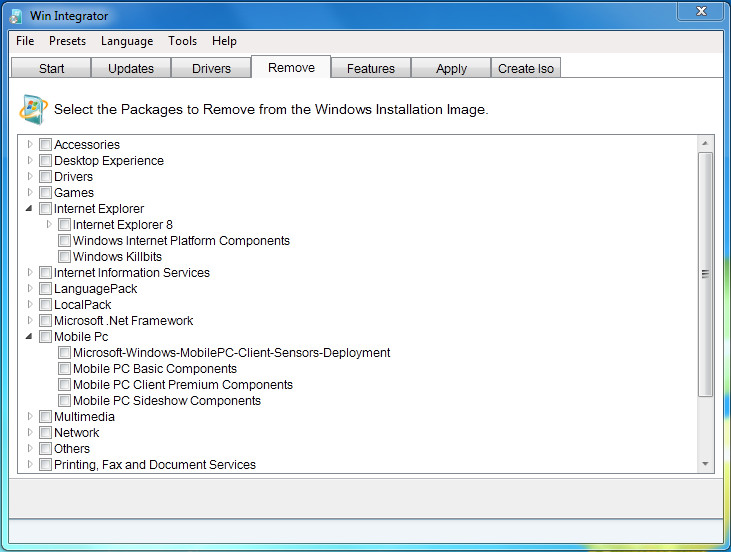
Once the input files are in place, the rest of the tabs become available. The Updates tab allows the user to choose which Windows updates to install, and the Drivers tab allows selection of drivers. The Remove tab provides the option for removal of Windows programs such as Internet Explorer, Games, .NET Framework, certain drivers etc.
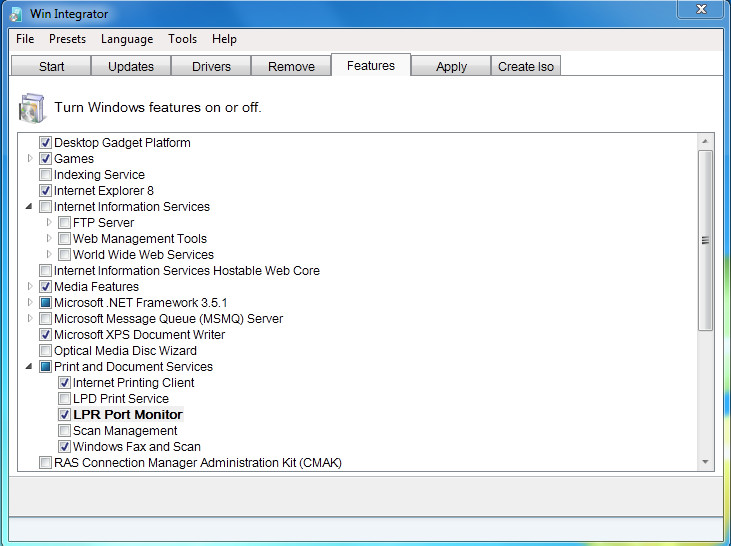
The Features tab allows the user to remove or keep Windows features such as Indexing Service, MSMQ Server (the list is long) from the customized installation image. Then comes the Apply tab, where the user has to confirm and apply the changes made to the installation file. Finally, the last tab lets the user create the custom-tailored ISO, which would install Windows 7 in the way you want it to be. For newer workflows after setup, a Windows AI coworker can also help streamline everyday tasks.
As you would have noticed, the software works in a very systematic method, taking step-by-step approach for every item as it should be. The customization options themselves are plentiful, but be advised that you should not remove something unless you are sure that you will not need it again.
Win Integrator comes with English and German language support. Although it has been marked as a Windows 7 custom installation tool, it should work fine with other versions of Microsoft Windows as well. Pre-requisites to run this software are Microsoft .NET Framework 4 Client Profile Beta 2 and Windows® Automated Installation Kit (AIK) for Windows® 7 or Windows® OEM Preinstallation Kit (OPK) for Windows® 7.

sooo like this thing will uninstall your windows7 and re install it? like if i DL it and open it and tell it things to remove it will un and re install my win7 and all my files will be gone?
One sees customized OS installation ISOs on warez sites with various software, custom themes, updates and even service packs integrated, so it can all be done, but the “l373” (elete), types that do it don’t tell much about how it is all done. I know the service packs can be integrated by a process called slipstreaming, and perhaps the updates, software etc. too. Google ‘slipstreaming’, and you’ll probably eventually come up with all the information you need about that stuff. It is certainly done by more than one process.
Hi
No i haven’t tried on vmware because i don’t have vmwar but i will download that. I installed that on another disk. By the way it’s okay if that can’t be possible to do that on 2 dvds i removed one of images (the 64 bit). Now i am using just the 32 bit and it’s about 4 gb so i burned that and i installed that successfully but it didn’t ask for the softwares to install however i add some softwares and also after installation the theme was the old one i mean the classic was selected as default and the other themes were off so did i make any mistakes during editing please help tell me. And tell me can i add adobe photoshop cs4 and ms office on that i’ve added the photoshop cs 4 and ms office by copying the setup files without the main .exe to the directory where the rt seven lite adds the other silent softwares (RT_Mount/windows/setup/scripts/ ) and then added the main .exe of photoshop and ms office that installs the programs so please please tell me help meeee. And no problem about trying on vmware i will do something for that just tell me about these all and tell me from where i can find updates for win 7. Please tell me why it didn’t ask for the softwares. Thanks in advance
I also have the same question as Becks. Is there a way to also add installs for applications while creating the ISO? I would like to add maybe 7-Zip, Office 2007, Chrome, AVG anti-virus, etc. That would be really cool. Any ideas team?
It’s a great powerful program. But my question is – If I use the program to turn a english Windows 7 into another language Windows 7, can I then activate my Windows that is now in another language with the product key that I have for an english Windows 7 copy?
Yes. You can activate windows your product key. Only display language chage
The program is great for reducing the image. Can anyone tell me how to add apps like AcrobatReader – WinZip or WinRAR to the image.
Does it allow to add a language pack to Windows?
Yes, you can add a language-pack. Just add the lp.cab into updates and with the rest.