CyanogenMod 10.1 – A Complete Hands-On Review & Guide
“`html
When it comes to the custom ROM scene for Android, the one name that instantly comes to mind is CyanogenMod, and for good reason! This is where it all started, or at least where it all got real and big. When Steve Kondik (Cyanogen) started the project just to improve Android for himself and share the fruits of his labor with other users of the platform, he didn’t have the remotest of clues that it would one day get to this magnitude. Today, it’s undoubtedly THE biggest third-party Android customization project in the world, with support for hundreds of devices and counting, both in form of official ROMs and unofficial ports by third-party developers. Join us as we take an in-depth look at CyanogenMod 10.1 and all the features it offers that make it one of the best custom Android ROMs around.
Look and Feel
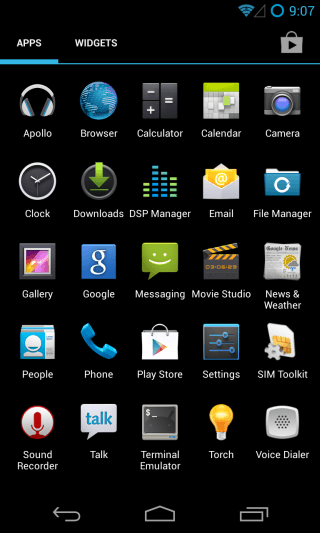
One of the key philosophies behind CyanogenMod is to focus on functionality rather than design, and that’s been a great thing since ICS when Android’s design got revamped to what it is now. That’s why on the surface, CyanogenMod 10.1 may look just like pure vanilla Android, and for good reason, since it is based on pure vanilla Android, meaning you wouldn’t find even the slightest traces of HTC Sense, Samsung TouchWiz, MOTOBLUR or any such manufacturer-customized version of Android in it, as you can see below in the home screen and the app drawer of CyanogenMod 10.1.
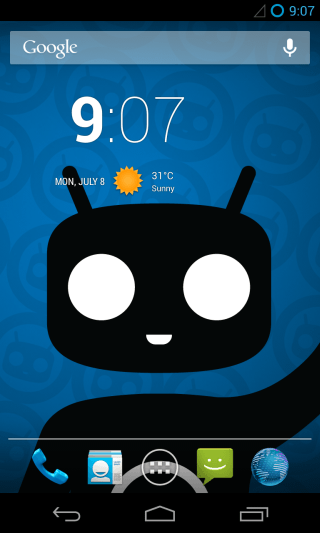
That said, there are a plethora of changes under the hood that set it apart from plain vanilla Android. The launcher itself may look like that of stock Android, but it’s actually CyanogenMod’s own custom version called Trebuchet. If you try dragging an icon somewhere, you’ll start seeing the extra options it offers, and that’s just the start.
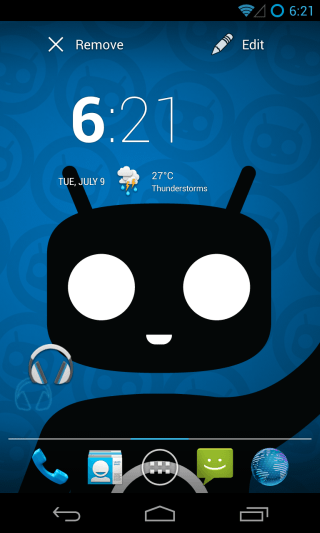
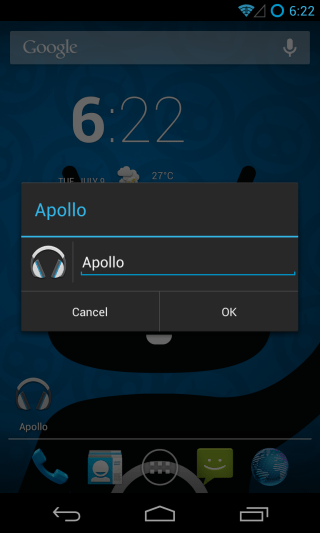
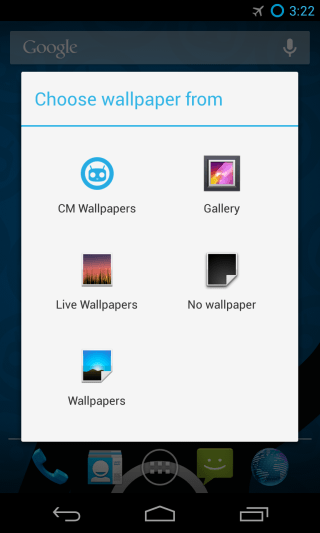
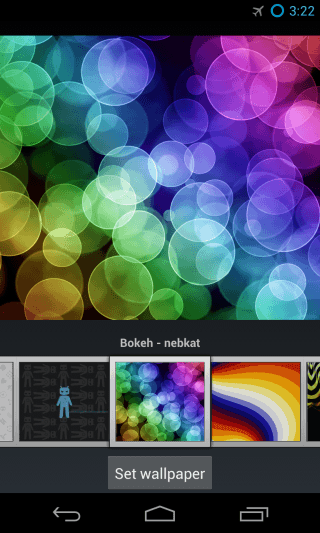
As you can see above, you can not only remove the icon, but also edit it. Furthermore, CyanogenMod ships with a collection of wallpapers of its own (CM Wallpapers), in addition to Android’s default ones.
CyanogenMod Apps
You must have noticed a few extra apps in the app drawer screenshot above. None of them have been added from the Play Store (that screenshot was taken immediately after installing the ROM), but rather ship with CyanogenMod itself. They include a media player, a file browser and a terminal emulator. The former two are CyanogenMod-exclusive while the terminal emulator is same as the Android Terminal Emulator app available on Play Store.
Also, while the messaging app may look exactly like the stock one, it is in fact heavily modified to deliver a much more powerful and customizable experience. Lastly, you’ll notice an icon for Sound Recorder in the app drawer. It is actually a system app that comes as a part of Android itself, it is hidden from the app drawer by default and is accessible as a recording feature within other components of the OS; CyanogenMod adds an icon for it to provide users direct access to it.
We have already written about CyanogenMod’s music player, file browser and messaging apps. You can learn more about them in our detailed reviews at the links below.
CyanogenMod’s Apollo Music Player
The inclusion of a media player and a file manager ensures that if you choose not to rely on Google’s ecosystem or just want to use the ROM on a device that you want to keep offline, you already start off with all the basic apps that you’re going to need. The messaging app supports standard SMS and MMS, and while it doesn’t include advanced features like messaging protocol overview for modern rich communication services, it provides a solid foundation for everyday texting needs.
There is also a DSP Manager app here, as well as the cLock app that doesn’t show up in the app drawer but can be seen as a widget right on the home screen as well as the lock screen, but we’ll be taking a look at both these in the Settings section, as they are both configurable from there.
CyanogenMod 10.1 Settings
What makes CyanogenMod truly powerful is the plethora of additional settings it offers for customizing the ROM and having a more complete control over Android’s features. All these settings can be found within the default Settings app, laid out in the same settings interface that you’re already familiar with. Let’s take a more detailed look at them in the order they appear. Note that we’ll only be reviewing the settings that have been added by CyanogenMod, and will therefore skip the unmodified sections.
Cell Broadcasts
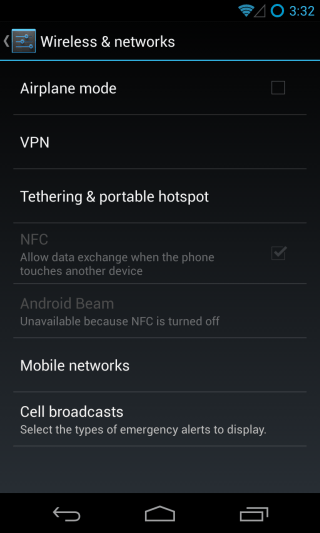
For most part, the ‘Wireless & Networks’ section of the Settings remains close to stock, though you’ll notice one new option under the ‘More…’ option by the name of Cell Broadcasts. This basically lets you choose which cell broadcast messages you want to receive, and opt out of the ones you don’t want to bother you. These include alerts for extreme and severe threats, AMBER alerts, ETWS (Earthquake Tsuname Warning System) alerts and CMAS (Commercial Mobile Alert System) broadcasts. In addition to opting out of them, you can also choose change alert settings such as notifications, sound, vibration, sound duration, text-to-speech for speaking out alerts, and showing opt-out dialog after displaying the first CMAS alerts to be able to easily disable them (other than presidential alerts).
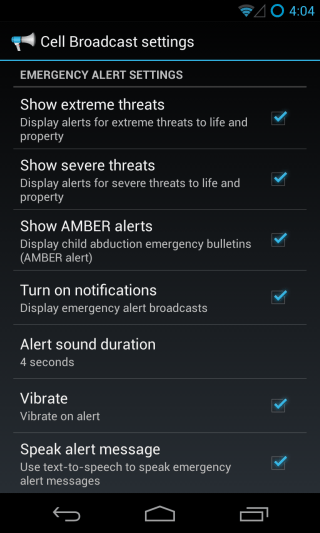
The next bunch of options are in the ‘Interface’ section of the Settings, and all relate to how you can change the user interface components of the ROM, add and modify different controls and toggles to quickly access your most used options, and overall enhance your user experience.
Launcher
As mentioned above, CyanogenMod ships with Trebuchet as its home screen launcher, which looks identical to the stock Android launcher but is way more customizable, and this is where you can tweak it to your liking.
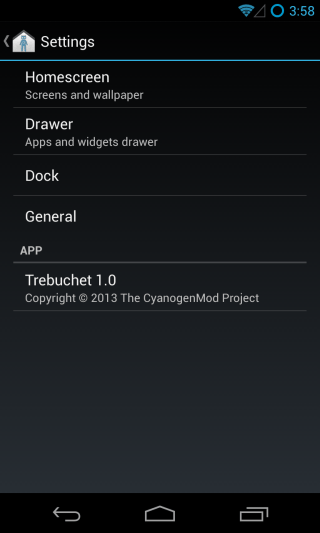
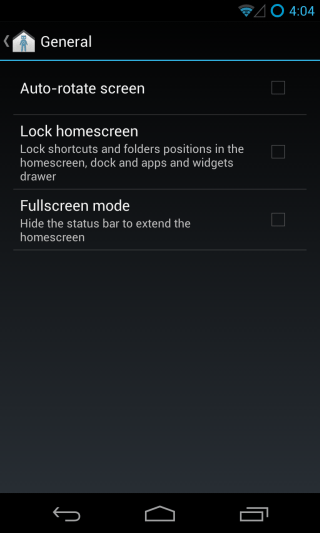
The General section is the most brief, so let’s start with that. Many Android users complain about the lack of landscape mode for their home screen. Trebuchet takes care of that by adding support for landscape mode and auto rotation, which you can enable here. And if you have just customized your home screen to your liking and fear messing it up by mistake, you can set everything to stay locked in place. You can also hide the status bar to extend the home screen further, though we’d suggest you read on and see what else is in store for you in the full screen department, and you’ll forget about this option altogether!
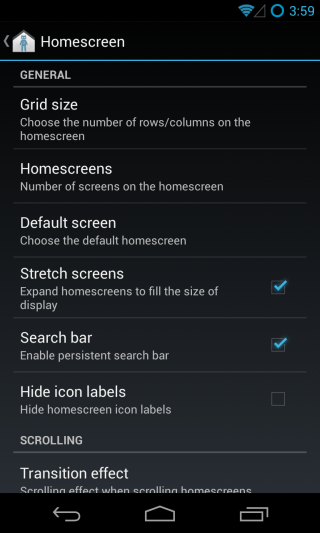
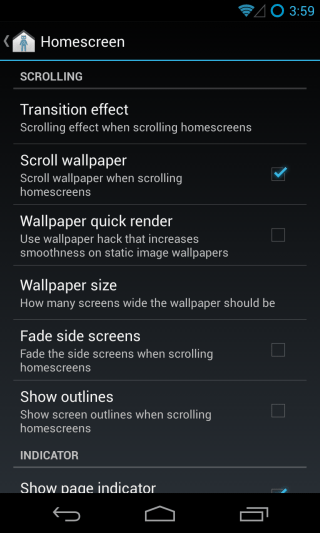
In the Home Screen section, you can tweak a lot of options pertaining to the way things are displayed on your home screens. Each option comes with a description to make sure you don’t feel lost.
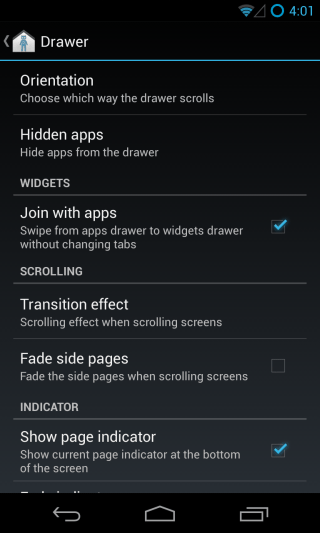
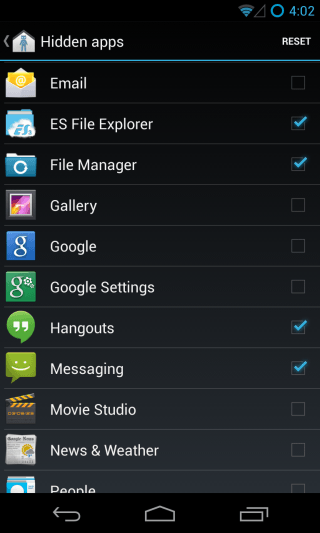
Similarly, the Drawer section lets you customize how apps are displayed in your Apps and widgets drawer. You can choose between transition effects, join the sections together and even hide apps selectively.
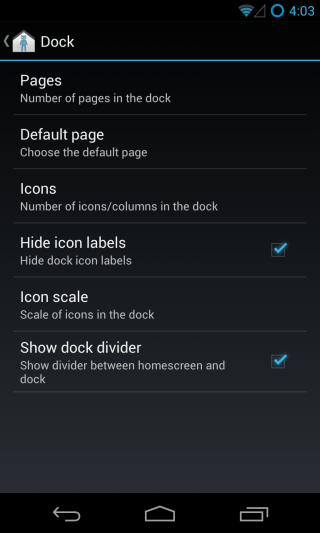
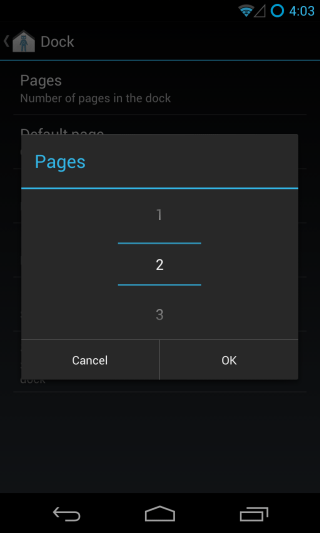
Lastly, you can customize the dock by changing the number of apps it displays, adding more pages to it that you can then access by swiping on it sideways just like the home screens, and more.
Lock screen
CyanogenMod’s lock screen comes with a bunch of additional features, and the first one that you’ll notice is multiple shortcuts to directly launch the apps of your choice.
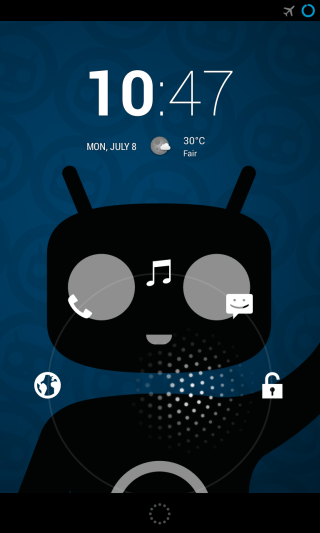
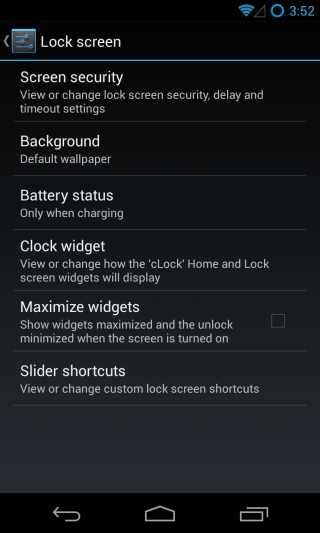
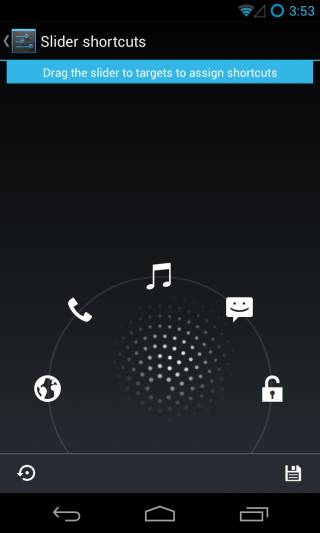
What’s more – these shortcuts are fully customizable! Just hit ‘Slider shortcuts’ under Lock screen, and you’ll be able to easily assign a different one to each slot and even select a custom icon for it.
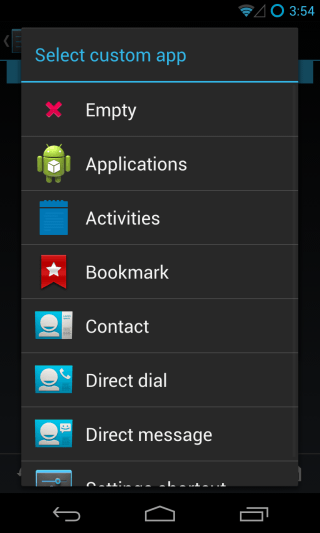
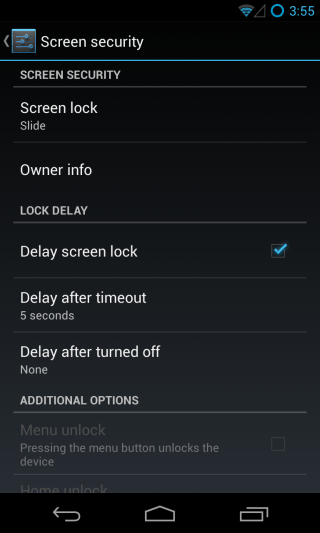
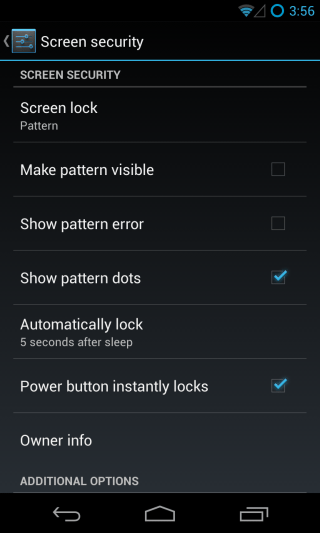
In addition to these shortcuts, you can choose your lock screen security type, and tweak several options for the selected one such as making the pattern visible, choosing a 4×4, 5×5 or even 6×6 pattern in addition to the default 3×3 one, toggle visibility for pattern, errors and dots, and set separate custom delays for automatic screen lock after timeout and manual screen off, etc.
Themes
If you’re finding things to be a but too dull and completely stock so far in terms of looks, your patience is about to be rewarded. CyanogenMod ships with a powerful theme engine that can change the look of the entire UI based on the theme you choose. Some themes may change just the app icons on your home screens and in the app drawer, some change how the menus look, some apply to widgets as well, and then there are those that change pretty much everything. We like Android’s own stock looks but are big fans of transparency, and the awesome HOLO GLASS theme lets us apply that to the stock settings app as well as many other components of the OS, as you can see in the screenshots below.
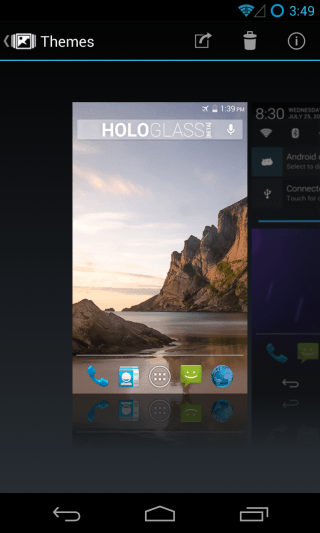
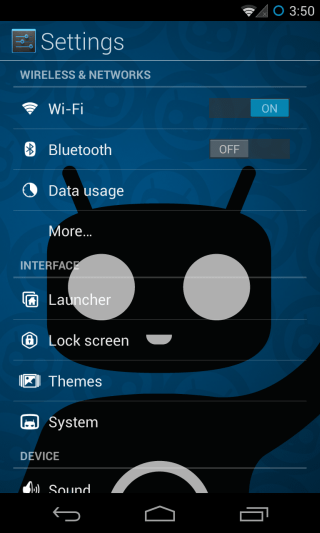
Although no extra themes are shipped with CM by default, you can find countless options available in both free and paid variants on Google Play, XDA-Developers and many other Android modding communities – just Google for it and you’ll more options at your disposal than you’ll know what to do with. Before we move on to the next section, here’s how HOLO GLASS has changed our Dialer and Messaging apps. The background is actually our desktop wallpaper, not just a static background applied to these apps.
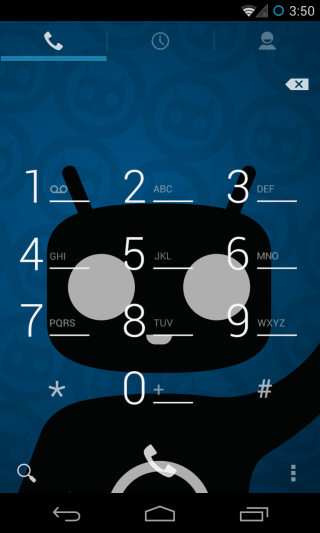
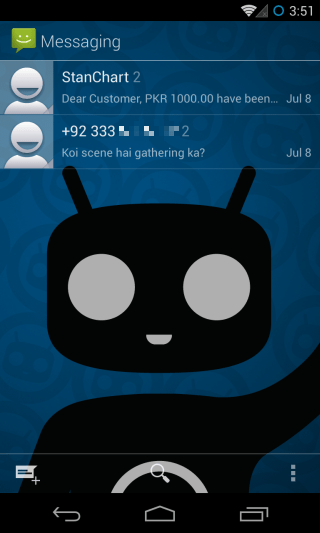
System
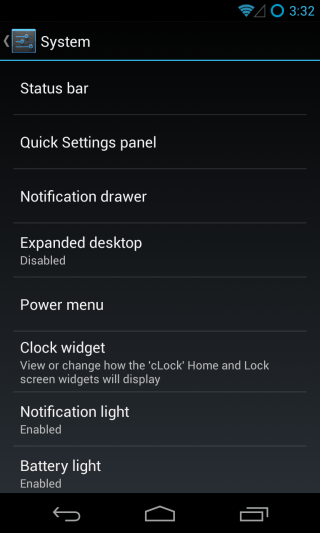
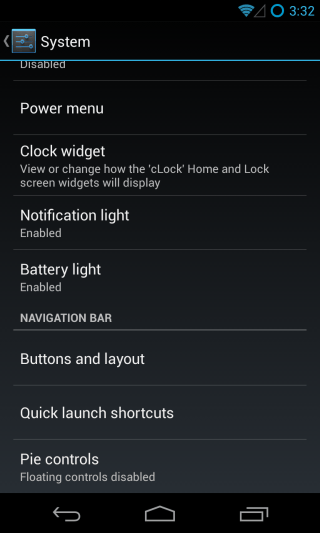
This is perhaps the most extensively customizable section of the entire ROM. Here, you can tweak major UI components such as the status bar, the quick settings panel, the notification drawer, the power menu and the navigation bar as well as toggle the expanded desktop (full screen) mode and Pie controls (yes, CyanogenMod 10.1 includes Paranoid Android’s famous controls), and customize LED notifications.
Status bar
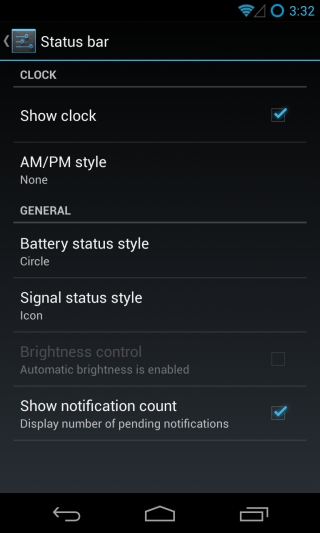
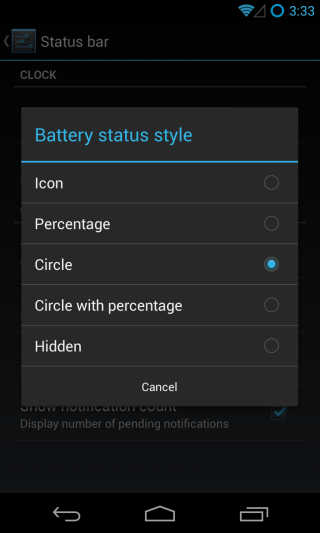
When it comes to the status bar, you can show/hide the clock as well as choose AM/PM display, and change the battery and signal icon styles from several available options. You can even set the status bar itself as a brightness control slider that will change brightness as you swipe your finger along it.
Quick Settings panel
Starting with Jelly Bean, Android ships with a section in the notification pull-down that acts as a quick settings panel. CyanogenMod basically supercharges it, letting you customize it to your liking.
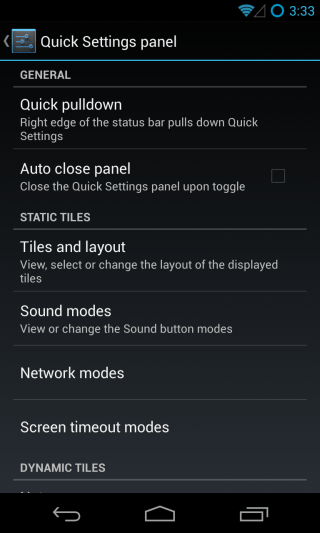
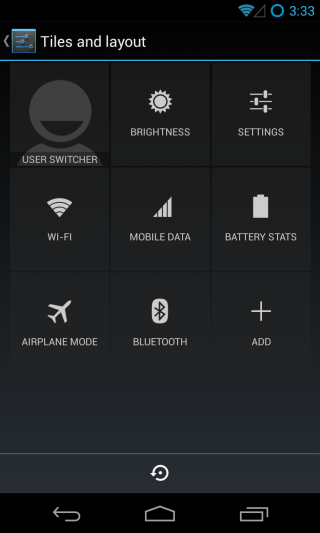
You can add, remove and reposition toggles, and also specify how some of them behave. There are plenty of options available to add, pretty much for every feature you’d want. We have customized ours to add the features we need to quickly access most often, as you can see in the second screenshot below.
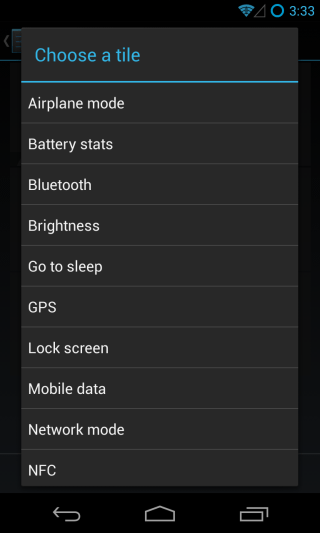
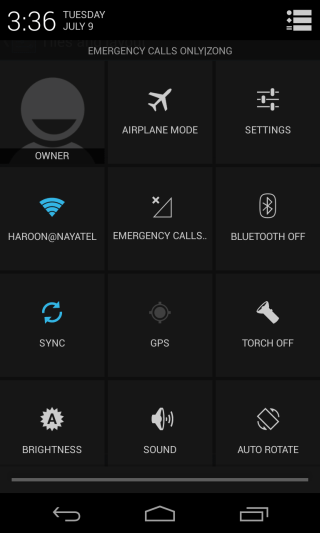
For quick and convenient access, you can even set this panel to always appear by default when you swipe down from the edge of your choice (left or right) on the status bar.
Power widget
If you don’t fancy the above controls and would rather have a small list of toggles right in the regular notification shade, the Power widget can do just that for you.
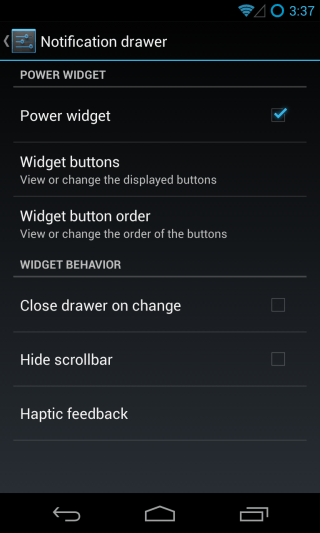
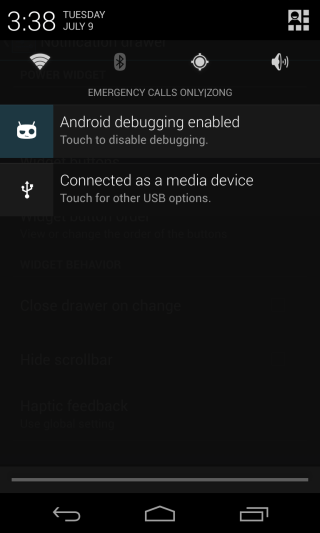
You can select what buttons display in it, specify their order, and tweak some appearance & behavior settings for the widget.
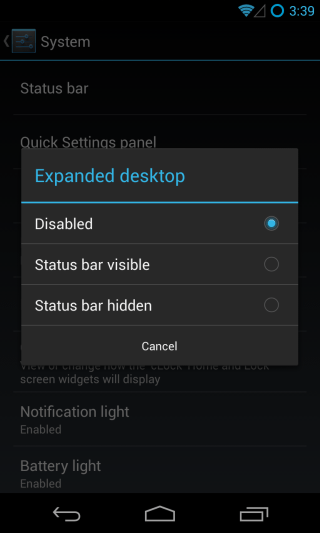
Expanded desktop
Want to utilize your screen real estate to the fullest? Why not get rid of the status bar as well as the navigation bar? Just choose whether you’d want the status bar to remain visible or not in this mode, and you’ll then be able to go full-screen by selecting the option from the power button’s long-press menu.

Main reason for considering alternative to android 6.0 is certain apps CANNOT be disabled: weather (location tracker), & Bluetooth Share. SHARE what? I want software that doesnt let anything leave my phone unless i want it too. Also, every time wifi is activated the system app, Diagnostics sends off a report to Google..bah. Love to take control of that..prefer to de-google this illegal spy in my pocket.
My s3(i9300) cm 10.2 can’t auto rotation of screen… How to fix this…. Thanks before… I love cm emmuuuaaaaaacccchhhhh
please pardon the fAT fingering.
what about radio reception – caN YOU ACCESS THE RADIO CHIP IN THE PHONE?
I have bugs with camera every time i want to take a picture my phone gets off and sometimes my phone freezes and can’t do nothing until i restart it also sometimes an app when am using it crashes alone need some improvements…
You deserve up thumb
Darn good review thr brah
Kindly suggest a solution or if a patch cab help.
i am using the rom since 3 months, i have a small problem on the radio side.
the network shows connected and when you disconnect and connect the network, there is sudden traffic of data which comes in and goes out, while the data connection shows it is still connected this causes a delay in data communication.
Wow. Do you also have a review of CM 11?
Thanks very much for the guide it was helpful.
Very good explanation of CM 10, Thank you
since my Galaxy S2 I use CM. I won’t buy a phone if CM hasn’t been release for it yet
Very nice, extremely detailed review. If you are someone like me who doesn’t know exactly what CyanogenMod does to enhance the user experience, this article will remove all doubt. Very nice job.
Excellent …!!
What a walkthough!
It would be great if you would update the article when 10.2 comes out. I think it wouldn’t be that much of a burden, you did the bulk of the work here and you can keep it updated incrementally now 🙂
thats one hell of a review… almost covered everything
front camera is dark and video cam has smurf sound,,,
How about Xperia U?
Will my Real Racing 3 work on Cyanogenmod 10.1 ?
I’m currently on stock 4.3 Nexus 4.
installed this on my lg-p970 and rolled back to ics stock rom cause i need my phone to last atleast a day:-(
did your mobile data work? i am having challenges getting mobile data on this ROM.any tweeks?
two things only ,bluetooth connection is laggy and battery drains fast.
but i love all the features and performance in terms of speed,,,
pls. do some improvement with these 2 issues and it will be perfect..
thanks;-)
Well done;
Hello! Review is very nice!
I have Galaxy Nexus and use CM 10.1.2 Stable.
I didn’t have battery light option in Notification light settings… How can I install it?
wich is better noozxoide or the dsp manager with cyanogenmod?
Amazing and useful post!
Nicely done. I will keep this article forever in my springpad.
Any idea on i9300 final release?
Looks like Nirvana to me! Will it install on an HTC Desire S ? All I’m missing now is a proc to root.
does this rom works with note 2 t889 v ? can u send me the link
Completely full and useful guide for newers!
You now need to make a roundup with the best themes for CyanogenMod 10
That’s already on agenda. It’ll be a compilation of some of the best free themes available for the T-Mobile Theme Engine that CyanogenMod and countless other AOSP-based ROMs (AOKP, Paranoid Android et al) use.
I didn’t see the calculator app. It’s been seriously upgraded with things like matrices and graphs.
Ah yes, that one I missed out on…thanks for bringing that up. I’ll be adding it tomorrow.
I’ve been using CM for quite a while now, and CM9 and 10 since the first monthlies were released and there’s still loads of stuff in your review that I didn’t know I could change, thanks!
Great writeup!
You also missed the “Safe Mode” feature that can be accessed by long press Power Button > long press Reboot > ok.
Thanks for bringing that up…I’ll be updating the guide to add that.
What about the privacy guard? Is it not covered or did I miss something?
It’s not a part of the stable CM 10.1, according to my knowledge, and has been added to 10.1.x nightlies after the stable release.
Does CM has any media player/suite that keeps PC(Mac, Linux) and Android in sync – sth like iTunes?
No, it doesn’t. For music though, you can use Winamp on your PC for the purpose (doesn’t have to be installed on your Android).
Thanks Haroon.
It’s a Mac. I think I can still use that.
Regards.
You said and I quote “for PC(Mac/Linux)”
Word of advice, ask for stuff on the right os
Google Play Music allows for music sync via wireless on the fly.
You can also access it via any web browser too.
Awesome guide. Can someone please tell me where the Battery notification light is? i am not able to find it.
go to Settings>System>Battery light
@pau: There is no such item in CM 10.1.2 (Nexus S / crespo) : Status bar, Quick Settings panel, Notification drawer, Expanded desktop, Power menu, Clock widget, Hardware keys
It’s not there on the cm 10.1.2 for gnex.
Great Mode from cyanogen its best if the split window feature is included in upcoming versions
If you don’t have PIE controls (as it is only specified for the Nexus) download the LMT Launcher. This works just like pie control and in fact will give you more customization such as size, color and positions by the pixel.
Nice suggestion. Here’s the link for those who want to check it out:
https://www.addictivetips.com/android/lmt-launcher-android-updated-with-pie-style-multitasking-shortcuts/
Clipped to Evernote.
Seems nice to me. Can I have it for my xperia s?
I’m waiting for a M release for S3 too. Damn S3 for being so complicated 🙂 I did try nightlies, but stuff kept breaking (Camera, phone) so I’ve gone back to Omega for now.
Does the messaging app support group mms so that you can participate in an ongoing single conversation with others, especially those who use Ichat?
Is this version very buggy? I know it says it’s unstable, but is there many bugs that annoy the usability?
10.1 is a stable release. Where did you see it is unstable?
It’s only available as nightlies for some devices eg: my i9100. I highly doubt I’ll get a monthly let alone a RC or Stable. I’d LOVE if it happened but I’ve given up any hope of seeing it as they’d have done it by now. It seems samsung didn’t release a jellybean driver for the exynos in the i9100 so they’ve had to reverse engineer it (not as good as an official driver so they’ll never call it “stable”). Overall the nightlies are 90% daily driver usable with only the occasional slowdown or force close.
Great job, Haroon! 🙂 My SGS3 is still on Nightlies so don’t have Pie Controls or a few other options, but still a pretty solid review. Thumbs up!
Pie Controls are disabled for phones with hardware buttons; it’s not because your device is behind in CM updates. What other options are you missing?
Quick launch shortcuts, and navigation bar buttons (for obvious reasons).
Quick Launch Shortcuts are disabled for devices with hardware buttons (same as Pie Controls).
What do you mean by navigation bar buttons? Do you mean Power Widget buttons?
What do you have to change in build.prop? I have a One X (evita) and wouldn’t mind being able to disable the “hardware” buttons and switch to the nav bar.
Don’t forget to save a copy of your original build.prop file before making these edits:
ro.product.manufacturer=LGE
ro.product.model=Nexus 4
would the editable lines you spec’d above apply as well to my S3 sgh I747m ?
Did the edit in my build.prop and there was no effect. System settings still do not contain the pie control option,etc.
Excellent!! yesterday have installed on Nexus 4
WANT.
PIE?
Pie.
I do not have the PIE option.
I believe it’s only enabled for devices with onscreen navigation buttons such as the nexus 4 and some sony devices.
I got PIE working on my Galaxy s 3 (but,no settings for PIE)
how did you? build.prop edit?
PIE is available for most devices. I got it on my S2.
Nope..
I just enabled Expanded Desktop.
No PIE option for sony neo L…
Well written. I bookmarked it to read it later at home.
very nice review
Nice job 🙂