Permanently Pin Tabs In Google Chrome
When you pin a tab in Google Chrome, it shrinks to an extent that you can only see the favicon. This is a great feature for those users who have lot of tabs open and want to save up some space, but the biggest headache is that the pinned tabs are not permanent. The moment you close and then start another session of Google Chrome, all pinned tabs will be lost.
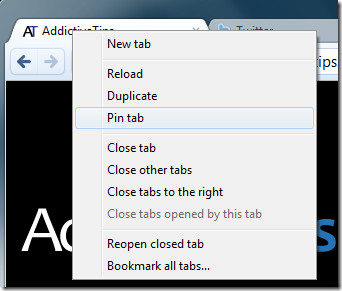
Is there any way to make tabs pinned permanently? Yes, you can make a number of tabs pinned permanently by using a small command switch. If you’re looking for a simpler solution, you might want to check out the Chrome tabs restore option which allows Chrome to automatically reopen your previous tabs.
First right-click the Google Chrome shortcut and head over to Properties. Now add:
– -pinned-tab-count=x
at the end of Target path. Replace x by any number of pinned tabs you want, for example, we chose 4. So the complete path becomes:
C:\Users\Nakodari\AppData\Local\Google\Chrome\Application\chrome.exe – -pinned-tab-count=4
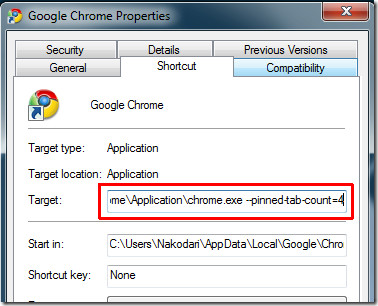
Now in the final step add the complete website URLs next to this command switch. Make sure there is a space between each URL.
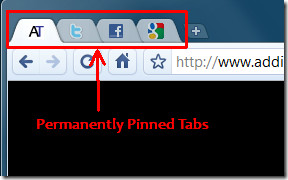
C:\Users\Nakodari\AppData\Local\Google\Chrome\Application\chrome.exe – -pinned-tab-count=4 https://www.addictivetips.com/ https://www.twitter.com/ https://www.facebook.com https://www.google.com/reader/
If you want to 6 tabs to be permanently pinned, then you will have to enter 6 URLs and change the value of x to 6. It’s that easy.
[via How-To-Geek]

Nice solution. Does Chrome have the sync capability for pinned tabs?
this is not working anymore
can i set as more permanent?for example, chrome://downloads/ cannot be changed into any other URL.
Can someone help me, I wanted to close a tab and hit pin tab by accident, Now everytime I try to get on the web I can’t get passed that page. How do I undo that? hunter4991@verizon.net.
Just use the save restore chrome thing so when you close it and reopen Chrome it will restore back to the webpages you closed
Same here, I’m using google chrome 17.0.963.56 m (thats what i see in about chrome) on windows 7 and I managed to load the pages i inserted as pinned tabs in the target link, but it doesn’t load them pinned. In all honesty, I’m already very happy that I can load them all like that, but it would be even better if they loaded as a pinned tab.
google chrome sucks in most ways, but I am forced to use it bec. IE 8 is sucks and IE 9 does not work on XP. who the hell wants to use a command switch. no bookmarks sidebar, my most used feature in firefox and IE.
thanks!
Hi, I’m using the newest build of chrome, and as stated above, i was getting pinned tabs as well as duplicate unpinned tabs so i changed it back.
The problem I came here trying to fix was this:
When i search for something in my pinned google tab, if I were to close the browser it will open next time where i left it (with search results or whatever site i was on).
Without manually going back to the sites i want pinned before i close, how do i get it to open specific sites in the pinned tabs regardless of what i was doing in the last session?
Having the same problem. Did you ever find a solution. please let me know at sarayale@aol.com
Why go through all this trouble? How about enabling the “restore last saved session” option and never closing the pinned tabs!
Thanks, I really like your site, it’s so cool and the content is great! I started off looking for joomla themes but somehow ended up here! Ahh, back to work I guess.
Chrome seemed to have fixed this. Downloaded the latest version (Windows). You can close Chrome and open everything as it was when you left it the previous session.
on Linux (Ubuntu Lucid) I have the command…
env LD_PRELOAD=/usr/lib/libv4l/v4l1compat.so chromium-browser –pinned-tab-count=3 %U
(the env LD_PRELOAD=/usr/lib/libv4l/v4l1compat.so is only for a sound or webcam workaround or something)
If I add the URLs separately afterwards I get the pinned tabs PLUS the duplicates opened unpinned.
Cheers for the tip!
It should be noted I have the following in about://config
Chromium 5.0.391.0 (Developer Build 45775) Ubuntu
WebKit 533.7
V8 2.2.4.2
User Agent Mozilla/5.0 (X11; U; Linux i686; en-US) AppleWebKit/533.7 (KHTML, like Gecko) Chrome/5.0.391.0 Safari/533.7
Command Line /usr/lib/chromium-browser/chromium-browser –pinned-tab-count=3
So what is the correct combo for dashes. I have the quotes and but it is outside the quotes but it just opens my three tabs like normal instead of in pinned form. Any help?
The latest version of Chrome does not require any hacks. Just right-click the tab and there will be an option to Pin tab. 🙂
They are still just normal tabs when I open up my Google Chrome instead of pinned tabs
Ive followed to the “T” everything you said to do to pin them permanently. And i run out of space in the omnibox on the target line. i wanted to pin 31 pages..
It may be because I have the new beta version?
Windows won't even let me put this as the target. It keeps telling me the target is invalid.
If there are quotes, be sure to put the tag OUTSIDE the quotes. Hope this helps 🙂
That opens the links but just as regular tabs not pinned tabs, is there a way to get around this?
5.0.322.2 build of Chrome no longer supports pinned tabs. I believe it has been gone since we got to version 5. I hope they bring them back. Apparently we will be getting App Tabs soon, hopefully we can pin pages as well.
They did some work on pinning, and it is back in the latest dev build (5.0.335.0). I can't get this permanent pinning to work on the newest build. Is anyone else seeing this?
Yep. Same thing for me. i really liked having them already pinned when i opened chrome, but i guess this is a step in the right direction
How do you do this on a Mac?
an extra upvote for not writing Mac in full caps 😉
if you set it using the –pinned-tab-count=x just delete that from the path. if you're still in chrome you can drag the pinned tab to the right and it will unpin it. also, you can visit other sites in the pinned tab by just typing it in the omnibox. i'm not sure exactly what you're asking, but i hope this answers it
thank you.sorry , my english is poor!
Excuse me,Can pin tab which I set not be closed or changed?
Make sure you are entering the correct double lines, i.e –pinned-tab-count=x
How do I undo this?When going back into the properties, none of the stuff I added is there. I tried adding – -pinned-tab-count=0 but that doesn't work.It keeps opening one of the things I used to use this for, no matter what I do. Please help.
How do I undo this?When going back into the properties, none of the stuff I added is there. I tried adding – -pinned-tab-count=0 but that doesn't work.It keeps opening one of the things I used to use this for, no matter what I do. Please help.
Make sure you are entering the correct double lines, i.e –pinned-tab-count=x
same command works in Ubuntu, for those interested. Right click the launcher for chrome, click properties and then add the same command as above, being sure to leave spaces between each URL you want permanently tabbed.
same command works in Ubuntu, for those interested. Right click the launcher for chrome, click properties and then add the same command as above, being sure to leave spaces between each URL you want permanently tabbed.
Is there a way to make the chrome home page a pinned tab that permanently opens? It doesn't have a url in the omnibox, so I don't know what to put.
Never mind, found it.chrome://newtab
Maybe you should use WordPad, instead of Office Word or whatever… to keep the double dashes from being merged! 😉 (as in –pinned-tab-count=x)
I think this has to do with the theme, I will look into it. And I use Windows Live Writer for blog posts. 😉