Embed Video In Excel 2010
Excel 2010 enables user to insert objects, which could be very useful if you want to embed different objects in to the datasheet, but when it comes to embedding video file in to datasheet, it does not support it directly. If you have been looking for a way to embed video to complement the datasheet or for illustrating any process, then this post will help you by elaborating the easiest way possible to embed video in Excel datasheet.
Launch PowerPoint 2010, create a complete blank slide(remove the instruction clutter on slide) to place a video on whole slide.
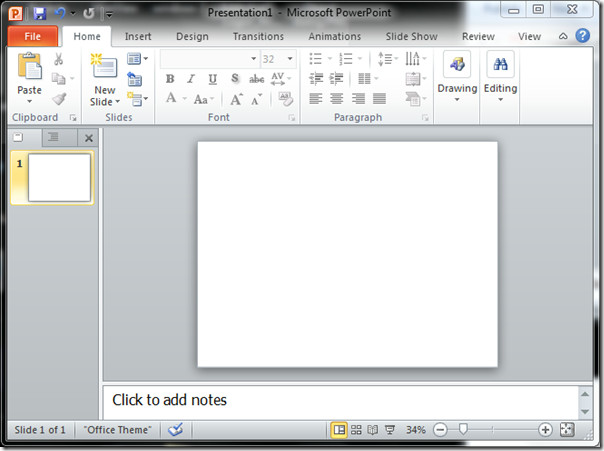
Now navigate to Insert tab, and from Video options, click Video From File.

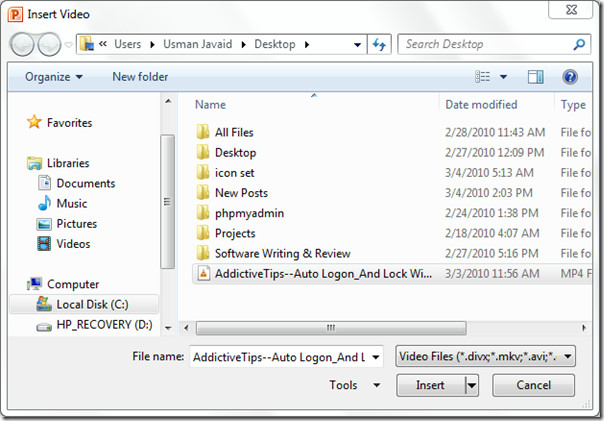
It will bring Insert Video dialog, select the video you want to insert in to slide, and then click Insert.
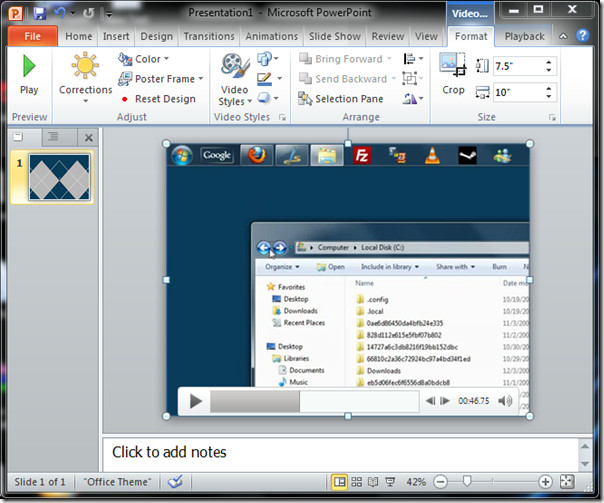
Expand the video to cover-up the whole slide.
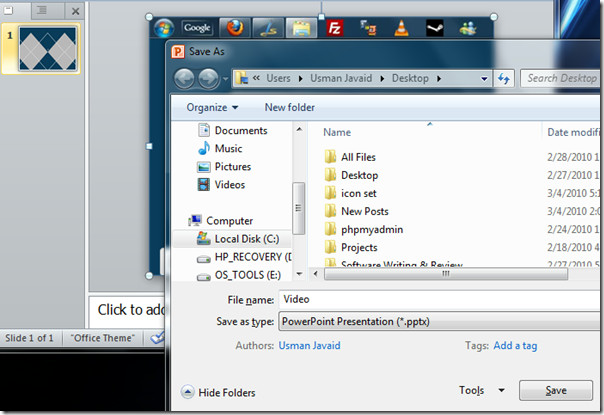
Now save the presentation & close it.
Now open a Excel 2010 datasheet, in which you want to embed video. Navigate to Insert tab, and click Object.

You will reach Object dialog, now switch to Create from File.
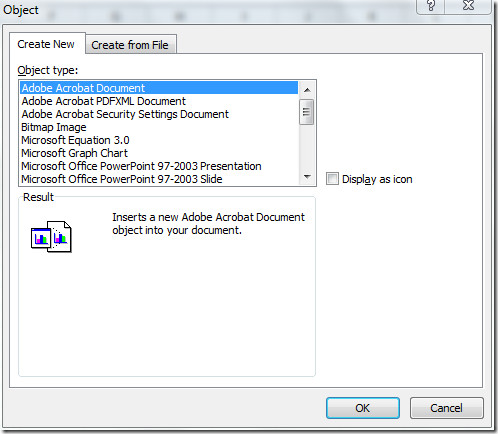
Click Browse to open PowerPoint slide saved earlier, and click Insert.
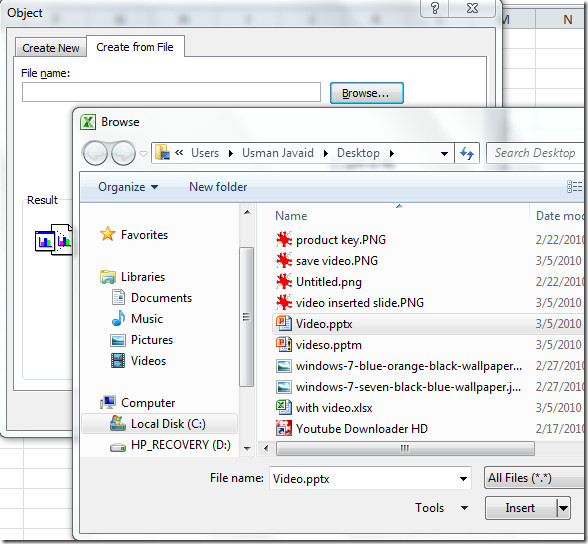
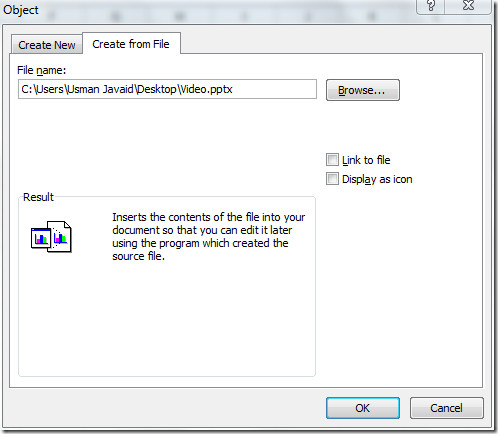
Once Inserted, click OK to continue.
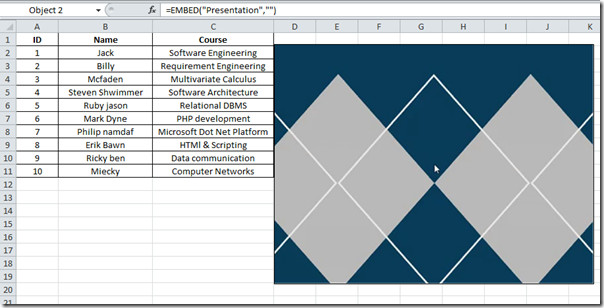
The video is successfully embedded in to Excel datasheet as shown in the screenshot below.
You may also be interested in How to embed YouTube video into Word 2010.

i was wonder about object option, but in excel 2013 there is icon for object instead of word ‘Object’. Thank You l learned a new thing 🙂
Agreed. This doesn’t work. Once inserted into Excel, it just displays the first frame of the video – there are no play controls, nor does it run automatically.
In Excel, video embeds as an icon. How to embed it actually as a video?
I did all that was instructed above but when i open the excel sheet after that the video doesn’t play , instead it shows a blank white screen…So how can i overcome from this problem?
How can you embed flash with controls in Microsoft Office? When will there be one standard for everything.
When there is a one-world government, no more racism and women are the new men.