Excel 2010: Split Column Data Into Two [Parse Cells]
Excel 2010 includes a feature to parse cells. It could be helpful when we need to split data in to columns without entering the data right from the scratch. This post covers how to split column data into two.
Launch Excel 2010, Open datasheet, choose the column you want to split, right-click the column next to it, and on its context menu click Insert.
For Instance: We need to split the Name column. Right-click column C, and hit Insert.
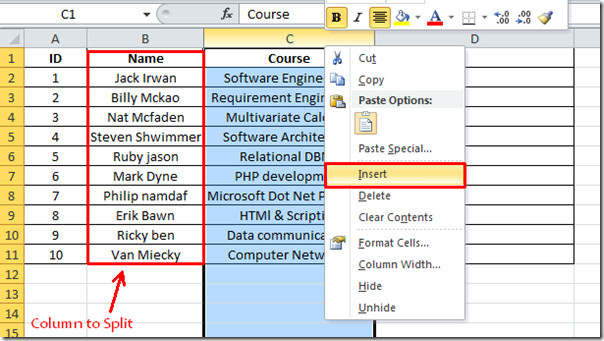
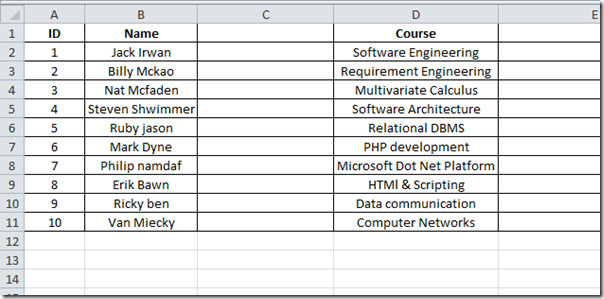
You will see new column is inserted.
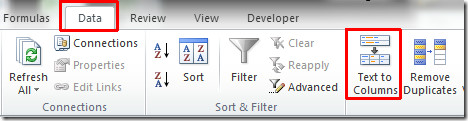
Now select the column you want to parse, go to Data tab and click Text to Columns.
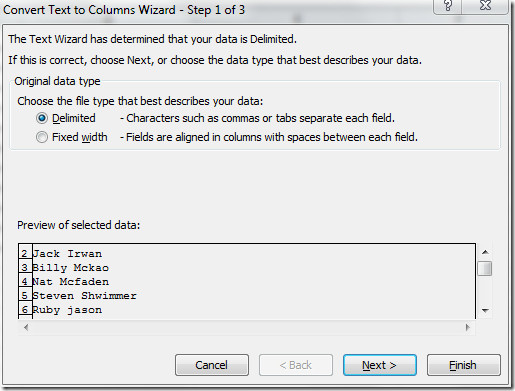
You will reach a Convert Text To Columns wizard. In first step, you can choose the type of data. In this case we will choose Delimited as data type. Click Next to continue.
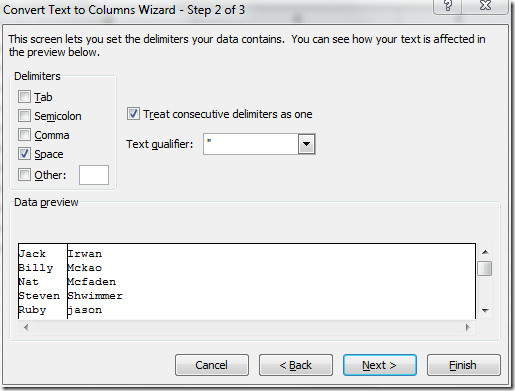
In this step, you can set the delimiters that your data contains. Under Delimiters choose an appropriate option. In our case, space is the delimiter so we will choose space and enable the options which says Treat consecutive delimiters as one. Click Next.
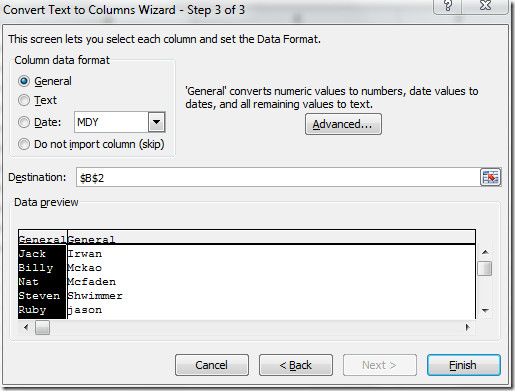
Here you can select a column and set data format. We will select General under Column data format. From Destination we have already selected the column which we want to split, but you can also change the Destination by clicking button at the end of it’s field. In the bottom pane, you can view the changes that occur according to the settings. Click Finish to end the wizard.
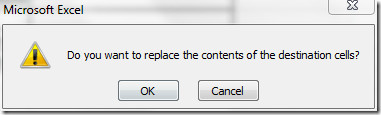
Click OK to replace the contents of the destination.
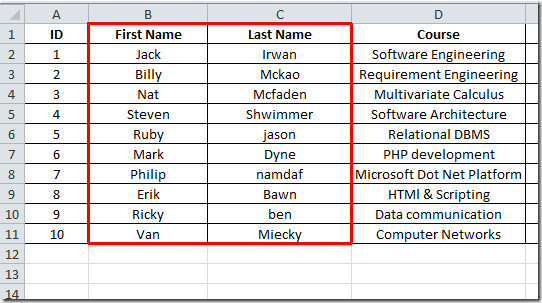
Now you can see in the screenshot below, that the column is successfully parsed into two columns.
You can also checkout How to freeze columns & rows in Excel 2010

This does not work very well with dates, if you can shed some light on how to do it properly with dates I would be very appreciative. Right now when I do it, it is taking the cell that I want to split, which is for example 1/10/14 and splitting into three cells that are cell 1: 1/1/1900; cell 2: 1/10/1900; cell 3: 2014. Totally blew my mind. I have a list of about 1,000 birthdays, that I would like to split into separate month, day, year cells. Please help if you can.
Cell A1 = 24/01/2014.
Make 3 new columns.
In B1 type =TEXT(A1,”d”)
In C1 type =TEXT(A1,”mmmm”)
In D1 type =TEXT(A1,”yyyy”)
For B1 (“d” = 9, 10 …. “dd” = 09, 10 …. “ddd” = fri …. “dddd” = friday …. “ddd dd” = fri 24) – there is no way for it to say 24th etc without using lookup for number)
For C1 (“m” = 9, 10 …. “mm” …. “mmm” Jan …. “mmmm” January)
For D1 (“y” / “yy” = 01 …. “yyy” / “yyyy” = 2001)
You can copy these formula down the rows too.
Play around once done select these columns copy, then paste as values (paste special)..
Hopefully that will work for you.
Stevie.
Ok here it is this is a perfect image of what Split cell is and there you have and image of the icon i am talking about……..
However this is in Microsoft word i couldn’t find one in excel but see the icon split cell button and if you notice he is still in column 2 and row 1and the person split that one cell in 4 parts that is split cell. Also when you use to click on that icon in excel it use to give you an u an option on whether you wish to split the entire column or from this point only or this cell only
Just merge the columns in excel that you want to display as one cell. for eg instead of splitting cells, just merge cells b1 and c1 into one column (column 1). b2 can be used to input ‘photos’, c2, b3, c3 can be adjoining columns. Merge b4 and c4 and u can input ‘dance’. merge b5 and c5 and you can input ‘cinema’. Simple
the images i show you still really aren’t split cells but it was as close as i can find as to what i am talking about…. apparently no one really knew how to split cells
Microsoft 2010 sucks i want to split a column of cells into two cells and it
cannot……. When you say split cell that is not what it means. What this video is showing is how to split your data and transfer it to another column that is not split cell split cell is splitting one single cell or more if you wish into two separate cells but it does not give you that option not any more this information is not what i am
look for i know how to do this what i want is something like this:
Name Download Watched
The Chronicles of Narnia Y Y
kasjf ksfksdfkjsafj askljjk fkas N N
ksfjskj kasfaksfjaslkdfjask sd Y N
and so on whatever …………. Y Y
(Note: Above is my table
or how my table is suppose to look now at the bottom below my table in
column A i wish to put my key which will look something like this:
Key
Y Yes
N No
(Note:
Column A is too wide for my key so i want to make the cells normal back
to fit my key within a smaller table (without affecting the size of my
table above) but i want all this under one Column which will be column
A……. I use to be able to do this in Microsoft Excel 2007 now i can’t
when i go in my ribbon to try and look for the icon to add it to my
ribbon i see the icon is in the list of ribbons as it was in 2007 as
Split cell but when i add this icon to my ribbon it does not work or
give me the option to split the cells because it is not compatible with
excel 2010 with that icon you use to be able to split just one single
cell vertical, horizontal and diagonal now you cannot do so…….. That little icon
use to make a whole lot of difference.
If you know what i
am talking about you will understand what i am showing you above…….
If you know what i am talking about and know or figure out how to do
this in Microsoft Excel 2010 please it would mean a great deal for me if
you can let me in on the Information on how to do so.
IF NOT MICROSOFT 2010 SUCKS!!!!!!!!!!!!!!!!!!!!!!!!!!!!!!!!!
This is what split cell is this is what i am talking about!!!!!
What if you have one cell with 1000+ first, last names and email addresses?
I would do it this way: 1) transpose columns and rows, then split into 1,000 columns 2) transpose columns and rows, then 2) split names and email addresses, then 30 split names.
It was just what I needed to know. Thanks!
didnt help me 🙁
I want to know how to split one cell into two horizontally contiguous cells.
And I want the first cell to have text, and the second cell to have a link.
Ideally, I really want to put a link on part of the text in just one cell. (Although I know that’s not related to this article.)
If you know how, please let me know.
Thanks!
I missed a ProveIt exam question ‘split data into two cells using delimiter’. Now I know how.
What if there is not a space between the two items? For example, I have F54 representing Female 54 years old. I want the sex and age in two different columns.
what if the data in the cell is from a string that has multiple lines – you know how you can have a hard return in an excel cell – how do I pull each row of data in one cell to a separate column
Thank you! Appreciate the screenshots!
hi can you split a cell horizontally?
do it as per the above soln first, then transpose it.
It is correct, but if there is samir more next colounm samir,more next colounm samir-more then which formula I use.
Thank u so much for the post…..
Hi,
If we want to split one column into multiple rows…?
something like if we have a+b, a-b ,a*b in one cell, now i want to place each operation in below rows..
a+b
a-b
a*b
what should i do?
After splitting your text into cells, press F1 and look up “Switch rows and columns”.
There is instruction for Copy / Paste-transpose.
What if the cell contails a DDE link, then it shws the formula & not the test??????
AWWWWW SNAP!!! Somebody just blew their boss’s mind…
Just what I needed too, thank you 🙂
Just what I needed. Thanks!