Outlook 2010 Search Indexing
Indexing is a phenomena which saves the location of files and other content to make search real fast. It is very beneficial especially when you have loads of files or dealing with a lot of content. Windows has an inherent quality of indexing different locations including Outlook folders, and content. Once Windows 7 has the location from the index, then you can retrieve the data by moving directly to the location without invoking the search process. In this way, indexing can be considerably faster than scanning through all the folder to find the content or particular file. Outlook content, files, and folders have also been indexed consistently, if you want to change the way Windows 7 has been indexing Outlook 2010 content, then this post will help you a lot.
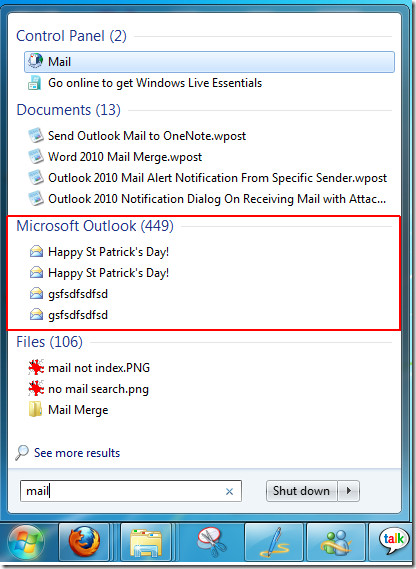
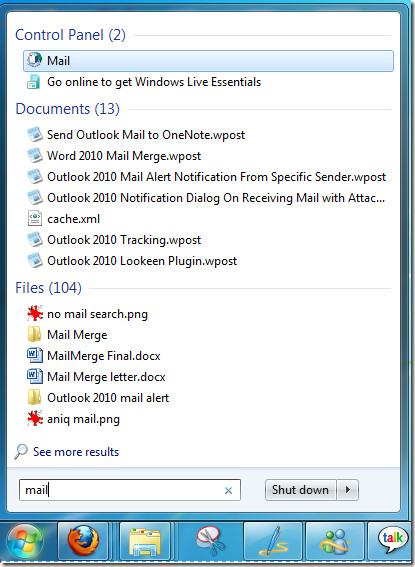
By default Windows 7 automatically indexes Outlook folders and files, when you type search keyword in Start menu, search it also show results from Outlook content, such as, emails, attachments, contacts, calendar, tasks, folders, etc.
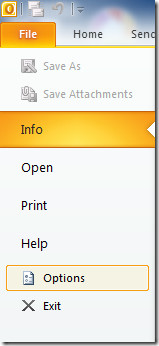
If you want to change it, lets say you want to disable it, then launch Outlook 2010 and from File menu, click Options.
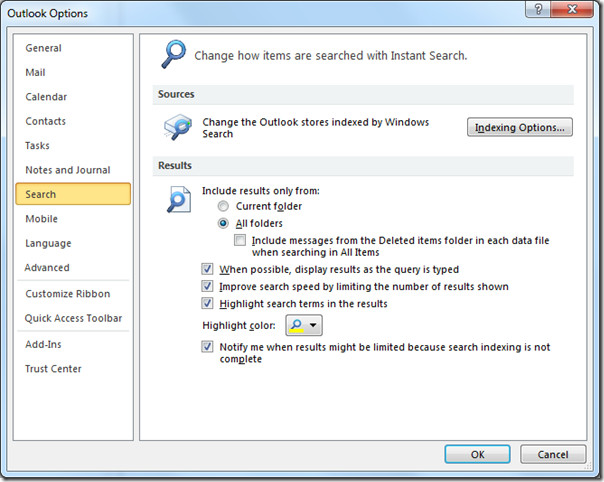
It will bring up Outlook Options dialog, now from the left pane select Search, you will see bunch of options here, now under Sources, click Indexing Options.
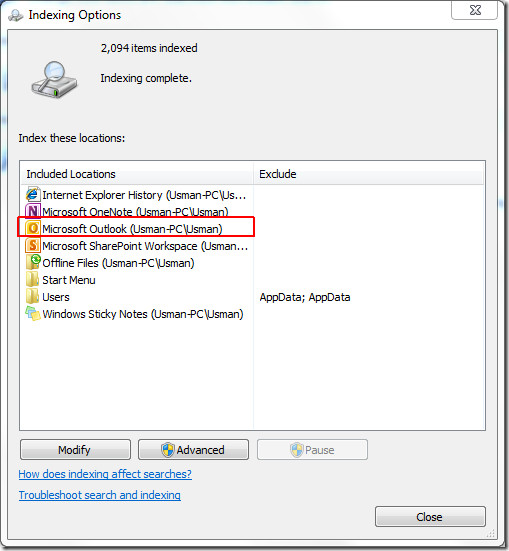
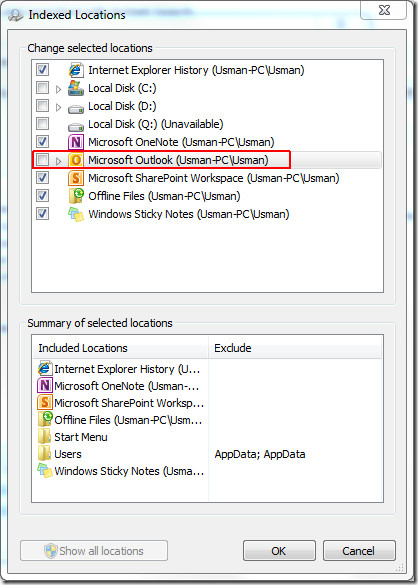
Indexing Options dialog will appear, you will notice that Microsoft Outlook is already included in the Indexing Locations. Click Modify to change the indexing location.
It will lead you to the Indexed Locations dialog, now disable the Microsoft Outlook option, and click OK to continue.
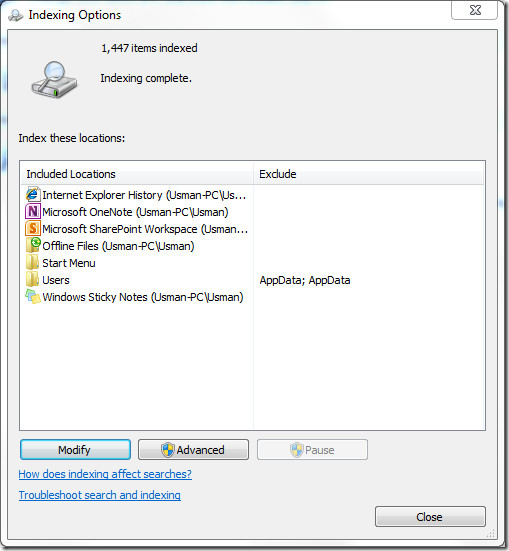
Upon click, you will be brought back to the Indexing Options dialog, here you can see that Outlook is excluded from Indexed Locations. For configuring advance indexing options, click Advanced. But before going further, please ensure that what type of indexing options you need to change, as it affects indexing of all file types. So be very meticulous before configuring advance indexing options.
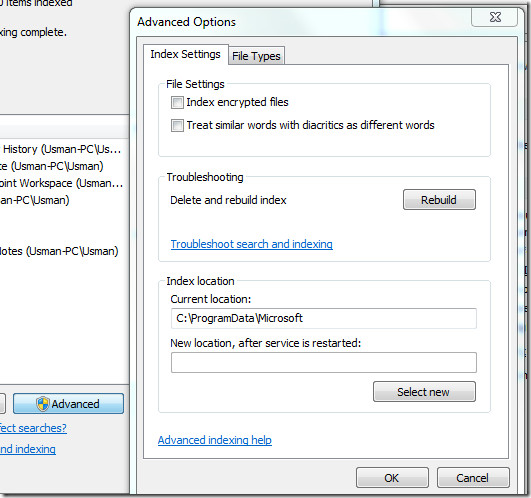
In Advanced Options dialog, from File Settings you can enable the option for indexing encrypted files and Treat similar words with diacritics as different words. If you have been facing a problem in searching files, you can rebuilt the index by clicking Rebuild option, or refer to Outlook indexing troubleshooting for additional help. Under Index Location, you can specify index location. Click File Types tab for manually select files to be indexed.
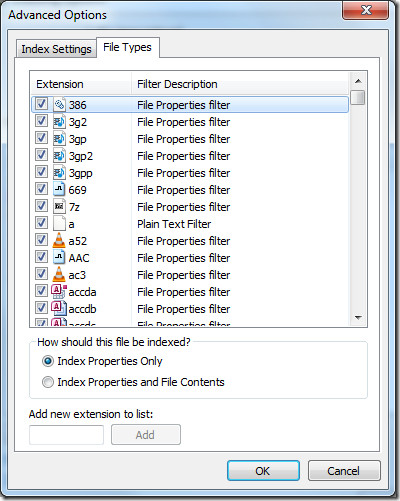
Here you can select the files you want to be indexed, it includes all the files which Windows has been indexing, so look for the Outlook files first and then enable/disable the indexing option. Once configured Indexing Options, click OK.
Close Outlook 2010, and now check if Windows is still indexing files, click Start Orb and type any search keyword. You will notice that Outlook content is no more indexed, thus showing no results from Outlook content.
You can also check out previously reviewed guides on Outlook 2010 PST file & Mail Alert notification from Specified Sender.

I had the exact same issue and resolved it following what someone else posted above:
– In the Outlook menu select FILE/OPTIONS/SEARCH/INDEXING OPTIONS/MODIFY. Then deselect everything you might have here except for Outlook. In my case I deselected everything except for Outlook and OneNote. Then hit OK to close that dialog window. Then select ADVANCED in the Indexing options dialog window and finally hit REBUILD to rebuild the index. When it was complete, my search problem was resolved. All credit to the person above who called this out. Thanks!
Guys. Please check if you have enough space on hard disk. I had the outlook slow indexing
issue, but I was low on hard disk space (less than a GB). I kept seeing 43000 messages being indexed. I removed an old Ubuntu partition and cleared about 50GB of space. When I restarted outlook, the entire thing was indexed. Wow! Something to look out for this problem. Hope this helps.
Something I encountered; I’m not sure what exactly the cause is, but the option to stop indexing Outlook did not appear as an option to uncheck until I had opened Outlook. Outlook was setup, I just hadn’t started it in many months. If the option is missing after hitting “Modify” in the “Index Options” maybe you need to start Outlook first too.
Hi … I’ve no space left on my PC to perform the indexing. Can I change the location for it … can I define another folder in D: for yhat ????
Thanks
Why are the Refine Search Tools greyed on Outlook 2010 in non-cached mode (outlook is running on citrix/terminal server) why is syntax like “received:today” not working…?
Thanks to Addictive Tips, My problems solved
thx my problems sloved
THANKS GOT VERY USEFULL SOLUTION..
Thanks a lot for the post…working perfectly…:)
I have 12,921 items indexed and 13307 items remaining to be indexed. The 13307 items are emails I received today going back at least one year. I can never search for anything recent, the only files for which I have a need. For some reason, the indexing restarts at 25,000 items remaining to be indexed every few days and never gets below 11,000 or so items indexed. How do I prevent my Microsoft Outlook 2010 indexing from resetting?
Indexing is a hell which we all fall into from time to time.
The easiest way around your issue is to REMOVE items from your index, until you find the one which is not indexing properly, usually an older archive. Once you do hit “zero” again, then start adding back all of other folders which you do want to have indexed. If it is an archive, use SCANPST on the file and clear up any inconsistencies. if it is your live e-mails, then I recommend removing Outlook from the indexing, run the indexer until it is OK, then reboot, run SCANOST (to scan your local filesystem) and then start Outlook and enable it in the indexing once again.
It turns out that running CCleaner resulted in my Microsoft Outlook 2010 indexing being partially or completely reset. Anyone know how to run CCleaner without messing with the Microsoft Outlook 2010 indexing?
It turns out that running CCleaner resulted in my Microsoft Outlook 2010 indexing being partially or completely reset. Anyone know how to run CCleaner without messing with the Microsoft Outlook 2010 indexing?
I really want to turn off indexing in Outlook 2010 since I rarely get complete search results because of the large size of my pst file, however, when I click on Indexing Options, Microsoft Outlook appear but when I click on Modify Microsoft Outlook is does not appear in the list with the boxes to uncheck. Why would this be? Thank you.
This is really good information… which helped me to resolve one of the customer’s issue……..
Thanks for the great article. I found the Outlook index constantly out of date. What good is a fast search if the results are wrong?
Without indexing, searches are a little slower but the results are reliable.
Search quit working in Outlook 2010, even when all my settings were correct. I ran Office repair, which corrected the problem.
I fixed my problem by running the Glary’s utlities scan and doing all the fixes, then running the Micorosoft Office repair, go to Control Panel>Programs>uninstall>right click on “Microsoft Office Professional” choose “Change” then select “Repair” then continue, it will take several minutes then reboot. After reboot in about 5 minutes the indexing comes back.
Great article, thanks! Outlook indexing was a huge problem for me. I keep email archives on flash drives, all of which are never indexed. Trying to search these archives was impossible because nothing was indexed, therefore nothing was found. Once I disabled the indexing instant results and was able to easily find what I was looking for. Appreciate the time and help!
I agree with Matt. This should really be titled… ‘how to screw yourself over’. I was waiting for some brillient reset to come out of this, and realized that there is about a paragraph on why you would want indexing, and the rest is ‘but if for some reason you wanted this to not happen…’
To fix this, simply add back the file types and outlook to your index.
READ THIS ENTIRE POST BEFORE DOING ANYTHING. This post is terrible. If you follow the steps adn delete teh outlook search listing, good luck fixing it. The author fails to mention this.
I’m having the reindex issue – Windows 7 Enterprise x64, office 2010 – all the latest patches, SPs updates… connected to an Exchange 2010 server with all the latest updates, sps, patches… It keeps reindexing every time I reboot.
I’ve tried reformatting the machine.
I’ve tried rebuilding my index.
I’ve tried deleting my OST
I’ve tried moving my index file.
I’ve tried moving my OST file
I’ve tried a vanilla boot
I do NOT nor have I ever had ccleaner installed
This was not an upgrade from Office 2007
I’ve tried replacing my drive.
I’ve tried combining all of my email accounts to a single outloook profile
I’m wondering if this is an issue with the 64 bit version of oulook or if people with the 32 bit have the same issue – I”ve read several posts of others having the issue but no solution.
i have the same problem dude…kindly advise what is to be done… I am using 64 bit version of Windows 7