Send Outlook Mail to OneNote 2010
Outlook 2010 has an intrinsic feature which lets user to transfer mails to OneNote 2010, it could be very useful, if you are using OneNote 2010 for taking notes, by sending email content, you will able to complement the note which is related with an email.
Launch Outlook 2010, and open the mail you want to send to OneNote, as shown in the screenshot below.
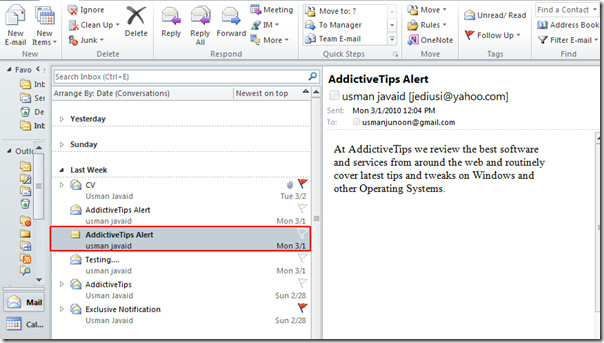
Now navigate to Home tab, and click OneNote

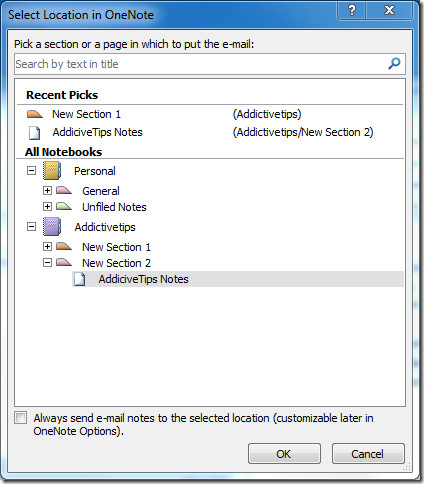
Select the location where you want to place the email in OneNote sheet, if you are having a lot of sheets in OneNote, you can also search them by providing search keyword. Click OK after selecting one.
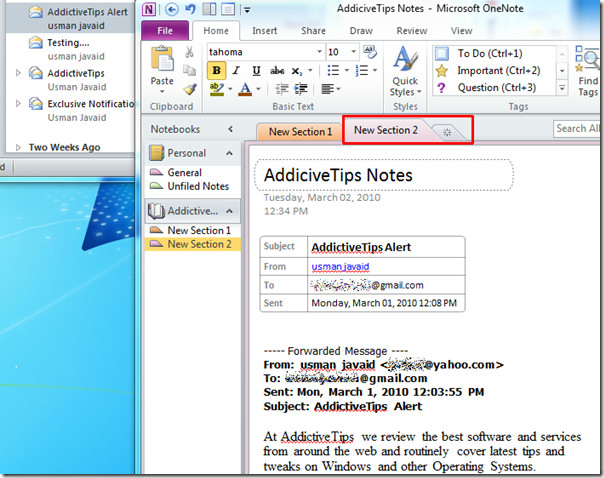
Upon click, it will automatically send all the related email content; subject, sender email address, date/time, to selected OneNote sheet as shown in the screenshot below.
You can also check out previously reviewed guides on How to remove screen clipper from startup & simple way to extract text from image in OneNote.

Hi I think it’s a shame email messages get added to the bottom of a page. Would there be a way to add it to top? Thanks.
This is my question as well. How do I get he email messages to show up at the TOP of the OneNote page?
how do i in outlook 2010 uncheck the automatic send feature. I can not find anywhere in options to uncheck this feature. I want to be able to decide which folder to send to.
I am moving all my stored email messages from Outlook 2010 to Onenote 2010. Until today I could move them in groups, by selecting a group of messages, clicking the Send to Onenote icon in my Move group on the ribbon and choosing the section I wanted them to go to. Today I can’t send more than one at a time. WHAT have I done?
You haven’t done anything. This happened to me today too. It happened right after an update. HOW DO I FIX THIS??
I discovered the same issue today. I could still select all the emails, go to Print, send to OneNote, but it would put all the emails on one OneNote page rather than a separate page for each email. I am going to miss that feature.
it is istill not fixed!
Why it was changed? is there any rational reason behind that change?
have you got any tips how to move more emails than one at a time?
So… if by chance… one was to accidently click that box to auto send to onenote. How might that person undo that?
Dude — customize the Quick Access toolbar at the top of Outlook to add “Send to OneNote” and you don’t have to open the message, you can send it from the inbox listing. Saves a few clicks.
At the very top of your screen, click the very small icon of a downward pointing triangle with a line above it. On the left side of the box that pops up, make sure you select Quick Access toolbar. In the next column to the right, you may need to click on the “choose commands from:” menu, but somewhere in all those really cool choices you’ll find “Send to OneNote”. Click on it, then click Add to send it to the column on the right, then click OK. There are lots of great Quick Access shortcuts to add to your Office applications.
This was a really helpful article. I’m wondering if there is anyway to have Outlook automatically send certain emails to OneNote, like a rule? (I checked in rules and couldn’t find it…) Thanks!
Make an Outlook rule wherein you print the e-mail to the “send to Onenote 2010 printer”.
Make an Outlook rule wherein you print the e-mail to the “send to Onenote 2010 printer”.