AppLock: PIN Or Pattern Protect Individual User, System Apps & Incoming Calls On Android
Not everyone likes to have a master password, PIN or pattern lock applied to their smartphones at all times. It becomes quite tiresome if a friend is playing around with your Android phone, and you have to enter the unlock code every time the screen times out. Then again, you might not want your SMS threads, gallery, Play Store, email and social networking apps unprotected while one of your mischievous friends is, as he/she says, playing Fruit Ninja on your phone. It is in such situations that apps like AppLock for Android come in handy.
The app lets you lock individual user and system apps with a PIN or pattern of your choice. The concept isn’t new to Android at all. A much older app with the same name (App Lock – App Protector) and previously reviewed Visidon AppLock are based on the same functionality. In fact, the latter even provides the option to set a face recognition lock for individual apps. However, when it comes to looks and simplicity, AppLock races ahead of the two aforementioned (and most other) alternatives. If you’re setting an authentication screen to appear every time you launch a particular app, you’d probably prefer if it were easy on the eyes. That’s not all; the app even lets you PIN/pattern protect incoming calls.
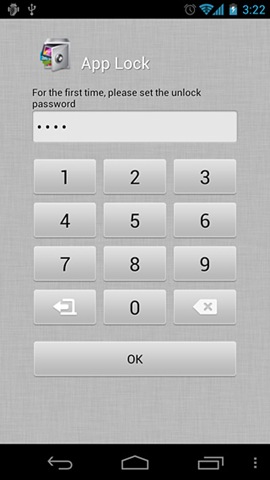
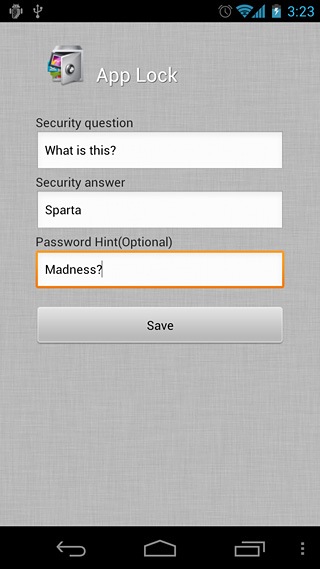
When you launch the app for the first time, it automatically presents you with the PIN protection setup screen, followed by a screen that lets you specify a security question and answer for password retrieval and a hint for the PIN you entered in the previous screen.
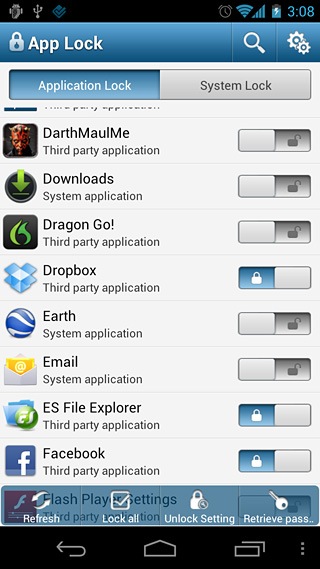
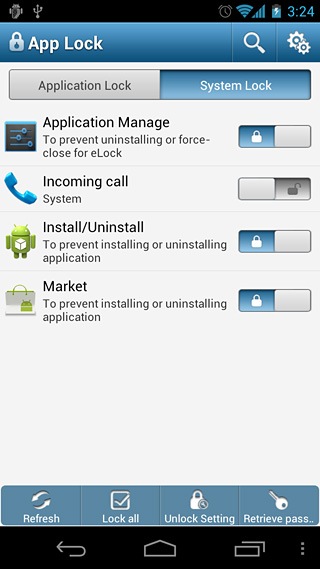
Once your done with that, the app takes you to its homescreen, where you’ll find all system and user apps listed under the Application Lock tab. The System Lock tab lists system actions and apps that, when locked, will prevent new apps from being installed and existing apps from being uninstalled or reset. Locking the Market, Install/Uninstall and Application Manage (uninstall, force-close, clear app data) options are essential to protect AppLock itself being uninstalled or reset from within the Market, system settings or even a third-party app manager.
You’ll find the aforementioned option to lock incoming calls under this tab as well. Enabling said option displays the PIN/pattern authentication screen every time a call is received.
The bar at the bottom of the app’s homescreen contains options to lock all apps/actions under the current tab, change the Unlock Setting (set PIN & pattern, switch between them), and the security question for password retrieval.
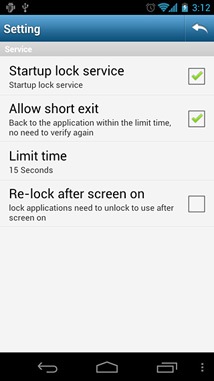
The app’s settings screen allows you to set the app to lock all selected apps every time you wake your device from idle state, and launch its lock service automatically every time the device boots up. The Allow short exit option here lets you keep apps unlocked for a specified amount of time after they are exited, so that you don’t have to enter the PIN/pattern over and over again while switching between apps.
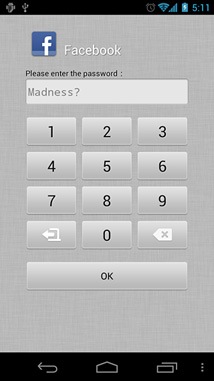
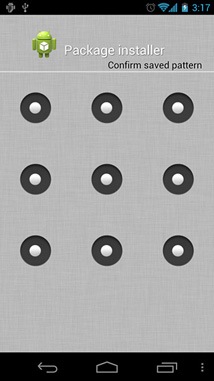
If you happen to forget your unlock pattern but remember the PIN, simply launch AppLock and select Change to number lock. If you can’t remember the PIN either, tap the Retrieve password option at the bottom of the PIN authentication screen and enter the answer to the security question that you set previously.
Note: If, by chance, you find your memory void of everything related to the app (courtesy of, say, a Falcon Punch to the head), and you have the Application Manage, Install/Uninstall and Market options locked, you won’t be able to delete the app by conventional means. You’ll have to have root access on your device, and a root-level file explorer already installed on your Android device. If you don’t have the latter, or if it too is locked by Appock, you can use a root-level desktop file explorer for Android to delete AppLock or its data from the system.
AppLock is available for free on the Android Market. The link provided below will take you to its Play Store page.
Install AppLock from Play Store

i forgot my applock password ans there is no option to forget password n my playstore and setting is also locked…wat i do
I have used applock. but I think that LEO Privacy is better. Because If someone tries to open app but enters wrong password, the app capture his photo. I think its safe to leave my cell phone anywhere in the house even when my boyfriend is around.
Dear frndz i frgt my app lock pattern and its asking google id my phone its not opening cn u gve me suggestion
I already unlocked all my files in AppLock and i want to transfer all my files in my laptop .but i cant find the unlocked files in my xperia z.
there’s have a folder for the unlocked files?
Hello there
i have wrongly hide app lock from my xperia L and now i don;t know how
to unhidden app lock because i can’t see app lock in my phone except
setting but setting does not allow me to change app lock setting. i am
bit upset and worried about my stuff which i had transferred in app
lock.
your prompt reply would be highly appreciated.
type this “*#*#12345#*#*” to your keypad and the applock will show .remove the Double qoutes
Heyyyy…plzzz help me out..
1of my frnd has changed my applock settings n chnged d password too..n also in recovery password he kept his mail id..nw wht shud I do to unlock it??
Pocket call answering solved. Thank you very much!
I use App Lock. I thought my YouTube app was locked but it could be accessed through the games I have downloaded. When I clicked on a clip through Angry Birds, it went straight to YouTube without my needing to put in a password. I was very disappointed, especially since it was the main app I wanted locked.
Try using Xumba on Android for pin protecting incoming calls
Hey guys you have showed us the best app lock in Android Market. Thank you.
Its got a very low memory usage thus preventing phone slowdown. Plus the interface is neat!
Caution:
I use Pro Capture for taking pics. After taking a snap, it shows a preview of that image taken. If swiped left it shows old images which are stored in the memory. So I would suggest users who like to lock their image gallery/viewer should also lock Pro Capture. As a matter of fact check with any camera app & act accordingly.