How To Install ClockworkMod Recovery On Your Android Phone
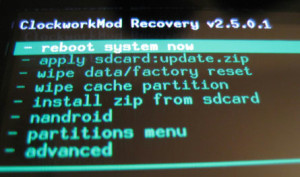
UPDATE: To learn all there is to learn about ClockworkMod recovery, see our detailed guide on what is ClockworkMod recovery and how to use it.
Your phone must be rooted prior to the installation of ClockworkMod. The rooting procedure differs from phone to phone and you can do a quick search on our site to find out process for yours, or just visit our Android rooting guide. Once you have the phone rooted, simply follow these easy steps and you will have Clockwork Recovery installed on your phone in no time!
- From your phone, launch the Android Market and search for a free app called ‘ROM Manager’. Once found, install it. You can also find it at AppBrain using the link given below, or scan this QR Code to get it directly on your phone.
- Once it has been installed, launch ‘ROM Manager’ on your phone.
- In ROM Manager, tap ‘Flash ClockworkMod Recovery’. Specify or confirm your phone model if prompted during the process, and follow any on-screen instructions.
- Be patient as ClockworkMod is installed, as it can take quite some time. Once the process if finsihed, you have ClockworkMod installed on your phone.
Once it has been installed, booting into ClockworkMod recovery is pretty simple. You can either launch Rom Manager and tap ‘Reboot into Recovery’, or use our guide on how to boot your Android phone into recovery.
Download ROM Manager from Play Store

what do i do if my phone model not listed? and what do i do when i tap on “Reboot into recovery” and the pop-up message freezes when i tap on “ok”?
I am getting error message Error while downloading from server. Please make sure that you have a stable internet connection, and that your SD card is inserted and has free space. I have a Samsung galaxy s3 i9305 and have good internet connection on wi-fi and 32gb SD card. Any suggestions please???
I just rooted my google nexus 5 but in rom manager its shows error downloading from server… Plz help me
hey guys can any one help
i tried to flash clockwork recovery mode but the problem is it asks to reboot but it only switchesoff the phone and doesnt reboot so wat to do now?
how to root s5360 galaxy young?pls help
Is there a clockwork for a Motorola Triumph?? I am just trying to update to 2.3.7 (android os).
Guys if we copy the zip from our PC and paste it in External SD card and then paste it in phone root folder then boot it means it will say:
E:failed to verify whole-file signature
E:signature verification failed
Installation aborted
it always happened for me try pasting it to root folder using data cable it worked for me.
SGP 5.0??? which should I have chosen?
I actually already installed it with odin, and working fine. but if i diddnt, which should i have chosen??
i have installed it but when i run clock recovery, when installation complete it gives an error. i have tried it a lot but could not fine any solution.
My phone model GALAXY S PLUSE i9001 is not listed on ROM MANAGER,then how can i install Clockworkmod recovery??? plz help
Hey My phone Is Galaxy S LCD Gt-I9003 ,
if You copy the zip from our PC and paste it in External SD card and then paste it in phone root folder then boot it means it will say:
E:failed to verify whole-file signature
E:signature verification failed
Installation aborted
it always happened for me try pasting it to root folder using data cable it worked for me.
When I tap the ”
Flash ClockworkMod Recovery” followed by tapping my phone model (Galaxy Nexus CDMA), there’s a quick progress bar at the top of the screen, just below the status bar. But the progress bar gets stuck at around 90% and doesn’t mode from there at all. I keep getting prompts saying “ROM Manager has stopped working” and I keep tapping “wait”, hoping that the download or whatever it is doing is taking time. But even after 20 minutes or so, there’s no progress. I have done this multiple times on multiple days, with no difference. Please advice.
Evrytime I click on clockworkmod recovery it says unsupported device. Then says choose 2xxx or 3xxx wat should I do. I rooted my phone using gingerbreak . I have the huawei ascend m860
Is there a clockworkmod recovery for the huawei ascend
Hi, i want to install Clockwork on my Odys Loox, but it is not in the list, do u know a similar tab that will work with?
what if it doesnt show your phone modle
please help~~!!! i really want to install custom rom
my phone is samsung galaxy ace!!! what’s my phone model?????????
Search in settings->about phone.
Why is the LG Revolution not on that list? Which model should be used for a Revolution?
I cant find my phone samsung note
My dear Haroon, I am extremely grateful to have read ur guidelines for rooting and installing new versions on andriod phones. I have SH-12C Sharp Aquos Phone. I intend to instal 3.1 upgraded version on it. I shall try to upgrade the said phone. If I face some difficulties, I would certainly seek ur guidance. I hope u extend a help ful hand to me. Thank u very much with a lot of respects. yours sincerely, Mohd; Ibrahim Shah with email address as ibrahimshah707@gmail.com
I have a droid2, just rooted. I hit Flash ClockworkMod Recovery, Current version is 5.0.2.5. It said “SUCCESSFUL”, I then try to Reboot into Recovery, it just reboots my phone. I’ve tried like 10x. I don’t know what’s wrong. PLZ HELP
acer liquid mini???vat to do??
I did not find my model Huawei U8160 (Vodafone 858)
I am using galaxy 5 or Galaxy Europa. On tapping Flash…, it asks to confirm the phone model and shows Commita Z71(Boston, Blaze and more), Dell Streak, Geeksphone ONE, Huawei Ascend, Huawei Ascend 2,Huwaei Pulse, Huwaei Pulse Mini, Huawei U8220/U8230, Micromax A70, Spice MI700,Commtiva Link N700 and more. WHich one to choose?
i cant find on clockworkmod my device what i do now?
P/S my device is Huawei Ideos X5 U8800
I installed Rom Manager, when i try to install the clock work mod it says….an error occured while attempting to run privilidged commands please help.
A very simple question, as many of the same above. If my phone model is not listed, can I use this software? i hope the author has the time to answer all these questions based around the same theme!
i’m asked to specify the model no. n i’m not getting my phone’s model no. in the list.. can u help?
in some phone like the atrix 4g, you need an unlocked bootloader for ClockworkMod to work
hi i follow the instruction for a samsung gio s5660
but when he restart he block i can power on again ( i cant see if he is power on) but odin see hem and i try to set the original firmware but can see if he is in download mode got black screen
can enybody help me or is he bricked
thank you
xRecovery and ClockworkMod Recovery have the same function and purpose? Can I use either one?
Thank’s.
This didn’t work for my T-Mobile Samsung Galaxy tab. Please help. BTW I am already rooted.
me neither … keep getting these error messages :
E:Failed to verify whole-file signature
E:signature verification failed
it doesnt shows my phone model.. Acer liquid mini ..?
wat to do .?
is it possible to install on the htc touch pro 2 t-mobile (rhodium 210)?
That’s a Win Mobile 6.x phone, not an Android phone.
I installed it on my Samsung Galaxy mini and when I put it into recovery mod – Boot into recovery – the phone as shut down and wouldn’t turn on again…
Some advice on what can I do? thanks advance.
Why it is not working for Galaxy SL I9003? Is there any alternate method to take backup/restore for Galaxy SL?
Hi,
I have a ZTE-P729B Orange San Francisco and would like flash and re-install Android 2.2 Froyo for ZTE Blade / San Francisco.
i have tried to flash it using ClockworkMod recovery but i receive error message saying “An error occured while attempting to run privileged commands!
please help.
kissinger
Is it possible to flash the clockworkmod on to a samsung transform?
just rooted my cliq xt 1.5, now i can’t get ROM Manager from market or QR code because it’s still 1.5. what is my next step so i can get to “flash Clockwork Mod Recovery?
It succesfully installed on samsung galaxy ace but when i pressed “Flash ClockworkMod Recovery” my phone’s name did not came up. Only some other irrelevant phones.
Should i pick one of those other phones or is it going to be a mess?
Is the server down? I’m connected via Wlan and confirmed it works. When attempting to flash, the indicator just goes and goes, no process after 15 minutes at least.
Or does it take longer than that to install?
I’m in China
– I have my android rooted (unrevoked3),
– I have installed ROM Manager from the app store,
– I have 800MB free space on my SD card,
– Internet connection is working fine
When I tap “Flash ClockworkMod Recovery” I get an “Error while downloading from server…”
I wonder if it is a temporary server breakdown, Chinese firewall or what?
Yes… same issue with my smartphone.. I am using HTC Desire S (Saga)..
Any one have solution? Please help..
how to install clockwork by ADB ?
thansk
I’ve got a rooted Samsung Galaxy Tab in the UK on Vodafone. My question is when trying to install the “ClockworkMod Recovery”, it asks me to “Confirm Phone Model” offering the Galaxy Tab – Verizon, Galaxy Tab – ATT, Galaxy Tab – T-Mobile. Will it cause any problems using one of these on a Galaxy Tab – Vodafone UK? Thanks 🙂
so I am trying to use Rom manager but every time I flash clockworkmod recovery and then reboot into recovery it isn’t installing correctly. I keep getting errors saying
E:failed to verify whole-file signature
E:signature verification failed
Installation aborted
ive tried multiple times and I keep getting the same thing. now i am trying to use fastboot but I cant find a recovery image for the vibrant. is there anything else I can do? BTW my phone has been rooted with Superoneclick. I have done all the work needed to flash the 2.3 Gingerbread ROM On my Samsung Vibrant this is the only step I’m having trouble with.
..so to get to Custom Recovery on ma LG Optimus P500…. wat wld u sugggest, cus thats the last bit left..aftr Rooting, and installling the ADB for AndRoid????
Pls hlep wanna jazz up ma Baby,,,,,
I prefer void’s CyanogenMod 7
Damn, wery good, work gratly, THANX 😀
Hi there,
I installed the ROM Manager on my Morotola Spice XT300. Running that I have the option to install the ClockworkMod Recovery but I dont know which phone model to pick up. Any idea?
Regards,
Alexandre Andrade
If it does not show your phone model, you should not proceed further as installing a recovery image intended for another phone can have unexpected consequences – you might not be able to boot into recovery at all afterwards or worse, there is a chance of your device getting bricked even. There *might* be some recovery intended for another phone that works for yours but you can’t be sure unless you try it out and trying out recoveries for other phones is a risk I wouldn’t recommend you take.
So I have a samsung moment and wanted to use ROM Manager to update ClockworkMod (since I can’t find a direct download link anymore for the most up to date version). How can I get that phone in the list? Who is the developer of the software? Can I just use Epic4g?
Get an iPhone
It doesn’t have to say your EXACT phone model, infact for the infuse and about 4 other phone models the Samsung I9000 is what you choose. It doesn’t say infuse or anything. You may want to check what and if you can use another phone model.
HTC Tatto Cyanogemod hardware is equal. But do not know the consequences more are the same hardware.
Do you know if this is possible on the Motorola XT300 Spice?
I just did some quick googling, and it seems a custom recovery for Motorola XT300 Spice has yet to be released. In case you have ROM Manager installed, can you see if it lets you install ClockworkMod Recovery?