How To Root Motorola Defy With SuperOneClick
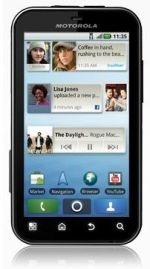
Disclaimer: Please follow this guide at your own risk. AddictiveTips will not be liable if your device gets damaged or bricked during the process.
Requirements:
- Motorola USB Drivers: (https://www.addictivetips.com/app/uploads/2011/02/Motorola_End_User_Driver_Installation_4.9.0_32bit.msi_.zip) Download for 32 bit Windows | (https://www.addictivetips.com/app/uploads/2011/02/Motorola_End_User_Driver_Installation_4.9.0_64bit.msi_.zip) Download for 64 bit Windows
- (https://www.multiupload.com/VGCN3ZTFM8) SuperOneClick 1.6.5 (Requires Microsoft .NET Framework 2.0 or later).
- USB cable.
Procedure:
- Install the USB drivers on your computer and restart the computer.
- Shut down the phone and restart it while keeping the volume-up button pressed. This will get your phone into bootloader mode.
- Connect your phone to your computer via USB. Its bootloader drivers will get automatically installed.
- Restart the computer again and also restart your phone normally into Android this time.
- Connect your phone to your computer and let its normal drivers get automatically installed.
- Make sure USB debugging is DISABLED on your phone in Settings > Applications > Development.
- Launch SuperOneClick on your computer by right-clicking on it and selecting ‘Run as Administrator’.
- Click ‘Root’. It will say ‘Waiting for device…’
- Now ENABLE USB debugging on your phone in Settings > Applications > Development.
- Wait patiently till you see a prompt on your computer saying ‘Device is rooted’.
- Reboot your phone and you’re done!
There you go – your Motorola Defy should now be rooted. You can now install thousands of apps to your phone that require root access, install a custom recovery image to perform a range of advanced operations and even flash a custom ROM to your phone!
[via XDA-Developers]

works for mac?
My devices locks starting with volume down. With super one click 2.1 just launch app and enable debug when you said, all works. Thanks.
Is the XY320 OK?
Is the XT320 OK?
its says Running psneuter… and than it is just dosent cuntinued….
Funcionó perfecto en my Defy. Gracias.
tengo que poner lo drivers en la sd y despues que es que no lo entiendo muy bien en ingles te lo agradecere
Excellent! works just fine. A little patience, three auto reboots and that’s it!
It worked. Mcafee was deleteing the GingerBreak file thinking it as a trojan and I had to disable the it before I could proceed.
It needs busybox installed but it was taken care by the
SuperOneClick 1.9.5 version. Thanks for your help and now I am not disappointed at the phone any more.
Im having trouble re rooting my defy.
1st time rooting was no problem. unrooted my phone afterwards.
Now unable to root again. Any suggestions?
what is a su binary?
tried rooting but shows “no su binary”
stuck on step 7. No drivers installed on device. THen it asks me if I want to force install and after clicking yes, “unknown error”
all worked except i cant edit anything using root explorer so i dont know why! did i root it wrong or something>
Hello all, i am totally new and stupid to android, does this procedure works with defy plus as well? Will rooting my phone void the warranty? if so, is there a way to make an image of my phone in order to keep warranty just on case I need it?
Thank you.
Gingerbreak works on Froyo too and it’s a lot easier + faster than SuperOneClick.
i just had to install busy box. Thank you very much, i can’t tell you how many times iv’e tried to root (i actually lost count).
Worked for Motorola Defy with Android 2.2.2 – thank you !
it works just fine for moto defy
Try opening Windows task manger, go to processes, right click the app process and go to ‘set affinity’. Click CPU0 only…
Had to do that when jailbreaking the awful iphone
J 🙂
It Stucks @ Step 10.
Getting mount path…
rootfs / rootfs ro 0 0
FAILED
Please advice …
It Stucks @ Step 10.
Getting mount path…
rootfs / rootfs ro 0 0
FAILED
Please advice …
I get stuck at step 10. I am able to open up the SuperOneClick program, but when I click on ‘Root’, then plug my phone in after enabling the debugging, the SuperOneClick program freezes and I get the ‘Not Responding’ pop up. Could it be because I was unable to log-in to the program as ‘admin’?
Can anyone help??
Does it need to dismount the SD card ???
Worked very well with the Defy.
(Win7 didnt need the pc reboots)
Totally worked. No issue. I had to add a file manager that could run as root to delete unwanted apps (Kindle, BlockBuster) but the phone is rooted, and works just as it did before.
I did not do any of the PC reboots (Vista) FYI:
does it need to dismount sd card
It’s worked, it needs busybox installed before you do this. the rest is ok. just perfect.
Thanks a lot
margalbosh