What Is ADB And How To Install It With Android SDK
When it comes to Android modding, most novice users are confused or left wondering by reference over reference to a certain “adb”. This is specially true when you are looking up something on modding your device, or root it in particular. ADB is the wonder toy of Android and everyone seems to love it, so lets have a look at understanding what it is and why you need it, and how you can get it.
What is ADB
ADB stands for Android Debug Bridge. It comes as a part of the standard Android SDK, which you can grab here. Basically, it provides a terminal-based interface for interacting with your phone’s file system. Since Android platform is based on Linux, command-line is the only way to obtain and manipulate root access often required to perform certain advanced operations on your device using root access.
While these things can be done directly on the device itself using some terminal emulator, it will be rather difficult to execute complex commands on such a small screen. ADB provides the bridge between your machine and your computer, which can also help you access files or recover stolen phone data from a device that is still reachable. This powerful tool is essential for Android customization, much like how RCS text messaging has become essential for modern communication features on Android devices.
How To Install ADB
Step 1: Installing the Android SDK
Note: At the time of updating this guide, the latest version of the Android SDK available is r8 and we shall be using it throughout the rest of the guide. The tools will work the same way however, even if you get a later version. In case of earlier versions though, the location of some of the tools was different and it is recommended that you get the latest available version.
The first step is to download the SDK. Use the link given at the end of this post and download the latest version of the Android SDK from there. There are versions available for Microsoft Windows, Linux and Mac OS X. In case of Windows, both an installer and a zip file are available but there isn’t any need to use the installer as a formal installation is not required.
Once you have downloaded the SDK, simply extract the compressed file to a location on your computer. In our case, we have extracted it to the root of our C drive and that makes C:\android-sdk-windows the installation location of the SDK. From here onwards, we shall be referring to this location as the ‘SDK folder’.
Step 2: Downloading the SDK Platform Tools
Previously, ADB used to be included in the SDK by default in the ‘tools’ sub-folder but now, it has been relocated to the ‘platform-tools’ sub-folder which needs to be downloaded as an SDK package. Fortunately, this is quite easy:
Just browse to the SDK folder and launch SDK Manager. When launching it for the first time, it will present you with a window to choose packages to install. The first option begins with ‘Android SDK Platform-tools’. Make sure it is checked, and uncheck all the other packages for now. You can check/uncheck a package by clicking on its name and then selecting the Accept/Reject radio button. Your window should look like this:
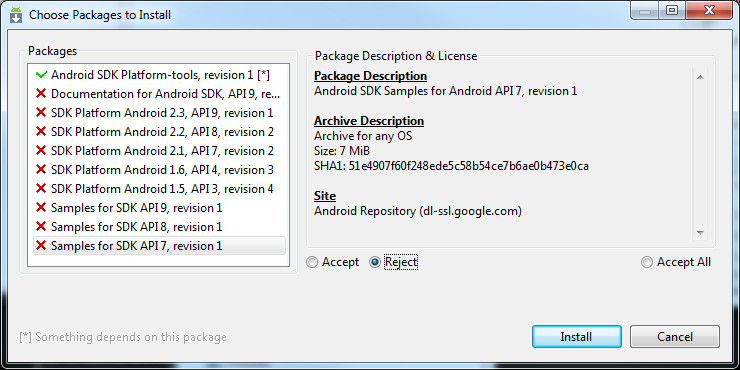
Now simply click ‘Install’ and wait till the platform tools are installed. Once the process is done, you will have a ‘platform-tools’ folder inside your SDK folder. That folder will include ADB and all its dependencies.
Step 3: Setting the Path variable
Now you have ADB installed but using it this way will require you to either use the complete path of the ADB command (C:\android-sdk-windows\platform-tools\adb) or to first change directory to the platform-tools subfolder of the SDK folder each time, and this can become quite a hassle. To make ADB along with other Android SDK tools and platform tools easily accessible from anywhere at the command line, we shall add their paths to the PATH environment variable. This method will apply to Windows users only. If you are a Linux or Mac user, add the ‘tools’ and ‘platform-tools’ sub-folders of the Android SDK to your system’s PATH variable using the standard method for your operating system.
- If you have no experience with editing system environment variables, make a System Restore point now so that you can revert back to it in case something goes wrong.
- If you are using Windows 7, right-click the ‘Computer’ icon and click ‘Properties’. Now click ‘Advanced System Settings’ from the options in the left pane to bring up the ‘System Properties’ window. Windows XP users will directly get this window when they right-click ‘My Computer’ and click ‘Properties’.
- In the ‘System Properties’ window, click the ‘Environment Variables’ button on the ‘Advanced’ tab.

- Find ‘Path’ in the ‘System variables’ section and double-click it to edit it.
- Make sure NOT to delete the existing entry in ‘Variable value’ or it will mess up things on your computer. Just add the following string to the end of it, including both the semi-colons:
;c:\android-sdk-windows\tools;c:\android-sdk-windows\platform-tools
If you have extracted the SDK’s contents to another directory, make sure to use that one for your PATH variable.
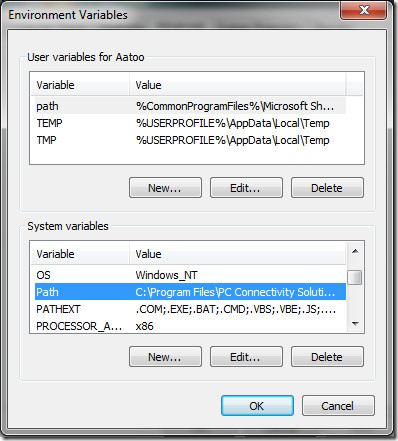
After adding the string, this is what my Path variable looks like:
C:\Program Files\Common Files\Microsoft Shared\Windows Live;C:\Program Files (x86)\Common Files\Microsoft Shared\Windows Live;%SystemRoot%\system32;%SystemRoot%;%SystemRoot%\System32\Wbem;%SYSTEMROOT%\System32\WindowsPowerShell\v1.0\;C:\Program Files (x86)\ATI Technologies\ATI.ACE\Core-Static;C:\Program Files (x86)\Windows Live\Shared;C:\Program Files\Java\jdk1.6.0_23\bin;C:\Program Files (x86)\Java\jdk1.6.0_23\bin;C:\android-sdk-windows\tools;C:\android-sdk-windows\platform-tools
Don’t worry if yours does not include some of the other text – what is important is the way the new entry should be added to the existign one, and the way the previous entries MUST be left unchanged. Notice that the semi-colons are necessary to separate each path variable entry from the next and previous ones. Once you have added the path, your machine may require a reboot.
In case you messed up while editing the Path variable and ended up deleting the previously existing entries, just restore the System Restore point you made and retry, being more careful this time.
Step 4: Installing the USB drivers
Finally, you need to install the USB drivers. You may or may not need to perform this step, depending on your device. If you are using a device that ships with stock Android operating system such as the Nexus One, this will be necessary. In case of other devices that ship with their custom version of Android and some tools to sync the device with the PC, such as devices from HTC that ship with HTC Sync or devices by Samsung that ship with Samsung’s own software, the suitable driver for your device will be automatically installed with that software package.
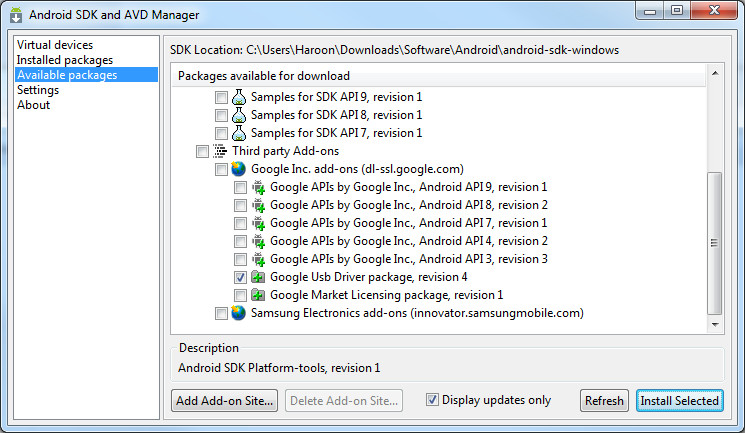
- The first step will be to download the USB drivers. To do this, launch SDK Manager from the SDK folder and click on ‘Available packages’ in the left pane.
- Expand ‘Third party Add-ons’ followed by ‘Google Inc. add-ons’ and check ‘Google Usb Driver package’, as shown in this image:
- Click ‘Install Selected’ and in the window that pops up, click the ‘Accept all’ radio button followed by the ‘Install’ button. Wait patiently while the USB drivers are downloaded and installed in the Android SDK.
- The drivers for both 32 bit and 64 bit systems will now be present in the SDK folder under ‘usb_driver\x86’ and ‘usb_driver\x64’ sub-folders respectively.
Now that the USB drivers have been downloaded, you can install them to your computer as follows:
- On the device, go to home screen, press Menu, select Applications > Development, and enable USB Debugging.
- Now connect your phone to the PC via USB. New hardware installation should kick in, and it will start looking for the drivers.
- Manually point the drivers to the folder suitable for your operating system and let them install.
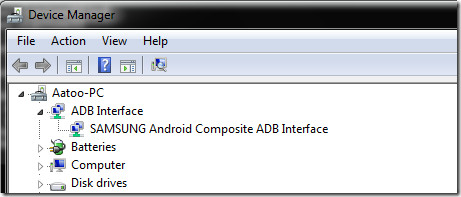
- Once drivers have installed, you can verify successful installation by going to Device Manager. Your phone should be showing under ‘ADB Interface’, like in this example:
How to Use ADB
At this point, the setting is done. Here on you can simply use adb to manipulate your phone in whatever way you like. On Windows, the best way to do so is using command prompt. To ensure that adb has been set up properly, run command prompt and type ‘adb devices’ and hit enter. Your connected device should show up with a serial number.
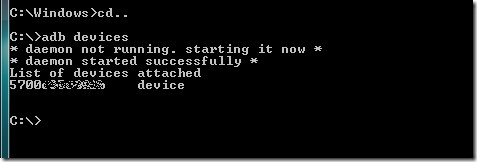
This is it for this guide. We would like to emphasize that playing with your phone at this level can be dangerous if you don’t know what you are doing, and can even render the phone completely useless. Please do it at your own risk.
For a complete list of adb commands, check out the official adb guide here.
Editor’s Note: ADB is for advanced users only. If you need ADB with a Graphical User Interface, check out QtADB.

hi,
can somebody help on this please ? i cannot use the Emulator from android studio,, i get this error message !
” Could not automatically detect an ADB binary, some emulator functionality will not work until a custom path to ADB is added in the extended settings page,
i have a mobile phone of meizu m1 note but was locked with password so i want to unlock my phone…..how can do plz help me
HOW CAN I UNLOCK FORGOTTEN PW FOR SONY C1505
Hey ..I suddenly delete my path variable in envirmental variable and now screen shows adb error what should i do in path ..please help me……..
Please help my out recover my phone,i tried restoring it my volume up and down key is not working so how will i do that friends?
i ned to rebote any one can know how to do that
i need a rebote’
This works on Windows 8?
it’s helpful. Thank you very much!
Thank you very much.
my head hurts…
what do i have to do if usb debugging was disabled? can someone teach me? thanks!
I would like to to talk to you in private by a problem I have with a phone I bought from China..!!
My email is haris@arxaios.net. It would be great if you have somewhere your email address to contact with the blogger…!!!
were i can find the sdk platform tool window as shown in your 1st screenshot and the android sdk and AVD manager as shown in your 3rd screenshot..I downloaded the android sdk but i can’t get into your step 1..can you help pls..
I’ve been at this for 16 hours now, and I’m still clueless.
I’ve followed all the steps here, but in the Command Prompt section, I’m getting “adb server is out of date.killing”. I’m not sure if this is a major issue, because after a couple seconds it then says “* daemon started successfully *”. My real problem is in the Devices Manager bit… I don’t see “ADB Interface”, only “Android USB Device>My HTC”. I am assuming that’s rather crucial for me to carry on with downgrading the firmware and rooting the phone.
Excellent 🙂 It works after following steps carefully.
Thank you so much 🙂
Cheers…
You did a great job – although i’m not a native english speaker it led me to successful intallation – thx
I followed all the step & when I got to the end the usb drivers do not work for my phone. sigh…what now?
Error when opening eclipse file. Says it cannot find javaw.exe
i noticed that in my platforms folder nothing displays up, it says folder is empty. Is it meant to be like that? and wait so u make a folder and rename it android-sdk-windows then install the folders and all in that folder?
I didn’t understand this point ‘Manually point the drivers to the folder suitable for your operating system and let them install.’ So how do i do this and what does this, mean weird English man. I understand the other stuff though :).
ADB Interface is not showing………..
well. sdk is installed in C:UsersGebruikerAppDataLocalAndroidandroid-sdk… so does that mean my “path” should be this: ;C:UsersGebruikerAppDataLocalAndroidandroid-sdktools;C:UsersGebruikerAppDataLocalAndroidandroid-sdkplatform-tools
Not really. if u wish to then do so. but to make it easier just make a folder in OS (C:) or you C drive rename it android-sdk-windows thats what i understood. if im wrong then plz prove me
PLEASE HELP!!! the drivers that ive downloaded on SDK (google usb REV 6) has just .ddl and a notepad file. how do i get it to become a driver? please help soon
Absolute brilliance. Well done.
After i root my phone…what all am i looking to have? will i have to download some sort of txt messenger? dialer? im new to this rooting business and im not even 100% sure what exactly rooting does to my phone. is my phone gonna look the same after im done…or does rooting mean that you erase the OS and have to install a new one? Im not a complete idiot….i just dont have time to research 6 thousand forums to learn about it all and would like a quick explanation. if anyone can help, id appreciate it.
Rooting is the act of gaining “administrator” acsess on your phone. For the most part nothing will change unless you want it to. Rooting gives you “super user” access allowing you to do things like over clock or edit the root system folders. Now you can install custom roms or new is versions from third party developers but that is completely different from rooting.
dude ure the man. it works with ur mod. thanks a ton
this is so frustrating ……
Why not make a simple step by step set of instructions 1.2.3.
Not something like …. download one of the packages while holding your nose and spinning around six time to the left ….. you need to have four childrens books on your head first …but you also must have had 2 glasses of water and then poured six ounces of coffee into a bowl of milk …..
Funny. but altogether too true in this digital world.
I don’t know what your issue is, but it seems really straightforward. Step 1: Install Android SDK. Step 2: Download the packages. Step 3: Set a variable. Step 4: Install some drivers. You must not be very smart.
I understood all the stuff except for
Manually point the drivers to the folder suitable for your operating system and let them install. HOW DO I DO THIS PLZ TELL ME either my brain is blocking something or this english is really weird.
LMFAO!!!!
I have downloaded every neccessary thing and done everything right but instead of “Android SDK and ADV manager” I just have both, nut not “togheter”. What to do?
My usb_driver/i386 only has dll files – no inf file
is installing the system restore point neccessary?
If you’re talking about the system restore point for your pc… You bet it is!
doesnot shows New hardware installation cause i have done it for this time only
I tried this 3 times. When I hook up the USB interface I do get a moble device that shows my xoom in the device manager and my explorer does show my internal and external drives but in my device manager i get a second device with a Xoom label that says no drivers. I’ve tried manual loading but no luck. I am using window 7 32 can some one help. Send me the USB driver or whater I may need. Also in cmd there is no device that shows up.
Notimejack
There is no sdk manager!!!!!!!!!!!!!!
http://wiki.rootzwiki.com/Android_SDK#Fastboot
read it here, don’t download the stupid folder
you need an EXE installer. I don’t know why they don’t put it there either 🙁
I’m using the very latest version of Android SDK manager, and there is no “available packages” and no “panel on the left” at all.
I wás unable to connect hcl mex1 to PC can anyone tell how to
hey boy my sony xperia arc bootloader unlock allowed is NO so can i root my device,pleeeeez answer me on my mail javadfavad@gmail.com
thank you very, very, very useful. all the other directions i found on the web gave me instructions as if i knew what the !#*& i was doing to begin with…..thank u.
I had no problems installing this,i followed everything to the “T”.
I looked around for awhile,and these were the best instructions to find…..
Thank You for posting this….
tnx a lot bro..
The drivers for both 32 bit and 64 bit systems will now be present in the SDK folder under ‘usb_driverx86′ and ‘usb_driverx64′ sub-folders respectively.
I followed the guide but these two folders never show up in the SDK folder. I did notice in SDK manager how when selecting Google USB Driver package, hovering over it shows the location as:
C:android-sdk-windowsextrasgoogleusb_driver
But the two folders in this step are not there either
this is my EXACT problem
Yeah, and when you select the C:android-sdk-windowsextrasgoogleusb_driver path for Windows to install the driver, it says this:
“Windows could not find driver software for your device. If you know the manufacturer of your device, you can visit its website and check the support section for driver software”
What can we do now?
Hi has anyone done this on a samsung galaxy
using Win7 64bit. trying to root a Dell Streak 7.
neither driver after installing SDK manager works and the driver supplied by Dell is for SyncUp. Device manager shows the Device under “Other Devices” with exclamation. i cant find any other driver. Should ADB interface already show in Device Manager or only after the Streak connects correctly?
I am having same problem
Did you get solution ? If so, please help me. Thanks in advance.
not showing up as ADB interface and also there is no sdk and avd manager together just separate and no left pane. i already installed the drivers though and it didnt install anything when i pluged in my phone ………..please help!!!!! and thanks anyway
not showing up as ADB interface and also there is no sdk and avd manager together just separate and no left pane. i already installed the drivers though and it didnt install anything when i pluged in my phone ………..please help!!!!! and thanks anyway
great posting,, thank you
Hi, I’m using windows 7 and am trying to use DroidCam, but can’t seem to understand anything. I eventually found my way here and followed all the steps to getting ADB.. as it is needed for the usb connection for DroidCam.. I followed all steps successfully until the very last one. I type in adb devices as said but I get the message
” ‘adb’ is not recognized as an internal or external command, operable program or batch file.”
Help?
Yeah I’m using Windows XP but I got the same problem
Yeah I’m using Windows XP but I got the same problem
installed adb interface for my motorola defy all right.
the problem is
“adb devices” command is showing two devices. one is offline.sumthing
like this
016B22………. offline
016B22……….. device
and when runnig the “adb forward tcp:4747 tcp:4747″ it says”error:more than one device and emulator”
even if i disconnect my motorola defy and run cmd “adb devices” it shows
a device with offline tag as mentioned above. how to remove this device
I have been trying to root my phone now for several hours. I cant even begin because I can’t seem to get the drivers for my Samsung Epic 4G to install on my PC. It keeps failing when it gets to the last step (Installing ADB). Will the above-mentioned allow me to finally successfully install the drivers needed for my PC (running Windows 7) to access/recognize the phone?
thanks, great directions and worked flawlessly. had to install drivers first though. http://www.androidsim.net/2009/08/how-to-1-how-to-install-usb-driver-on.html
I have done all the steps that given in this instruction. Now I have my nook color(with Honeycomb) tablet installed under Andriod phone in the device manager, but when I have tried to run the comands in the comand promp the pc told me that there is no adb device thus I could not run the other comands for installing Market app.
Wonder if you could help me.
Best Regards
I cant select that driver from manual driver installation, How do I select the driver folder.
I found more info about android here http://techworld-today.com/2011/08/what-is-android/
why it should be that complicated in connecting usb, just to apply application in the android why not make things easy
For those of you having issues with getting ADB to work, as someone else said, triple check your paths, mine was slightly different from the example posted and it took me hours to finally see I was typing it in wrong.
I have ADB installed correctly, however, my computer is not recognizing the nook when its attached. It shows as a removable drive under my computer but when I click on it, it says “please insert a disk into drive X”. Also, when I use the command prompt and type adb devices, it correctly says “list of devices” but then doesnt show any devices. The Nook is showing as an Android Phone under my device manager with “Android Composite ADB Interface”.
Any suggestions on why the nook is not being recognized? I am running Win Vista SP 2, 32 bit.
I also followed everything on my Nook and it is also only showing up under Android Phone and Android Composite ADB Interface”. Would love any help anyone can give us. Thanks!
Nice article, however it would been better if you had informed us that you need have java jdk installed prior to installing android sdk. All these huge downloads are killing me!
anyone please help me !!!!!!!
i connected the playbook to my PC (WIN7 64bit) and done all steps…. when opening the Command and type: adb connect 169.254.0.1:5555
it says: unable to connect ??? any clue !!!!!!!!!!
THANK YOU FOR EXPLAINING WHAT ADB STANDS FOR! And for showing me where it should show up in the Device Manager. Now my Coby Kyros MID7015 is rooted and CWR is working as they should.
sanjosse
i followed all the instruction above but the cmd said “adb is not recognize as a external or internal command”” can you post a reply for help pls?
Thanks for such a nice article.
Win 7 64 bit – I’ve followed instructions for installing ADB, but keep getting following message:
“Android SDK Manager – Output”
WARNING: Java not found in your path.
Checking if it’s installed in C:\Program Files\Java instead (64-bit).
Java was found at C:\Program File\Java\jdk1.6.0_26\bin\java.exe.
I have added this to “Path” entry in “User variables”, but message still displays. Any ideas will be much appreciated.
Looked in usb drivers and there is android_winusb there but there is no .inf at the end-it just says that. Should it have the inf there to find driver? Is that the problem?
If so-how can I fix it.
Seems to be close to answer?
Thanks.
adding more detail;
I go through device manager and get to have disk-I see the android-winusb and it does not highlight where underneath that it does have .inf there.
Does this help?
Just figured out and ran adb devices with nook plugged in and said list of devices and nothing was listed?
Helppppp?
Been trying to get Google apps on my Nook with Honeycomb. I get connected and no drivers found. Been reading these comments and not the only one.
Two solutions might be the problem and newbie here.
One is there is.inf file in the usb drivers file. Where is it and how can I get it?
Two-reading about adb exe. I have that in platform tools. Do I need to run this for nook? If so,I tried command prompt and put adb devices in and nothing happened.How do I run that?
thanks.
Hate to be a pain, but invested time and money with this Nook and seem so close, but can not get there.
I think I installed the correct Java it is the developers Java 6 update 25-When I install the Google drivers and close out of SDK-there is an error box states that Java 64 not found and it says something about “path” amd user variables add….
It asks to add this”:C:C\Program Files\Java\jdk1.6.0_25\bin\java.exe to path”
I added it to the same place that you asked to add “;c:\android-sdk-windows\tools;c:\android-sdk-windows\platform-tools”.
I did that added to the end of the “android”path and before it and that error still comes up!
I can not get past the error. Could that be the problem why there are no drivers found and that there are no drivers in the folder???
Is there a work around this?
PLEASE could someone assist or direct me to a solution?
Much appreciated, thanks!
I have windows 7 64bit. Maybe I do not have latest Java update???
Which Java do I download for my system? I did search and too many out there.
Direction appreciated, thanks.
PS-could it be the Java download?
Well been spending 3 days trying to get honeycomb 3 on Nook.
As in this thread “no drivers found” for nook. I look in usb driver in SDK folder and they are not there. So when I direct to folder nothing. I have Windows 7 64, if that means anything-saw thread to change variables in path. Would changing that do it?
Solution would be appreciated-this puzzle needs to be solved for my psychy!
Thanks.
Is there a program for Windows 7 or for the Andriod to share the display of the device (Andriod Optimus) on to the computers monitor (Dell Inspiron mini).
If you are not a programmer and need ADB Tool to just connect your Android Phone to your Windows PC (via USB in USB Debugging Mode on), then one simply needs following 3 files:
adb (or adb.exe)
AdbWinApi.dll
AdbWinUsbApi.dll
Please refer to following guide for the detail instructions:
http://forum.sdx-developers.com/intercept-guides-and-tips/(guide)-steps-to-install-adb-tool-on-your-windows-pc/
at the environment variables it doesn’t show path when i clicked path on the bottom. it only showed “TEMP” and “TMP”
So I can reboot and boot using this but I can’t flash a radio via this. It says sending radio okay then writing radio failed remote not allowed
Great! Thanks
I changed the path. Then I realized that I did not restore. So I went through the restore. Now my other computer (wlindows 7 64) will not boot.. It goes to a black screen with the cursor present. The cursor moves, but that is all. HELP. I cannot boot up in any of the safe modes. I’ve tried windows recovery disk. I’ve done a chkdsk and no error appear. HELP
same problem as Mario, Mark and so on, pls help, it only offers you to connect as a usb storage
Ok, to a point, the article is not clear when or if to connect “the device?” Phone is what I think your referring to. The Tbolt is not the same as your description, mine is 2 weeks old. Did the Droid X, somehow the USB drivers will not upload to the TBolt. Looking in “device manager” on the computer shows the triangle with a ! point, and searching for USB drivers in the computer or on line results in nothing. Willing to work with you, I can send screen shots etc. to get throught this. Dale
When I get to the step of pluging in your phone and it should look to update.. my phone and computer does nothing.. my phone just askes do i want to plug for charge , disk drive, etc….. ???????????????????????????
O….M….G….!!!!!!!!thanks!!!!!!
help, I got to the step where it says “Manually point the drivers to the folder suitable for your operating system and let them install.”
What do I have to do here?
Hi
I have Honeycomb on my Nook color. But I am unable to conect the devise to a computer. I was going to install Android market. What can I do?
Regards
Here is how I got around the “adb” command not being recognized:
The problem was that the PATH listed above was not the PATH that my computer had platform-tools and tools under. The PATH above, ;c:\android-sdk-windows\tools;c:\android-sdk-windows\platform-tools, was to brief and it was causing my computer (Windows 7 64 Bit OS) to look in the wrong place.
Thus, I clicked on the computer tab, then c: drive, then Program Files (x86), then Android, then android-sdk, and then the files platform-tools and tools. So, this is what my PATH looks like now, and it works when I type “adb devices” in command prompt after entering cd.. twice:
;C:\Program Files (x86)\Android\android-sdk\tools;C:\Program Files (x86)\Android\android-sdk\platform-tools
The last kite I’ll fly is what the example above demonstrates: be specific. I noticed that my android-sdk folder had no “-windows” text in its name at all, so I axed it and added a one-step-after-the-other PATH. Hope this helps any dudes/gals that were struggling because it certainly took me over half a day to put the pieces together.
***THIS IS AN IMPORTANT STEP***
Thanks KJR. GENIUS!
***THIS IS AN IMPORTANT STEP***
***THIS IS AN IMPORTANT STEP***
Thanks KJR. GENIUS!
***THIS IS AN IMPORTANT STEP***
Thank you for this!
###THIS STEP IS VERY IMPORTANT###
Dude I f*cking love you.
###THIS STEP IS VERY IMPORTANT###
im pretty sure if you can hack an apple device with a click of a button you can hack an android device in 3 steps. this is stupid i have been trying to root my kindle fire 4 2 days and have nothing.
The way I traced the correct path was to go to the command prompt C:> and requested a directory by keying in Dir. Then I identified the most likely directory in which the SDK tools could be and went there. In my case it was “users”. I carried on with this process till I found “tools” and “platform-tools”. Then only did I adjust my environment.
THANKS DUDE!!!!
Can someone explain why I’m having the message ‘adb’ is not a recognized command on cmd when I type ‘adb devices’. Everything is installed correctly and the phone is being recognised as Android Composite device.
A little help please?
Having the same problem for a week.
Same issue with the Nook Color… can’t get it to recognize – HELP!
My nook color is not being recognized when I boot it with the SD card that has honeycomb on it, how do I go about getting it recognized? I’ve already downloaded the necessary google usb drivers as outlined above, is there a resolution to getting the device recognized?
Hi i did not extract the sdk to my c drive. I extracted it to my documents. will I have to start all over again or can i somehow move it to the c drive?
http://developer.android.com/sdk/index.html doesnt work
Hi,
I’m kinda new at this. I’ve followed all the steps, and I know from other guides that I have ADB and the SDK installed correctly but I cannot get past the Variable section of this guide. In my Enviromental Variables dialog box, I only have a TEMP and TMP to select from; there is no PATH as pictured above. I’m not sure how to move forward. Can anyone help, or refer me to another guide that could help? I’m not even sure what to try and GOOGLE for help on this one.
You’re looking at the ‘User variables’ section. Check the ‘System variables’ section right below that one – it’ll have many more variables along with PATH.
I was hoping this ADB will let me find a way out of a 3 weeks problem…
But I am stuck at Step 4:
Am on W7 64 bits and connecting to a Wits A81G tablet.
I have installed Google USB driver package
When I connect my tablet, nothing happens: Windows does not detect..
Though, when I go to device manager, I see “A81E” under “other devices”, but with missing driver. Whether I search automatically or manually, I cant find the driver. Now… what?
“Since Android platform is based on Linux, command-line is the only way to obtain and manipulate root access.”
Um…what decade…no, what MILLENNIUM are you in?! It surprises me to see this type of INCORRECT nonsense about Linux being spread in the 21st century!
I don’t know when you last used Linux, but it’s all I use and the command line most definitely is NOT the only way to obtain/manipulate root access. (Note that it is *MY* preferred method, but I date back to command line only UNIX in the 1980s, so, yeah, it’s quicker for me than any of the GUI tools.)
Anyone who prefers using GUI-based apps (such as file managers) can do so and still have root access, while logged in as a normal user.
The very tired, old “Linux is for command line geeks only” nonsense is simply not true. http://smartassproducts.blogspot.com/2010/09/linux-user-wonders-can-windows-do-this.html
Agreed – it shouldn’t be called ‘the only way’. Editing the guide to correct this. Thanks for bringing this to my attention.
-Ed
I got everthing installed and done until it says connect device and windows will install driver but mine woulnt install it. It keeps saying it was unsuccessful. If anybody knows what i can do to fix it plz help 🙁
From device manager, choose to update driver. Do not select ‘search automatically’ and instead go for ‘browse my computer for driver software’. In the next step, do not choose to search for driver software in a location and choose ‘Let me pick from a list of device drivers on my computer’.
Then select ‘Show all devices’ or something similar, click ‘Have disk…’ and browse to the ‘google-usb_driver’ folder in the SDK location. Select the ‘android_winusb.inf’ file and click ‘Open’. Finally, accept any prompts and/or warnings that you might get and continue with the driver installation. Works like a charm for me with all the devices that support the Google-provided drivers.
(Doesn’t work for Samsung Galaxy S series devices and may not work with some HTC devices; you will need drivers by the manufacturers in those cases. In case of Samsung, get Kies. In case of HTC, get HTC Sync)
When I go into the folder ‘google-usb_driver’ and click on ‘android_winsub.inf’ it says that ‘the folder you specified doesn’t contain a compatible software driver for your device. If the folder contains a driver, make sure it is designed to work with Windows for 32-bit systems’ please help??
hmm… i cant get past the variables.. im on linux and dunno what to do… any helP?
Do a quick Google search on how to setup environment variables in Linux and you should be good to go.
I am unable to install usb driver for nexus s on windows vista SDK manger gives error does not found file
http://wiki.rootzwiki.com/Android_SDK#Fastboot
read it here
I was having problem with settingg up adb but because of your tutorial i have done it.
Thank u so much.
I was also looking for the platform-tools folder, but there was none. So I looked around on the net: There is no platform-tools in the latest version. You need to download through the android SDK Manager.
“If you are developing in Eclipse with ADT, note that SDK Tools r8 is designed for use with ADT 8.0.0 and later. After installing SDK Tools r8, we highly recommend updating your ADT Plugin to 8.0.0.
Also note that SDK Tools r8 requires a new SDK component called Platform-tools. The new Platform-tools component lets all SDK platforms (Android 2.1, Android 2.2, and so on) use the same (latest) version of build tools such as adb, aapt, aidl, and dx. To download the Platform-tools component, use the Android SDK Manager, as described in Adding SDK Components
Upgrading from SDK Tools r7:
If you are upgrading to SDK Tools r8 from an earlier version, note that the the default installed location for the adb tool has changed from /tools/adb to /platform-tools/adb. This means that you should add the new location to your PATH and modify any custom build scripts to reference the new location. Copying the adb executable from the new location to the old is not recommended, since subsequent updates to the SDK Tools will delete the file. ”
Source:
http://forum.androidcentral.com/android-applications/47414-adb-exe-missing-new-sdk-r08.html
I updated and the platform-tools folder was added with the adb.exe file that is needed 🙂
Hope this helps you guys!
Thanks, recently updated the guide to reflect the changes in the latest version. =)
There is no “platform-tools” in the SDK. There’s just “add-ons”, “platforms”, and “tools”
‘adb’ is not located in /tools, it’s in /platform-tools. That’s where ‘adb.exe’ is located.
I followed instructions but i dont think my ADB installed correctly. I get ‘adb’ is not a recognized command on cmd. I followed all instructions already, JKE ver 1.6, and all other versions of SDK installed and updated. What could be wrong?
Also Odin can’t detect my device because adb is not up.
love you man! i was trying to connect my phone from 2 days. finally, this article helped!
PS: one important step is to set your phone as PDA by dialing *#7284#. (thanks djago for this)
u have 32 bit or 64
Okay, i have a problem.
first i have the drivers installed and they work, but when i use prompt with debug mode then it isn´t recognized. But when i use it in “USB” mode, then the drivers change and it is recognized in prompt but just as List of Devices Attached.
What do you do it you do not have a ‘path’ variable under your Environment Variables?
Update:
finally, I’ve been able to adb’it. The driver problem was simple: The internal phonetool was configured as modem. I’ve dialed *#7284# and changed to pda and… voila!
THANKS SO MUCH !! you just made my day !!!
I am using windows 7, adb devices command list nothing.
i tried what you mentioned, but did not helpe, probably i don’t understand what you mean.
can you explain step by step, again i am not familiar with unix, coming from windows background
Hey, lotz, what OS is your host?
it works with xp pro sp3 in vmware for me without a problem
I’ve tried with vmware (XP Pro 32bits), but I can’t even force to install android drivers 😛
BTW: can’t make kies nor pcstudio connect to my phone (in Win7 or VM WinXP)
I’ve tried it, but:
a) Doesn’t work with Samsung driver (you said “[…] since I had Samsung drivers already installed, this didn’t happen to me.”)
b) Tried to uninstall all samsung programs/drivers and then Windows 7 Ultimate 64b doesn’t recognize the driver in the folder usb_driver (inside amd64 there isn’t any .inf file; it seems that the new driver version is a little different)
c) I’ve foreced Windows to use the android driver and, instead of “ADB Interface/Samsung Android Composite ADB Interface” in the Device Manager, I get “Android Phone/Android Composite ADB Interface”
d) “adb devices” command said “List of devices attached”, and nothing else.
happened to me too.
At the time of updating this guide, the latest version of the Android SDK available is r8 and we shall be using it throughout the rest of the guide. The tools will work the same way however, even if you get a later version.