Changing Terminal Colors In Ubuntu Linux
Linux/Unix based system’s real power lies in their terminal. If you have to work in the Ubuntu’s terminal and you are not comfortable with it’s default color, you can change it easily. Both background color and text color can be changed.
To change the background color of your Ubuntu terminal, open it and click Edit > Profile.
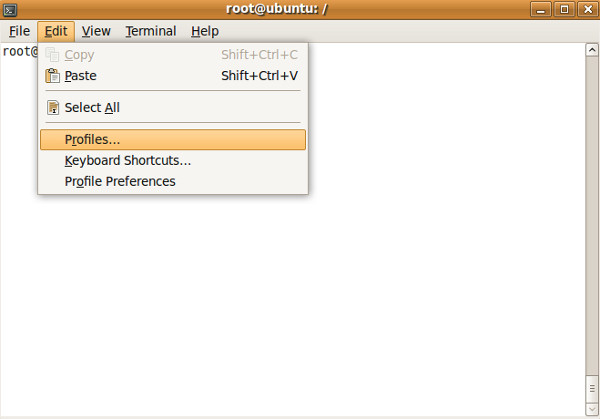
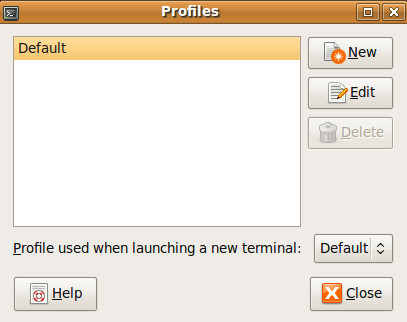
Select Default and click Edit.
In the next displayed window, go to Colors tab.
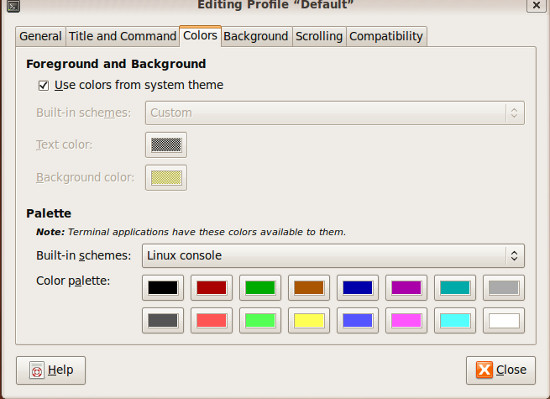
Uncheck Use colors from system theme and select your desired background color and text color. You can also place an image in the background of your terminal by going to Background tab. To apply an image as terminal background, select Background Image option, and select the image file.
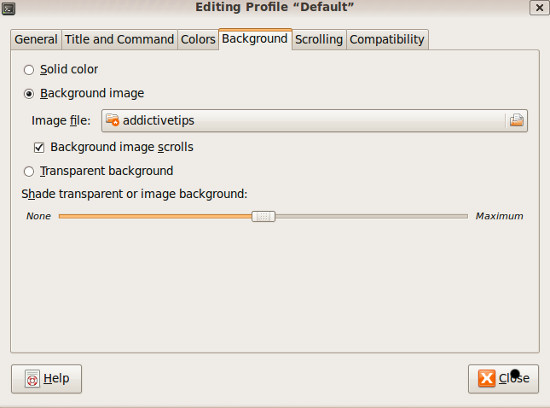
Once done with settings, click Close.
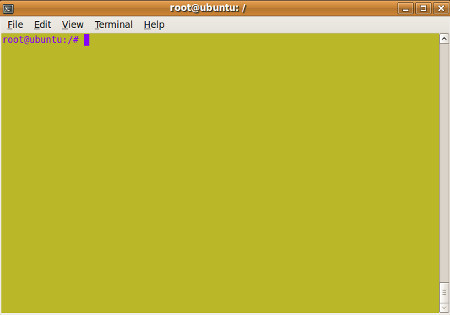
The selected colors will be applied to your terminal instantly. Enjoy!

thank you sir
It was easy peasy.. Thanks allot.
httththththththththth
thank u
thank you and nice tut!
thank you so much …….
shankoo dude :-*
thank you!
Is it possible to change the color of the current shell by typing something in the shell as opposed to the steps you described?
Basically what I am trying to do is at the end of my build I want to put a line that changes the color of the terminal to red/ green depending on my build succeeding/ failing to grab my attention.
thenx dude … 🙂
Thank you very much … It worked in Ubuntu 11.10. 🙂
Any idea how to colour the stderr output a different colour?
affwfwf
Thank you, great easy to follow directions. 10/10