How To Recover Deleted Files/Data In Ubuntu Linux
If you are using Windows, there are many 3rd party tools that can help you recover your files easily. But if you are using Ubuntu, then it can be quite a huge problem. But worry not, since now you can recover your files in Ubuntu too.
Scalpel is one of the best command line tool to recover deleted files in Ubuntu Linux. It can recover almost all types of files. It visits data blocks of files sequentially and identifies deleted files and recovers them instantly. You can install it by running following command in your terminal.
apt-get install scalpel
Once installation is complete, you can start to recover your deleted data by using a simple command. Run the following command in terminal to recover your data.
scalpel /dev/sda1 -o output
where ‘output’ is the name of directory in which scalpel places the recovered files. You can specify any name to this directory, just make sure that this directory should not exist in your system because Scalpel create directory itself. Check the following snapshot to get an overview of how Scalpel searches deleted file.
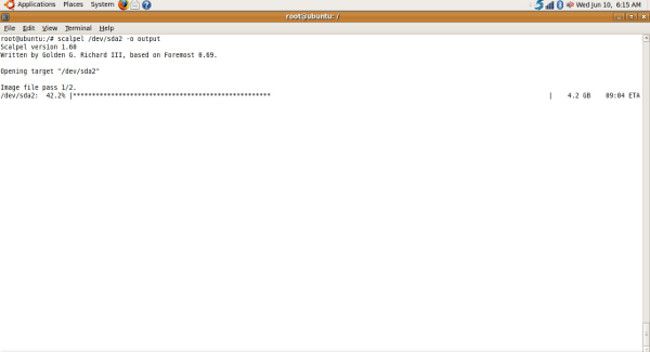
The time taken by scalpel to recover files depends upon the total disk space and the amount of deleted data in your machine. Further you can check logs of recovery process by viewing audit.txt file in output directory. Enjoy!

ERROR: Memory exhausted at line 638 in file dig.c. Scalpel was
allocating memory for carvelists when this condition occurred.
Scalpel will abort.
getting this error how to solve this??
any idea? i got it a same error.
Did you find any solution? I am facing same issue with Scalpel 1.6
how to seek for .py files?
Howdy, friends!
I’m completely new to Ubuntu (replaced XP with it on my old laptop because it runs smoother without all the background garbage), so I have no idea of the file heirarchy. I’ve install Scalpel, but I don’t know how to actually recover the files.
To be specific, I’m trying to recover some files from the Videos folder, and I’m the only user. The rest of the internet didn’t give me a solution. Please halp.
Scalpel seems to read NTFS partitions, but no files were recovered. Is it designed to recover files from NTFS?
PS: make sure you have enough space in your hdd or choose another external device to store the recovered files in step 7 or your PC will run out of space and probably crash..happened to me while recovering from a 1TB hdd…duh!
7- Select a directory where you want to save the recovered files and press Enter and Y (yes)
Hey guys,
dont use scalpel, just install PhotoRec which is part of TestDisk. You can install it with:
sudo apt-get install testdisk
Then in a terminal type sudo photorec and you follow these steps:
1- Select media (if you’re recovering from an external usb device like a hdd you can run sudo fdisk -l to check the device name. It will usually be /dev/sdb or /dev/sdc)
2- Proceed > Select Intel and Enter
3- Either Search (to search for any files) or choose (File Opt) to select which file types to look for. Press Space to select / deselect and b to save and then Enter
4- Search
5- For files deleted under linux select (ext2/ext3) or under Windows (Other)
6- choose either Free or Whole depending on your needs
7- Select a directory where you want to save the recovered files and press Enter and Y (yes)
8- Be patient and you’ll see a directory called “recup_dir.1” with all recovered files. You might get several recup_dirs.
The only problem is that files won’t have their names but you can sort them later by type or size or whatever.
Hope this helps!
Cheers
srpayo
thank you so much. I have used this tool to recover an important file
+1 great tip
Excelent Option ! Thanks
Thanks man! And thanks to Christophe Grenier the author of this beautiful program!!!
but, isnt it supposed to work only with image files?
I am getting an error unable to locate package scalpel, what should i do next, i am total newbie, so please help.
So far, this seems to be working fine for me. I’m about 1/2 way through the first pass, and no errors coming up. So, to recap the recommendations of others, here’s how to make scalpel work with very little wailing or gnashing of teeth:
When using this is to uncomment (remove the # in front of) the file types in the config file. To do that, open a terminal and run gksudo gedit /etc/scalpel/scalpel.conf. Then, save the changes and return to the terminal.
To download the scalpel program, remember to add sudo to the command when you type it in to your terminal (sudo apt-get install scalpel).
To run the scalpel command correctly, you must again add sudo to it (sudo scalpel /dev/sda1 -o output). Remember, sda1 is the default name for your computer’s hard drive, so if you have a dual drive setup, or an external drive, verify the correct device name by opening the System Monitor and checking the File Systems tab.
If you’ve previously run scalpel, change “output” to something else, or clean out the contents of the output file before you start the process. If you don’t, you will get an error message regarding trying to work with a “non-empty” directory.
I wrote a simple script that executes the scalpel command. All you need to do is put the file in your bin folder, and create a desktop shortcut for it. If you’d like the script, drop me a PM on the Ubuntu Forum. My name there is tacantara.
This synthesis was extremely helpful, thank you so much!
Please help me I have received same error:
sanjay@sanjay-desktop:~$ scalpel /home/sanjay/ -o output
Scalpel version 1.60
Written by Golden G. Richard III, based on Foremost 0.69.
ERROR: You have attempted to use a non-empty output directory. In order
to maintain forensic soundness, this is not allowed.
Aborting.
sanjay@sanjay-desktop:~$ sudo apt-get install scalpel2
Reading package lists… Done
Building dependency tree
Reading state information… Done
E: Couldn’t find package scalpel2
sanjay@sanjay-desktop:~$ sudo scalpel /dev/sda1 -o output
Scalpel version 1.60
Written by Golden G. Richard III, based on Foremost 0.69.
ERROR: You have attempted to use a non-empty output directory. In order
to maintain forensic soundness, this is not allowed.
Aborting.
create a directory using terminal being sudo,
sudo mkdir “output directory name” [suppose its “SANJAY_out” you want]
then make:
sudo mkdir SANJAY_out
and then do:
sudo scalpel /dev/sda1 -o SANJAY_out
This will work.
please my help low graphy card error
please
and if it did anything at all, it left the recovery file locked, apparently empty.
that was, by the way:
[sudo] password for mint:
Scalpel version 1.60
Written by Golden G. Richard III, based on Foremost 0.69.
Opening target “/dev/sda1”
Image file pass 1/2.
/dev/sda1: 2.0% | | 250.0 MB 27:09 ETA** MEMORY ALLOCATION FAILURE **
ERROR: Memory exhausted at line 286 in file dig.c. Scalpel was
allocating memory for header array when this condition occurred.
Scalpel will abort.
Now that I’ve calmed down and got past that (wanker!)
here’s what I need:
I was working with GEDit (another heap of crap, that), and it lost a draft piece of writing I had done (because it, or I, got confused when I tried to re-name it. Unbelievable.)
These seem to be suffix-less files, in this case initially on my (Mint) desktop, a good page of prose.
Can I limit the search to the desktop? To GEDit-type files?
So, I wonder if you could tell me in plain English, without assumptions about my (poor)
inside knowledge of Linux, exactly how I might recover my lost draft (without incurring some odd undocumented memory error).
Then perhaps do some decent documentation so I don’t have to be fucked around next time I or anyone else needs to use you no-doubt excellent utility 🙂
It is, after all, my time and patience that is wasted.
ANd, meantime, perhaps help my poor fellow sufferers above with what they want to do in the real world.
….Oh, for Christ’s sake, does it have to be like this? I wasn’t expecting to go into the flames….
I was quite hopeful for this, but it turns out to be FUCKING USELESS
partly because of the lazy, idiosyncratic documentation, with undefined terms & silly mistakes,
partly because of the assumption that I would know all sorts of things I really could not be expected to know, including how to set the parameters you don’t explain,
the lazy assumption that I would be working in Sudo,
and in the right directory (if I knew how to set a directory)
(hey, you’re talking to non-tech newbies here,
WHO JUST WANT TO RECOVER THEIR DAMNED FILES,
not to technical geniuses, who if they were technical geniuses, would not need this anyway.)
then when I get past all that, it crashes with a ‘run out of memory’ thing, WHAT???
at about 1.7% done.
So, thanks for trying, COULD DO BETTER though.
Hi guys.
I’m getting the following message:
Written by Golden G. Richard III, based on Foremost 0.69.
ERROR: You have attempted to use a non-empty output directory. In order
to maintain forensic soundness, this is not allowed.
Aborting.
and when I check my home folder I do not see the output folder.
Hello, good afternoon.
I’m still getting trouble with scalpel. First thing:
1. The destination directory is empty, although scalpel informs me that it has carved 397 files
2. At the config file, there’s no mention to open documento format documents or rtf. How can I tell scalpel to carve this ones too?
Thanks a lot
Hi!
add this line to the /etc/scalpel/scalpel.conf:
rtf y 3000000 \x7b\x5c\x72\x74\x66(\x31)
WITHOUT the thing in braces, this is good for scalping rtf, if you want to search for specially rtf version 1 (it’s used nowadays), include the \x31 part too! You can modify the 3000000 to whatever you want, it means the program will make files from the matching point to 3000000 bytes long.
Greets from Hungary,
conoyes
Will Scalpel recover mp3 files?
I am getting this error while trying to run scalpel
Written by Golden G. Richard III, based on Foremost 0.69.
ERROR: You have attempted to use a non-empty output directory. In order
to maintain forensic soundness, this is not allowed.
Aborting.
Please help.
The default directory is in your home folder. If you have run the program once then there will be a log file in this folder. You must specify a different folder or delete the contents of the specified folder.
I need to recover over 400GB of files that I placed on a hard drive that I use as a back up drive.its a long story that happened 4 hours ago. but I too am stuck with this error:
“ERROR: The configuration file didn’t specify any file types to carve.
(If you’re using the default configuration file, you’ll have to
uncomment some of the file types.)”
please help, Yes I am a newbie. if there is need to elaborate what I did please let me know,I need those files… 🙁
edit /etc/scalpel/scalpel.conf and uncomment what format type u want to recocver
suppose that i just wanna to recover one file that i just deleted by error… how suppose i do that?
First install scalpel using code
sudo apt-get install scalpel
Scalpel utility has its configuration file in the /etc directory with full path as /etc/scalpel/scalpel.conf . When viewed (using gedit/nano/cat) you will notice that everything is a comment out there. Uncomment the file format which you want to recover.
After that go to the terminal and follow the syntax :
sudo scalpel “device name/Directoryname/file name” -o “output directory
If any doubt visit:http://ubuntumanual.org/posts/357/recover-your-deleted-files-in-ubuntu
delete # <<<<<<
I got an error when I ran the command:ERROR: The configuration file didn't specify any file types to carve.(If you're using the default configuration file, you'll have touncomment some of the file types.)how to solve this dude ?
read line 4… uncomment file types from /etc/scalpel/scalpel.conf using something like gedit / nano
How to retrieve from the output file really stuck in there
How to retrieve from the output file really stuck in there
How to retrieve from the output file really stuck in there
when you type the command to install scalpel, you should type:: sudo apt-get install scalpel
I got an error when I ran the command:
ERROR: The configuration file didn’t specify any file types to carve.
(If you’re using the default configuration file, you’ll have to
uncomment some of the file types.)
I had to edit the config file to get it to work:
sudo gedit /etc/scalpel/scalpel.conf