30 Windows 7 Hotkeys: Ultimate Guide
Apart from so many new features in Windows 7, Microsoft has also added new hotkeys to give individuals better control over their operating system. We have covered 30 hotkeys for Windows 7 which we believe everyone should know about. Master them all to increase your daily productivity.
Windows + Up Arrow
It is used to maximize the current window which is in focus, whether it is a windows explorer, a web browser, or any other application.
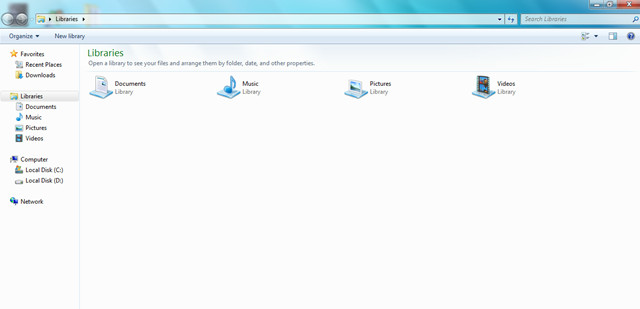
Windows + Left Arrow
Adjusts the current window to the left side and hence the window will cover almost half of the desktop space.
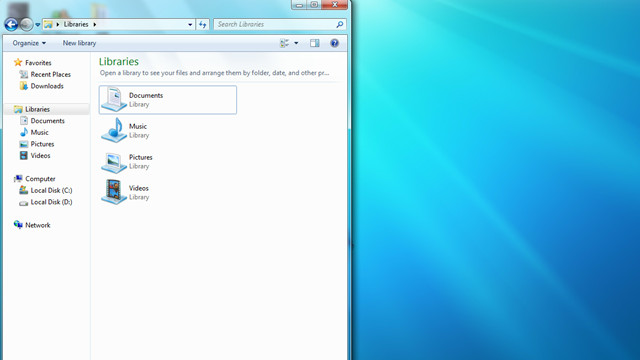
Windows + Right Arrow
It will adjust the current window to the right and thus it will cover half of the desktop space on the right.
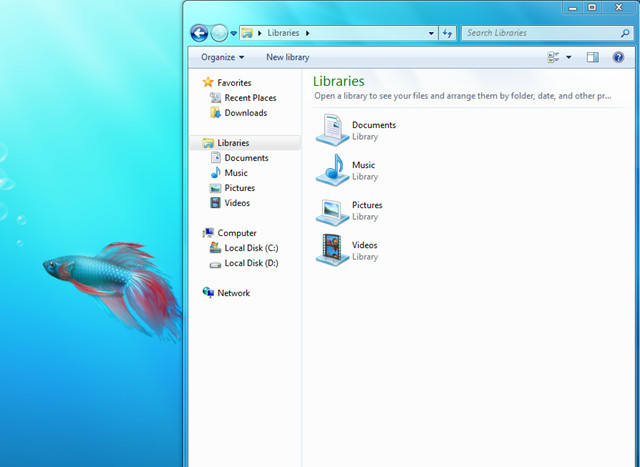
Windows + Down Arrow
Minimizes the windows to the Task bar.
Windows + Space
All windows become transparent so you are able to see your desktop.
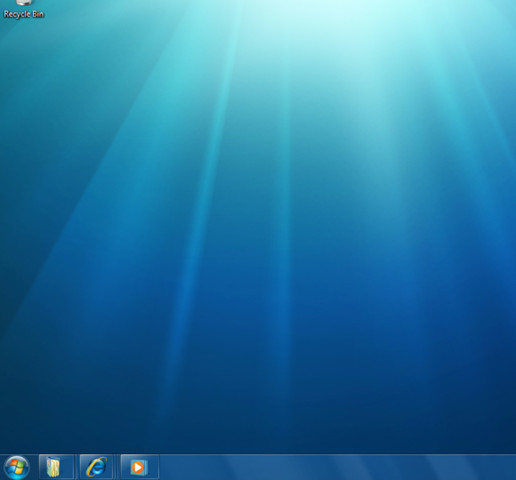
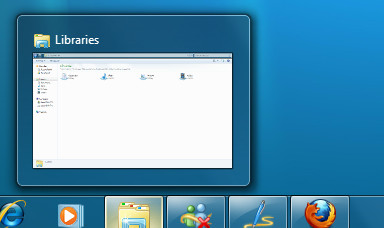
Windows + T
Shows the thumbnail preview of the running applications.
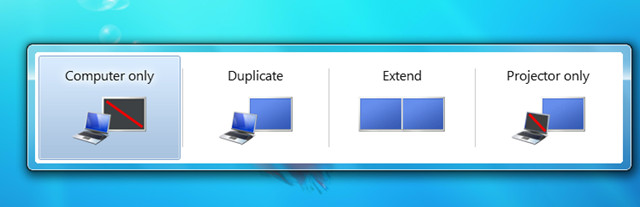
Windows + P
It is used to adjust the presentation options of the display on your computer or projector.
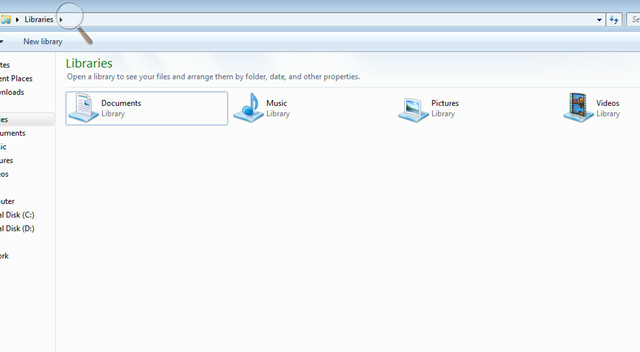
Windows + (+ / -) (Add/Minus)
It launches the Magnifier which can be used to zoom in/zoom out.
Shift + Click a Taskbar item
It opens a new instance of the particular application on which you clicked.
Windows + F
Windows + F is used to start the Windows Search.
Windows + X
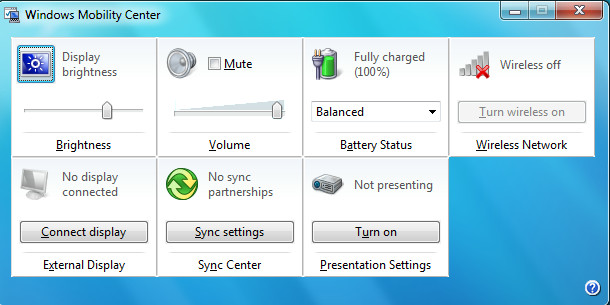
It is used to run the Windows Mobility Center.
Windows + E
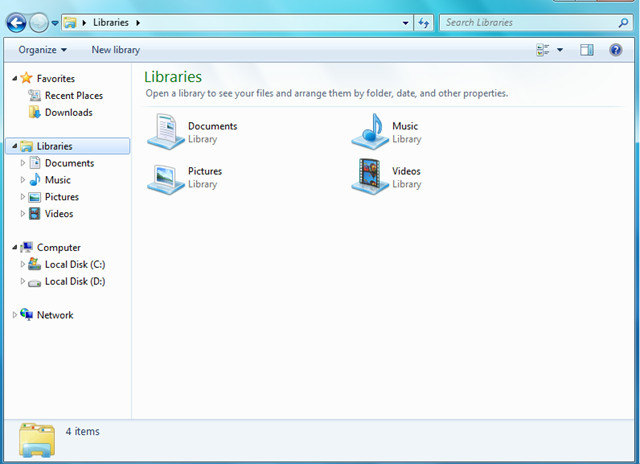
It is used to open the Windows Explorer.
Windows + [number]
It is used to run the pinned applications on the taskbar, Windows + 1 will run the first pinned application on the task bar, similarly Windows + 2 will run the second pinned application and so on.
Windows + Tab
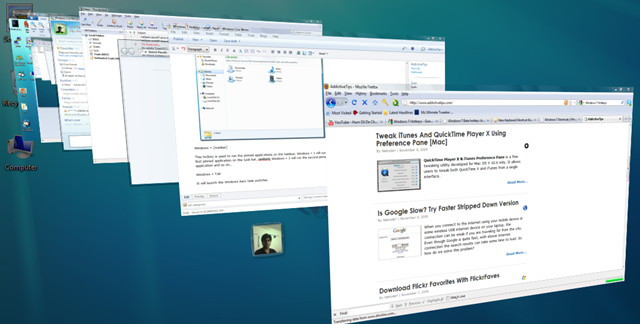
It will launch the Windows Aero task switcher.
Windows + Pause
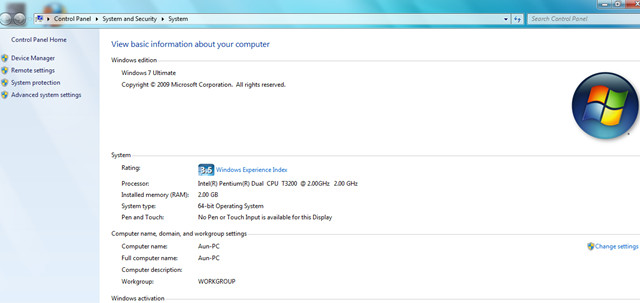
It is used to load the system properties window.
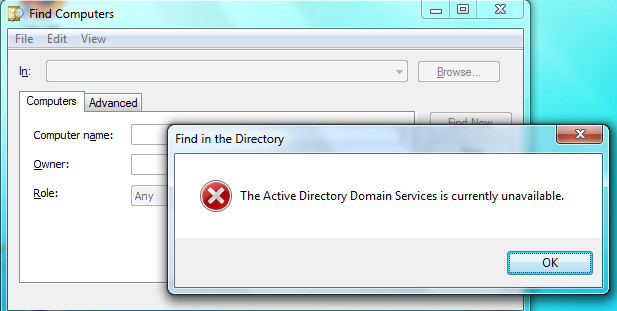
Ctrl + Windows + F
Search for computers if you are on a network.
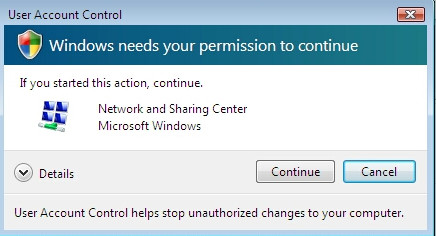
Ctrl + Shift + Click on icon [Task Bar]
It is used to open a new instance of the particular application from the taskbar with administrator privileges.
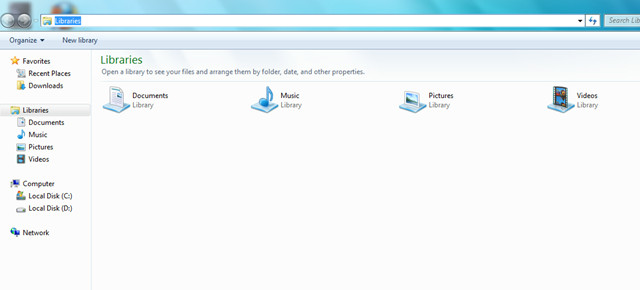
Alt + D
It is used to select the address bar.
Alt + Win + [number]
Opens the jumplist for the applications which are pinned to the task bar.
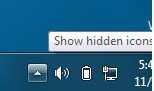
Windows + B
It is used to shift the control to the System Tray icons one by one.
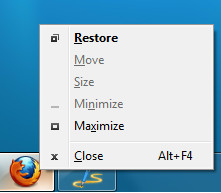
Shift + Right-click on a taskbar button
It is used to display the window menu for the specific taskbar application.
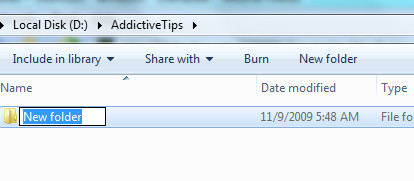
It is used to create a new folder in the windows explorer.
Takes you up a folder level in the Windows Explorer.
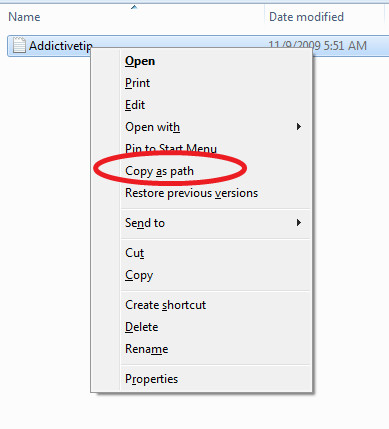
Shift + Right-click on a file
It is used to add the Copy As Path option in the right click-menu of the file. This option copies the path of a file to the clipboard.
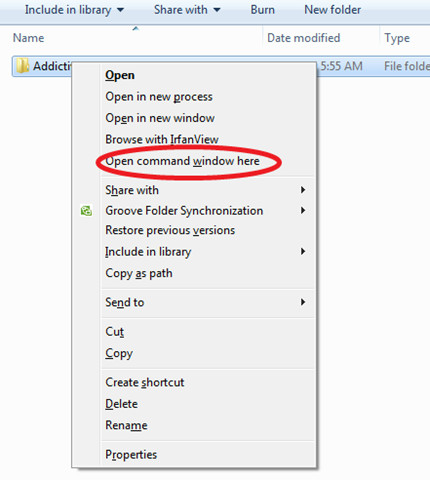
Shift + Right-click on a folder
It is used to add the command prompt option to the Folder, so you can easily open the command prompt in that particular folder.
Shift + Right-click on a grouped taskbar button
It is used to launch the windows menu for the group.
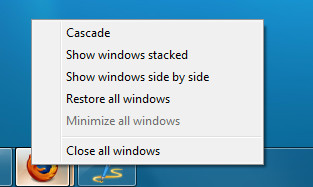
Ctrl + Click on a grouped taskbar button
It is used to cycle between the windows of the group.
Win + G
It is used to cycle between the Gadgets on the screen.
Ctrl + Esc
This hotkey is used to open the Start Menu.
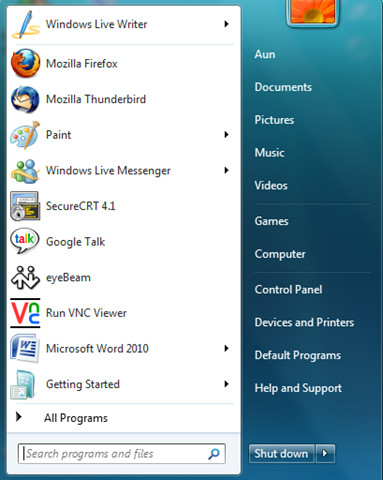
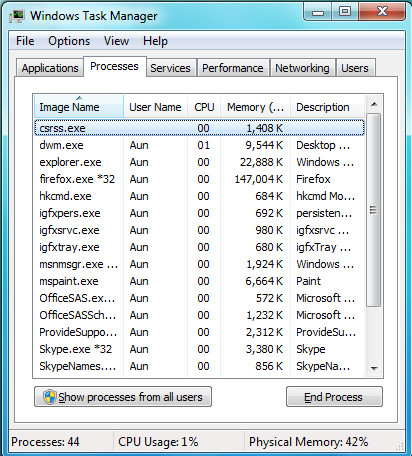
Ctrl + Shift+Esc
It is used to directly open the Windows Task Manager.
Few hotkeys above are valid for Windows Vista as well, but no one in their right sense would give Vista a try today. Master half of these hotkeys and you will be able to save a lot of time and headache. Bonus points for those who know them all. Enjoy!

Wow, Thank you!
Holy crap I love not needing my mouse!
VERY NICE…
Those are great, especially the Ctrl + Shift + Esc thing, the Win + E and the Alt + Up
The rest of the awesome (Win + Tab for example) I knew already 🙂
Windows hotkeys are always awesome.
Thanks!
please I want to know hotkeys tell me the below answer
Which button is windows
thanks bro.!
it’s useful for me.
There is also Windows + D to show the desktop.
ITS VERY USEFUL.
An also VERY USEFUL one is: F2 for renaming files. Maybe a lot already know this, but for those who doesn’t, It’s handy.
An also VERY USEFUL one is: F2 for renaming files. Maybe a lot already know this, but for those who doesn’t, It’s handy.
the hot keys u provided is absolutely useful to me to improve speed of working..ty for this 🙂
Thanks for this, really useful stuff!
nice nice one
really useful post ,,,,,,
very very nice
very nice
Show us how to configure a hot key to run a user program.
penis
Awesome.
thanks for this special keydoad short cut realy it was helpfull…..i appreciated thanks
Awesome! Although is there a hotkey to make something invisible like on a mac? Apple key+h hides the current window (Cannot be found!) in a mac is it possible to do this in windows?
shift+right click on task-bar button i did not understand
nice read! I learned a lot from this.
But, you forgothe most usefule shortcut (IMO) = windows + R.
@oli –
Check out this page:
http://www.sevenforums.com/tutorials/23825-folder-icon-change-windows-7-default-folder-icon.html – it offers a tutorial on how to set Windows Explorer folder Shell Icons, via a change to the Registry. I’m not 100% sure how this can be done on a per-folder basis but I’m sure that if you can add a key like this (ie. running it as a batch script) then it would do the trick for you.
Also, look at these two commands: “popd” and “pushd” – let’s you store the current folder location and retreive it again later from within your batch script.
how to quickly change an icon. for instance a forlder icon. there must be a hot-key or some way of making one.
Thank You
it still does not define what a hotkey is
SUCH A USEFULL INFORMATION I LIKE IT VERY MUCH
thanks, I like it. 🙂
I road tested every single one and the only one that would not stick was aero peek on-screen,but this is so amazing to see some class moves and so simple like before,i never done the Vista thing and have windows 7 pro.
Thank you so much for a 100% working insight to what half these bloody buttons do,thank you so much sheer bliss thanks just book mark it until im used to the ways of the keys simples…..ta.
Those Win + (Right,Left, Up & Down) Arrows is very useful shortcut keys for me..
Thanks for this guide… 30% of those keys i didnt knew, not until now.. 🙂
windows+tab i could not any aero tasks………..
i also tryed with ctrl+window+tab
Hi! you have to enable them. One way easy way to do this is simply changing your theme to one of the basic windows themes.
I tried few on Vista but they didn’t work.
Ok thanks for info
Thanks:-) for info. .
Wow, this was extremely helpful, thank you so much! I did a lot of searching around for hotkeys, and this helps me so much!
clearblue fertility monitor reviews
Thanks, it was much appreciated
Great tips! Thanks I didn’t even know over half of these!
http://mobiscreen.net
thank you very much great article
Thanks for these great info!
So what’s the difference between a hotkey and a keyboard shortcut?
Thanks,it really helped.
thank you,i love you
thanks for the info. I really need this info!!
i love the Ctrl-Win-Tab thing, i think it is legendary. browsing through my open windows could never be easier.
Thanks:)
Really awesome hot keys. thanks. very assential keys…. love window + tab key, easy and flexible to use……..
Thanks for providing this wonderful shortcut keys. It is just awesome and I tried all of them and they are pretty much easy to understand and remember.
i love you! i was looking for a program to sorta mimic the mac osx dashboard, i didn’t know win+g did that! yayz! yay
Ctrl + Windows + F
Search for computers if you are on a network.
Should say:
Ctrl + Windows + F
Search for computers if you are joined to a domain.
Windows + Tab
It will launch the Windows Aero task switcher.
You should mention ”
Ctrl + Windows + Tab will keep all open windows and applications in Task Switcher until you click on one of them, bringing that one to the front.
When doing the aero desktop preview, continue to hold down the alt-key and hit ctrl and use the up and down or left and right keys to move between open windows. Which ever is in front is in focus.
Does anyone know what “WIN + m” does.
Why don’t you try it ??
i already tried
minimize all open windows
The list of Windows shortcuts are really good and useful. There are some features implemented with shortcuts which are not available with Windows Vista.
Thanks you for your post – screenshots can tell more than hundreds of words.
Here’s a full list of Windows 7 hotkeys btw.
Is there a way to disable any of these shortcuts particularly the WIN+SPACE? I never use the eye-candy stuff in windows 7 and I would like to use that shortcut for a particular application. Thanks.
Oh I’d like to disable some of these hotkeys as well. I used to have some of them assigned to specific tasks of mine when I used XP, now I can’t use them anymore… 🙁
that's a good informationis there the other hotkey anyway??
I have Windows explorer, and I like to play games on FB, but the resolution is too big, and I can't figure out how to get it to fit on my screen. HELP!! I know there is a hot key to minimize, but I can't find it anywhere!
try using this
ctrl ( control ) + scrolling on your mouse
just fine tune between that
Awesome! Thanks for the user friendly screenshots!
I like these except I don't have a freakin task manager on Vista!!
Try going to the start button then click it and in the search programs and files box type in task or taskmgr. you should see either taskmgr.exe or view run running processes with task manager, Im not 100% sure with vista it's been quite a while since I used it
This is a great post! I love it because of the pictures that go along with it. Being a computer repair technician, I think that I should probably study most of these and memorize them. 🙂 Thanks!
thanks alot i just a lot i just got started on windows 7 a week ago will bookmark
On the top-right side of your keyboard you will find a button Pause(also called Break). In most keyboards it is given next to Print Screen button. I hope this clears up the confusion.
what is “windows + pause” WHat is Pause?
I just miss shift+f10 to show properties aka right button when mouseless or in kvm crappy keyboards. Life saver some times.
Thanks, very good info
On the top-right side of your keyboard you will find a button Pause(also called Break). In most keyboards it is given next to Print Screen button. I hope this clears up the confusion.
what is “windows + pause” WHat is Pause?
I just miss shift+f10 to show properties aka right button when mouseless or in kvm crappy keyboards. Life saver some times.
Thanks, very good info
what is “windows + pause” WHat is Pause?
On the top-right side of your keyboard you will find a button Pause(also called Break). In most keyboards it is given next to Print Screen button. I hope this clears up the confusion.
thanks dude its realy helpful
pause is a button in the corner of the keyboard, on the right top, it’s pause – break but it is the same as pause.
PODA WASTE
I just miss shift+f10 to show properties aka right button when mouseless or in kvm crappy keyboards. Life saver some times.
alt+enter
Thanks, very good info
Nice guide, I wasn't aware of most of those hot keys!
Thanks 😉