Disable Windows 7 SuperFetch
Yesterday I explained about both Prefetch and Superfetch. Both Windows Vista and Windows 7 contains Superfetch since it is more advanced and uses more complex algorithm.
Windows 7 Superfetch is in fact better than Vista’s, it doesn’t start caching instantly the moment you log in. It would wait a few minutes and then start loading the your system’s memory with the applications you use most often. In order to increase the performance of Windows 7, the priority of superfetch has been slightly reduced.
We do not recommend disabling SuperFetch in Windows 7, but if you are a gamer who needs slightly more memory or just an advanced user who doesn’t need SuperFetch, then you can disable it.
The process is very straightforward, load the Services window by typing services.msc in Start Search. Once open, locate the SuperFetch key.
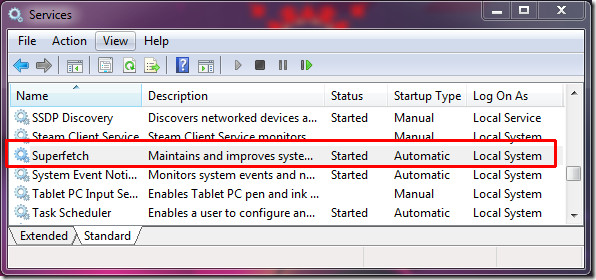
Now double-click the SuperFetch key and it will open the Properties dialog window. Here you can Disable it by changing the dropdown to Disabled. There is another interesting option called Automatic(Delayed Start), this will start superfetching after quite some time during startup. To stop superfetching immediately, hit the Stop button.
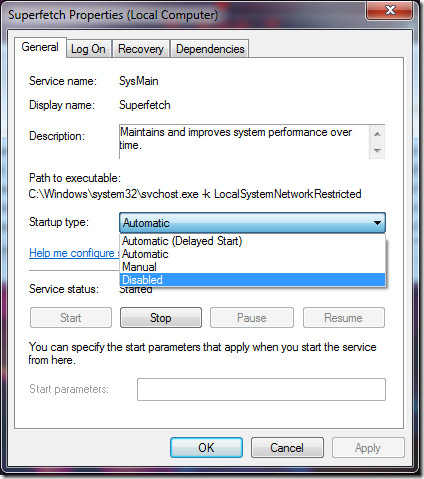
Like I said above, this is not recommended but it might be helpful to someone looking to disable it.

There are some amazing blogs on this site. I have been finding expressvpn coupon code for long time. I have read your all the posts and these are very well written so keep sharing.
I have a HDD, no SSD. Boot time of 10 seconds. However, superfetch eats my CPU like no tomorrow. I caught it wreaking havoc in performance monitor.
Seeing as I have a hybrid SSHD in my laptop…
1/ would disabling superfetch slow down my boot time any… at least after the first 3 or 4 reboots following the change? (as the drive’s control routines adapt to the changing access pattern) … maybe even speed it up if some spurious stuff gets skipped?
2/ might it help speed up the pace of resuming from hibernation in any way, which is amazingly slow since fitting that disc?
3/ would it save a significant amount of memory that could then be given over to, e.g. the web browser, which these days can get pretty borderline for memory exhaustion on a 4GB 32-bit system?
Superfetch is an evil, presumptuous, control-freak bastard. I put a stake through it with every build without question.
Google searches stalled for a few seconds before displaying results with Superfetch enabled, once I had disabled it, google searches were almost instant.
Found this helps if you have Awesome Screenshot installed. Right click on the Awesome Screenshot icon -> Options -> Uncheck “Enable similar product search powered by Superfish”
If you’re a ‘power user’ (some would say ‘control freak’) and most of us are…turn Superfetch off. It’s interesting to study but not to live with.
”
but if you are a gamer who needs slightly more memory”
Disabling superfetch does not increase the amount of memory that is available for games.
thanks for the virus jerkoff
Geeknik more like Sheepnik… This “service” is completely useless. Today’s PCs are plenty fast enough without preloading. All it really does is shorten the life of your hard drive. I wander off to fix myself a coffee and leave the PC at the desktop with nothing running (lol). When I come back, the disk activity light is ON LIKE DONKEY KONG! Why? No reason, really. Its just trying to guess what program I might decide to run, similar to the way Google is so good at trying to autocomplete your search text.
You know, I am not sure why people are so adamant about their view of superfetch in particular and boot/program start times in general. Like we are in some perpetual state of launching and closing of applications every couple of minutes as desktop users. Honestly, if boot times or application launching is taking minutes at a time then something is off and it probably is caused by more than just superfetch. Conversely, some applications will be quicker to respond when they do not have to reclaim memory.
Users that tend to have predictable usage or use applications that are not demanding on system resources will probably benefit from it, users of software that constantly load and unload large files to memory probably will not. Are people really so self absorbed they can not understand how a system setting might be beneficial one way or the other for various individuals?
i was wondering why i had something reading all my disk, i saw it in resource monitor:
svchost.exe LocalServiceNetworkRestricted
and someone said it might be superfetch doing this.
this is a new computer and it “preloaded” over 1gb of data, even a game (i copied in, not installed) which i havnt even run on this computer yet! good on ya microsoft!
On a laptop that has CPU throttling, Superfetch seems to be a problem. It was causing the laptop to go to overclock every 5 minutes – fan revs up, disk activity – really annoying. Is it worth the annoyance? If I open an app for the first time, it’s just a bit slower. Otherwise, opening a new document in the app is immediate. So, why bother with the Superfetch? It seems that so many capabilities that a software company “thinks you will need” and goes ahead and implements for you cause more headaches than not. How about developing this great (annoying) ideas – like auto-capitalization, etc. and LEAVE THEM OFF AS THE DEFAULT! This way, when we as the consumer activate them, it’s our fault that we messed up our system. Superfetch seems to fall into this category – at least for my usage.
The quieter CPU, far less (previously mysterious) disk activity, and what will almost certainly be a significantly lower battery drain (can’t wait to quanitfy that!) is making the Superfetch disable all so sweet.
I do have to give Microsoft a great deal of credit – and we all do – as they have given us the capability of turning these features off.
vista os: it took me a while to figure out the constant hd activity and it was superfetch. It was accessing my 23g of game data.Disabled it and computer boots just a little bit slower and programs are a litlle bit slower. I believe superfetch is not designed for very large games.I should have disabled it a time ago.
I have a 2-drive system with a superfast SSD as boot-disc, an ordinary rotating disk for the data and as a “3rd” disk connected all to my NAS.
Disabling Superfetch is best if you have a good SSD in your PC. Just a problem that my TuneUp turns Superfetch on automatically every 3 days, must find out how to stop that.
Superfetch is useless on systems if you have one of the better and faster SSDs
Hey, you don’t really lose anything from having super fetch on as all the data that is loaded on the memory will be replaced with the data that will be in use instead, just as fast as if super fetch was off.
Hi,
Superfetch caused serious stuttering in BF2 and FH2 games on windows 7 64bit. Now that the service is stopped, the games run silky smooth. Even the OS itself feels more responsive. My computer is a laptop with a core i7 720QM cpu and 8 gigs or RAM.
superfetch has been eating up a lot of my ram space… i really don’t know why … so i disabled it from the services and what do you know … it’s what’s causing my sort of a lil slow win 7 experience .. now everything is great!
So how was superfetch actually causing lag in your games? It only does its work (loading stuff into ram) while the computer is idle, and of course if something needs more memory the cache would get dumped as you go.
I disabled SuperFetch, but I don’t see any diference. The Windows startup time and the performance are the same.
Thanks for the info, I’m going to try disabling Superfetch to see if it makes much of a difference in terms of performance. I just find it kind of frustrating hearing my hard drive swap back and forth while it is idle.
you could always make a shortcut to thiscreate a new shortcut call it net stop superfetchon the next step you should end up with net.exepress space at the end off that then put net stop superfetchif it doesent work open up the shortcut and make shure the target say'sC:WindowsSystem32net.exe start superfetchyou could always make another one called net start and replace the stop with startyou will have to run these by right clicking on the shortcut and run as administrator
Sorry to I have to disagree. My new HP Desktop took over seven minutes to load. After I added more RAM, bringing it to eight gigs it took so long to load I thought the Ram was faulty, at last it loaded. I began some research that pointed out that Superfetch was the likely culprit. I disabled it and bam, my computer booted in less than two minutes. This also cured the horrible lag that Superfetch caused in my 3 Games.
Sorry to I have to disagree. My new HP Desktop took over seven minutes to load. After I added more RAM, bringing it to eight gigs it took so long to load I thought the Ram was faulty, at last it loaded. I began some research that pointed out that Superfetch was the likely culprit. I disabled it and bam, my computer booted in less than two minutes. This also cured the horrible lag that Superfetch caused in my 3 Games.
Disabling superfetch is a sure way to 1) slow down the Windows 7 startup time and 2) slow down the overall Windows 7 experience.
I have 8GB of DDR2 installed w/ Windows 7 Pro x64 and I leave memory management and such to Windows 7. It does a fine job on it’s own. 🙂
Sorry to I have to disagree. My new HP Desktop took over seven minutes to load. After I added more RAM, bringing it to eight gigs it took so long to load I thought the Ram was faulty, at last it loaded. I began some research that pointed out that Superfetch was the likely culprit. I disabled it and bam, my computer booted in less than two minutes. This also cured the horrible lag that Superfetch caused in my 3 Games.
So how was superfetch actually causing lag in your games? It only does its work (loading stuff into ram) while the computer is idle, and of course if something needs more memory the cache would get dumped as you go.
Very simple the most 3D games load up expecting the reported RAM to be available at a moments notice. Windows reports it as free and ready. Most the time the game will load and take for example 1 gig, but as you play the game and go to more and more places and add more things, build, buy etc. The game require more RAM. However in the meantime Superfetch decides that since the game loaded up with only the one gig, it then proceeds to load up the “extra as it sees it” with other things that you have used recently and might use again. When the game then reaches for more RAM it is not there. There is considerably lag while you wait for Superfetch to free up the RAM it commandeered. Even if it attempts to cache parts of the game itself, it really has no way of effectively knowing what will be used again. It might cache something that if fact you only needed to access once. It is very clear that Superfetch was designed with applications such as Office in mind. Applications that are pretty static in what they do, not dynamic apps such as 3D games that are accessing and demanding resources on an ongoing basis. Superfetch looks for junk to put into RAM. When I had it on, my computer would take literly 7 minutes to load, when I disabled it the computer booted in less than one minute. I will add that this was with Vista. I have not checked the setting since installing Win 7 so I do not know if Superfetch had been fixed or gotten rid of altogether.
This is the blind leading the blind.
Apps and games treat cached memory as free memory. Cached memory gets overwritten when ANYTHING needs to use the memory. Cached memory is simple a tool the OS uses to try to speed up programs, and it works very well.
Leaving memory empty and “free” as Win 7 describes it is a complete waste of resources.
Also, if your system takes minutes to load there is something very wrong with it. A ram upgrade won’t have a significant effect on startup unless your computer is sorely short of memory, Ie. less than 2gb for vista/win7.
Cheers,
Trashing the harddrive every time you close a big app… to load in a bunch of “guesses”, that get thrown out and over written by the next big app you load, is a waste of resources and puts 2 times the wear and tear on your harddrive.
Think about it. You have a house. You move in some furniture. You don’t like the furniture, so you take it out. While you are deciding what next to put in, a little magic fairy guesses what furniture you might like, buys it on your credit card, and pays movers to move it in.
You’re still at the store, you finally decide what furniture you want… you buy it, pay movers to deliver it, and find your house full of crap furniture you didn’t want that the fairy guessed you wanted. Maybe he got it right, but more than likely he got it wrong. You have to throw out this furniture, which takes a little time, and then move in your furniture.
It would of been cheaper and faster if the magic fairy had done nothing and left your house empty until you decided what next you wanted to do.
This happens over and over, every time you close one app, and open another.
If you are grandma and have lots of ram you’re not using, because all you do is run wordpad and one IE window, superfetch works great. Wooo, look, paint just opened right up. But if you are a power user who pushes their ram to the limit all the time and has fifty million windows open… or a laptop user on batteries… superfetch sucks ass and should be disabled.
Power users, do the right thing, shoot the fairy and take back your credit card.
Trashing the harddrive every time you close a big app… to load in a bunch of “guesses”, that get thrown out and over written by the next big app you load, is a waste of resources and puts 2 times the wear and tear on your harddrive.
Think about it. You have a house. You move in some furniture. You don’t like the furniture, so you take it out. While you are deciding what next to put in, a little magic fairy guesses what furniture you might like, buys it on your credit card, and pays movers to move it in.
You’re still at the store, you finally decide what furniture you want… you buy it, pay movers to deliver it, and find your house full of crap furniture you didn’t want that the fairy guessed you wanted. Maybe he got it right, but more than likely he got it wrong. You have to throw out this furniture, which takes a little time, and then move in your furniture.
It would of been cheaper and faster if the magic fairy had done nothing and left your house empty until you decided what next you wanted to do.
This happens over and over, every time you close one app, and open another.
If you are grandma and have lots of ram you’re not using, because all you do is run wordpad and one IE window, superfetch works great. Wooo, look, paint just opened right up. But if you are a power user who pushes their ram to the limit all the time and has fifty million windows open… or a laptop user on batteries… superfetch sucks ass and should be disabled.
Power users, do the right thing, shoot the fairy and take back your credit card.
I know it’s been 8 months since you wrote that comment, but it was awesome and I wanted to thank you for giving me a laugh!
7 minutes? Get an SSD dude.
Yea I tried this, it is what everyone need for a bootup of less than 30 seconds
Wow you’re clueless….Ram can be set free INSTANTLY – it doesn’t matter if you’re gaming or not.
Also, it gives priority to apps that are running over apps that are being cached. Something smells mighty fishy here or you’re just an idiot who can’t use a pc.
Memory is not released from cache as fast as from the free store. It’s prioritized. It has to figure out if it wants to keep a program in memory or the files that you just copied. The closer you get to needing all of the memory the more reluctant it is to give the memory up, thereby causing an exception to be thrown in low memory conditions. In a program I wrote to release the cache memory, the top memory is released fairly fast, but the last 100 MB is hard fought and can take over a minute before the system will finally give it up. So, no, cache memory is not the same as free memory. That’s what we’re trying to tell you. There is a performance hit for applications that need a lot of memory.
Why don’t you try being helpful instead of being a name calling DICK!
superfetch eats cpu
Sick burn God. Any other excellent advice?
Let alone it’s much faster to have RAM transfered from a used state to another used state (such as your game) then it is to use the “free” ram. Much quicker for it to just change processes then actually use the “free” RAM. From what I understnad, which honestly isn’t much at all. Windows always tried to keep things cached, even once the program is closed. Because it’s quicker to give that ram away in that state to another process than unused/free RAM.
I am sorry but it it is taking your system 8 mins with a SSD to load you have a big problem, and should look into fixing it. And even it going down to 3 mins to boot is to long. Even with my old non SSD hardrive my computer would boot way faster than your 3 mins 1 – 1 1/2 at the most if that. And now with a SSD i get what 22-32 sec boot to windows 7 before I can start using it and everything is loaded..
I think you should clean out the junk in your HP Desktop and clean out all the junk that comes with it…
Get an SSD and stop complaining about your slow hard drive!
Use Linux :). I have a 9 to 12 second boot time on a standard 2.5 inch 5,400 RPM mechanical drive, and my drive doesn’t continue thrashing after everything starts.
You can install lots of small services and background tools to make Linux just as slow as Windows (implied: you can also disable/remove the crap in Windows to make it as quick as Linux).
You can install lots of small services and background tools to make Linux just as slow as Windows (implied: you can also disable/remove the crap in Windows to make it as quick as Linux).
um Im running an AMD A8 processor with 6 gig and I bootup in less than 60 seconds easy. And I have Superfetch on.
Check if your RAMs are ‘similar’. By this I mean to check various ratings of your RAMs like Frequency, CAS# Latency, RAS# Precharge, etc. You can use CPU-Z to help you that.
BTW, superfetch doesn’t work in the way you said. It does superfetching only when the system is idle. And your system can’t be idle when you are playing a game!
Not if you has a SSD. I have 8GD DDR3, 2.0GHZ 4Core Proccessor, 256GD Samsung SSD, Win 7 Pro x64 whit superfetch disabled. Boot time is about 10 seconds and no matter which application (programs) I try to run, it starts inmediately.